How to Sync Two External Hard Drives in Windows 10 [Two Nice Tips]
If you're struggling to sync two external hard drives in Windows 10, don't give up! This post provides two essential tools to help you sync your external hard drives, whether it's for backup purposes or any other storage need. The tools offer different sync settings, with one allowing for a one-way operation and the other providing multiple sync settings.
How to sync two external hard drives in Windows 11/10
We present two tools for synchronizing two external hard drives: a command line tool and a free graphical user interface. They allow users to synchronize data between the two drives, ensuring that both drives have the same data and reducing the risk of data loss. The command line tool provides flexibility and customization options, while the graphical user interface offers a user-friendly and intuitive experience.
software.
To sync two external hard drives in Windows 10, you can use tools like Robocopy or SyncToy. Robocopy is a built-in Windows utility that can copy files from one drive to another, while SyncToy is a free tool from Microsoft that can synchronize files between two drives.
1. Synchronize two external hard drives with XCOPY command line
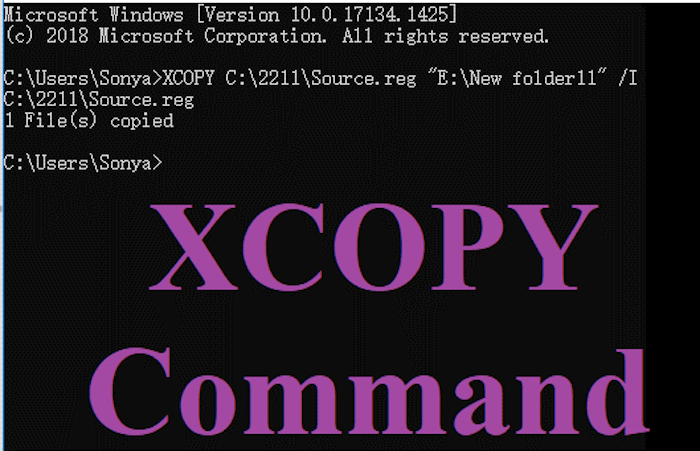
The XCOPY is a built-A command line tool available in Windows 10 allows for efficient data sync from one external hard drive to another, albeit in one-way sync mode. This tool is more versatile than the standard copy command, enabling not only data sync but also the ability to copy individual files or folders from one location to another.
To sync two hard drives, you need to open the command prompt window and run a command with specific parameters. The parameters required for syncing two hard drives include:
- It specifies the files and data you wish to copy, and consists of either a drive or a path.
- The destination in a copy operation is the location where all the source information will be copied to. It can be specified as a drive letter, file name, or a combination of these, preceded by a colon. This is where the copied data will reside after the operation is complete.
- This parameter allows you to copy directories and their subdirectories from one hard drive to another, and also enables the copying of empty directories.
- This parameter only copies unique data files from source to destination, which means it only copies files that have been altered or newly added, ensuring the copy data is unique and not present in the destination files beforehand.
- This parameter enables smooth copying, allowing the process to continue even if errors occur, such as with read-only or protected files, making the process quicker and more efficient.
- If a message appears asking to overwrite an existing file, this parameter takes control and dismisses the message, allowing the copy process to continue uninterrupted.
The list of required parameters is completed. Let's get started.
Suppose you have a parent external hard drive named H and want to sync it with me, the destination hard drive. The command for the desired query would look as follows:
- Notice:
- Xcopy h: i: /e /d /c /y
The sync process can take its due time, with the duration directly proportional to the size of the information in the source file. To avoid any interruptions, it's essential to let the process complete, allowing the entire data to be synced from the parent hard drive to the destination hard drive.
Once you've done it once, you never need to restart the entire operation again to transfer any data to the destination hard drive. The next time you sync these two hard drives, only the newly added or edited files will be transferred from one drive to another.
Consolidating data into one platform reduces the need for multiple folders, streamlining the data transfer process and saving time.
2. Sync two external hard drives using FreeFileSync
FileSync is a highly-regarded open-source software for synchronizing files and folders. As a free tool, you don't need to purchase a premium subscription or paid account to use it.
The software offers various syncing options, including standard syncing, two-way syncing, and creating a mirror backup of parent data to the destination, as well as copying newly added or updated files.
To utilize this software, download and install it on a PC, then follow the procedure.
- 1. Go to the interface of the tool
- 2. Select the "Browse" option, which is located in the top-middle of the interface, and a select folder box will appear.
- 3. Select the "source external hard drive" in this box. No need to select any folder.
- 4. Now, click the "Browse" button at the top-middle of the interface, and a "Select Folder" box will appear.
- 5. Select the "external hard drive" in that box
- 6. To sync settings, click on the "sync settings" button, which is a green icon located at the top of the interface.
- 7. From the synchronization settings window, go to the synchronization tab.
- 8. Users can select a synchronization type from standard options such as Two-way, Update, and Mirror, or create a custom variant for more advanced use cases.
- 9. After choosing the correct variant, select the "OK" button in the sync settings window to return to the main interface.
- 10. To synchronize the data of the files, click the "Synchronize" option at the top of the interface, and the tool will start comparing the data of the files.
- 11. When the procedure is complete, a start sync option box will appear on the screen.
- 12. In that box, opt for the start button.
A syncing operation would be initiated, and the process would proceed as per the specified variant. Once finished, both hard drives would be synchronized.
Conclusion
Syncing two external drives can be done in two straightforward ways. The methods are quick and efficient, and we have explained the entire procedure and steps required to utilize these tools.
These tools provide a secure gateway for users to share their personal and professional information, ensuring data protection and security.
Sync two external hard drives FAQs
If you still have questions about this topic, you can read the questions and answers below for more information.
1. Can you use two external hard drives on a PC?
You can connect two external drives to your laptop or computer if it has enough ports. If not, you can use a USB hub or a docking station to expand the number of ports available. This allows you to connect multiple external drives, as well as other devices, to your computer.
If the motherboard has available slots, multiple hard drives can be connected.
2. How do I mirror two hard drives?
Mirroring two hard drives involves syncing both drives with the same data, so any changes to either drive will be reflected in the other. This process can be initiated using free mirroring tools available online.
3. How to sync files between two external hard drives using XCOPY?
To sync your data, simply visit the command prompt window, run the desired command for syncing, and ensure the command includes the right characters. You can consult the above article for the required parameters to generate the correct command.
Related Articles
- How to Recover Deleted Emails from Hotmail
- Adobe Illustrator AutoSave, Backup and Protect Illustrator from Crash Error
- How to Fix "Unable to Connect to Virtual Disk Service" Windows 10/11
- How to Format Unallocated Disk [Step-by-Step Guide]
- How to Fix 7 Days to Die Corrupted Save on PC (2024 New Guide)
Fix a corrupted 7 Days to Die save on PC. Learn how to locate save files, restore backups, and reduce the risk of losing progress. - 7 Days to Die File Disappeared? Find Causes & Solutions Here
Have you recently lost files on your 7 Days to Die game? In this article, we'll show you how to solve the 7 Days to Die save file disappeared issue. Read on to know the 5 fixes you can apply and have your game resume normally.
Products
Articles & Tutorials
- Data Recovery
- Data Backup
- File Recovery
- File Backup
- System Backup and Restore
- Disk and Partition Clone
- Technical articles
- Mobile articles
- Disk Master Help
- Windows Data Recovery Tutorials
- Windows Secure Delete Tutorials
- Windows Partition Management Tutorials
- Windows File Backup and Restore Tutorials
- Windows System Backup and Restore Tutorials
- Windows Disk Backup and Restore Tutorials
- Windows Clone Tutorials