7 Days to Die File Disappeared? Find Causes & Solutions Here
7 Days to Die is a survival horror game where your progress is saved as game files, allowing you to resume from where you left off. However, in some cases, these files may disappear, causing issues with continuing the game.
7 Days to Die file disappeared, and you're left with a blank slate. You've progressed far in the game, but now you're back to square one. The frustration is real, especially if you've invested time and effort into your game. The good news is that there are ways to recover your lost game saves, and we'll explore them in this article. We'll delve into the possible causes of this issue and provide you with practical solutions to get your game back on track. So, let's get started and find a way to restore your lost game saves.
Possible Causes for 7 Days to Die Save Files Disappeared
7 Days to Die game saves may disappear due to various reasons such as corruption, bugs, or incorrect game configuration, leading to loss of progress and data.
- BSOD (blue screen of death) error- The Blue Screen of Death (BSoD) error typically occurs when the operating system encounters problems with hardware or outdated drivers. This can cause the system to crash, often during critical moments like gaming, resulting in potential data loss and disruption of ongoing activities.
- Corrupted files- In specific scenarios, updating your system may lead to the frequent crashing of your 7 Days to Die game, causing game files to become unreadable due to corrupted data, making it difficult to continue playing from where you left off.
- Failed update- You may want to update Steam, but a failed or incomplete update can lead to bugs that cause your 7 Days to Die game files to disappear.
- Steam failed to recognize your game- If you successfully launch and play a game on Steam, but it fails to recognize the game, there's a high chance that your game saves won't be saved, resulting in no game data history.
The four reasons mentioned above are the main causes of the 7 Days to Die save file disappearing issue. These reasons include incorrect save file location, corrupted save files, game crashes, and incorrect game settings. In the next section, we'll discuss the possible solutions to these problems.
Fixes to Find 7 Days to Die Save Files Backup (5 Methods)
If you've lost your game save files, the steps below can help. Losing game saves can be frustrating, but with the right approach, you can recover them and get back to playing 7 Days to Die. By following the steps outlined in this section, you'll be able to retrieve your lost files and continue your gaming experience without any interruptions.
Here, we'll outline five methods to help recover 7 Days to Die to save files that have disappeared. Read on to understand how to apply each method.
- Method 1. Add A Game Folder Manually
- Method 2. Visit the Recycle Bin to Restore Your Game Saves
- Method 3. Check the Integrity of Your Game Files
- Method 4. Resync Your Game Data via Steam Cloud
- Method 5. Use A Steam Backup
Method 1. Add A Game Folder Manually
If Steam fails to recognize your game files, the best solution is to add them manually to the system. To do this, follow these steps:
Step 1. Open Steam.
Step 2. Go to "Steam">" Settings''>" Download">" Steam Library Folder."
Step 3. Click on "Add Library Folder."
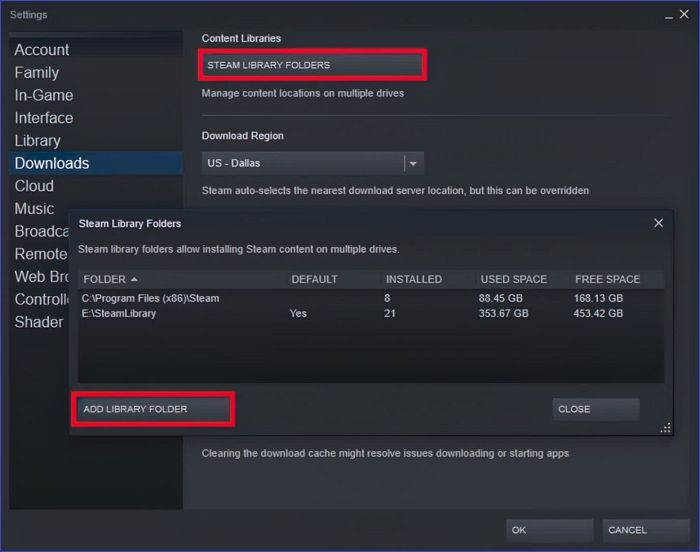
Step 4. 1. Navigate to the folder location for your 7 Days to Die game. 2.
Method 2. Visit the Recycle Bin to Restore Your Game Saves
If you accidentally deleted your game save files, you can try to recover them from the Recycle Bin.
Step 1. To access the files in the Recycle Bin, open the Recycle Bin folder and navigate through the available files.
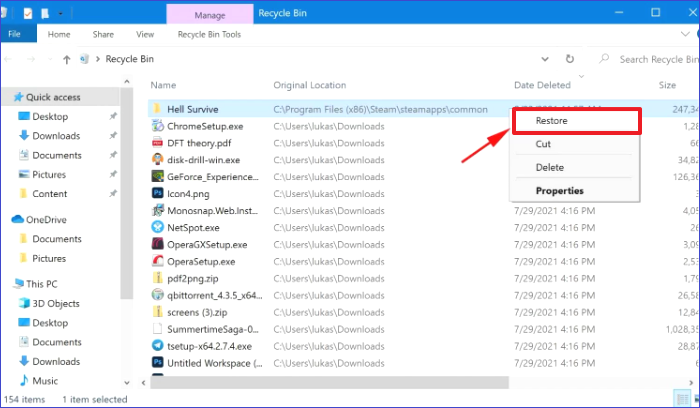
Step 2. To restore a 7 Days to Die game save, right-click on the save data file, select "Restore", and the system will restore the files to their original location, allowing you to continue playing the game.
Method 3. Check the Integrity of Your Game Files
If your games on Steam have grayed-out names, you can verify their integrity via the platform. To do this, follow these steps: you can check for the integrity of your game files via Steam by applying the following steps.
Step 1. Open Steam and navigate to "Library."
Step 2. To update the game, right-click on the 7 Days to Die game in your Steam library, then select "Properties" from the context menu. This will open the game's properties window, where you can access various settings and options, including updates.

Step 3. Click on the "Local Files" tab.
Step 4. Select "Verify integrity of game files" and the process will check if your game files are missing.
Method 4. Resync Your Game Data via Steam Cloud
If you use Steam Cloud to store your game data, you can retrieve your 7 Days to Die saves even after a BSoD error or power outage. To do this, you can resync your game data by following a series of steps.
Step 1. Log in to your Steam cloud account.
Step 2. To find the storage path for your game files, select the game you want to access and click "Show Files" in the system. This will display the storage path for your game files.
Step 3. Once you've found the storage path to your files on the cloud, exit Steam and delete the save folder to prevent automatic uploading of previous game saves.
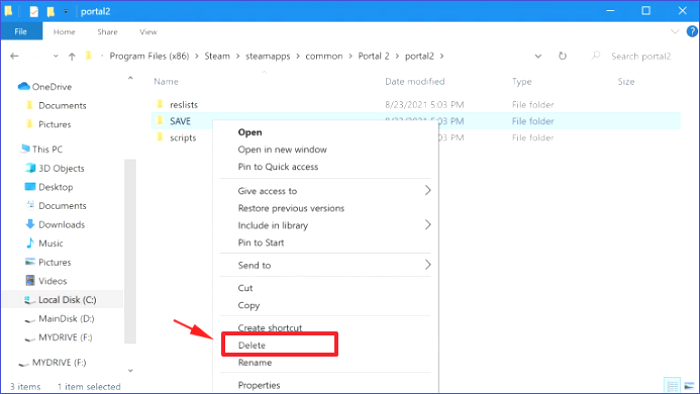
Step 4. To resolve the issue of missing game save files on Steam, relaunch the Steam client to resynchronize your cloud data. This should restore your game save files to their correct location within the Steam app.
Step 5. To resolve the issue, start your game. If the resync process is successful, the game should start without issues.
Method 5. Use A Steam Backup
If you've previously made a backup of your game files using the Steam backup feature, you can recover them when the current data is lost. To do this, follow these steps: (Note: You must have made a backup of your files beforehand.)
Step 1. Launch Steam and go to "Backup and Restore Games."

Step 2. Choose "Restore a previous backup" and click "Next."
Step 3. To recover a game, click "Browse" and select the game files you want to recover, then click "Next".
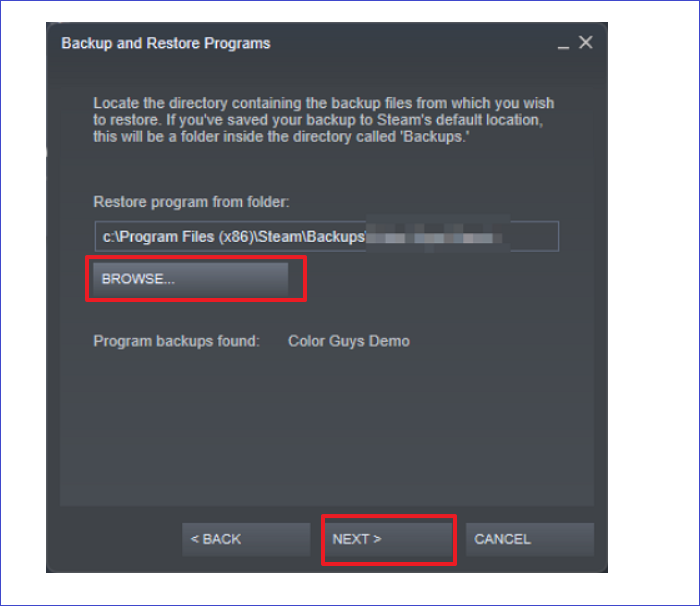
Step 4. Once you find the backup files, reinstall the game and you should be able to resume playing normally.
To ensure the safety of your 7 Days to Die game saves, you can back them up using the built-in cloud save feature, or manually save them to a local drive or external hard drive. For added security, you can also use a third-party backup service or create a script to automate the backup process.
You Should Back Up 7 Days to Die Game Saves to Avoid Data Loss
Game data is crucial as it tracks your progress and achievements, allowing you to pick up where you left off without having to restart from the beginning. To safeguard against data loss due to issues like power outages or system crashes, it's recommended to back up your game files using software like Qiling Disk Master Pro.
This tool ensures the safety of your 7 Days to Die game saves by applying a security zone backup technique. It allows you to conveniently keep backups of your game data and retrieve it when the current files disappear, backing up to an external hard drive, cloud, internal hard drive, network-shared location, or other storage options.
Below are the main features of Qiling Disk Master.
- File backup and recovery- The backup software enables you to save your game files to separate partitions on your local storage or external disks.
- Multi-path backup- This tool offers a convenient way to save your files on various storage media, including USB drives, network-shared locations, and cloud storage locations, providing a seamless experience.
- System backup and recovery- Qiling Disk Master enables you to efficiently back up and restore program files, boot partition, and system settings.
- Hard drive cloning- This tool enables you to create exact copies of your hard drive or disk partitions, making it ideal for computer upgrades or disk duplication.
- Intelligent backup- Qiling Disk Master is highly efficient because it only saves copies of the used sectors of files, reducing backup duration and size.
To start backing up your game files for 7 Days to Die using Qiling Disk Master, download and install a trial version of the software on your computer. The software is easy to get started with and won't take much of your time. Simply follow the simple steps to start using this tool for backup purposes.
Step 1. To initiate the backup process, click the "Select backup contents" button.

Step 2. The four data backup categories are: File, Disk, OS, and Mail.

Step 3. The left-hand side of the screen displays lists of both local and network files, allowing you to expand the directory to select the files you want to back up.

Step 4. To store the backup, select the desired location from the available options, such as an external hard drive, cloud storage, or a specific folder on your computer. Choose the place that suits your needs and preferences for storing the backup.

To ensure a secure backup, encrypt the backup and set the backup schedule by clicking on "Options" in "Backup Options". You can also specify a start time for the backup in "Backup Scheme" by clicking on "Options". Additionally, there are other customizable options available for further personalization.

Step 5. You can save the backup file to your computer, Qiling's cloud service, or a network-attached storage device (NAS).

Step 6. Qiling Disk Master allows customers to store backup copies of their files on a third-party cloud drive or the company's own cloud storage.
To back up your data on a third-party cloud drive, select Local Drive and scroll down to add Cloud Device, then fill in your account information.
Step 7. To start a backup, click on Proceed and the backup process will begin. Once completed, the backup job will be displayed as a card on the left-hand side of the screen, and a right-click will allow for further details on handling the backup job.
Wrapping Up
The 7 Days to Die save file disappeared issue can arise due to various factors, including corrupted files, a BSoD error, a failed update, steam failing to recognize your game, or a power outage, and can be avoided by taking precautions.
The problem with 7 Days to Die may be resolved by manually adding a game folder, restoring saves from the recycle bin, checking the integrity of game files, resyncing game data via Steam cloud, or using a Steam backup, and also backing up game saves using Qiling Disk Master.
This tool is secure and allows for easy file backup and recovery, making it a reliable option. To get the most out of it, consider downloading a trial version of the software first.
FAQ on 7-Day-to-Die Save Files Disappeared
The 7 Days to Die game has several frequently asked questions, including what the game is about, how to play, and what are the key features of the game. The game is a survival horror game where players must gather resources, craft items, and fend off zombies in a post-apocalyptic world.
1. How Do I Restore a Save in 7 Days to Die?
If you've made a backup of your game, you can restore your saved files by replacing the original folder with the backup. If you accidentally deleted your game saves, you can restore them from the Recycle Bin by tracing the file, right-clicking, and selecting "Restore."
2. Where Are Saves Located 7 Days to Die?
The saves are found in this location: C:\Users\\AppData\Roaming\7DaysToDie\Saves\
3. Does 7 Days to Die Have Backup Saves?
The 7 Days to Die game allows you to save your progress and has a feature to backup your saves. You can find these backup saves in the Saved folder on your computer, and then copy them to any other location for safekeeping.
Related Articles
- Should You Compress Backups or Not [Pros & Cons]
- {Solved}How to Fix No Audio in Windows 11?
- Top 8 Ways to Fix Kernel Mode Heap Corruption BSOD Error
- How to Fix a Media Driver Your Computer Needs Is Missing in Windows
Having trouble to 'fix a media driver your computer needs is missing in windows' error? Not anymore, as to solve it, you'll get multiple ways ahead. - How to Transfer Stardew Valley Saves Between Different Devices
Stardew Valley is a farm simulation game available on multiple platforms. To prevent players from losing their game progress when switching devices, we provide methods to transfer Stardew Valley saves between PC, iOS, Android, Switch, and PS Vita. - 2 Available Ways | How to Update BIOS Without USB
If you're wondering how to update your BIOS without using a USB, this guide can help. It guide you through the process in two different ways, making it easy to update your BIOS on your own.
Products
Articles & Tutorials
- Data Recovery
- Data Backup
- File Recovery
- File Backup
- System Backup and Restore
- Disk and Partition Clone
- Technical articles
- Mobile articles
- Disk Master Help
- Windows Data Recovery Tutorials
- Windows Secure Delete Tutorials
- Windows Partition Management Tutorials
- Windows File Backup and Restore Tutorials
- Windows System Backup and Restore Tutorials
- Windows Disk Backup and Restore Tutorials
- Windows Clone Tutorials