2 Available Ways | How to Update BIOS Without USB
PAGE CONTENT:
When it comes to BIOS updates, most people think of using a USB to update their system. However, there are alternative methods to update BIOS without relying on a USB. This article provides two ways to achieve this, offering users flexibility and convenience in maintaining their system's BIOS.
What Does BIOS Mean
The BIOS chip, installed on the motherboard, contains firmware that performs basic functions, including booting and controlling the computer, as well as identifying and configuring system hardware.
The BIOS is stored on an EPROM chip, which allows data to persist even without a power supply connected.
The BIOS (Basic Input/Output System) plays a crucial role in recognizing and connecting various hardware components, including the processor, graphics card, RAM, storage units, and any additional PCIe cards. Without the BIOS, a motherboard would essentially be a bare circuit board, lacking the necessary instructions to identify and configure the connected hardware, effectively rendering it a non-functional computer.
The computer's BIOS contains information about possible hardware failures that may occur when starting the PC, including a warning sound that is emitted by the speaker in the event of a component failure.
If your PC is stuck on the BIOS screen, try the following steps to resolve the issue. First, check if the power supply is stable and the power cord is securely connected to both the PC and the wall outlet.
PC Stuck on BIOS Screen: 7 Methods to Fix
This article provides 7 ways to help you resolve the issue of your computer getting stuck on the BIOS screen, offering a solution to this common problem.
Why Do We Need to Upgrade BIOS
BIOS updates are necessary to fix bugs, improve performance, and add new features to the system. They can also be used to support newer hardware components or to resolve compatibility issues with operating systems.
The BIOS plays a crucial role in a computer's performance, and correct configuration can optimize system settings, enhance security, and boost responsiveness. By optimizing system settings, the BIOS can improve a computer's overall performance, speed up startup times, and enhance the functionality of the Boost system, making it run more efficiently and effectively.
Optimizing your computer's BIOS settings is crucial in protecting it from viruses and other malware. Properly configuring the BIOS can make your computer stable and prevent it from freezing or crashing, ensuring overall system reliability and performance.
BIOS is undoubtedly crucial to keep your computer secure and running optimally. Updating your BIOS can avoid common problems like data loss and system crashes. Also, it's a helpful practice to update your BIOS so you can take benefit of new security features and bug fixes your motherboard manufacturer might have released. So let's learn how to update the BIOS.
When updating BIOS, it's common to worry about data loss, but it's generally safe. The BIOS update process typically doesn't delete data on your computer, and most manufacturers take precautions to prevent data loss during the update. If you're still concerned, it's always a good idea to back up your important files and data before proceeding with the update. This way, you can rest assured that your data is safe, even if something unexpected happens during the update process.
Don't Pass: Is It Safe to Update BIOS?
Updating your BIOS can be a safe process if done correctly, but it's essential to take precautions to protect your data in case something goes wrong. Before making any changes, it's crucial to back up your important files and documents to an external drive or cloud storage to ensure they're safe in case of a system failure. Additionally, creating a system restore point and disabling any unnecessary drivers or services can help minimize potential risks.
What to Do Before Updating BIOS
Updating BIOS is more secure than installing a new one because an incomplete installation can damage your motherboard. It's always a good idea to create a system image to restore your computer to its normal state in case something goes wrong, so back up your PC before proceeding.
The Qiling Disk Master Pro is a valuable tool that allows you to create a secure backup, protecting your data from potential loss due to errors, mistakes, or disasters. Before making any updates or changes to your PC or laptop, it's essential to back up your data, and having a system backup with Qiling Disk Master Pro ensures that you can recover your valuable information in case of any unexpected loss. This peace of mind is priceless, and the Qiling Disk Master Pro provides it.
What do you get by Qiling Disk Master Pro:
- This tool enables you to transfer a Windows installation from one computer to another, allowing for a smooth and efficient setup of a new PC with the same operating system and settings as the original one.
- It provides a complete backup and restore solution for both personal and organizational use, allowing for secure and reliable data protection.
- It allows you to image a hard drive and simultaneously back up multiple hard drives.
- This service provides 250GB of free cloud storage, allowing you to securely store and protect your important data from potential threats like ransomware.
- The software offers a range of valuable features, including cloning, upgrading, and transferring your system, making it easy to manage and maintain your computer.
Here are the steps to use this program:
Step 1. Launch Qiling Disk Master on your computer, click Create Backup on the home screen, and then select the backup contents by clicking the big question mark.

Step 2. To back up your Windows operating system, click "System backup" to start the backup process.

Step 3. On Windows, the operating system information and all system-related files and partitions will be automatically selected, so no manual selection is required. To proceed, choose a location to save the system image backup by clicking on the designated area.

Step 4. The backup location can be a local drive, external hard drive, network, cloud, or NAS, and it's recommended to use an external physical drive or cloud to preserve system backup files.

Step 5. The customization settings for automatic backups, such as daily, weekly, monthly, or event-based, can be accessed through the Options button. From there, users can choose to enable differential and incremental backups. Once selected, clicking Proceed initiates the Windows system backup process, which is then displayed on the left side in a card style, showing the completed backup task.

2 Ways to Update BIOS Without USB
As Windows users, updating the BIOS is a great way to boost performance. Fortunately, you don't need a USB drive to do this - there are two quick methods to update your BIOS without one. Simply follow the steps and accompanying screenshots for each method to get your BIOS up to date.
Method 1: Download the BIOS Update Utility
To download the BIOS update utility, follow these steps: navigate to the manufacturer's website, search for the BIOS update utility, select the correct version for your model, and click on the download link to save the file to your computer. Make sure to save it in a location that's easy to find, such as your desktop, and then proceed with the installation instructions.
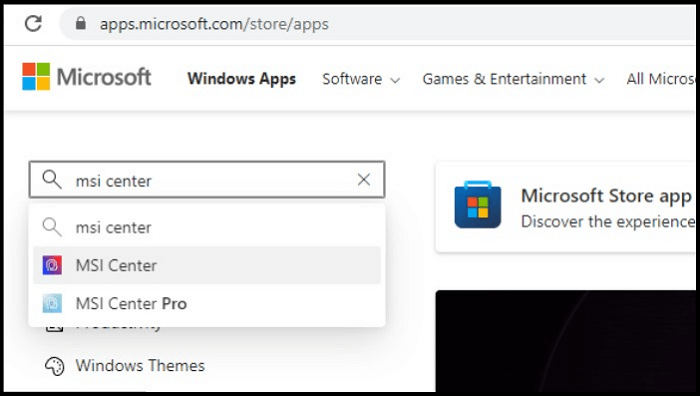
Step 1. To access the Microsoft Store on your PC or laptop, you can either use the Microsoft Store Windows Application or visit the Microsoft Store website through a web browser. This allows you to log in and browse through the available apps, games, and other digital content.

Step 2. To access the MSI Center, go to the Microsoft Store, type "MSI Center" in the search bar, and click on it when it appears in the search results.
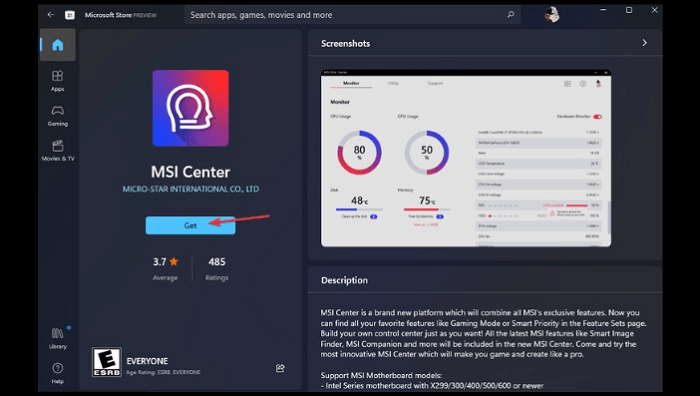
Step 3. Download "MSI". Just click on "Get".
Step 4. To access the advanced option, open the app and navigate to the "Support" tab, where you can select the "Advanced option" from the available choices.
Step 5. The BIOS update process can be completed in a few minutes. To do this, select the "BIOS update" option and wait for the process to complete.
- Notice:
- The MSI center tool is specifically designed to work with MSI motherboards. If you have a motherboard from a different manufacturer, you should check their website to see if they have a BIOS updater program available.
Method 2. Use UEFI Firmware Settings
To update BIOS without using a USB drive, you can use the UEFI Firmware settings. This method allows you to update your BIOS using the UEFI interface, eliminating the need for a USB drive. To do this, follow the detailed steps:
Step 1. To open the settings on your Windows computer, press the "Windows + I" buttons on your keyboard. This will open the settings window, where you can adjust various system settings, change display settings, and more.
Step 2. Click "Update & Security".
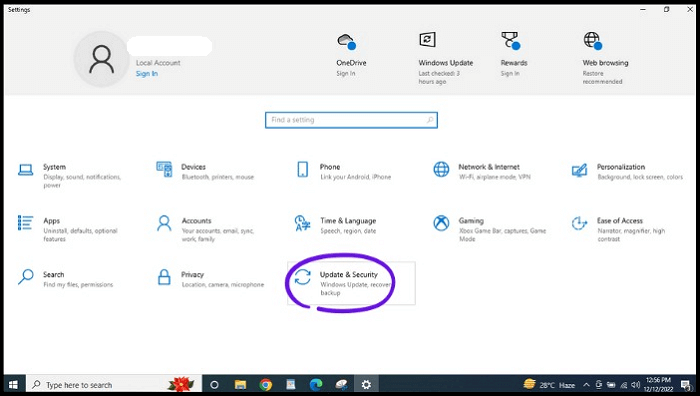
Step 3. Click "Recovery" from the left side menu.

Step 4. Under the "Advanced startup" section, click "Restart now".
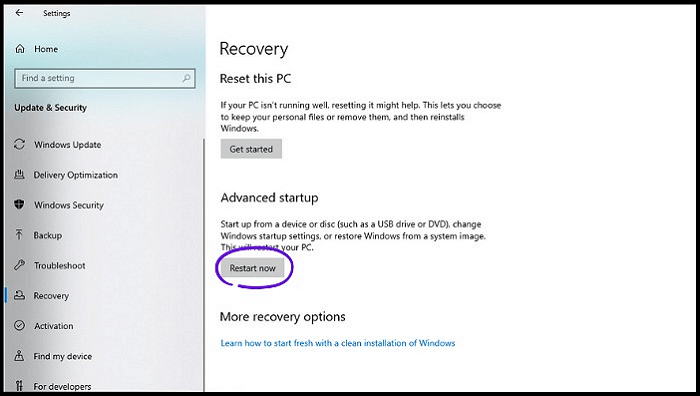
Step 5. Click "Troubleshoot" in the "Advanced startup" and click "Advanced options". Select only "UEFI Firmware Settings".
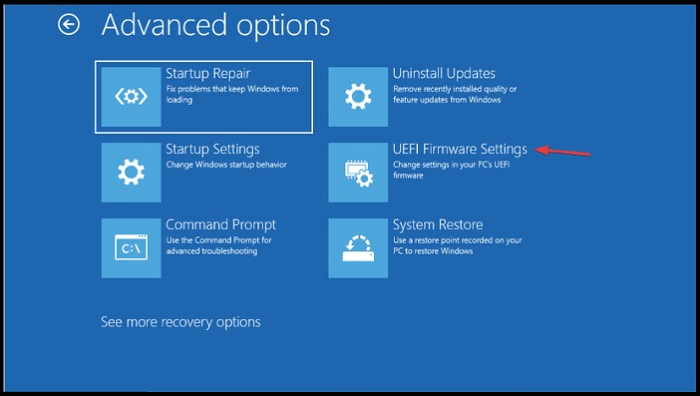
Step 6. Now, enter the "Advanced Mode" and go to the "Tool menu". Choose "Asus EZ Flash Utility" and press "Enter".
Step 7. Choose "by Internet".
Step 8. To select your desired internet connection, use the "Left" arrow key to move the cursor to the leftmost option, and the "Right" arrow key to move it to the rightmost option. Once you've highlighted the correct connection, press the "Enter" key to confirm your selection.
Step 9. Pursue the more on-screen process.
The Bottom Line
Updating BIOS without a USB is possible through two main methods. These methods enable you to update your BIOS without a USB drive, making them convenient and useful alternatives. However, it's essential to be cautious and secure your data before updating your BIOS, as there is a risk of data loss. Fortunately, there is a tool available that can help protect your valuable data, such as Qiling Disk Master Pro, an all-in-one solution for data protection.
FAQs on How to Update BIOS Without USB
If you have additional questions about updating your BIOS without using a USB drive, you can find answers in the FAQs provided.
1. Can BIOS get damaged?
The BIOS can be damaged due to power surges or outages, failed updates, or virus effects, and when corrupted, the system tries to restore it automatically from a hidden partition during startup.
2. What happens if you mess up updating BIOS?
A failed BIOS update can render a motherboard ineffective, causing it to malfunction or fail to boot due to corrupted BIOS.
3. What happens if you don't flash BIOS?
The latest BIOS update typically includes security patches, support for new hardware, or bug fixes, but doesn't usually bring new features or significant changes, and users may not notice a considerable difference.
4. What are the signs of corrupted BIOS?
A corrupted BIOS can cause a PC or laptop to fail to boot to Windows, resulting in symptoms such as the caps lock or num lock keys blinking, or displaying a BIOS APPLICATION ERROR 501 message.
Related Articles
- How to Solve LG TV Not Recognizing USB [Ultimate Guide]
- [Step-by-step Guide] How to Enable and Disable Secure Boot
- How Much Storage Do I Need on My Laptop [Windows/Mac]
- [3 Solutions] Fix Corrupted USB on Mac Without Losing Data
- Fix Device Not Migrated Problem in 4 Ways
This post is about a Windows error message called device not migrated. This error message would prevent your USB drive or hard drive from working properly. It would even cause data loss. Check this post to see how to fix this problem. - How to Open Task Manager on Windows 10/11
Task Manager is a display center for running applications, allowing you to view and stop apps that are currently running. You can access Task Manager in various situations on Windows 10 or 11 through simple methods.
Products
Articles & Tutorials
- Data Recovery
- Data Backup
- File Recovery
- File Backup
- System Backup and Restore
- Disk and Partition Clone
- Technical articles
- Mobile articles
- Disk Master Help
- Windows Data Recovery Tutorials
- Windows Secure Delete Tutorials
- Windows Partition Management Tutorials
- Windows File Backup and Restore Tutorials
- Windows System Backup and Restore Tutorials
- Windows Disk Backup and Restore Tutorials
- Windows Clone Tutorials