How to Solve LG TV Not Recognizing USB [Ultimate Guide]
If you've connected a USB drive to your LG TV but it's not recognizing the USB or is showing the drive but unable to read the data, try plugging it in again, checking the USB port for any blockages, and ensuring the drive is formatted correctly. If the issue persists, restart your TV, check for any software updates, and if necessary, format the USB drive to a compatible file system. If you're still having trouble, try using a different USB port or checking the drive's compatibility with your TV model.
This article will provide a quick fix this issue. It's essential to identify the underlying cause, which can be one of several reasons. Once the cause is determined, one of the five methods outlined in this article can be applied to resolve the issue quickly. By understanding the reasons and applying the correct method, users can easily fix the problem and get back to their tasks.
Why Is LG TV Not Recognizing USB
If your LG TV is not recognizing a USB device, there are several possible reasons. It's likely due to a problem with either the TV or the USB device itself. By checking both the TV and the USB device, you can identify the cause. The most common reasons include issues with the TV's USB port, the USB device being faulty, or the TV's software being outdated. Once you've identified the cause, you can follow the solutions provided to resolve the issue.
1. Incompatible USB format: The compatibility of a USB drive on an LG TV depends on the model, with most supporting FAT32/NTFS file system format and MBR (Master Boot Record) partition format.
2. Size of USB: The USB drive size needs to be within the capacity of the LG TV, which is typically up to 2TB, to work properly.
3. Bad sectors of the USB drive: The flash drives have permanently managed storage units. When these units get damaged, they're called bad sectors. If the number of bad sectors increases, the drive may deteriorate.
4. USB port error: If the USB port of your LG TV is damaged, it might not recognize the USB drive, causing the error. You can check the port to see if it's working properly. If it's damaged, you might need to replace it.
5. The firmware installed on TV is outdated: To resolve the error, update the TV's firmware to the latest version. This may resolve the issue.
How to Fix LG TV Not Recognizing USB
This section provides a comprehensive guide to resolving any issue related to recognizing a USB device on your TV, offering complete solutions to address the problem.
Method 1. Format USB to FAT32/NTFS for LG TV
If your USB drive is corrupted or formatted with an incompatible program, your LG TV may not be able to read its data, so you may need to format it to FAT32 or NTFS.
- Notice:
- Formatting your flash drive will erase all data, so it's crucial to back up any important files before proceeding.
The common method for formatting a USB drive through Windows OS can be confusing and time-consuming. To simplify this process, we recommend using an advanced tool called Qiling Disk Master, which can perform any format operation in Windows 10/11 and make the process more straightforward.
To format a USB drive to FAT32 or NTFS for use with an LG TV, follow these steps: First, insert the USB drive into your computer. Next, open File Explorer and right-click on the USB drive to select "Format". Choose the desired file system, either FAT32 or NTFS, and select the allocation unit size.
Step 1. Select the USB drive to format.
Connect a USB drive to your computer, download and launch the Qiling partition software, then right-click the USB drive and select "Format" to initiate the formatting process.
Step 2. Set the drive letter and file system on USB.
Assign a new partition label, file system, and cluster size to the selected partition.
Step 3. Click "Proceed" button to format.
Click the "Proceed" button to format the USB drive.
Step 4. Check "Yes" to confirm formatting USB.
Click "Yes" if you see the Warning window. If you have important data on it, back up the data in advance.
FAT32 is suitable for LG TV USB, but has a 4GB file size limit, while NTFS has no such limitation. You can convert FAT32 to NTFS using Qiling Disk Master to break the limitation.
Method 2. Convert GPT to MBR for LG TV USB
The recognization of flash drives on LG TV depends on the partitioning format, specifically GPT (GUID Partition Table) or MBR. Since GPT drives are only compatible with computers, converting them to MBR format is a good idea, especially when trying to access them on a TV. A reliable tool, such as Qiling Disk Master, can help convert the GPT disk to an MBR disk without losing any data.
It is a cutting-Here are the steps to follow for a edge and painless solution to reduce difficulties and risks:
Step 1. Install and launch Qiling Disk Master on your computer, go to the Disk Converter section.
Step 2. Right-click the target GPT disk that you want to convert to MBR, and select "Convert GPT to MBR".
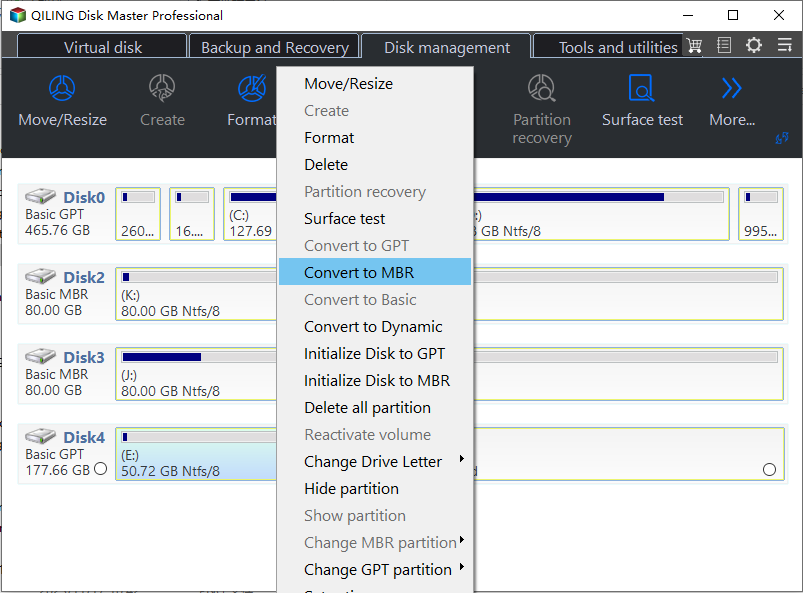
Step 3. The computer will convert the boot sector to MBR type.
Besides, you can also use Qiling Disk Master to convert MBR to GPT without losing data or convert primary partition to logical.
Method 3. Check and Fix Bad LG TV USB Sectors
The removal of USB drives can cause bad sectors, which may lead to damage or corruption of the drive. To prevent this, you can use the "check disk" feature in Qiling Disk Master to run a quick check and repair any bad sectors.
To troubleshoot issues with your USB drive, you can use Qiling Disk Master to check for bad sectors. If you find various bad sectors, you can also format the drive. Additionally, the software will provide data recovery options after a successful disk check if your flash drive becomes unavailable. Follow the steps to check and fix bad USB sectors.
Method 4. Restore LG TV to Factory Settings
If the method to fix errors on your USB drive hasn't worked and your LG TV still isn't recognizing it, the issue might be with the TV itself. In this case, the problem lies with the machine, not the USB drive, and you may need to restore the TV's factory settings. To do this, follow the steps provided.
Step 1: To turn on your LG TV, plug it into a power source, press the power button on the remote or the TV itself, and the TV should turn on.
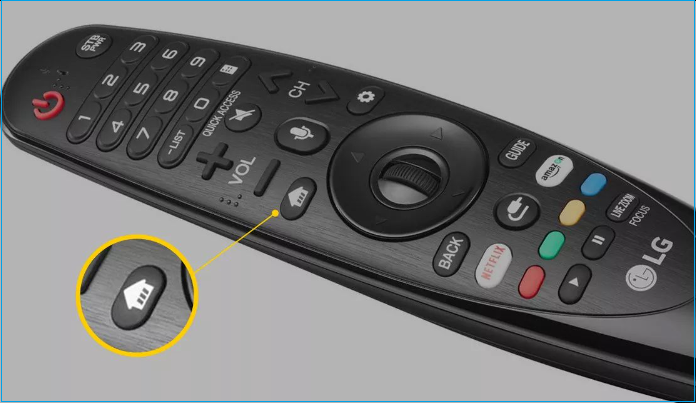
Step 2: Tap the Home button on the remote control and click the Setting icon.
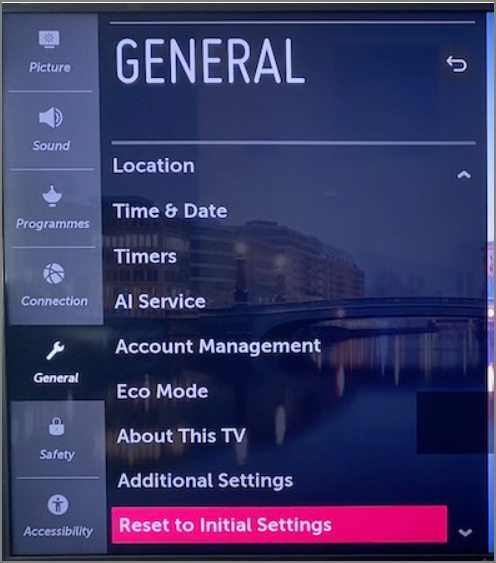
Step 3: Navigate and choose the General option on your TV screen.
Step 4: Under the general option, select Reset to Initial Settings.
Step 5: Select Confirm to start the Factory restore process.
Note* The process of resetting an LG TV to its factory settings involves a series of steps that may vary slightly depending on the model of the TV. To initiate the reset, you will typically need to navigate to the TV's settings menu, select the option to reset the TV, and confirm your decision. This will revert the TV's settings to their original factory version, erasing any customizations or changes you may have made.
Method 5. Turn to The Manufacturer
If the methods mentioned didn't work, the TV's USB port might be damaged, so it's best to contact the manufacturer for assistance and possible port replacement.
Conclusion
You may experience frustration when your LG TV fails to recognize a USB device, leaving you trapped. However, this guide should help you resolve the issue. It's also worth noting that if you're connecting a USB drive to your LG TV for the first time, you'll need to browse it manually as it won't be detected automatically.
Qiling Disk Master is a tool that can provide several solutions to fix the issue of an LG TV not recognizing a USB device. It may be helpful in resolving this problem.
FAQ of LG TV Not Recognizing USB
If you're experiencing issues with your LG TV not recognizing a USB device, you can try checking the USB port, updating the TV's software, and resetting the TV to its factory settings. If the problem persists, you can also try using a different USB port or device. If you have any further questions, you can refer to the FAQ section for more information.
1. What USB format does LG TV use?
The TV supports MPR partitioning USB format, so if you're using the USB for the first time, confirm the TV's supported format and convert your USB drive to match it.
2. Why does my TV not recognize my USB?
There are several reasons why your TV may not recognize a USB drive, including using an incompatible USB format, a drive larger than 2TB, damaged TV USB ports, bad sectors on the drive, or outdated TV firmware.
3. How do I get my USB to show up?
To access your USB device on the remote, press the Home button, select the Input icon, and then select USB Flash Drive. This will allow you to browse the files and folders on your USB device.
Related Articles
- How to Repair Install Windows 10 in 3 Different Ways
- Detailed Guides to Fix FIFA 23 Career Mode Not Saving
- How to Fix com.apple.DiskManagement.disenter error 49153 [Ventura/Sonoma]
- [5 Ways] How to Fix DISM Error 87 Option Is Unknown Windows 11/10/7
- Recover Deleted DCIM Folder from Android
Here is the best DCIM folder recovery solution to recover deleted DCIM folder from Android phone, be it from the internal storage or memory card (SD card, xD card, microSD card, CF card). Try it to retrieve images, videos, and other files from your Android devices, cameras or Smartphones with ease. - How to Recover Deleted Files from Hard Drive
Qiling data recovery software can recover deleted files from a hard drive, as well as undelete, unformat, and recover RAW drive data, in addition to deleted files recovery.
Products
Articles & Tutorials
- Data Recovery
- Data Backup
- File Recovery
- File Backup
- System Backup and Restore
- Disk and Partition Clone
- Technical articles
- Mobile articles
- Disk Master Help
- Windows Data Recovery Tutorials
- Windows Secure Delete Tutorials
- Windows Partition Management Tutorials
- Windows File Backup and Restore Tutorials
- Windows System Backup and Restore Tutorials
- Windows Disk Backup and Restore Tutorials
- Windows Clone Tutorials