Top 8 Ways to Fix Kernel Mode Heap Corruption BSOD Error
If you've been a Windows user for years, you're likely familiar with the dreaded BSOD, or Bluescreen of Death. This critical error is often caused by kernel mode heap corruption, which can occur due to hardware incompatibility or software conflicts.
The BSOD, or blue screen of death, is a common occurrence in Windows PCs that results in system crashes. Don't be alarmed if you see this error - it's a general occurrence that can happen to anyone. In this guide, we'll explore the reasons behind this error and provide 8 diligent ways to fix kernel mode heap corruption on startup.
| Workable Solutions | Step-by-step Troubleshooting |
|---|---|
| 1. Check Event Viewer | Start Windows or an installation DVD twice in a row without success to boot into WinRE...Full steps |
| 2. Check Graphics Drivers | Choose "Device Manager" from the list after right-clicking the start icon...Full steps |
| 3. Update Device Drivers | Press the Windows key and the letter X on your keyboard to access...Full steps |
| 4. Repair Corrupted System Files | To launch the Run dialogue box on your keyboard, simultaneously hit the Windows logo key...Full steps |
| Other Workable Solutions | Check RAM > Run Driver Verifier Manager > Uninstall Incompatible Software...Full steps |
Why Does Kernel Mode Heap Corruption Happen in Windows 11/10?
In kernel mode, the CPU has unrestricted access to hardware resources, allowing for direct manipulation of hardware components. This unrestricted access can lead to security vulnerabilities and is typically reserved for operating system processes that require direct hardware control. As a result, kernel mode processes are typically executed with elevated privileges and are subject to strict access controls to prevent unauthorized access to sensitive system resources. This mode is usually used by the operating system itself, and not by user applications, to ensure the integrity and security of the system.

Corrupted system files
A damaged hard drive's directory can cause files to appear to be missing or corrupted, potentially leading to further data loss or degradation.
Calling a component that is not in the index range
This may occur if your computer tries to read an element that is larger than the collection of indexed items.
Defective or deteriorated hardware components
Computer parts can deteriorate over time, especially when misused. They can be checked using software, but a physical examination can also reveal their condition.
Memory problems in general or memory leaks
When a computer's RAM becomes fragmented, it means that the available memory is broken into small, non-contiguous chunks, making it difficult for the system to allocate large blocks of memory efficiently. This fragmentation can occur due to applications that do not properly release memory when they are closed or terminated, leading to wasted memory space.
8 Proven Ways to Fix Kernel Mode Heap Corruption BSOD Error
8 methods to resolve kernel mode heap corruption installing Windows 10 issue. Many Windows users have found these methods helpful. Try these techniques and resolve the issue yourself before calling a technician. Work your way down the list until you find the one that works for you.
Fix 1. Check Event Viewer to Fix Kernel Mode Heap Corruption
To troubleshoot issues on Windows 10, the PC must be able to boot in Safe Mode, and checking Event Viewer is the first step. If the computer can't launch Windows normally, follow the instructions to enter Safe Mode first.
- To troubleshoot the issue, you can try booting into WinRE (Windows Recovery Environment) by pressing the Shift key while clicking on the Windows icon or typing "shutdown /r /o" in the Command Prompt. If that doesn't work, you can try booting from a Windows installation DVD or USB drive and select the "Repair your computer" option.
- After entering WinRE, go to Troubleshoot > Advanced options.
- To boot into Safe Mode, click Startup Settings and hit the F5 key to select the Enable Safe Mode with networking option.
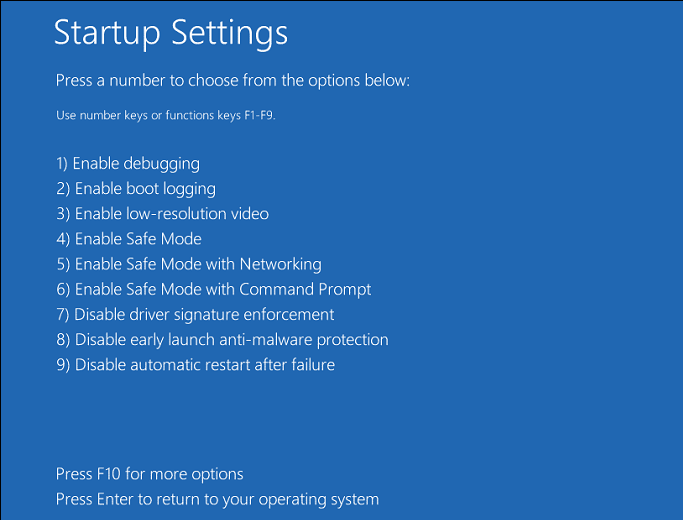
Please follow the instructions below to verify the Event Viewer after entering Windows 10 Safe Mode.
Step 1. To open the Run box, press the Windows key + R, and then type "eventvwr" to launch Event Viewer.
Step 2. To troubleshoot a Kernel Mode Heap Corruption BSOD, open the "Windows Logs > System" section and search for the specific report related to this error. This will provide detailed information about the crash, including the time and date it occurred, which can be helpful in identifying the root cause of the issue.
Step 3. The log description can reveal the root cause of the issue, and taking note of the Source and Event ID information can also help in solving the problem.
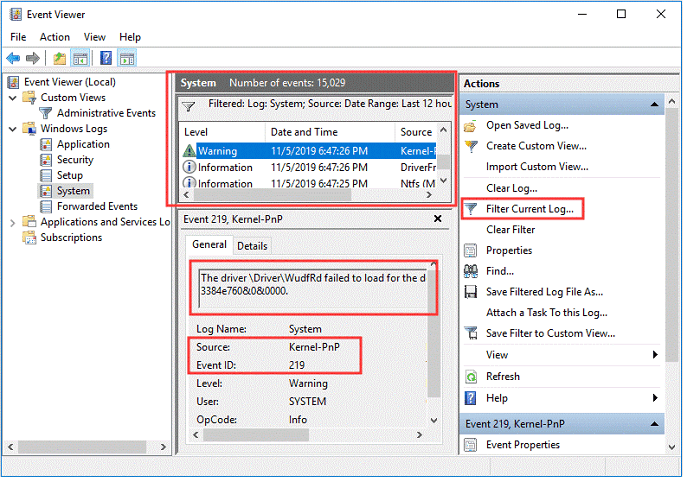
You can resolve the issue by reviewing the Windows log, which will help you properly address the problem.
Fix 2. Check Graphics Drivers to Fix Kernel Mode Heap Corruption
Outdated graphics drivers can cause Kernel Mode Heap Corruption. To fix this issue, update your graphics drivers to the latest version. This can resolve the problem by ensuring that your graphics drivers are compatible with your system's hardware and software.
Step 1. To access the Device Manager, right-click on the Start icon located on the Taskbar, and from the list of options that appears, choose "Device Manager."
Step 2. Right-clicking twice on the graphics card driver in the Display adapters section will bring up the Properties box.
Step 3. After visiting the Driver tab, click on "Update Driver" or "Roll Back Driver" to proceed with the installation or reversal of the driver software.
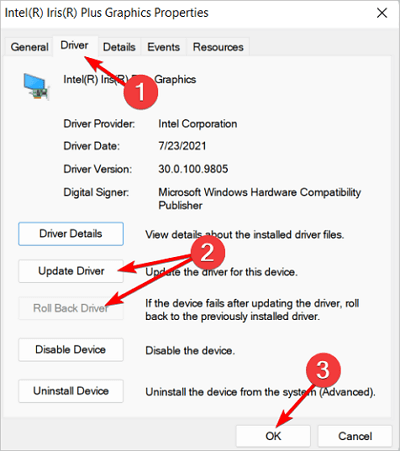
Step 4. Click OK right after the process is over.
Step 5. In case you opt for the "Update Driver" option, hit the "Search automatically for drivers" option after that.
Step 6. To resolve the Kernel Mode Heap Corruption blue screen error, simply restart your computer and check if the issue has been resolved.
Fix 3. Update Device Drivers to Fix the BSOD Error
An out-of-date or damaged device driver may be the source of the Kernel Mode Heap Corruption problem. You should check if all of your devices drivers-particularly the drivers for your graphics card are updated. If an out-of-date device driver is causing a BSOD error, do the following steps.
Step 1. The Power User menu can be accessed by pressing the Windows key and the letter X on your keyboard. This will open a menu with several options, including the ability to shut down or restart your computer, as well as access to the Device Manager and other system settings.
Step 2. Toggle to Device Manager.
Step 3. Increase the issue-causing gadget.
Step 4. Update Driver Software can be found by right-clicking the device.
Step 5. Select automatically check for driver software updates.
If Windows Update doesn't show device driver updates right away, you may need to check your device's manufacturer website to manually download and install the latest drivers, as Device Manager might not be able to detect them.
Fix 4. Repair Corrupted System Files to Fix Kernel Mode Heap Corruption
System file corruption can cause a blue screen of death, but you can fix it using the System File Checker, which checks and restores corrupt system files, but cannot repair damaged DLLs or registry entries.
Step 1. Scan with SFC
Windows system file checker utility, also known as SFC, is a built-in tool that scans and repairs corrupted system files, ensuring the stability and integrity of the operating system.
- To launch the Run dialogue box, press the Windows logo key and R at the same time. Alternatively, to open Command Prompt as administrator, type 'cmd' and press Ctrl+Shift+Enter.
- Hit "Yes" when Windows demands permission to make alterations to your device.
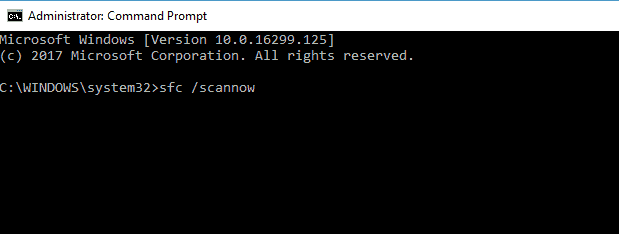
- Type the command. sfc /scannow in the command prompt.
- The SFC (System File Checker) tool will start scanning all system files and replacing those damaged or missing once you've finished inputting the command and press Enter on your keyboard.
- Hold off until the verification procedure is finished. Restarting your computer will make the changes effective.
Step 2. Scan with dism.exe
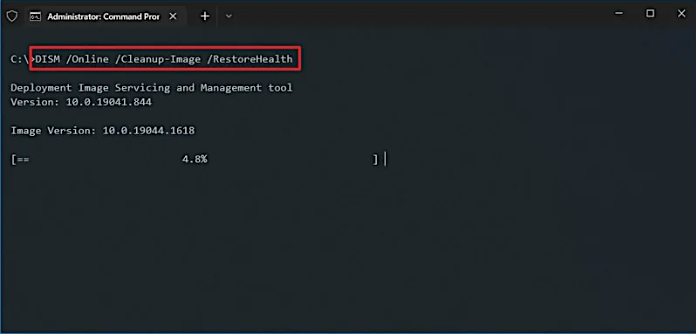
A built-in Windows utility called Deployment Image Servicing and Management (DISM) may determine whether your Windows installation is faulty and restore it if it is.
To launch the Run dialogue box, press the Windows logo key and R at the same time. To launch Command Prompt as administrator, type cmd and press Ctrl+Shift+Enter.
- If asked for your permission, select Yes.
- Type the following command in the Command Prompt window.
Dism /online /cleanup-image /restorehealth
- Press Enter on your keyboard. The DISM utility will then start scanning for issues and attempting to resolve them.
- Hold off till the procedure is over. When your computer restarts, check if the Kernel Mode Heap Corruption issue persists.
Fix 5. Repair Kernel Mode Heap Corruption by Checking RAM
The kernel mode heap corruption issue can also be caused by memory problems. To resolve this, you need to identify and fix RAM issues using the Memory Diagnostic tool. This can only be done when your PC is in Safe or Windows mode. By following the steps, you can troubleshoot and repair the error caused by RAM problems.
Step 1. To run the Windows Memory Diagnostic tool, type "Memory Diagnostic" in the search box, and then double-click on the best-matched icon that appears.
Step 2. Opt for "Restart now and search for problems".
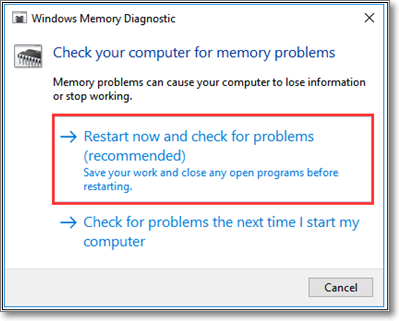
Step 3. The PC will automatically restart and run a memory check. Once the diagnosis is complete, it will boot up again. After that, you can view the diagnosis report in the Event Viewer by following these steps.
- Activate Event Viewer.
- Open Windows Logs and select System.
- In the box on the right, select Filter Current Log.
- To view all result logs for the memory test, select MemoryDiagnostics-Results in the Event sources box and click the OK button.
- Double-click the most recent result log to check if the diagnostic was successful.
Fix 6. Run Driver Verifier Manager to Fix the Error
If Kernel Mode Heap Corruption Windows 10 persists, other faulty drivers may be the cause. To identify and address the issue, you can try using Driver Verifier, a tool that helps determine if there are any further problematic drivers. This can be a useful step if the initial solution doesn't resolve the problem.
Step 1. In one of two methods, you can access Driver Verifier Manager.
- To launch Driver Verifier Manager, open Windows PowerShell as an administrator and enter the command "verifier" followed by pressing the Enter key.
- To launch Driver Verifier Manager in Windows, open the search box, type "cmd" and select "Run as administrator", then type "verifier" and press Enter.
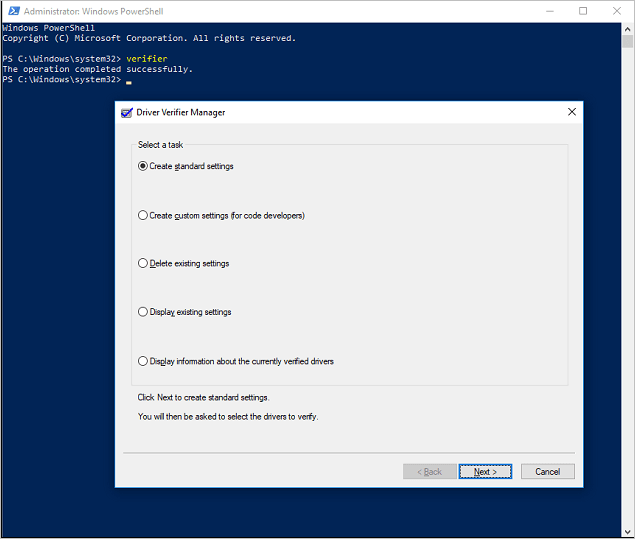
Step 2. After checking "Create Standard Settings," click the "Next" button, then verify "Automatically choose all drivers installed on this PC" and hit the "Finish" button. Windows will then scan for driver issues and may automatically reboot your PC to resolve them.
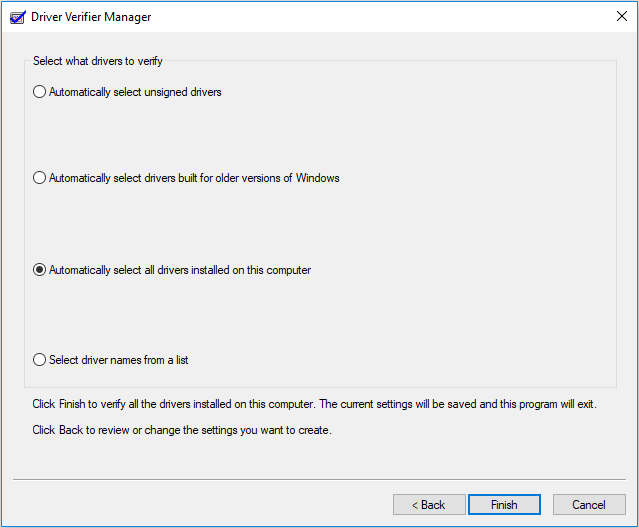
Step 3. After your PC reboots, Windows will display the drivers with flaws, and you'll need to update, roll back, or reinstall them.
Fix 7. Uninstall Incompatible Software to Fix Kernel Mode Heap Corruption
Running the program in compatibility mode will fix the BSOD if the software clash is caused by it being too old and only compatible with Windows 7/8. To do this, follow the steps to run the program in compatibility mode, which will allow it to run on your Windows version without causing a software clash.
Step 1. To open the software, right-click the desktop, select the Open file location from the context menu, and the software's installation location will be displayed.
Step 2. Select Properties by right-clicking the application executable file.
Step 3. To make the program run in compatibility mode, check the box next to "Run this program in compatibility mode" by going to the Compatibility tab and selecting it. Then, press OK to save the changes.
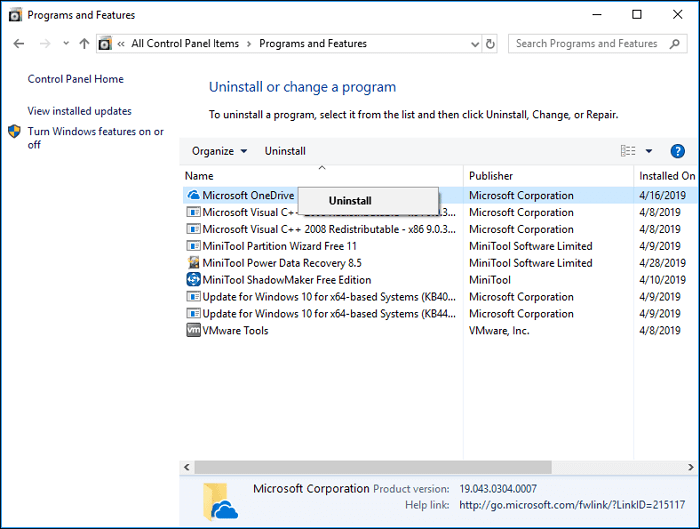
If other factors are not the cause of the software conflict, you should uninstall the incompatible program using the following instructions.
- Run by pressing the Windows + R keys simultaneously.
- To access the Programs and Features window, type "cpl" into the Run dialogue box and press Enter, which will then open the window.
- Click Uninstall from the context menu of the incompatible application.
Fix 8. Reinstall Windows 10 to Fix the BSOD Error
If the previous solutions don't work, you may need to reinstall or reset your Windows 10 to resolve the Windows 10 BSOD error.
A clean installation of Windows will completely erase the drive where your system is installed, including all apps and personal data. To perform this, you'll need an external storage device like a USB drive. While the process may seem more complicated than a standard installation, it has a greater impact. To resolve the error, follow these steps to reinstall Windows 10.
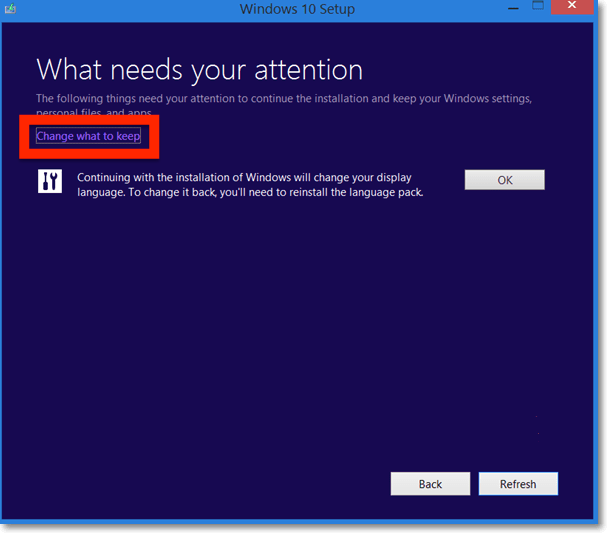
Step 1. To create an installation ISO file, download the Windows 11/10 Media creation tool and run it. Follow the prompts to create the ISO file, which can be used to install Windows on a new device or upgrade an existing one.
Step 2. Double-click on the "Setup" file to open it.
Step 3. Select "Download and install updates (recommended)."
Step 4. Follow the onscreen prompts.
Watch this video to obtain more assistance if you still have trouble fixing the kernel mode heap corruption error.
- 0.26 Run CHKDSK scan
- 1.03 Update All Drivers
- 1.26 Conduct an SFC scan
- 2.00 Run hardware and devices troubleshooter
Bonus Tips. How to Recover Data after Kernel Mode Heap Corruption
If you've encountered kernel mode heap corruption on startup and lost vital data, don't worry - Deep Data Recovery can help. This tool boasts a 99.9% success rate and can recover unlimited data, including 1000+ different file types, from various devices. As an all-in-one data-retrievable software, it assists in recovering lost files with ease.
- Deleted file recovery
- Raw recovery
- Damaged hard drive recovery
- Formatted recovery
- Partition recovery
Download this award-winning data-retrievable wizard now!
Step 1. Select file types
Launch Deep Data Recovery software, select the desired file types, and click "Fast Scan" to initiate the recovery process.

Note: You can choose different search modes based on where and why the data was lost.
Step 2. Select a location and start scanning
Choose the partition where you lost data. Then, click "Scan".

Step 3. Filter and preview files
Use the file format filter on the left or upper right corner to find the specific files you need, and then click the "Preview" button or double-click a file to view its content.

Step 4. Recover lost data or files
To recover lost data, select the file by checking the box next to it, then click the "Recover" button to securely restore the data to a designated location.
Conclusion
Users may become anxious when encountering the Kernel Mode Heap Corruption blue screen issue; however, these problems are more frequent than you might realize. Running the diagnostic steps will usually resolve the issue.
In case you lost your data while resolving this error, downloading Deep Data Recovery will help you recover all of them!
Kernel Mode Heap Corruption on Startup FAQs
The Kernel Mode Heap Corruption on Startup error is a type of bug that occurs when the Windows operating system fails to initialize the kernel-mode heap, a critical component that manages memory allocation for the Windows kernel. This error can be caused by a variety of factors, including hardware issues, driver problems, or corrupted system files.
1. What is a kernel mode crash?
A kernel mode crash (KMC) occurs when a kernel error triggers an operating system crash, resulting in a blue screen and an unexpected computer shutdown.
2. How to fix kernel data inpage error Windows 10?
To fix a kernel data inpage error, you can try restarting your computer in safe mode, checking for corrupted system files, running a disk check, and updating your operating system and drivers. You can also try running a System File Checker (SFC) scan, checking for malware, and using a registry cleaner to remove any corrupted registry entries. If the issue persists, you may need to reinstall your operating system or seek professional help.
- Repair hard disks
- Conduct a virus scan
- Conduct DISM and SFC scan
- Conduct memory diagnostics
- Crosscheck hardware peripherals
3. How to fix Windows 10 BSOD?
A. These are the methods to fix Windows 10 BSOD.
- Repair Windows 10 BSOD After or During the Windows 10 Update
- Remove BSOD from Windows 10 While Using an App or a Device
4. How do I fix kernel security check failure?
To fix the kernel security check failure, you can try disabling the Secure Boot feature in your BIOS settings, as it may be causing the issue. Additionally, you can try running a virus scan to ensure your system is free from malware. If the problem persists, you can try updating your kernel to the latest version, or reinstalling the OS.
- Fix system files and damaged sectors that are the root of the Kernel Security Check issue
- System hard disc error check and repair
- To resolve the Kernel Security Check failure issue, run the Memory Diagnostic Tool
- To fix the Kernel BSOD issue, try using System Restore
Related Articles
- Upgrade Windows 10 from Home to Pro Edition for Free
- External Hard Drive Takes Forever to Load
- [Fixed] Office 365/2016/2013 Won't Open with 'Stopped Working' Error in Windows 10
- Upgrade Hard Disk to Fix 100% Disk Usage Error in Windows 10 & More Tips
- PCIe 3.0 VS 2.0: What are the differences and similarities?
PCIe 3.0 and 2.0 are two of the most vital aspects of the computers. But, what exactly are they and how are they different or similar? In this article, we'll answer those questions and explore the key traits of both these types. - [Fixed] Pen Drive Not Showing/Detected in My Computer in Windows
Here step-by-step tutorials teach you how to fix pen drive not showing in my computer in Windows 10/8/7 is created. Try it fix your USB pen drive, flash drive, external hard drive or other external USB devices when it detected but not show in my computer.
Products
Articles & Tutorials
- Data Recovery
- Data Backup
- File Recovery
- File Backup
- System Backup and Restore
- Disk and Partition Clone
- Technical articles
- Mobile articles
- Disk Master Help
- Windows Data Recovery Tutorials
- Windows Secure Delete Tutorials
- Windows Partition Management Tutorials
- Windows File Backup and Restore Tutorials
- Windows System Backup and Restore Tutorials
- Windows Disk Backup and Restore Tutorials
- Windows Clone Tutorials