How to Fix a Media Driver Your Computer Needs Is Missing in Windows
| Workable Solutions | Step-by-Step Troubleshooting |
|---|---|
| Solution 1. Requirements for Windows | Before we move on with any other thing to fix a media driver that your computer needs is missing...Full steps |
| Solution 2. Distinct USB Port Midway | Step 1: Start downloading tools for 'Media creation'. Then create a drive for USB installation...Full steps |
| Solution 3. Specific Options in BIOS | If you are trying to fix a media driver your computer needs is missing in windows error, you can...Full steps |
| Solution 4. Altering the SATA to IDE |
Step 1: Start with booting in BIOS. Step 2: Make a selection of any one of the options...Full steps |
| More Solutions | Sometimes you may find that a USB drive starts misbehaving for no particular reason...Full steps |
If you're experiencing an error related to the media driver while formatting your PC to install a new version of Windows, there could be several reasons behind it. This error can occur due to a variety of factors, including issues with the installation media, problems with the PC's hardware, or conflicts with existing software. To resolve the issue, you may need to try different troubleshooting methods such as checking the installation media for errors, running a disk check on the PC, or updating the PC's drivers to ensure compatibility with the new Windows version. Additionally, you may need to disable any conflicting software or hardware components to complete the installation successfully.
- DVD or USB drivers malfunction.
- To get the PC up and running, you'll need to add the DVD or USB drivers. This will allow the PC to recognize and utilize the necessary hardware components.
- ISO file or installation media issue.
In Windows, encountering an error stating that a media driver your computer needs is missing can be frustrating. This error typically occurs when Windows is unable to load the necessary drivers for your computer's media devices, such as sound cards, video cards, or USB devices. To resolve this issue, you can try updating your drivers, reinstalling the operating system, or using the built-in Windows troubleshooting tools.
What Does the "Media Driver Your Computer Needs Is Missing in Windows" Mean?
Being an integral part of your PC, drivers help smooth interaction between hardware and software resources. However, when an error occurs, it means your system cannot fetch a specific media driver from the source, hindering your use of media. To resolve this issue, you can try the following solutions to get back on track.
Solution 1: Fulfilling Requirements for Windows 10/11
Before attempting to fix a media driver issue on Windows, ensure that your computer meets the system requirements for Windows 10/11. It's also a good idea to update your BIOS to a spotless installation spot.
| Contents | Windows 10 | Windows 11 |
|---|---|---|
| RAM | 64-bit: 2GB, 32-bit: 1GB | 4GB or higher |
| CPU | SoC or 1GHz or faster processor | A faster processor with a speed of 1GHz or more, along with 2 or more cores, and a 64-bit processor architecture is recommended. |
| HDD | 64-bit: 20GB, 32-bit: 16GB | 64 GB minimum |
| GPU | WDDM 1.0 driver in DirectX 9 or later version | DirectX12 or advanced with the driver of WDDM 2.0 |
| Display | 800 x 600 | 720p in minimum 9 inches display monitor having 8 bits |
| Firmware | NA | UEFI |
| TPM Version | NA | 2.0 |
| Boot Support | NA | Secured |
For the 64-It's recommended to have at least 2GB/3GB of RAM in Windows 10 to ensure smooth workflow and better processing power.
Solution 2: Opting for a Distinct USB Port Midway
If you've successfully fixed the missing media driver your computer needs, you may find this solution straightforward, especially if you've encountered a similar issue with Windows 7 or 8. To resolve the issue, simply remove the USB drive for installation and use a different port. This should help you get back on track.
Steps to Follow:
Step 1: To create a USB drive for Windows installation, start by downloading the Media Creation Tool from Microsoft's official website. Once the download is complete, run the tool and select the option to create a bootable USB drive. This will prompt the tool to create a drive for USB installation, which can be used to install Windows on a new or existing system.
Step 2: Now go ahead with booting your PC from the drive.
Step 3: Give it some time to load installation files.
Step 4: Select your preferences and tap the 'Install Now' option.
Step 5: Tap the 'Cancel' option once you see the error message.
Step 6: Remove the USB drive and plug it into a different port.
Step 7: Tap on 'Install Now'.
If you have previously installed Windows 10 on your unit, this method has a higher chance of working for you.
Solution 3: Enabling or Disabling Specific Options in BIOS
To fix a "media driver your computer needs is missing in Windows" error, try disabling specific BIOS options, such as Legacy BIOS and Legacy USB, and ensure AHCI is enabled before installing Windows, especially when booting in 64-bit mode.
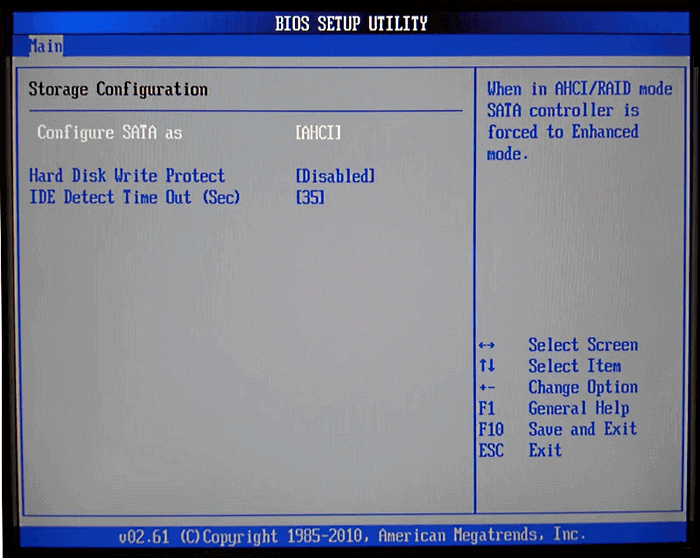
To resolve USB 3.0 issues, set it to 'Auto' in the BIOS menu. If ISO is in NTFS format, extract it to FAT 32. Then, follow the Windows 10/11 installation form to complete the setup.
Solution 4: Altering the SATA to IDE
If you're experiencing issues with a missing media driver, it might be due to your computer being set to SATA mode, while your installation media is booting in IDE mode. To resolve this, you'll need to change the SATA mode to IDE in your UEFI/BIOS settings, which should help fix the issue.
Steps to Follow:
Step 1: Start with booting in BIOS.
Step 2: The user is asked to select one of the options from a list, specifically for configuring the drive, IDE, advanced, or storage settings.
Step 3: To switch to SATA mode, you can opt for the 'Set SATA as' or 'SATA Configuration' option, which is an alternative to the traditional IDE mode. This allows you to configure your SATA settings and switch to SATA mode.
Step 4: You can change the storage option in the BIOS settings to ATA/ IDE or Compatible. This will allow you to use your existing IDE hard drive with your new SATA motherboard.
Step 5: Go ahead with saving the changes you made recently.
Step 6: If you're experiencing issues with your computer, try reinstalling Windows 10 to see if it resolves the problem. This process will wipe your computer clean and install a fresh copy of Windows 10, which may resolve any underlying issues causing the problem.
Solution 5: Making Use of Another USB Flash Drive
A USB drive may stop functioning properly and fail to load installation files, requiring the use of a Media creation tool installed on another USB stick.
If you can't install Windows 10 on your PC, it might be due to an issue with the USB 3.0 port, which can prevent the BIOS from loading the installation files. Check if the USB 3.0 port has a blue strip inside, as this could be the problem. Alternatively, try burning the Windows installation file to a new DVD if you're using a damaged one.
Solution 6: Trying Installation Without Using Installation Media
If you're experiencing a "media driver your computer needs is missing in Windows" issue, you can try a clean installation of Windows without creating a bootable media. Alternatively, if your DVD or USB stick is not working, you can use the built-in mounting feature on your Windows to mount the ISO file. This can be a viable solution if your storage mediums are not functioning properly.
Steps to Follow:
Step 1: To access the contents of an ISO file on Windows 10/11, start by launching Windows Explorer. Once it's open, navigate to the location where the ISO file is saved.
Step 2: To mount a file, right-click on it and select the Mount option, or tap the menu bar and find the 'Mount' option, or double-tap on the ISO file.
Step 3: Open the file in a new folder with a new drive and drive letter, then navigate to the drive and launch the setup.exe file, and select the 'Install Now' option.
Step 4: Go ahead by following the process of installation.
Solution 7: Choosing Rufus
If the above method didn't work and you're still getting the "your PC needs a media driver" error, Rufus can be a helpful tool. It allows you to start from scratch and can even burn an ISO file to a DVD if you prefer to install Windows 10 using a DVD instead of a USB. This might be a viable option if everything else has failed.
After installing Windows 10 or 11, it's recommended to update your drivers regularly to prevent issues like missing media drivers and improve your PC's performance and speed. This ensures you have the latest recommended versions of drivers, which can boost your PC's performance and speed.
Conclusion
If your computer is missing a media driver that Windows needs, you can fix the issue by updating your drivers using the Device Manager, checking for updates in the Windows Update settings, or using a third-party driver update tool. If you're not comfortable with these steps, it's okay to seek professional help. Maintaining a calm and patient attitude will help you resolve the issue more efficiently.
Fix a Media Driver Your Computer Needs Is Missing in Windows FAQs
If your computer needs a media driver that's missing in Windows, you can get more information by reading the questions and answers below to fix the issue.
1. What is a media driver?
Media drivers are an interface for a file system to interact with physical media, allowing it to read and write data. HCC provides media drivers for various types of media, including RAM drives, MMC/SD cards, USB mass storage, and flash memory devices.
2. How to repair Windows 10 without boot media?
If you're having issues with Windows 10 and don't have a boot media, you can try repairing it in three steps. You can attempt to fix the problem by booting into safe mode, using System Restore to revert to a previous point when Windows was working properly, or using the built-in System File Checker (SFC) tool to scan and replace any corrupted system files. These steps can help resolve issues without needing a boot media.
Step 1. Launch the Windows 10 Advanced Startup Options menu by pressing F11.
Step 2. Go to Troubleshoot, Advanced options, and Startup Repair.
Step 3. Windows 10 will automatically fix the startup problem after a few minutes.
3. Does Windows 11 install all drivers?
Windows will automatically install the latest drivers for your device, checking for uninstalled drivers and sourcing them from their downloaded locations.
Related Articles
- How to Fix Windows 10 DVD Drives Not Working? [2024 Guide]
- macOS Monterey Update Not Found | How to Solve Monterey Update Issue
- How to Mount a Disk on Mac [Step-by-Step Tutorial in 2024]
- How to Open Terminal on Mac and How to Use it [2024 Guide]
- How to Boot Windows 11 in Safe Mode [2023 Update]
I was wondering how to Boot Windows 11 in safe mode. Worry no more; this article will help with multiple methods and easy-to-follow steps. - Windows Cannot Find Ms-Settings: How to Fix the File System Error
Are you unable to open the Windows Settings using the ms-settings shortcut? Then follow our guide to learn about 7 Fixes to the File System Error that can fix the Windows Cannot Find Ms-Settings. Many use shortcuts to open parts of Windows, and settings is an important one.
Products
Articles & Tutorials
- Data Recovery
- Data Backup
- File Recovery
- File Backup
- System Backup and Restore
- Disk and Partition Clone
- Technical articles
- Mobile articles
- Disk Master Help
- Windows Data Recovery Tutorials
- Windows Secure Delete Tutorials
- Windows Partition Management Tutorials
- Windows File Backup and Restore Tutorials
- Windows System Backup and Restore Tutorials
- Windows Disk Backup and Restore Tutorials
- Windows Clone Tutorials