How to Open Terminal on Mac and How to Use it [2023 Guide]
To open the Terminal on a Mac, you can use Spotlight by pressing Command + Space, typing "Terminal," and selecting the application. Alternatively, you can find it in the Applications/Utilities folder. Once open, you can use basic commands like "ls" to list files and directories, "cd" to navigate, and "mkdir" to create new directories. You can also use more advanced commands like "grep" to search for specific text within files, and "rm" to delete files.
| Workable Solutions | Step-by-step Troubleshooting |
|---|---|
| Fix 1. Open Terminal on Mac Shortcut | This method requires you to navigate your mouse and keyboard and open Terminal on Mac...Full steps |
| Fix 2. Open Terminal in Applications | Your Mac's Applications Finder contains all your Mac's critical applications and utilities...Full steps |
| Fix 3. Open with Spotlight Search | This feature allows you to type in the name simply of any application and open it on your mac device...Full steps |
| Fix 4. Open From Launchpad | The Launchpad on your Mac is yet another way to open Terminal and use it. There are plenty of ways...Full steps |
| Fix 5. Open Terminal Using the Finder | Finder is another convenient option to help you find the Terminal in your mac device...Full steps |
| Fix 6. Open Terminal on Recovery Mode | To use Mac's Recovery mode, you must understand how to open it on your MacBook Air or MacBook Pro...Full steps |
Many people use macOS because it allows for better productivity and unique features, one of which is the Terminal, a key reason people like Mac devices. Learning how to open Terminal on Mac can be a quick and easy way to run the OS.
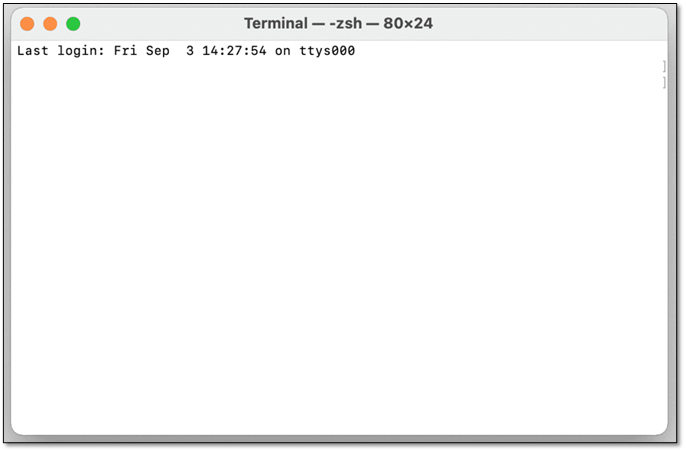
The Terminal is an in-The built command-line utility provides users with access to various critical features and enables them to perform multiple tasks.
To open Terminal on Mac, you can use Spotlight, find Terminal in the Applications/Utilities folder, use the keyboard shortcut Command+Space, or ask Siri to open it for you. Once open, you can use Terminal to run commands, navigate directories, and execute scripts.
Overview: What Is Terminal on Mac
The Terminal is a command-line interface on Mac OS X that allows users to interact with their computer using commands, rather than a graphical user interface.
The Terminal is a fundamental Mac program that offers a command line interface, allowing users to interact with the operating system and running programs in a text-based environment.
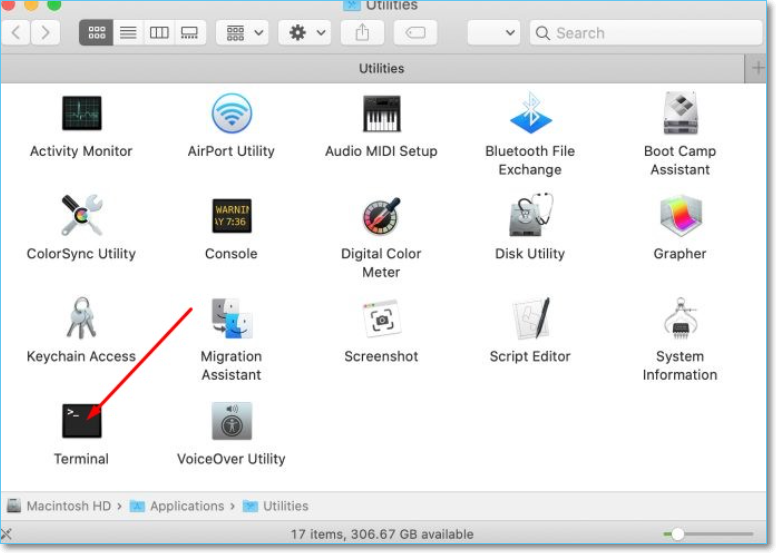
On a Mac, the Terminal is the same as the Command Prompt on a Windows computer. To open it, go to Applications > Utilities > Terminal. Alternatively, you can use Spotlight to search for "Terminal" and open it.
As a Mac user, understanding Terminal is essential in your everyday life. Terminal is a command-line interface that allows you to interact with your Mac using text-based commands, providing a powerful way to manage and customize your device. By learning the basics of Terminal, you can perform tasks such as managing files, running scripts, and troubleshooting issues, making it an indispensable tool for anyone who wants to get the most out of their Mac.
Reference: Terminal Commands and Functions
The Terminal provides a text-based interface to interact with the operating system, programs, and files. It uses commands to perform specific tasks.
In Terminal, certain functions are also known as commands, and they are essential for performing various tasks. These functions include switching between directories, executing commands, and starting another program. Some of the most essential command lines in Terminal include these functions.
- CD. You can navigate through your Mac's directory and make changes to its structure, which can be useful for organizing files and folders, but be cautious not to delete important system files or folders, as this can cause system instability or crashes.
- MKDIR. To create directories/create new directories in your Mac
- CP. To copy files from one location to another using the command line, you can use the `copy` command followed by the source file path and destination file path, separated by a space, and the `/y` option to suppress the confirmation prompt, like this: `copy C:\source\file.txt D:\destination\file.txt /y`.
- RM. Delete files or entire directories/folders
- TOUCH. This command is used to create new files and modify the metadata of existing files.
To use command lines on a Mac, you can start by opening the Terminal app, which is usually found in the Applications/Utilities folder. Once you're in the Terminal, you can use commands like "cd" to change directories. For example, to navigate to your desktop, you would type "cd Desktop" (without quotes) and press enter. This will change your current directory to your desktop.
CD: Desktop
To navigate to your Mac's desktop, open Terminal and type `cd Desktop/` followed by Enter. Then, to create a new folder, type `mkdir NewFolder` followed by Enter, replacing "NewFolder" with the name you want for your new folder.
MKDIR: my-personal-folder
Create a new directory on your desktop called "my-personal-folder" by using the command "mkdir ~/Desktop/my-personal-folder" in your terminal.
6 Methods to Open Terminal on Mac
To open Terminal on your Mac, there are several methods you can try. We've identified six essential strategies to help you access the Terminal, and a video is also available to guide you through the process. Let's get started.
Method 1: Open the Terminal on Mac Shortcut
To quickly open Terminal on a Mac, you can use the Spotlight search feature by pressing Command (⌘) + Space, typing "Terminal", and selecting the Terminal app from the results. Alternatively, you can use the Launchpad by clicking the Launchpad icon in the Dock, searching for Terminal, and clicking the Terminal icon to open it. If you're using a Mac with macOS Catalina or later, you can also use the Command (⠭) + Space keyboard shortcut to open Spotlight, type "Terminal", and select the Terminal app from the results. Once you have Terminal open, you can use the Command (⠭) + Shift + / keyboard shortcut to open the Terminal preferences and configure your Terminal settings.
Step 1. In the Finder, navigate to the Applications folder.
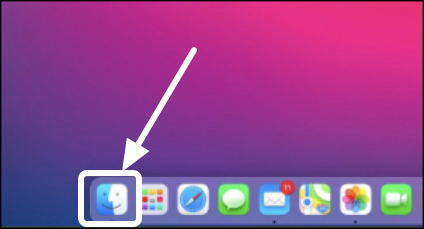
Step 2. Navigate down and click on Services.
Step 3. Select options, then find and click "New Terminal at Folder."
Step 4. Wait for the Terminal to open.
To open Terminal in a specific folder, you can use the "cd" command followed by the path to the folder. For example, if you want to open Terminal in the "Documents" folder, you would type "cd /Users/yourusername/Documents" and press Enter. This will change your current directory to the "Documents" folder, and you can then use the Terminal commands as needed. Alternatively, you can drag the folder you want to open Terminal in to the Terminal window, and it will automatically insert the path to that folder.
Method 2: Open the Terminal in the Applications Folder
To open Terminal from the Applications Folder, navigate to the Utilities folder, which is located inside the Applications Folder, and then double-click the Terminal icon. This will launch the Terminal application on your Mac.
Step 1. Head to Finder on your Mac.
Step 2. Go to the Applications Folder.
Step 3. Head into the Utilities Folder.
Step 4. Find and double-click on Terminal to launch it.
To open Terminal on your Mac through the Applications folder, follow these steps: click on the "Go" menu in the top menu bar, select "Applications," and then double-click on the "Utilities" folder. From there, double-click on the Terminal icon to open it. Alternatively, you can use Spotlight to quickly find and open Terminal by pressing Command + Space, typing "Terminal," and then pressing Enter.
Method 3: Open the Terminal Through the Spotlight Search
To use Spotlight search to open Terminal on Mac, simply click the magnifying glass icon in the top right corner of the screen, type "Terminal" in the search bar, and click the Terminal icon that appears in the results. This will open the Terminal application on your Mac. Alternatively, you can also use the Spotlight search bar on the bottom right corner of the screen. Just type "Terminal" and click on the icon that appears. That's it!
Step 1. To open Spotlight Search, press Command + Space on your keyboard.
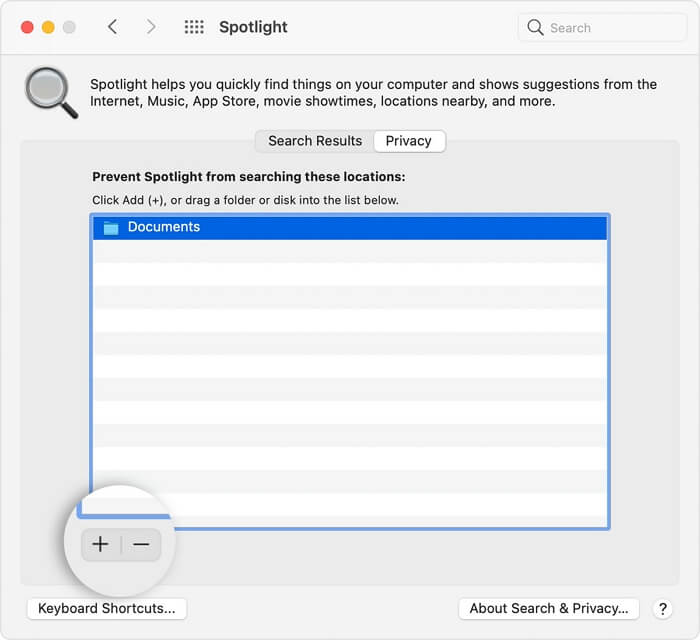
Step 2. Type Terminal in the search bar.
Step 3. Wait until the Terminal appears.
Step 4. Click on the Terminal app to launch it.
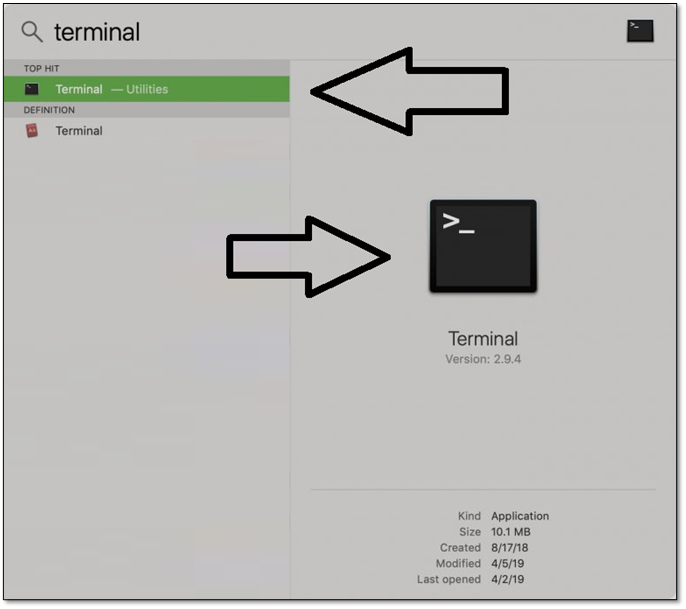
This will help you open the Terminal on Mac through Spotlight search. So, ensure you open it and follow these steps to prompt the Terminal.
Method 4: Open the Terminal from Launchpad
To open Terminal through Launchpad on your Mac, press Command (⌘) + Space to open Spotlight, type "Terminal" in the search field, and press Enter to open the Terminal application. Alternatively, you can use the Launchpad to open Terminal by clicking the Launchpad icon in the Dock, then searching for "Terminal" in the Launchpad window, and clicking on the Terminal icon to open it. You can also use the keyboard shortcut Command (⌘) + Space to open Spotlight, type "Terminal" in the search field, and press Enter to open the Terminal application. This will open the Terminal application directly, allowing you to use it without having to navigate through the Launchpad.
Step 1. Press F4 on your keyboard.
Step 2. Open the Launchpad and click on the Others option.
Step 3. Navigate and look for Terminal, then click on it.
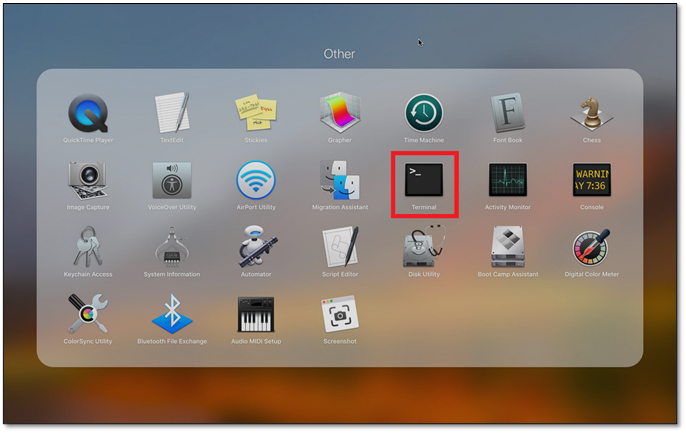
To open the Terminal, click on the Terminal icon in the Dock, or use Spotlight to search for it. You can also use the keyboard shortcut Command + Space and type "Terminal" to open it.
Method 5: Open the Terminal Using the Finder
To open Terminal on your Mac using Finder, follow these steps: 1. Open Finder on your Mac, 2. Click on "Go" in the top menu bar, 3. Select "Utilities" from the drop-down menu, 4.
Step 1. Head into Finder on your Mac.
Step 2. To access the Utilities option in the Go menu, click on the Go option, then find and select Utilities.
Step 3. In the Utilities, find Terminal and double-click it.

To open Terminal on Mac, you can use Spotlight search, go to Applications > Utilities, or use a keyboard shortcut. Once opened, you can use the Terminal to access various features such as creating and managing files, running commands, and more.
Method 6: Launch the Terminal on Mac Recovery Mode
To use Mac's Recovery mode, you must understand how to open it on your device. If your Mac's Recovery Mode is not working, check it out. Once you do, you'll go into Recovery mode and open Terminal. From there, you can follow the steps to resolve the issue.
Step 1. Restart your Mac into recovery mode.
Step 2. In the top bar, click on Utilities.

Step 3.Find and click on Terminal.
To open the Terminal in Recovery Mode on your Mac, first ensure you're in the correct recovery mode for your device, then follow these steps.
Bonus Tip: Restore Lost Data with Mac Data Recovery Software
Using Terminal is an excellent way to recover deleted files on a Mac or reinstall macOS, but it can also be used to repair or restore various aspects of a Mac device. However, users may find that their important files or data are lost during the recovery process.
Mac's Terminal allows users to recover deleted files, but it may be challenging for newer users. For a more streamlined process, professional data recovery software, such as Deep Data Recovery for Mac, is recommended.
Deep Data Recovery
- If you're not familiar with using the Terminal or don't have a Time Machine backup, it's your best option.
- This tool enables you to recover data from a formatted Mac hard drive or retrieve lost files in the event of a system crash or virus attack.
- Deep Data Recovery for Mac is a powerful tool that can recover files deleted by the command line in Terminal, making it a reliable solution for Mac users who need to restore lost data.
These are some reasons you need this tool to recover and restore your files. So, once you're done with your Terminal command, use Deep Data Recovery and its abilities to help you recover your critical files. Here are the steps.
Step 1. Select file types
Launch Deep Data Recovery software, select the file types you want to recover, and click "Fast Scan" to begin the recovery process.

Note: You can choose different search modes based on where and why the data was lost.
Step 2. Search for lost files
To search for lost files on macOS, select the disk location where the files were last saved, which can be an internal HDD/SSD or a removable storage device, and click the "Scan" button.

Step 3. Go through the scanning results
Deep Data Recovery for Mac scans your selected disk volume and displays the scanning results immediately.

Step 4. Select the file(s) and recover
Select the desired file(s) from the scan results to preview and click the "Recover" button to restore them.
Final Thoughts
To open Terminal on your Mac, you can use Spotlight by pressing Command + Space, type 'Terminal' and press enter, or find it in the Applications/Utilities folder. Once open, you can use Terminal to perform various tasks, such as restoring or recovering critical aspects of your Mac device. Proper usage of Terminal is essential to avoid any issues, making it a vital tool on your Mac device.
It's also important to use a data recovery tool like Deep Data Recovery to restore files lost during the recovery process of your Mac.
How to Open Terminal on Mac FAQs
In this section, you will find different answers to your queries.
1. How to open Terminal on Mac Recovery Mode?
Once you enter recovery mode, navigate to the top bar and click on Utilities, then find and click Terminal to open it in recovery mode.
2. How to open Terminal on Mac with the keyboard?
To open Terminal on your Mac directly, you can press F4 and type "Terminal" in the search bar that appears, which will help you find and open it quickly.
3. How to stop Terminal Command Mac?
Once you're done with Terminal, type "Exit" and press Enter to close it.
4. How to open Terminal on Mac as admin?
Once you're in Mac's Terminal, type this Command.
"do dscl / -append /Groups/admin GroupMembership USERNAME."
But replace "Username" with the name of your user and then press the enter key.
Related Articles
- [Too Slow!] How to Fix USB 3.0 Transfer Speed Pretty Slow
- How to Unzip Files on Windows 10 and 11
- Microsoft Word Files with An ASD Extension Cannot Be Opened from This Location [Fixed]
- Fixed: Chrome Browser Not Open/Working in Windows 10 Creator
- What Is IOPS (Input/Output Operations Per Second) and How Do You Measure It?
IOPS is a measure of storage speed that helps users understand the functionality and capability of physical and network storage, allowing them to gauge overall productivity achieved by disk drives. - Windows 10 Internet Explorer Has Stopped Working
This guide is useful for Windows 10 Internet Explorer users who experience frequent errors, such as the browser not opening, not responding, or stopping working, and are looking for a solution to resolve these issues.
Products
Articles & Tutorials
- Data Recovery
- Data Backup
- File Recovery
- File Backup
- System Backup and Restore
- Disk and Partition Clone
- Technical articles
- Mobile articles
- Disk Master Help
- Windows Data Recovery Tutorials
- Windows Secure Delete Tutorials
- Windows Partition Management Tutorials
- Windows File Backup and Restore Tutorials
- Windows System Backup and Restore Tutorials
- Windows Disk Backup and Restore Tutorials
- Windows Clone Tutorials