What Is the Mac Terminal? Introduction to the Command Line Interface on macOS
Macs are well-suited for productivity and professional use, which is why they often excel in this area. This focus on productivity also provides users with effective tools to overcome productivity challenges.
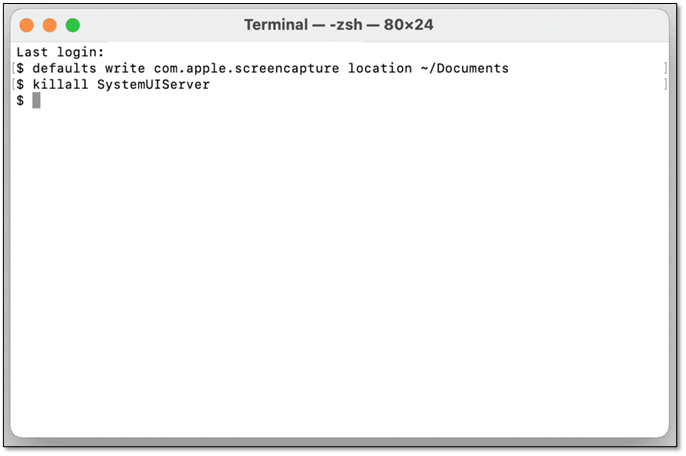
The Mac Terminal CLI allows users to access and control various system commands, execute scripts, and interact with the operating system, giving them complete control over their Mac. While it can be intimidating at first, it is a powerful tool, and using it can be beneficial for tasks like file management, system maintenance, and troubleshooting. To open the Terminal CLI, users can search for "Terminal" in Spotlight, find it in the Applications/Utilities folder, or use the keyboard shortcut Command + Space and type "Terminal". Once opened, users can start typing commands to explore and interact with their Mac system.
This article aims to provide answers to various questions and delve deeper into the topic, so read on for a detailed explanation.
What Is Terminal on Mac?
The Mac terminal is a command line interface (CLI) that provides UNIX command line access, serving as a powerful tool for developers and system administrators. It offers various features, including scripting, file management, and other utilities, making it a valuable resource for users who need to perform complex tasks or manage their system efficiently.
The Mac Terminal application allows users to create and execute scripts, which run commands in sequence, one after another, without requiring user input in between.
Mac Terminal offers various features such as file management, text editing, and directory navigation. However, its use is mostly limited to expert users due to its BSD Unix base, which can be challenging for the average user to understand.
What Does Terminal on Mac Do?
The Terminal app on a Mac is similar to the command prompt on Windows, but the latest Windows 11 versions are also calling it Terminal. It's essentially another app that lets you interact with your computer using commands.
The Terminal provides a command line interface, allowing users to interact with the system by typing commands. It enables key operations such as formatting a drive or searching for specific files, acting accordingly based on the user's input.
To access the command list, press and hold the Escape key and then press Y. This will open a list of various commands that Terminal can perform.
How To Open Terminal on a Mac?
Opening Terminal on Mac isn't a difficult task, and there are multiple ways to do it. You can open the Terminal CLI through Finder, which is one of the most straightforward methods. To do this, simply click on "Finder" in the Dock, navigate to Applications, then Utilities, and finally click on Terminal. Alternatively, you can use Spotlight to search for Terminal and open it directly, or use a keyboard shortcut like Command + Space and type "Terminal" to open it. There are also other ways to open Terminal on Mac, but these methods are some of the most common and easiest to use.
Step 1. Open "Finder" on your Mac device
Step 2. Click on Go, then click "Utilities"
Step 3. Find Terminal in the utility list
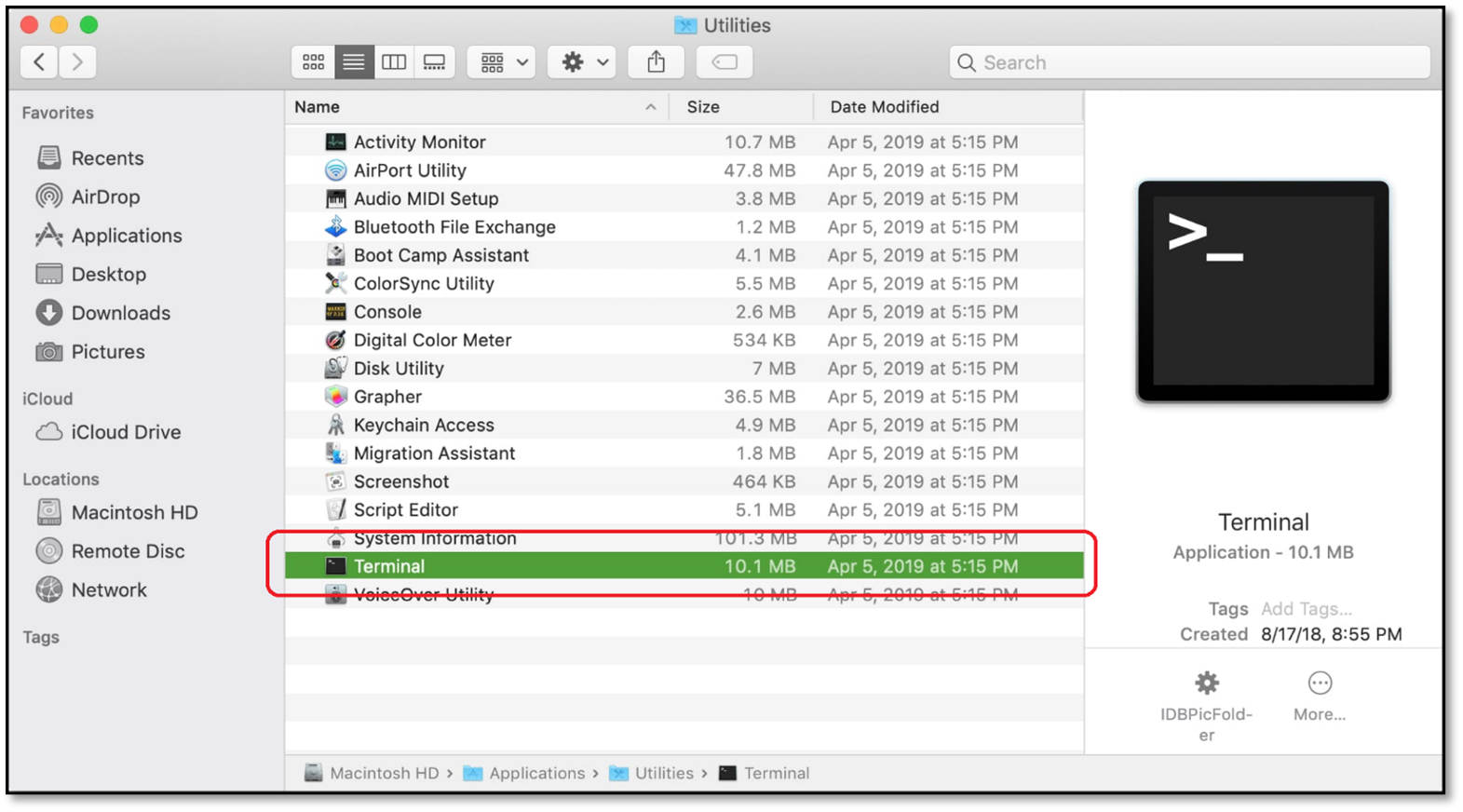
Step 4. Double click it
Step 5. Done
To open Terminal on your Mac, you can either use Spotlight or Launchpad. With Spotlight, simply press Command + Space, type "Terminal," and press Enter. Alternatively, you can use Launchpad by clicking the Launchpad icon in the Dock, typing "Terminal" in the search bar, and clicking the Terminal icon to open it.
Step 1. Press F4 on your keyboard
Step 2. Find and click "Others"
Step 3. Find and click "Terminal"
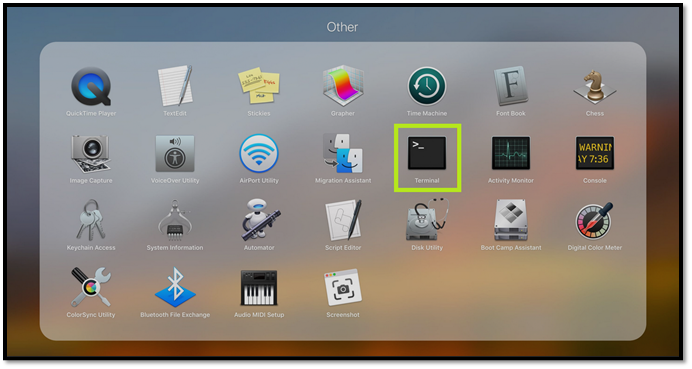
Step 4. Done
To access Terminal on your Mac, you can either click Applications > Utilities > Terminal or use Spotlight to quickly search for Terminal. Once you're in Terminal, you can use various commands to navigate and interact with your computer's file system, execute scripts, and more.
Benefits of Mac Terminal
Mac's Terminal is the only way to access the underlying UNIX Shell, providing access to the key aspects of your device and allowing for changes that wouldn't be possible otherwise, making it a crucial tool for users who want to customize their device.
Why is that? Because Mac's Terminal allows you to:
- Handle the deep aspects of your device
- Format or handle partitions much more efficiently
- Remove or tackle errors from the shell
- Use shell scripting to automate essential tasks
- Total command of your hardware
- Uses a lot fewer resources to conduct high tasks
The Terminal, compared to a Graphical User Interface, uses significantly less memory and operates more efficiently, allowing it to perform tasks like formatting a partition with ease.
Conclusion
These are the key aspects of the Command Line Interface, Terminal on Mac. To understand what is the Mac Terminal, you need to use it thoroughly and learn a few command lines. Therefore, it's not only important to check its tutorials but also to find cheat sheets that have these commands for the users.
FAQs
1. Why is Terminal not on a mac desktop?
If you can't find Terminal on your Mac desktop, it might be because it's not there by default on many macOS versions. Alternatively, your Terminal might be corrupted or need an update from Apple. In this case, you can access it from the Utilities or Launchpad dock, and then bring it to your desktop.
2. What can we use Terminal on mac for?
Using Terminal can help you accomplish tasks that are challenging to do with the operating system's main graphical user interface (GUI). By leveraging Terminal, you can perform tasks such as formatting, partitioning, and fixing errors more efficiently.
3. Where can I find Terminal on mac?
You can find Terminal on a Mac through Finder or Launchpad, or by searching for Terminal or using Spotlight to locate it.
Related Articles
- Answers in 2022 | Does a Factory Reset Delete Everything?
- RAM vs. ROM: 8 Differences between RAM and ROM
- What Is 4K Ultra HD [All You Need to Know]
- Windows 11 Download: How to Download and Install Windows 11 [3 Ways]
- What Is FTP? File Transfer Protocol Explained
FTP is one of the key network protocols in internet and data transfer. So, how does it work and why is it so important? This article will answer these questions and help you understand FTP in a more in-depth light. - Hard Drive Recovery| Recover Files from a Hard Disk
Have you ever lost your hard drive data? We compiled super easy methods to perform hard drive data recovery on Windows 11/10/8/7 and restore hard drive data on Mac. Read on to get the full guide to recover hard drive data in no time.
Products
Articles & Tutorials
- Data Recovery
- Data Backup
- File Recovery
- File Backup
- System Backup and Restore
- Disk and Partition Clone
- Technical articles
- Mobile articles
- Disk Master Help
- Windows Data Recovery Tutorials
- Windows Secure Delete Tutorials
- Windows Partition Management Tutorials
- Windows File Backup and Restore Tutorials
- Windows System Backup and Restore Tutorials
- Windows Disk Backup and Restore Tutorials
- Windows Clone Tutorials