How to Unzip Files on Windows 10 and 11
Zipping files is a common method for transferring heavy files between computers, but it can be confusing to unzip them on Windows 10 and 11. To unzip a file, you can use the built-in Windows feature, which allows you to extract the contents of a zip file by right-clicking on it, selecting "Extract all", and following the prompts. Alternatively, you can use a third-party zip software like WinZip or 7-Zip, which offer more advanced features and options for zipping and unzipping files.
So, let's start.
What Is a Zip File on Windows
Zip files are compressed files that contain multiple files and folders, allowing you to bundle and transfer them easily. This helps reduce the risk of losing files during transfer and compresses large files, making them more manageable. For example, you can zip a PDF by clicking on the link.
Windows computers used to need a third-party tool to zip files, but with Windows 10, Microsoft included a built-in zipping tool, making it easier to zip and unzip files without needing extra software.
You can easily extract the contents of a zip file without needing to install a separate tool.
How Do You Unzip Files on Windows 10 and 11
When you receive a zipped file, you'll need to unzip it before using it, and on Windows, there are two primary ways to do this.
Method 1. Unzip Files by Using "Extract All"
Method 2. Unzip Files by Drag-and-drop
Method 1. Unzip Files by Using "Extract All"
The "Extract All" feature on Windows 10 and 11 allows users to unzip zipped files without needing third-party tools like Winzip or 7zip, making it a convenient and built-in solution for unzipping files.
To use the "Extract All" method to unzip files, start by right-clicking on the zipped file and selecting "Extract All" from the context menu. This will open the "Extract Compressed (Zipped) Folders" window, where you can choose the location where you want to extract the files.
Step 1. To unzip a file, first, navigate to the file you have received and want to unzip. Open the file location, and you should see the file you want to unzip.
Step 2. Right-clicking on a file will open a dropdown menu.
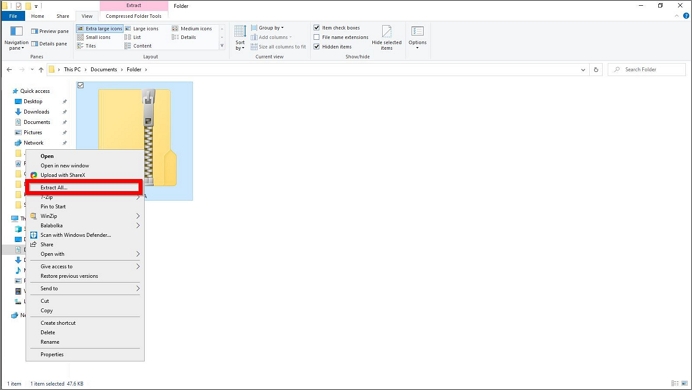
Step 3. Now, click on "Extract All," and it will open the Zip Wizard. This will guide you through the process of extracting the contents of the Zip file.
Step 4. The zip file will be extracted to a folder with the same name as the zip file, but you can also choose a different destination folder by clicking on the "Browse" button to select the desired folder.
Step 5. Click the Extract button at the bottom of the Wizard to start the extraction process, which will unzip and move all the files to the specified destination folder.
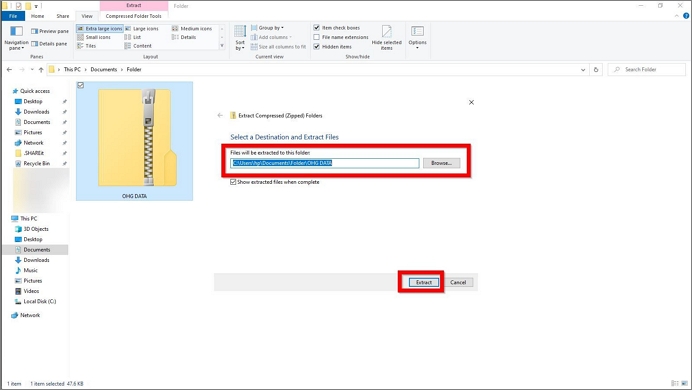
Besides this method, there is another method to unzip files on Windows 10 and 11.
Method 2. Unzip Files by Drag-and-drop
You can also unzip files using the drag-and-drop method, which is an alternative to the "Extract All" method.
In this method, you must drag and drop the files to the destination folder.
Follow the below steps to unzip using the drag-and-drop method.
Step 1. Navigate to the file you want to unzip.
Step 2. Double-click to open the zip file, which will display its contents in a window. Then, minimize the window to view the desktop.
Step 3. Create a new folder on the desktop and name it anything you like.
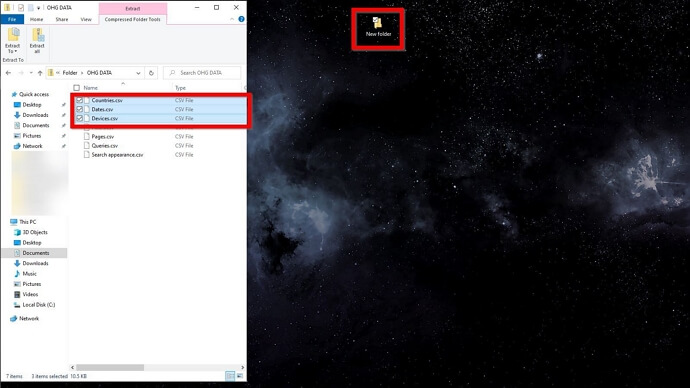
Step 4. To transfer files from a zip archive, select the desired files within the zip window. Then, drag and drop them into the target folder. This will copy the files into the folder, and you can then delete the zip file.
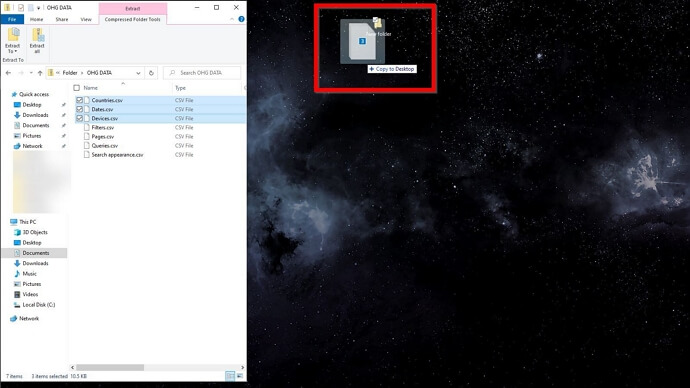
To successfully get all the files from a folder, follow the above steps. This method is particularly helpful when you want certain files from a zip file and don't want all of them.
Related Articles
- Mac Internet Recovery Mode, How to Start Up [Full Guideline]
- 8 Best Google Drive Alternatives for Cloud File Backup [2022 Full Recommendation]
- Mac Safe Mode | Boot Mac to Safe Mode in macOS 13/12/11 [ 2022 Guideline ]
- [Three Solutions] How to Backup Xbox 360 Hard Drive
- What Is Minimum Processor State? Everything You Need to Know
The Minimum Processor State functionality is available under the Power options of windows system settings. In this guide, we will introduce you to the ways to set, add or remove the Minimum Processor State in your Windows 10/11. - Top 10 Most Basic SQL Commands To Know
Are you starting with SQL? Do you want to master the database queries? Then follow this easy guide to get started with the top 10 most basic SQL commands.
Products
Articles & Tutorials
- Data Recovery
- Data Backup
- File Recovery
- File Backup
- System Backup and Restore
- Disk and Partition Clone
- Technical articles
- Mobile articles
- Disk Master Help
- Windows Data Recovery Tutorials
- Windows Secure Delete Tutorials
- Windows Partition Management Tutorials
- Windows File Backup and Restore Tutorials
- Windows System Backup and Restore Tutorials
- Windows Disk Backup and Restore Tutorials
- Windows Clone Tutorials