Mac Safe Mode | Boot Mac to Safe Mode in macOS 13/12/11 [ 2023 Guideline ]
What Is Mac Safe Mode
The Mac Safe Mode is a troubleshooting feature on macOS that helps diagnose software and hardware issues by separating the two. It's recommended to start up in safe mode when experiencing problems, as it can help identify the root cause of the issue.
When you boot your Mac in Safe Mode, certain checks are performed to prevent some software from loading or opening automatically, allowing you to troubleshoot and identify issues with your system.
- Resolve issues related to Mac startup disk.
- Force empty trash Mac.
- Load essential kernel extensions only.
- Automatically clean the system and font caches.
How to Start Your Mac in Safe Mode
To boot a Mac into safe mode, simply restart your Mac and hold down the Shift key on your keyboard until you see the login screen. This will prevent any third-party kernel extensions from loading, and your Mac will boot in safe mode. This mode is useful for troubleshooting issues, removing malware, and more.
The following tutorials apply to Macs with Intel processors and Macs with M1 chips.
Method 1. Steps to boot Safe Mode in Intel Mac:
Step 1. To restart your Mac, shut it down completely by going to Apple Menu > Restart, or press the power button to force a shutdown. Wait a few seconds, then press the power button again to turn it back on.
Step 2. Press and hold the Shift key on the keyboard and wait for the Apple logo to appear on the screen.

Step 3. To log in, release the shift key when the login window displays, then enter your login credentials.
Step 4. If you have FileVault enabled, you may need to log in twice.
Method 2. Steps to boot Safe Mode in M1 and later Mac:
Step 1. Shut down the Mac.
Step 2. To access the startup options, hold the power button on your device until it shuts down. Wait for about 10 seconds, then press the power button again to turn it back on.
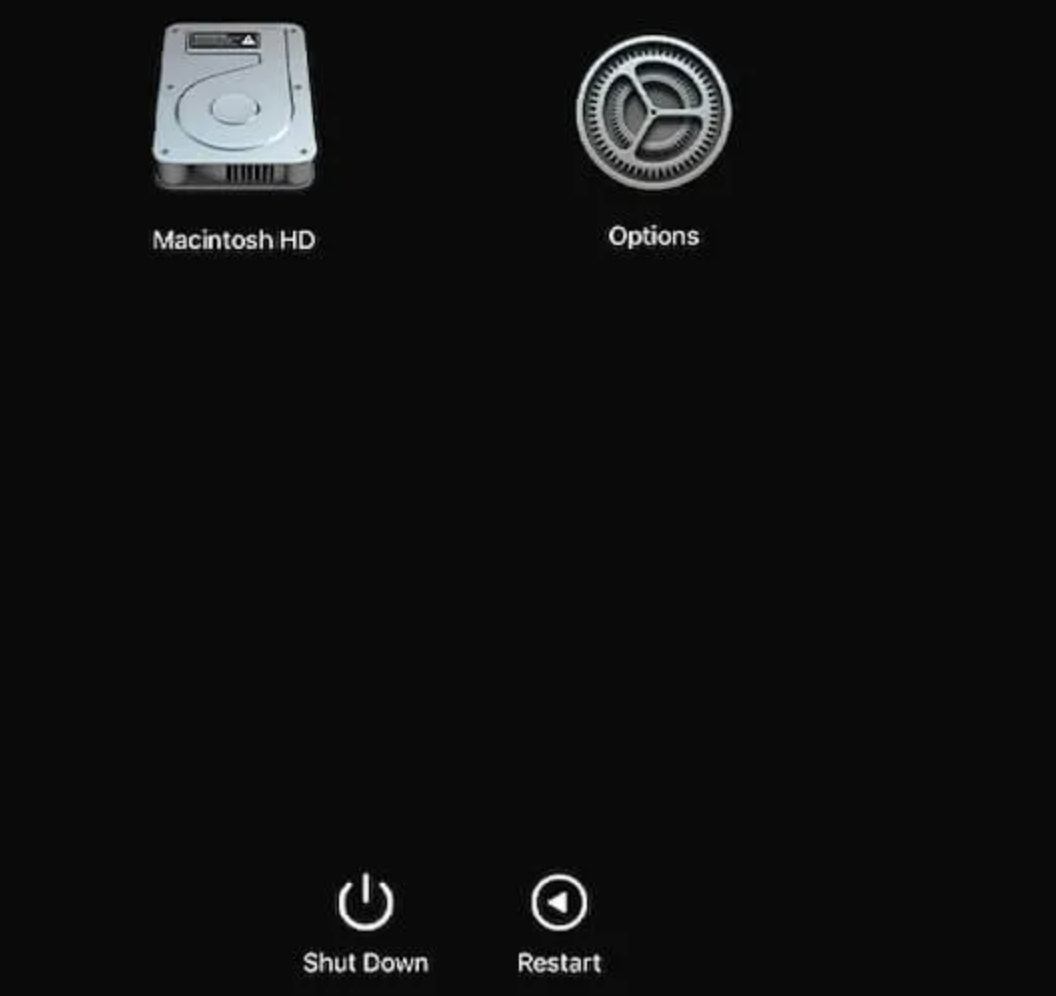
Step 3. In Mac Safe Mode, press the Shift key and choose "Continue" to log in. This will boot your Mac in a minimal environment with only the necessary system processes running, allowing you to troubleshoot and diagnose issues without any additional programs or services interfering.
Once you've entered safe mode, you can use your computer generally. For example, if a specific app caused your Mac to crash, try running the app again in safe mode to see if the problem persists.
Difference Between Mac Safe Mode And Recovery Mode
Mac Safe Mode is a simplified version of the operating system that allows you to troubleshoot and resolve issues caused by software, allowing your Mac to start up faster.
Mac Recovery Mode and Internet Recovery Mode boot from a hidden recovery partition on the Mac's hard disk. This allows you to restore data from a Time Machine backup, use the Terminal, check and fix disk errors, and reinstall macOS.
| Utilities | Functions | |
| Mac Safe Mode |
The OS is running slowly Startup and login items issue |
Force a directory check of your startup drive Load only essential kernel extensions |
| Mac Recovery Mode |
Wipe a Mac or disk Repair the disk Clean install of macOS |
Restore data from Mac Time Machine backup Utilize the Terminal Check and correct any disk errors Reinstall macOS |
How to Fix When Mac Safe Mode Not Working
To start Safe mode on Mac, you can simply hold down the Shift key while booting up, but some users may encounter issues where their Mac won't boot into safe mode. To resolve this, you can try resetting the System Management Controller (SMC) or the Power Management Unit (PMU), which can be done by shutting down your Mac, unplugging the power cord, waiting for 30 seconds, and then plugging it back in. Alternatively, you can try booting in verbose mode by holding down the Command (⌘) and V keys while booting up, which can provide more detailed error messages that may help identify the issue. If neither of these solutions work, it may be worth resetting your Mac to its factory settings.
Fix 1. Use the Option Key
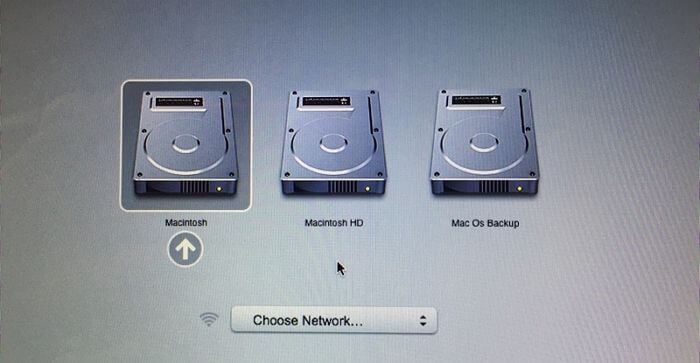
To fix the issue of a Mac not starting in safe mode, one of the best solutions is to choose the Option key. The steps to follow are:
Step 1. Shut down your Mac.
Step 2. Then Press and hold down the Option key.
Step 3. Then hit the Power button.
Step 4. Choose the startup disk from the list of your Mac's drives.
Fix 2. Reset SMC
Resetting the SMC can sometimes fix the Mac Safe Mode not working issue. For Macs with the T2, M2, or Apple M1 chip, you can take the following actions.
Step 1. Turn off your Mac.
Step 2. To hold down the Control + Shift + Option (Alt) keys at the same time, press and hold the Control key, the Shift key, and the Option (Alt) key simultaneously. This action will trigger a specific function or shortcut, depending on the context in which it is performed.
Step 3. To disable your system, press the Power button and hold it down while simultaneously pressing the Power button again. This will initiate the shutdown process, and your system will be disabled.

Bonus Tip: Recover Data When Mac Safe Mode Not Working
Even with advanced technology, Macs can still experience issues, such as data loss due to OS malfunctions, which can occur despite their advanced capabilities.
The issue of Mac Safe Mode not working is often due to various reasons, resulting in errors that prevent the Mac from booting in Safe Mode, which can lead to potential data loss on the device.
Deep Data Recovery for Mac is a robust and safe data recovery software that helps recover permanently deleted files on Mac, with a user-friendly interface that makes data and file recovery accessible even for beginners.
Deep Data Recovery for Mac
- When a Mac can't boot normally, you can recover lost or deleted system files by booting into Safe and Recovery Mode. This mode allows you to access and restore critical system files, even if the Mac is unable to boot as usual.
- Recover data and files from formatted hard drives, empty Trash Bin, memory cards, and other storage devices on Mac with data recovery software.
- To recover data in various situations, consider using software that supports data recovery. This can be helpful in case of a sudden system crash, issues with the system not starting up, hard drive corruption, or a virus attack.
Here are the steps of data recovery when your Mac can't boot into Safe Mode and come across start-up issues.
How to Create a USB Bootable Media
Step 1. Install and run Deep Data Recovery for Mac on another Mac computer, select "File > Create Bootable USB", and choose a USB drive to create the bootable disc.
- Warning
- The creator will prompt you to erase the drive to free up space, then write bootable files to it, so please back up all USB files before running the "Eraser" process.
Step 2. The program creates a 2GB space on the USB to save the boot files, freeing up the remaining space for storage purposes.
Step 3. Once the process is complete, follow the guide to boot the corrupted Mac from the bootable disc and start the recovery. It's recommended to restore the data to an external hard drive.
How to Recover Data from Mac Hard Disk
Step 1. Launch Deep Data Recovery on your Windows computer, select the file types you want to recover, and click "Fast Scan" to initiate the recovery process.

Note: You can choose different search modes based on where and why the data was lost.
Step 2. Select the disk location (it can be an internal HDD/SSD or a removable storage device) where you lost data and files. Click the "Search for lost files" button.

Step 3. Deep Data Recovery for Mac will immediately scan your selected disk volume and display the scanning results on the left pane.

Step 4. To recover data from your Mac, select the file(s) you want to restore in the scan results and click the "Recover" button. This will initiate the recovery process.
To Wrap It Up
Mac Safe Mode can be used to troubleshoot issues on your Mac, but if it's not working, you may need to recover your data, for which Deep Data Recovery for Mac can be a helpful tool.
Mac Safe Mode FAQs
Here are 4 questions about Mac Safe Mode not working. Check here for the answers.
1. What is the purpose of Safe Mode on Mac?
In Mac Safe Mode, the computer starts with the minimum system resources needed and disables all startup programs and third-party visual effects. Only the necessary kernel extensions are allowed to load, making it possible to troubleshoot startup problems.
2. How do I take my Mac out of Safe Mode?
To exit Safe Mode on your Mac, simply shut it down and restart normally, without holding any keys during startup.
3. Why can't I start my Mac in Safe Mode?
- System Management Controller (SMC) issues
- PRAM/NVRAM-related problems
- There are file system issues on the startup disk.
- Make sure the keyboard is operating flawlessly so that you can utilize the Shift key effectively.
- There are bugs with the mac OS.
4. How do I start my computer in Safe Mode with a black screen?
To restart your computer, press and hold the Windows logo key on your keyboard, then press and hold the Ctrl key, and finally press and hold the Shift key, and the B key, all at the same time. Release all keys after a few seconds to let the system restart.
Related Articles
- Microsoft Word Files with An ASD Extension Cannot Be Opened from This Location [Fixed]
- Easy Ways to Fix "Unrecognized Database Format" Error
- Reset Mac Password if You Forgot the Password [with Four Simple Methods]
- Windows Update Reset (Fix It) Tool Download [Full Guide in 2023]
- How to Recover Deleted Files from Hard Drive
Qiling data recovery software can recover deleted files from a hard drive, as well as undelete, unformat, and recover RAW drive data, in addition to deleted files recovery. - How to Recover Deleted Zoom Recording/meeting | Zoom Video Recovery
Accidentally deleted a Zoom recording? Learn 3 proven methods to recover deleted Zoom meetings and recordings from Cloud, Zoom Trash, and local drive with our step-by-step guide.
Products
Articles & Tutorials
- Data Recovery
- Data Backup
- File Recovery
- File Backup
- System Backup and Restore
- Disk and Partition Clone
- Technical articles
- Mobile articles
- Disk Master Help
- Windows Data Recovery Tutorials
- Windows Secure Delete Tutorials
- Windows Partition Management Tutorials
- Windows File Backup and Restore Tutorials
- Windows System Backup and Restore Tutorials
- Windows Disk Backup and Restore Tutorials
- Windows Clone Tutorials