Reset Mac Password if You Forgot the Password [with Four Simple Methods]
If you've forgotten your Mac password, don't worry - you can reset it using one of four methods. You can use your Apple ID, another admin account, FileVault, or Recovery Mode to reset your password and regain access to your Mac. This means you won't be locked out of your computer forever, and you can quickly regain control of your device.
To help you understand how to reset Mac passwords more intuitively, we provide a video about how to rest Mac passwords. Before you click to watch it, check the key points, and you can skip to a specific part.
- 02:41 Show password reset options
- 03:22 Use Apple ID to reset Mac passwords
- 04:47 Create a new password on Mac
- 05:43 Enter your new password
How to Reset Password on Mac with Apple ID
To recover a forgotten Mac login password, start by signing in with your Apple ID on the login screen. If you're unable to sign in, click the "Forgot password" option. You'll then be asked to verify your identity using your Apple ID password, a trusted device, or a recovery key. Once verified, you'll be prompted to create a new password.
Step 1. Make sure you are in the login window.
Step 2. You can enter the password up to three times and then you will see the option to reset the password.
Step 3. Click "Reset it using your Apple ID".

Step 4. To reset your Apple ID password, enter your Apple ID and the password, and then follow the prompts to reset your password.
Step 5. Click the account you want to reset the password.
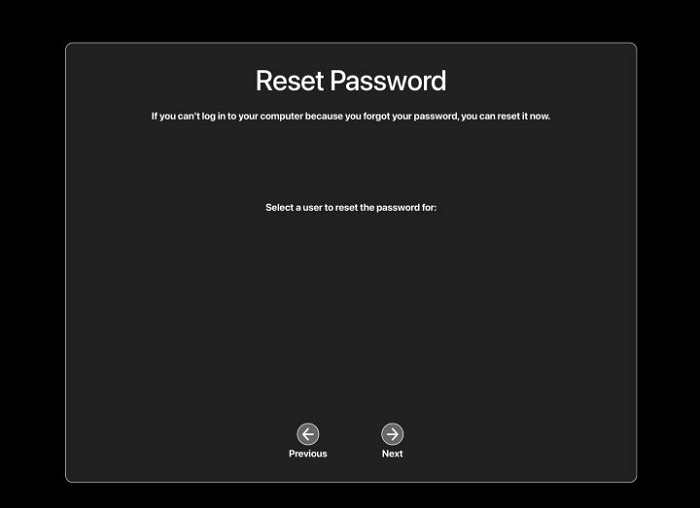
Step 6. Please enter the new password and verify it.
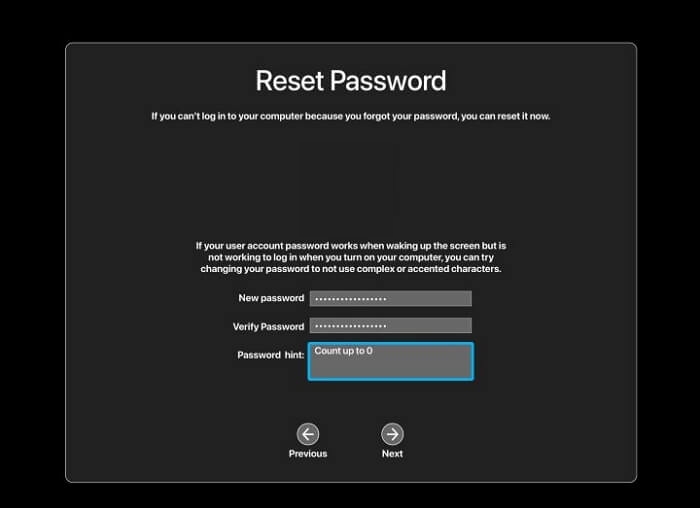
Step 7. Now you can restart your Mac and enter the new password.
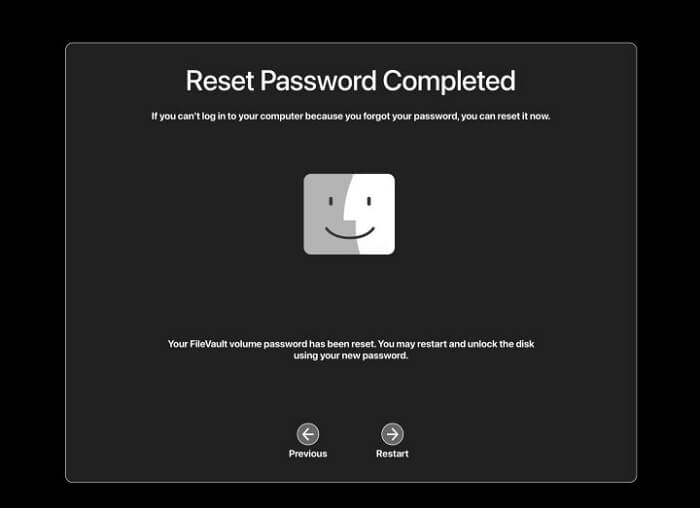
Reset Mac Password with Another Admin Account
To resolve the issue on a Mac with multiple administrator accounts or an unlinked Apple ID, follow these steps:
Step 1. Ensure you are in the login window and enter Mac with another account.
Step 2. Check the System preferences and choose "Users and Groups".
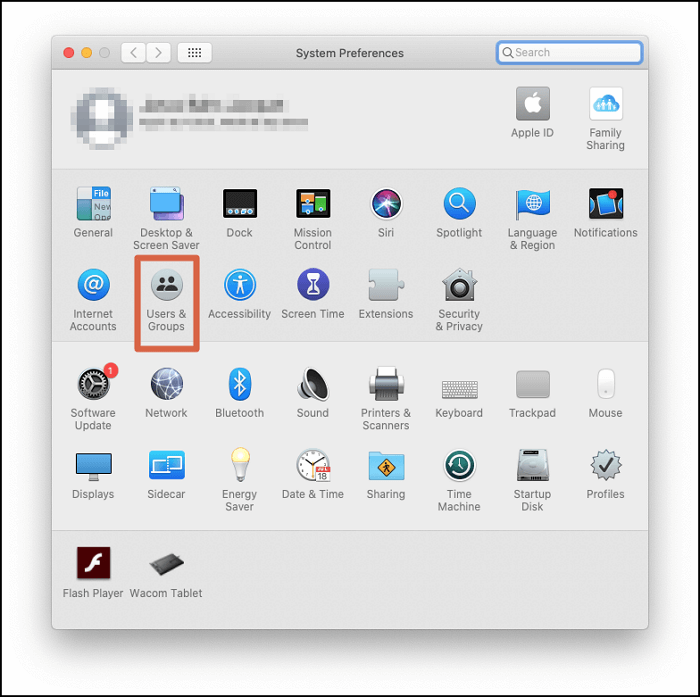
Step 3. Select the Mac account you want to reset the password and click on "Reset Password".
Step 4. Log out of this account and enter your Mac again with the new password.
How to Reset Mac Password with FileVault
FileVault is a disk encryption program in macOS that can encrypt your Mac's hard drive and all stored data. If your FileVault is turning on, you can reset Mac passwords using a method similar to the first solution.
Step 1. Make sure you are in the login window.
Step 2. Enter the password up to three times, then you will see the password reset option.
Step 3. Click "Restart and show password reset options".

Step 4. Enter your recovery key, and click "Next".
Step 5. Click the account you want to reset the password.
Step 6. Please enter the new password and verify it.
Step 7. Now you can restart your Mac and enter the new password.
Reset Mac Password in Recovery Mode
If you've forgotten your Mac password and don't have an Apple ID or a security question, the usual password reset methods won't work. Don't worry, you can still reset your password by booting your Mac in Recovery Mode, and we can guide you through the process.
How to Boot Mac in Recovery Mode
If your Mac won't boot into Recovery Mode, don't worry! You can try to fix it with the following solutions. To boot your Mac in Recovery Mode, you'll need to restart your computer and immediately hold down the Command (⌘) + R keys.
Check your Mac keyboard connections.
- Make a bootable USB on Mac.
- Boot Mac in Safe Mode.
- Restore Time Machine backup.
Now we can start to boot Mac in Recovery Mode:
Step 1. Shut down your Mac in the login windows.
Step 2. To restart your Mac, press both the Command and R keys and release them when the Apple logo appears. If your Mac has an M1 chip, hold the power button until the startup disk shows up. This will initiate the Recovery Mode, allowing you to access the Utilities window, from which you can perform various tasks, such as reinstalling macOS, running a disk utility, or accessing the Terminal.
Step 3. When you see macOS utilities, you are in Recovery Mode.
Step 4. Click "Utilities" and then choose "Terminal".
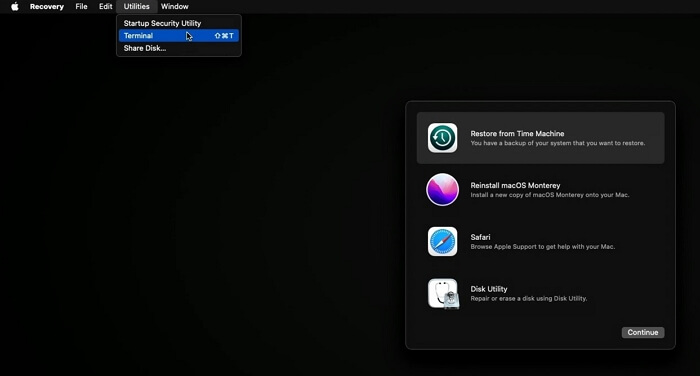
Step 5. To reset your password, open the Terminal and type in resetpassword, then press the Enter key.
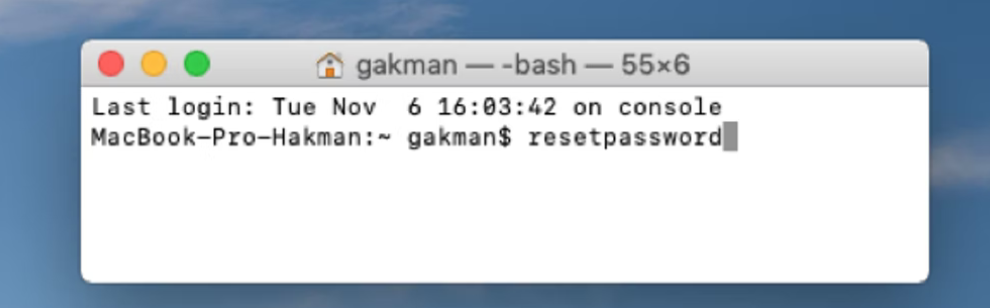
Step 6. Then you can reset the password and restart your Mac.
If I Erase Everything in Recovery Mode, What Can I Do
When using Recovery Mode for the first time, there's a risk of accidentally resetting and erasing all data on your Mac. If this happens, the simplest way to recover deleted files on Mac is by using Deep Data Recovery for Mac, a tool designed to help you get back lost data.
Data loss on a Mac can occur due to various reasons, such as accidental deletion, formatting, or system crashes, leading to the need for data recovery on a Mac.
- If you've accidentally deleted essential files on your Mac, don't worry, there are ways to recover them. You can try using the Time Machine backup feature, which automatically backs up your Mac's data at regular intervals.
- Upgrading macOS on a Mac does not delete everything, but you may lose data if the upgrade fails or gets stuck.
- After formatting a USB drive to FAT32 on a Mac, some users may lose important data and want to recover it.
Deep Data Recovery for Mac
- You can recover lost photos, music, documents, videos, audio, etc.
- We provide data recovery services for a variety of devices, including MacBook and iMac computers, cameras, SD cards, and iPods, helping you recover lost data from these devices.
- We support multiple operating systems, including macOS Ventura, Monterey, Big Sur and other versions.
We will teach you how to recover lost data after you erase the Mac in the Recovery Mode.
Step 1. Select file types and click "Fast Scan" to start
Launch Deep Data Recovery on your Windows computer, select the file types you want to recover, and click "Fast Scan" to begin the recovery process.

Note: You can choose different search modes based on where and why the data was lost.
Step 2. Select the drive to be scanned
Select the drive you need to recover lost/deleted files from, and click the "Search for lost files" button in the main Deep Data Recovery window.

Step 3. Select your lost data/files
Deep Data Recovery for Mac will immediately scan your selected disk volume and display the scanning results on the left pane, allowing you to sort the results to find specific files if needed.

Step 4. Recover lost/deleted data
Once you have located the desired files, preview them and then click "Recover" to initiate the recovery of your deleted or lost Mac files.
Reset Mac Password FAQs
If you're having trouble resetting your Mac password, here are some additional questions and answers to help clarify the process:
How to reset a Mac password in Terminal?
You can reset a Mac password in the Terminal easily by booting your Mac in Recovery Mode. To do this, restart your Mac and immediately hold down the power button until the boot chimes appear, then release the power button and hold down the Command (⌘) + R keys.
- 1. Enter the Recovery Mode on your Mac.
- 2. Click "Utilities" and then choose "Terminal".
- 3. After opening the Terminal, type "resetpassword" and press Enter.
- 4. Then, you can reset the password and restart your Mac.
How to reset your MacBook password when locked out?
You can reset your MacBook password with your Apple ID:
- 1. Make sure you are in the login window.
- 2. Enter the password up to three times, and then you will see the password reset option.
- 3. Click "Reset it using your Apple ID".
- 4. Enter your Apple ID and the password, and then you can reset your password.
- 5. Click the account you want to reset the password.
- 6. Please enter the new password and verify it.
- 7. Now, you can restart your Mac and enter the new password.
How to reset the password on the MacBook air m2?
You can change the login password on a MacBook Air by going to System Preferences, then clicking on Users & Groups, and finally clicking on the lock icon and entering your current password to make changes. From there, you can edit your account information and change your password to a new one.
- 1. Choose the Apple menu and click "System Preferences".
- 2. Then click "Users and Groups".
- 3. Click "Change Password".
- 4. Enter your old password and set the new one.
Forgot MacBook password no question mark. How to reset it?
There are four methods you can reset your MacBook password:
- 1. Reset with Apple ID.
- 2. Reset with another Mac account.
- 3. Reset with FileVault.
- 4. Reset the password with Terminal in Recovery Mode on Mac.
Related Articles
- How to Backup Gmail Emails to Outlook for Windows 11/10/8/7
- How to Format External SSD for Mac [Newest & Effective Ways]
- How to Fix Diskpart Failed to Clear Disk Attributes Error
- Games Keep Crashing on Windows 10/11 - 13 Quick Fixes
Fix games that keep crashing on Windows 10 or 11. Check drivers, overheating, game files, system resources, and compatibility issues. - What Is Transcode and Why Is It Important for Video Streaming [Everything You Need]
Transcoding is changing the file format of an already compressed material. The term - What Is Unified Memory and How to Compare Unified with RAM? [Complete Information]
Unified memory is a virtual address space that can be shared between the operating system and applications. The latest and greatest technology on the market can be tricky to understand, especially if you're just getting started. Here's the comparison between unified memory and RAM.
Products
Articles & Tutorials
- Data Recovery
- Data Backup
- File Recovery
- File Backup
- System Backup and Restore
- Disk and Partition Clone
- Technical articles
- Mobile articles
- Disk Master Help
- Windows Data Recovery Tutorials
- Windows Secure Delete Tutorials
- Windows Partition Management Tutorials
- Windows File Backup and Restore Tutorials
- Windows System Backup and Restore Tutorials
- Windows Disk Backup and Restore Tutorials
- Windows Clone Tutorials