How to Backup Gmail Emails to Outlook for Windows 11/10/8/7
Backing up Gmail emails to Outlook can be a bit tricky, but don't worry, we've got you covered. With over a billion registered email accounts, Gmail is one of the most popular web email services globally, but sometimes users need to transfer their emails to Outlook. Fortunately, we have several solutions and a reliable tool to help you move or back up your Gmail emails to Outlook quickly and efficiently.
Why Need to Back up Gmail Emails to Outlook
Most email users use a cloud-Subject: Importance of Email Backup
Losing all your emails can happen, as some Gmail users experienced a few years ago. While email services are secure, the threat of losing emails remains a reality due to various reasons. To mitigate this risk, making regular backups of Gmail emails to Outlook is almost essential, and there are additional motives to do so, such as ensuring data preservation and protection.
- Gmail shows a small pop-up screen for composing emails, whereas Outlook displays a full-screen view.
- Gmail displays images as embedded thumbnails, whereas Outlook has a small image gallery and photo viewer.
- Gmail and Outlook have different attachment and storage limits. Gmail allows 25MB of file attachments per email, while Outlook permits 100MB. However, Gmail offers 15GB of free storage space, which is significantly more than Outlook's 5GB.
2 Ways to Back up Emails from Gmail to Outlook
Backing up Gmail emails to Outlook can be done in various ways, but many users are unsure of what to do. Fortunately, there are two straightforward methods to quickly transfer your emails.
| Workable Solutions | Step-by-step Troubleshooting |
|---|---|
| Solution 1. Manually Transferring Gmail Emails to Outlook | This option is needed to connect your Gmail account to Outlook...Full steps |
| Solution 2. Import Emails from Gmail into Outlook.com | This operation imports both emails and folders. Bringing your email...Full steps |
Solution 1. Manually Transferring Gmail Emails to Outlook
To connect your Gmail account to Outlook by enabling IMAP, follow these steps:
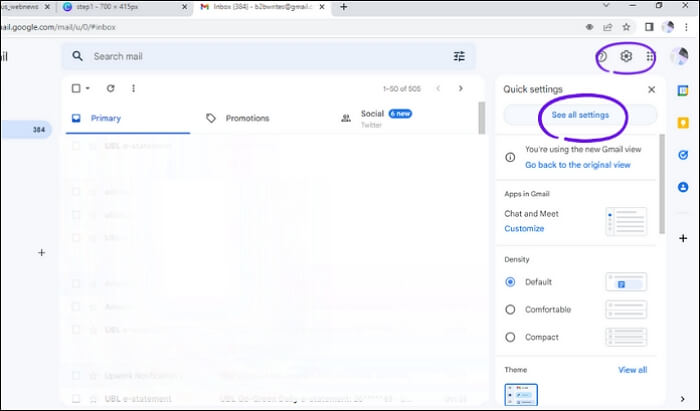
Step 1. To access your Gmail settings, click on the gear icon in the top right corner of the page, then select "See all settings" from the dropdown menu.
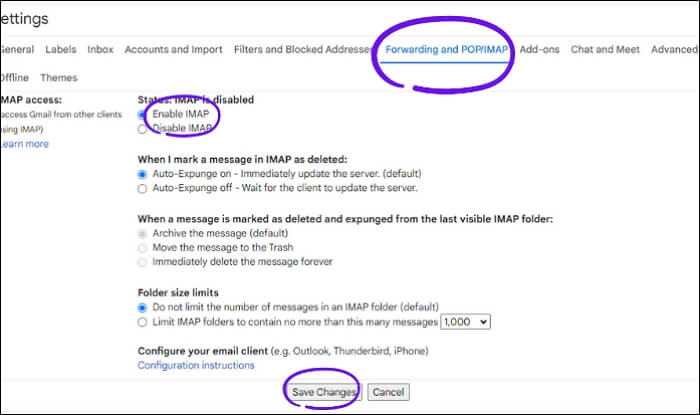
Step 2. To enable IMAP, click on "Forwarding and POP/IMAP" and select the option to enable IMAP, then click "Save Changes".
Step 3. To add a new account in Outlook, go to the File menu and select "Add account".
Step 4. To update your account settings, open the account settings window and enter your Gmail account details, including your name, username, and password.
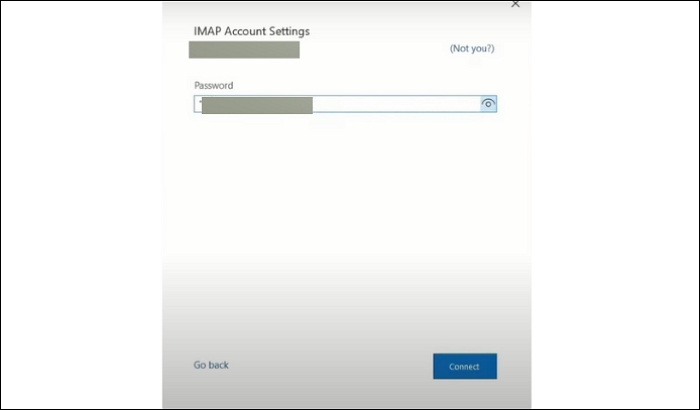
Step 5. Complete the further process and remaining steps.
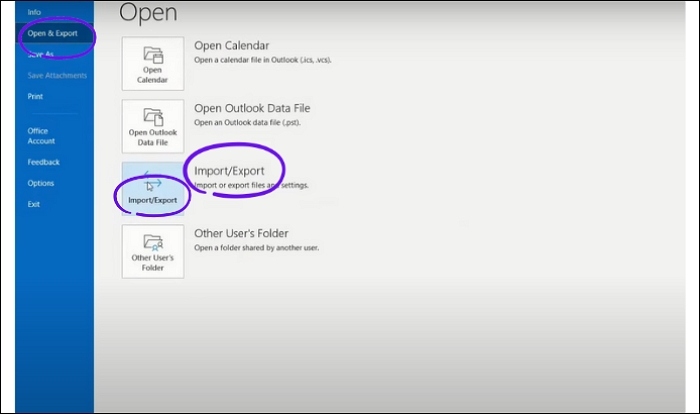
Step 6. To begin, go to the File menu, select "Open & Export," and then "Import & Export" from the resulting options.
Step 7. Select Export to a file and click Next.
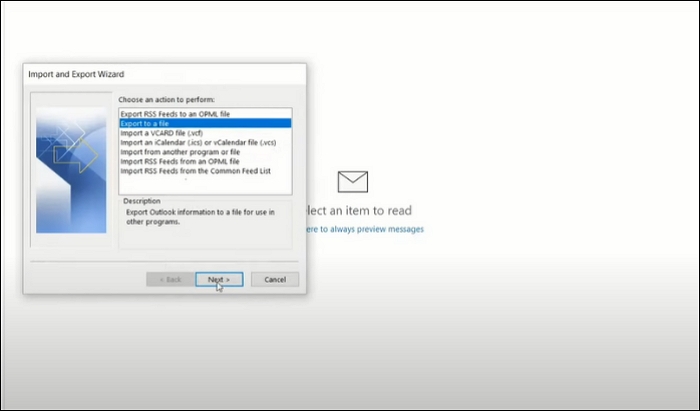
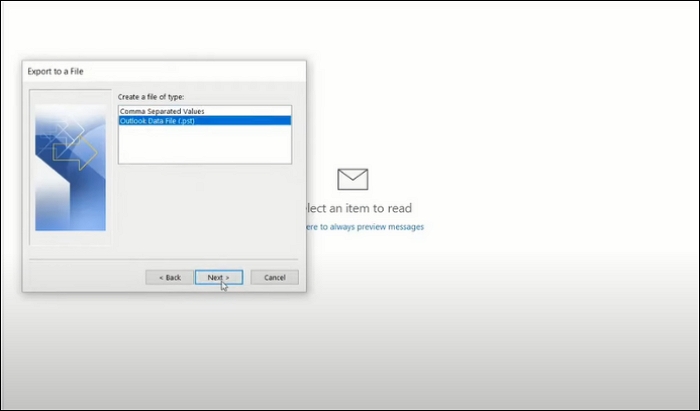
Step 8. Select Outlook Data File (PST) and click Next.
Step 9. Select the account that you just synced with Gmail.
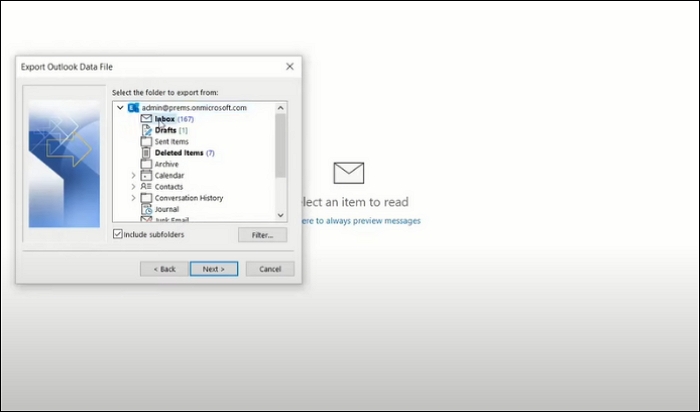
Step 10. Select the Gmail account you want to export from, choose the folders and subfolders you want to include, and then select the location and file name for the exported PST file.
Step 11. Save the resulting PST file to the destination path selected.
Solution 2. Import Emails from Gmail into Outlook.com
Bringing your emails from Gmail to Outlook.com is easy, simple, and fast. Outlook will do all the setup and connection, and create folders for your Gmail labels, making the import of both emails and folders a seamless process.
Step 1. To access your Outlook settings, log in to your account, click the gear icon at the top, and select "View all Outlook settings".
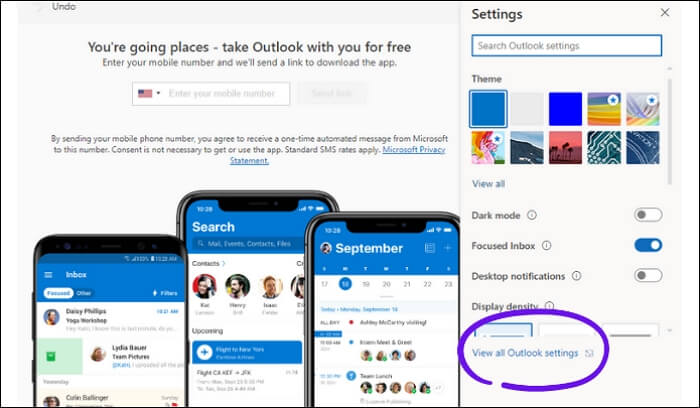
Step 2. Click (Sync email) from the menu and click (Gmail).
Step 3. A pop-up window will appear, where you should enter your display name and select the option to connect your Gmail account to import your email.
Step 4. To import emails, select "Choose a new folder for the imported email, with subfolders like in Gmail" and then click "OK".
Step 5. You'll be redirected to sign in to your Gmail account to connect. Simply log in to your Gmail account, using your Email and Password, and click the "Next" button.
Step 6. Click (Allow), and Outlook will import your chosen folders and emails from your Gmail account in the background.
A Quick Way to Export Gmail Emails to Outlook
To back up Gmail emails to Outlook, you can use a third-party software like Qiling Backup, which is a hassle-free and popular option for backing up Gmail emails to Outlook.
Qiling Backup Home is a multi-purpose backup tool that allows you to back up your system, partition, or disk, and offers various types of backups, including full, incremental, and differential backups. It also enables cloning of M.2 SSDs to larger ones, and provides 250GB of free cloud storage for secure backup storage in multiple locations, adhering to the 3-2-1 backup rule.
To create a Gmail email backup, follow these steps: first, sign in to your Gmail account and navigate to the settings menu; next, click on the "See all settings" button and select the "Forwarding and POP/IMAP" tab; then, toggle the switch to enable POP and IMAP access, and set up your email client to download emails from your Gmail account; finally, set up a backup service or use a third-party tool to regularly download your emails and store them locally.
Note: To log in to your Gmail account in Outlook, first make sure you have a Gmail account and have installed the Outlook app on your device. Then, open the Outlook app and navigate to the top right corner, where you will see a "+" icon.
Step 1. Launch Qiling Backup on your computer, click File Backup on the home screen to start the backup task.

Step 2. Select the Microsoft Outlook database folder, and choose the mailbox addresses you want to back up, whether it's emails, contacts, or calendars.

Step 3. To save the Outlook backup, click on the location where you want to save the file. This could be your desktop, a folder on your computer, or an external drive.

Step 4. The backup location can be a local drive, external hard drive, network, cloud, or NAS, with external physical drives or cloud storage being recommended for preserving backup files.

Step 5. In the Options button, you can customize settings like setting an automatic backup schedule in daily, weekly, monthly, or upon an event, and making a differential and incremental backup. Click "Proceed" to start the Outlook backup process, which will display on the left side in a card style once completed.

Final thoughts
Outlook is a great email tool that helps you manage day-to-day work and personal emails, and lets you organize things in a way that other email providers don't. To quickly back up Gmail emails to Outlook, you can use various methods, but we suggest using Qiling Backup, which not only backs up your emails but also meets your other backup demands.
FAQs
1. Can Outlook receive emails from Gmail?
You can turn off the option to connect and enable your Gmail account to receive emails.
2. What does IMAP mean in Gmail?
IMAP (Internet Message Access Protocol) allows you to download emails from Gmail, enabling you to view and edit them in Outlook.com.
3. Why are my emails not coming through Outlook?
To enable notifications for Outlook, go to the Windows settings, open the System and Notifications menu, and allow notifications for Outlook. This will ensure that you receive notifications from Outlook on your Windows device.
Related Articles
- How to Install macOS Ventura on Unsupported Mac with OpenCore Legacy Patcher
- Mac Won't Boot or Start After macOS Big Sur/Catalina/Sierra Update
- [Fixed] Unable to Reset Your PC. A Required Drive Partition Is Missing
- Fix boot sector of FAT16/FAT32/NTFS partitions
- How to Get Your Account Back on TikTok
If you're having trouble logging into your TikTok account, there are potential solutions to get you back on. If you've lost TikTok videos, you can try running Qiling data recovery software to restore them within three easy steps. - Hard Drive Data Recovery Glossary
Comprehensive hard drive data recovery glossary covering key terms from Access to Zoned Recording. Learn hard drive terminology, components, and recovery concepts explained in simple terms.
Products
Articles & Tutorials
- Data Recovery
- Data Backup
- File Recovery
- File Backup
- System Backup and Restore
- Disk and Partition Clone
- Technical articles
- Mobile articles
- Disk Master Help
- Windows Data Recovery Tutorials
- Windows Secure Delete Tutorials
- Windows Partition Management Tutorials
- Windows File Backup and Restore Tutorials
- Windows System Backup and Restore Tutorials
- Windows Disk Backup and Restore Tutorials
- Windows Clone Tutorials