Games Keep Crashing on Windows 10/11 - 13 Quick Fixes
Playing games on your PC can be frustrating when you're suddenly met with a black screen. This issue is a common problem for many gamers, and it's not just a minor annoyance - it can ruin the gaming experience. If you're eager to play your favorite games on your PC, you're probably wondering why it keeps crashing and what you can do to fix the problem.
To resolve the issue of games crashing on Windows, it's crucial to identify the underlying causes. Common reasons include corrupted game files, outdated graphics drivers, and conflicting system files. To fix this, try reinstalling the game, updating graphics drivers, and running a system file checker. Additionally, cloning your existing partition can help back up important data and prevent potential losses.
Why My Games Keep Crashing on PC
Games crashing on Windows 10/11 can be caused by various factors such as outdated graphics drivers, corrupted game files, insufficient system resources, conflicting software, or issues with the game's executable file. To resolve the issue, try updating the graphics drivers, verifying the game's integrity, closing unnecessary background programs, and checking for any pending Windows updates. Additionally, consider reinstalling the game or checking for any compatibility issues with other software.
🟠Reason 1. PC Has Been Overclocked
Game crashing errors are often caused by overclocking the CPU, which can lead to overheating and excessive load on the hardware, resulting in frequent game crashes.
🔴Reason 2. PC Does Not Meet the System Requirements of Games
Games may keep crashing due to system incompatibility, where the computer's specifications are not sufficient to run the game smoothly. This can be resolved by comparing the game's system requirements with your PC's specifications before attempting to run the game.
🧩Reason 3. Incorrect Games Settings
Many gamers are unaware of the basic graphic settings terminologies, which can lead to incorrect game settings being used on their PC, resulting in suboptimal performance.
🔵Reason 4. Outdated Graphics Card Driver
Gaming enthusiasts know that a graphics card is crucial, but often neglect to update their drivers, sticking with outdated versions. This can be a major reason why Steam games fail to launch.
🟤Reason 5. The Graphic Card Requires Too Much Power
You should verify that your power supply has enough capacity to run the graphic card, as these peripherals consume more electricity, which can cause game crashes on high-end PCs if the power supply does not provide enough output voltage.
⚒️Reason 6. Games Are Running in The Wrong Mode
Most games have different modes that offer varying experiences. If you choose the wrong mode, it can cause your game to crash. To avoid this, make sure you've installed the correct game mode on your PC.
💻Reason 7. Outdated Windows Version
Games often require an updated version of Windows to run smoothly, as they are designed with the latest operating system features in mind. An outdated version of Windows can cause games to crash, making it necessary to update the operating system to ensure a smooth gaming experience.
🔎Reason 8. Slow Internet
A stable and fast internet connection is crucial for a smooth gaming experience on Windows, as an unstable connection can directly impact the games running on your PC.
🛞Reason 9. Digital Rights Management (DRM) Issue
A slow or unreliable internet connection can cause issues with the game's DRM system, leading to problems with the game's servers and preventing proper online gameplay.
🔽Reason 10. Too Many Open Browsers
Opening multiple browser windows on your PC can cause performance issues, as it heavily utilizes the computer's RAM, leading to frequent game crashes on Windows 10.
⚙️Reason 11. Antivirus Software
If you've installed an antivirus program on your Windows desktop, it may cause your PC to hang up while playing games. This is because the antivirus considers some game files as dangerous and blocks them, leading to game crashes.
💡Reason 12. VPN
VPN servers can cause games to crash on Windows by slowing down or disrupting network connections, leading to crashes of online games running on the computer.
Besides the mentioned reasons, other possibilities like dust in your setup or an overheating system can cause PC performance issues, including game crashes. To tackle these problems, follow step-by-step instructions to resolve them. If someone you know is facing the same issue, share this article with them so they can enjoy playing games on Windows without any hassle.
13 Fixes For Games Keep Crashing Error on Windows 10/11
To stop games from crashing, identify and fix the error causing the issue. This can be done by updating drivers, reinstalling the game, and checking for software conflicts. Additionally, ensuring the game is compatible with your system's specifications and running it in a clean boot state can also resolve the problem. Furthermore, checking for malware and viruses, and running a disk cleanup and disk defragmentation can also help to prevent game crashes.
Fix 1. Restart Your Computer
When games keep crashing on your PC, try restarting the machine. This can resolve issues caused by high CPU usage or random errors, allowing you to play your game again without problems.
Fix 2. Check Your Game Version
To fix the issue of games crashing, check if you have the correct version of the game installed for your PC, as console versions may not be compatible with your operating system.
If you're experiencing crashing issues with the game, ensure you're playing the PC version, and check the system requirements to see if it's compatible with your 32 or 64-bit PC.
Fix 3. Check Internet Connection
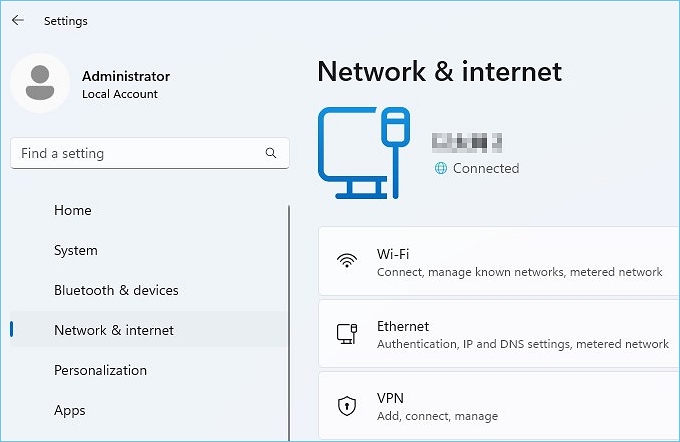
To have a smooth online gaming experience, it's essential to have a stable internet connection. If your internet is unstable, you might not receive game client updates from the server, which can cause your PC to crash. To resolve this, connecting your PC directly to a router via Ethernet is recommended over using Wi-Fi. This can help ensure a stable connection and a better gaming experience.
Instructions. On your PC, go to the "Start" button, select "Settings," then choose the "Network & Internet" section to view the connection status on the screen.
Fix 4. Ensure Your PC Meets the System Requirements of Games
Some people try to run high-Games on low-system requirements can keep crashing due to the PC not meeting the game's system requirements. Running a game that requires high specs on a low-specification system can also cause crashes. To check the system requirements on your Windows PC, simply follow these methods.
Method 1. To view system characteristics, start by accessing the "Settings" from the "Start" button, then click on "System" and select the "About" option. This will display all system details.
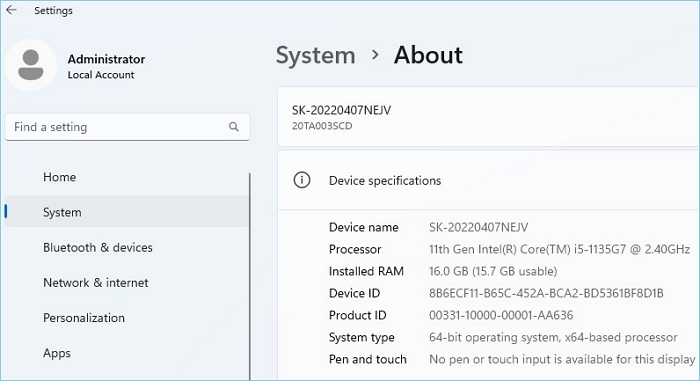
Method 2. To access similar settings, you can right-click on your "This PC" app and select "Properties" from the menu, which will direct you to a new window displaying the details of your PC.
Fix 5. Stop Overclocking
Overclocking can boost CPU performance beyond its default settings, but if not done properly, it can cause game crashes. To resolve this, revert the overclocking software changes and restart your PC to check if the issue is resolved.
Fix 6. Upgrade Windows
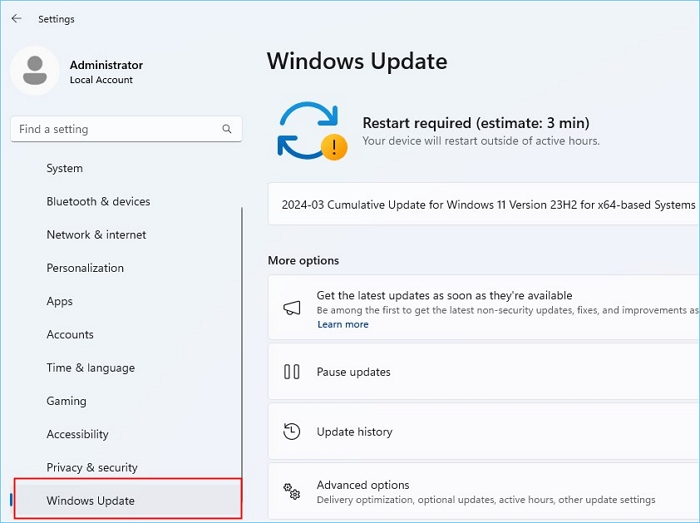
To avoid the issue of games crashing on Windows, it's essential to regularly check for Windows upgrades, which include bug fixes, security patches, and optimization to ensure stability and compatibility with hardware. Upgrading your Windows OS can be done by following these steps:
- Go to Settings
- Click on Update & Security
- Click on Windows Update
- Click on Check for updates
- Follow the prompts to download and install any available updates
This process helps to create a smoother gaming experience by addressing any bugs or compatibility issues that may be causing the games to crash.
Step 1. To access the Windows Update section on your Windows PC, press the "Win + I" shortcut key to open the Settings app, and then navigate to the "Windows Update" section from the left-hand menu.
Step 2. As you explore further settings, click the "Check for updates" button to see if there are any pending updates. If available, download and install all updates successfully on your PC.
Fix 7. Upgrade Graphic Card Drivers
Upgrading graphic card drivers can resolve issues like games crashing or PC crashing when playing games, as new OS updates often don't support older driver versions.
For the latest devices, there are dedicated graphic card-controlling platforms that can be used to upgrade them successfully. If you want to upgrade the graphic drivers through system settings, you can follow these simple steps:
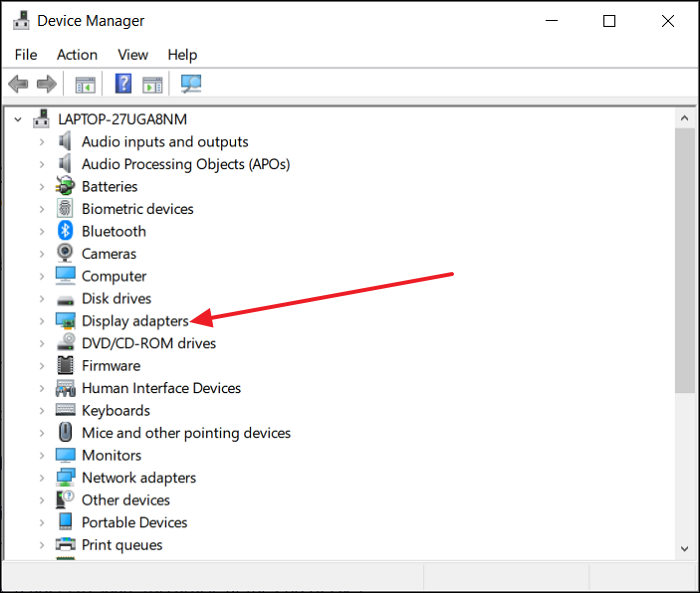
Step 1. To open the Device Manager on your Windows PC, right-click on "This PC" and select the option for "Device Manager" from the context menu.
Step 2. To update your graphic card's driver, navigate to the "Device Manager" window, expand the "Display adapters" section, right-click on your graphic card's driver, and select the "Update driver" option. You can then choose between updating automatically or manually browsing the internet for new drivers.
Fix 8. Close Web Tabs and Necessary Apps
To ensure smooth gameplay, close all unnecessary apps and browser tabs that are running in the background, as they can occupy memory space and slow down the system, potentially causing the game to crash.
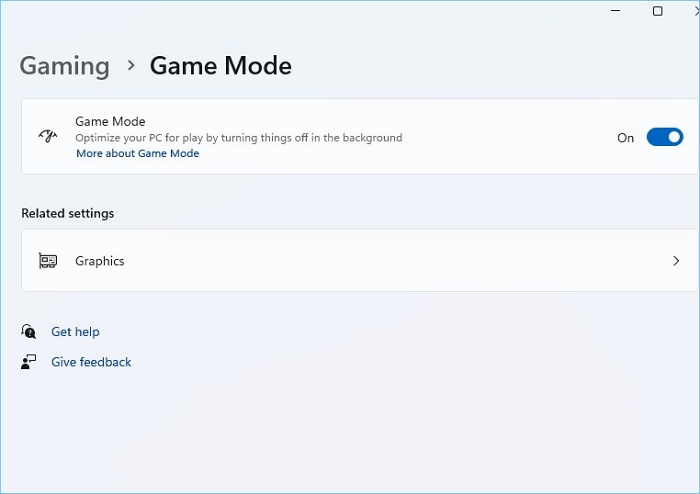
Fix 9. Use Game Mode to Run Games
To avoid games crashing, you can activate the "Game Mode" feature to run games smoothly. To do this, follow these steps:
Instructions. To activate Game Mode, go to Settings, navigate to Gaming, and toggle on Game Mode.
Fix 10. Check VPN
VPNs can improve access to geo-restricted services, but they can also impact device performance, potentially causing crashes during gameplay. To avoid this, consider switching to a faster VPN that won't hinder your computer's functioning.
If you're experiencing lag or other issues while playing games online, consider investing in a faster internet connection to ensure a seamless experience, regardless of VPN use. However, if you don't need a VPN for gaming, you can disable or delete it to access the game server.
Fix 11. Check Antivirus Software
Antivirus software may detect a virus in the game folder, causing the game to crash, so reducing file scanning while playing can resolve the issue.
If your antivirus is flagging the game file as malware, you can either disable the antivirus software during gameplay or use a security software that is compatible with Game Mode, allowing the game to run smoothly without interruptions.
Fix 12. Create and Exclusion in Windows Defender
Windows Defender is the default malware software in Windows 10/11 that can detect and remove viruses that damage system files. However, it may flag game files that don't pass its scanning process, prompting an alert. To resolve this, create an exclusion in Windows Defender to allow the game file to run properly.
Step 1. To access the Windows Security settings, go to the "Settings" from the "Start" button, then navigate to the "Privacy & Security" section.
Step 2. To exclude a game file or folder from Windows Defender's scanning process, navigate to the "Virus & threat protection" option, click on "Manage settings," and then select the "Exclusions" section. From there, choose "Add or remove exclusion" and add the game file or folder to be excluded.
Fix 13. Check the Power Supply Unit
Overclocking requires more power from the processor, which can cause system instability and crashes if the power supply unit cannot provide enough power. If this is the case, upgrading to a higher-wattage PSU from a reputable brand can help provide stable power delivery.
Bonus Tip: Clone the Disk Where the Crashing Game is Installed
Frequent game crashes can cause data loss or corrupt Windows, so it's essential to back up your data or clone your disk to prevent damage. To help with this, Qiling Disk Master Professional can be used to clone the disk where your game is installed, which often crashes. This can help prevent partitions from getting damaged.
The OS disk clone feature is a lifesaver when your important data is at risk, allowing you to clone the data and store it in another partition. This way, if a crashing game causes disk damage, your cloned disk will have the backup data stored. To use this feature, download and install the Qiling Disk Master on your device to back up or clone the disk to another partition.
Step 1. Launch Qiling Disk Master, go to the Tools tab, select "Clone OS Disk" and click "Next" to proceed with the cloning process.
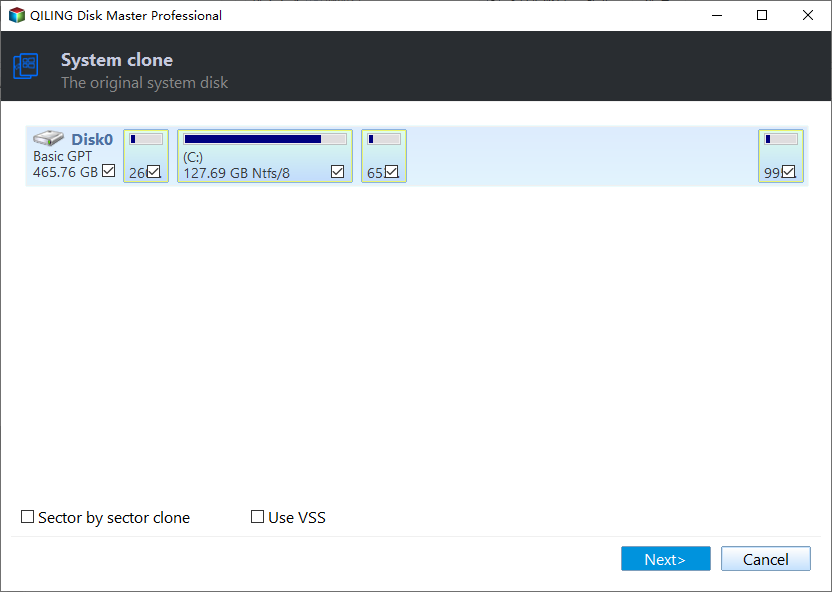
Step 2. Select the target new drive where you want to clone the OS to, and click "Next".

Step 3. To initiate the OS cloning process, view the disk layout and click "Proceed" to start the operation.

Step 4. You'll be prompted to confirm that you want to continue the OS disk cloning process. Click "Yes" to proceed.

Qiling Disk Master can fix boot issues like blue screen when playing game, black screen when playing game, and other Windows boot errors, and also back up your disk in advance to prevent data loss if the game keeps crashing without error.
Conclusion
With all the issues outlined, it's clear why your games keep crashing on Windows. This guide offers highlighted critical aspects of the problem and provided essential fixes to help you determine the right direction.
Users face data loss and Windows corruption from frequent game crashes, but Qiling Disk Master can clone the existing disk partition and create a backup to secure data.
Game Keeps Crashing FAQS
Here are some frequently asked questions that might counter some further queries on the topic of games crashing on Windows OS:
1. How to stop games from crashing on PC?
If your game keeps crashing, try restarting your PC. This simple step can resolve issues caused by high CPU usage or random errors, allowing your game to run smoothly once again.
2. Why do games keep crashing on Windows 10?
Games may crash on your PC due to outdated graphic drivers, overheating hardware, incorrect game mode, or overclocking, which can cause system malfunction.
3. Why does my PC crash every time I play a game?
The game may crash if multiple apps are open at the same time, due to resource consumption, or if a VPN is interfering with game processes.
Related Articles
- PS4 Internal Hard Drive Format: What Is the Best & How to Format [Full Guide]
- Should I Convert to Dynamic Disk and How to Do Dynamic Disk Convert
- Portal/Portal 2 Save File Location - Everything You Need to Know
The Portal Save File allows you to resume your progress from where you left off, and in this post, we'll show you how to locate it and use a professional backup tool to safeguard your save files. - How to Repair Install Windows 10 in 3 Different Ways
Repairing Windows 10 installation involves reinstalling the operating system while keeping your programs, settings, and files intact. There are three common methods to do a repair install of Windows 10, which can be used to resolve various issues with the operating system. - What is a Computer Virus and How to Protect Your Computer from Viruses
Computer viruses can harm your PC, steal data, and slow performance. Learn about virus types, risks, warning signs, and how to protect or remove viruses from your computer. - Fixed: Copy/Cut/Paste Not Working in Windows 10/8/7
Copy, cut and paste are not working in your Windows 10, 8 or 7 PC? Cannot backup or move files by copy and paste? Effective methods are available here to help you quickly backup files and fix copy & paste not working error in Windows PC now.
Products
Articles & Tutorials
- Data Recovery
- Data Backup
- File Recovery
- File Backup
- System Backup and Restore
- Disk and Partition Clone
- Technical articles
- Mobile articles
- Disk Master Help
- Windows Data Recovery Tutorials
- Windows Secure Delete Tutorials
- Windows Partition Management Tutorials
- Windows File Backup and Restore Tutorials
- Windows System Backup and Restore Tutorials
- Windows Disk Backup and Restore Tutorials
- Windows Clone Tutorials