Windows Update Reset (Fix It) Tool Download [Full Guide in 2023]
Windows Update is a free Microsoft service that updates your PC with service packs and patches for the Windows operating system and other Microsoft software.
Microsoft releases multiple updates for Windows, but users often face issues when starting these updates on their computers. To fix such issues, the Windows Update Reset (fix it) Tool is a necessity, which can be downloaded and used to resolve update problems on Windows computers.
What Is Windows Update Reset (Fix It) Tool?
The Windows Update Reset (fix it) Tool is a versatile program that quickly resolves common Windows Update-related issues, while also addressing other computer problems, such as corrupt system files, missing registry keys, and Microsoft Store issues.
This program provides access to system tools like System File Checker, Check Disk Utility, and Windows Component Store, helping to resolve Windows update issues and other computer problems.
How to Download Windows Update Reset (Fix It) Tool?
The Windows Update Reset (Fix It) Tool is a helpful tool that can assist you in resolving issues related to Windows updates. By following the steps to use this tool, you can troubleshoot and fix problems with your Windows updates, making it a valuable resource for those experiencing difficulties with the update process.
Step 1. Link to the official website of Wureset.
Step 2. The Windows Update Reset (fix it) Tool has been released in various versions at different times, offering multiple iterations of the tool.
Step 3. To install the software, select the version that is suitable for your computer and click on the "DOWNLOAD" button.
Step 4. To install the software, click the executable file (exe) twice, which will initiate the setup process. Then, follow the prompts by pressing the Next button to proceed with the installation.
Step 5. To proceed with the installation, click on "I agree to the terms of this license agreement" and then select the option "Next".
Step 6. Place the installation files into one of the drives on your PC and press the Next button. The installation of the Windows Update Reset (fix it) Tool will then be completed after a while.
After installing the Windows Update Reset (fix it) Tool, you can use it to resolve issues that arise during Windows updates. The tool can be used by following the guiding steps, which are outlined below, allowing you to effectively tackle any problems that appear when your Windows is updating.
Step 1. What would you like to know? I can summarize the text in one paragraph if you'd like.
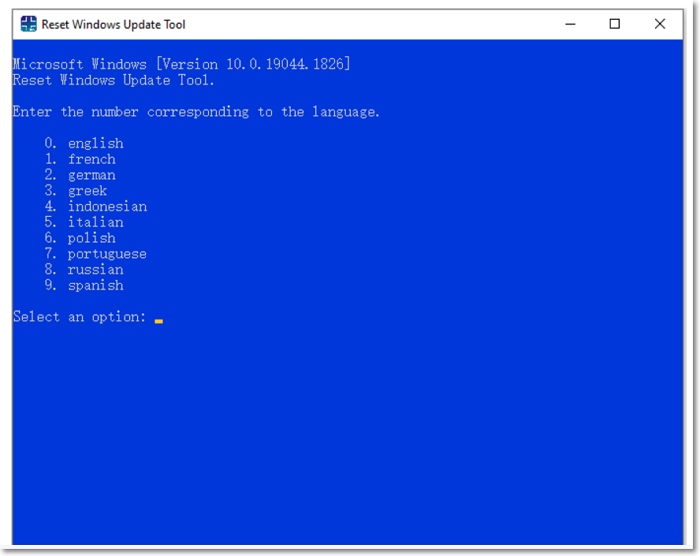
Step 2. After choosing the language, you'll be taken to a new interface where you need to select a number representing a command, press Enter, and the tool will automatically reset Windows Update Components. You'll see a screen with options, and you'll need to choose a number to proceed. Just wait for the process to complete, and you'll see a confirmation image.
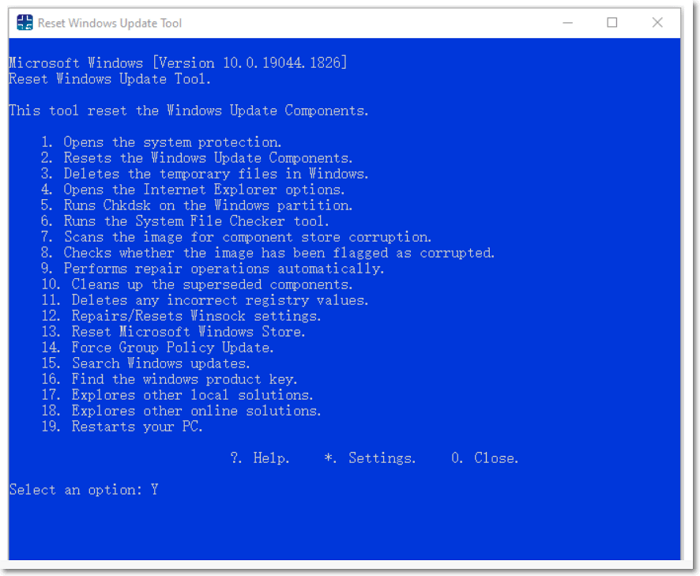
Other Ways to Fix Windows Update Issues.
Here we provide other two methods for you to fix Windows Update issues.
Method 1. Windows Update Troubleshooter
The built-The Windows Update Troubleshooter tool from Microsoft is a utility that helps identify and resolve issues with Windows updates, automatically fixing any problems it finds.
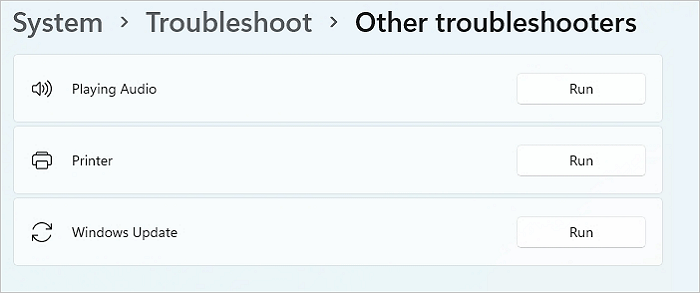
To reset Windows Update using the Windows Update Troubleshooter, follow these steps. The Windows Update Troubleshooter is a tool that can help resolve issues with Windows Update, allowing you to reset the service and get your system up to date.
Step 1. Open Settings on Windows 10.
Step 2. Click on Update & Security.
Step 3. Click on Troubleshoot.
Step 4. Click the "Additional troubleshooter" option.
Step 5. Under the "Get up and running" section, select the Windows Update option.
Step 6. Click the Run the troubleshooter button.
Step 7. Continue with the on-screen directions.
Method 2. Clear Windows Update cache
To clear the Windows Update cache and resolve issues with Windows Update on your computer, you can stop the Windows Update service, which can be done by searching for "services" and opening it as an administrator, then finding the service "Windows Update," right-clicking on it, and clicking the "Stop" button.
Here are the steps to clear the Windows Update cache in one paragraph:
Step 1. Press Win + R, enter the below path, and press the Enter button.
Step 2. C:\Windows\SoftwareDistribution\
Step 3. This folder has all the files related to Windows updates.
Step 4. To delete all the files in the "Download" folder, follow these steps: Open the "Download" folder, select all the files by pressing Ctrl+A (Windows) or Command+A (Mac), and then press the Delete key. This will permanently remove all the files in the folder.
After completing these steps, restart Windows Update, then reopen the Services and start the Windows Update service by right-clicking on it and selecting the "Start" button.
Conclusion
Windows Update Reset (fix it) Tool is a utility that helps resolve issues with Windows updates. Updating Windows can provide new features and functions, but it can also cause problems. Fortunately, the tool can fix these issues, making it a useful resource to have. By using the tool, you can resolve any problems that arise from Windows updates, ensuring a smoother user experience. With this knowledge, you'll feel more confident when encountering issues with your Windows updates.
Related Articles
- How to Open Google Drive on My Computer [Updated 2023]
- Wi-Fi not Working on Laptop, but Working on Phone | Solutions
- What Graphics Card Do I have? Here's How to Check Graphics Card
- 4 Solutions | Fix Bootable USB Not Working in Windows 10/8/7
- External Hard Drive Temperature Range [Full Guide in 2023]
Learn the safe external hard drive temperature range and how to prevent overheating, slow performance, and possible data loss. - How to Factory Reset an Acer Laptop on Windows 10/8/7
If you want to learn how to factory reset your Acer laptop running Windows 10/8/7, this guide is for you. It will walk you through the process of restoring your laptop to its original settings.