How to Factory Reset an Acer Laptop on Windows 10/8/7
Restoring your Acer laptop to factory settings on Windows can be a beneficial solution for various scenarios, such as performance issues or preparing to sell your computer, as it resets the operating system to its original state, erasing all installed software, user accounts, and settings.
Factory resetting an Acer laptop running Windows involves a series of steps to restore it to its original state, removing personal files, applications, and settings. This process can be initiated from the Settings app or through the Windows Recovery Environment, and it's essential to back up any important data before proceeding. The steps include creating a backup, going to the Settings app, selecting Update & Security, and choosing Recovery, then selecting Get started and following the prompts.
Preparation Before Factory Resetting an Acer Laptop
Before performing a factory reset on your Acer laptop, note that this action will format your device, deleting all data. However, formatting does not completely wipe data, and it can be recovered using specialized software.
To prevent data loss during a system update, it's essential to back up your critical data to an external disk or cloud-based storage service. This will ensure that your important files and information are safe and can be easily recovered in case something goes wrong.
If you've forgotten to back up your data and a factory reset is the only solution, don't worry - all hope is not lost. In such cases, we recommend using Deep Data Recovery to help you recover files after a factory reset on Windows 10.
This software can help you recover lost data after a factory reset, such as when your computer resets itself and you lose everything.
It's a powerful tool designed to recover permanently deleted files, providing a second chance to restore your valuable data. Download and install it on your laptop to avoid any data loss scenarios!
Are you concerned about downloading files that may be unsafe? Don't worry, just check out the real user reviews and you'll be able to make an informed decision.
Qiling Data Recovery has been reviewed as safe by users, with one reviewer sharing their true experience. Despite some concerns, the reviewer found Qiling to be a reliable and trustworthy tool for recovering lost data.
This article discusses the professional data recovery software - Deep Data Recovery.
How to Factory Reset an Acer Laptop
Factory resetting is a process that restores a laptop to its original settings, erasing all data, programs, and personal settings, effectively giving the device a fresh start. This can be useful in resolving issues such as software glitches, malware infections, or when selling or donating the laptop.
We'll also provide a video to give you insights and tips for a smooth and successful factory reset process.
- 00:18 - Connect your device to a power source and select "Shut down" to turn it off completely.
- 00:43 - To power off your computer, hold down the "Alt" key and the "F10" key at the same time, then press the "Power button".
- 01:09 - Choose "Troubleshoot" from the options that appear.
- 01:24 - Select "Reset this PC".
To perform a factory reset on your Acer device, you have three options. You can use the Acer Care Center, which provides a straightforward process, or press Alt + F10 to access the reset feature. Alternatively, you can use an installation or repair disk to initiate the reset process, giving you flexibility depending on your preferences and circumstances.
Fix 1. Factory Reset an Acer Laptop in Acer Care Center
The initial approach involves utilizing Acer Care Center on your Acer laptop to perform a factory reset.
Acer Care Center enables you to create a backup of system files and restore settings and networking drivers, among other features. To restore your laptop to its factory settings, you can follow these steps using Acer Care Center.
Step 1. On your Acer laptop, navigate to the search box and type Recovery. From the options displayed, select "Acer Recovery Management".
Step 2. Select "Recovery Management".
Step 3. To access the Acer Care Center and reset your PC, go to Acer Care Center, then choose "Get started" and select "Reset your PC".
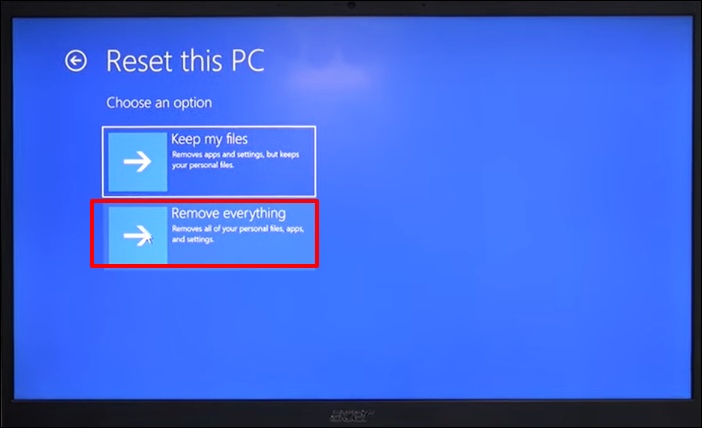
Step 4. By choosing to "Remove everything", you are essentially starting from a blank slate, erasing all existing data, settings, and applications. This decision will restore your device or system to its original factory settings, effectively wiping out any personal data, including contacts, photos, messages, and other sensitive information.
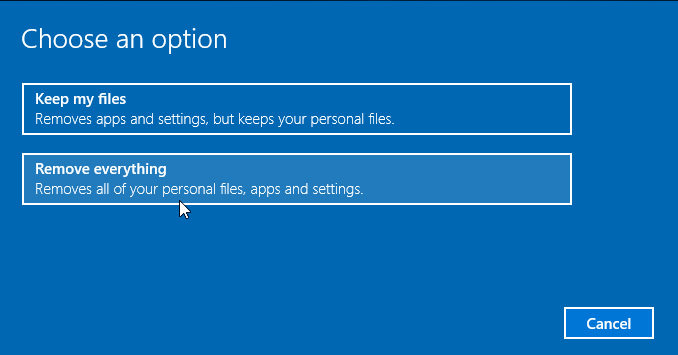
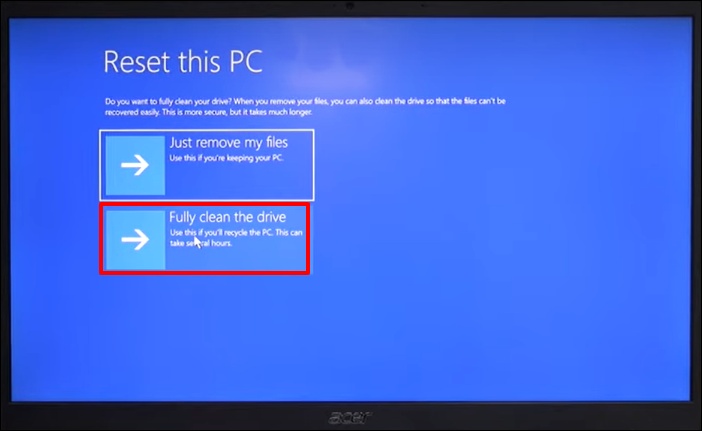
Step 5. Depending on your laptop requirements, choose the option to either "Remove files and clean the drive" or "Just remove my files".
Step 6. To reset, tap the "Reset" button at the bottom of the window.
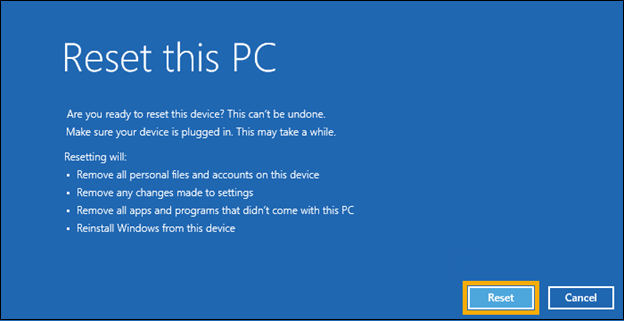
Step 7. Follow the on-screen instructions until you complete the reset process.
To factory reset an Acer laptop, start by saving any open files and closing unnecessary programs. Next, click on the Start menu and select Settings.
Fix 2. Factory Reset an Acer Laptop Using Alt + F10
If your Acer laptop is experiencing issues preventing it from booting normally, you can initiate a factory reset using the Windows Recovery Environment, which can be accessed by pressing the power button, then immediately holding the volume down button until the Windows Recovery Environment menu appears, then select Troubleshoot, Reset this PC, and follow the on-screen instructions to complete the factory reset.
Step 1. To power off the Acer laptop, hold the power button for about 5 seconds. This will completely shut down the device.
Step 2. Turn on the laptop and press the "Alt" and "F10" keys as soon as the Acer logo appears.
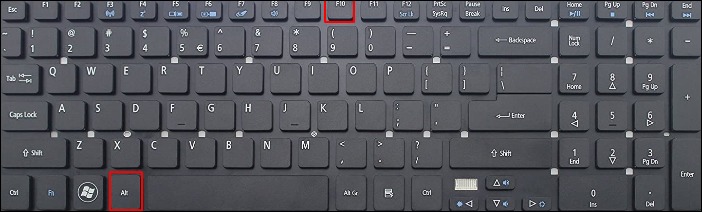
Step 3. After a moment, you'll reach the "Choose an option" screen, where you should select "Troubleshoot".
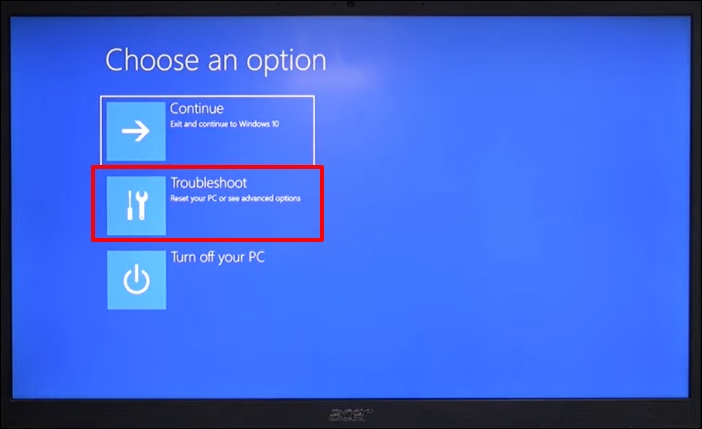
Step 4. To reset Windows, go to Settings, then choose the "Update & Security" option. Next, select "Recovery" from the left menu and choose either "Reset your PC" for Windows 8 or "Reset this PC" for Windows 10. This will start the reset process, which may take a few minutes.
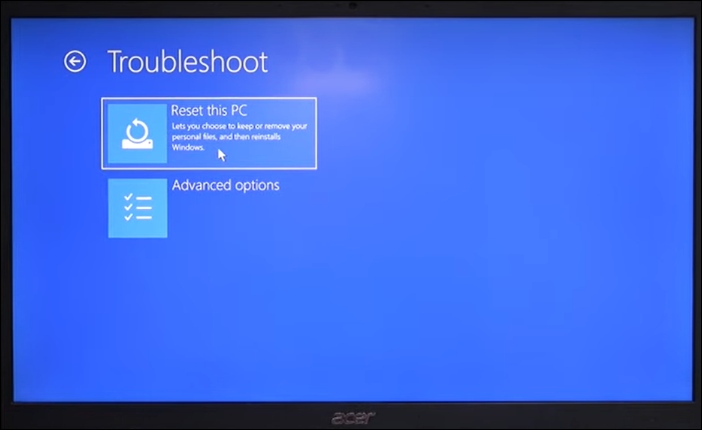
Step 5. Select "Remove everything".
Step 6. Click "Reset" to begin your Acer laptop's factory reset process.
Be patient and wait for the process to complete, then follow the on-screen instructions to set up your Acer laptop.
For Acer laptops running Windows 7 using Acer eRecovery Management:
Step 1. After restarting and pressing "Alt + F10", choose "Restore".
Step 2. You'll be presented with options:
- Restore Operating System and Retain User Data
- Reinstall Drivers or Applications
- Completely Restore System to Factory Defaults
Step 3. Follow the on-screen instructions to guide the process.
Fix 3. Factory Reset Your Acer Laptop via Installation or Repair Disk
To reset your Acer laptop to its factory settings using an installation or repair disk, you'll need a CD/DVD or a USB flash drive. If you don't have a repair or setup disk, you'll need to download the Windows ISO file to create one. Alternatively, you can use an installation or repair disk to reset your laptop.
To execute the factory reset, follow these steps:
Step 1. You need to insert the installation/repair disk into your Acer laptop and boot your computer from the disk.
Step 2. Click on "Next" at the bottom right of the installation screen.
Step 3. On the next screen, select the lower-left corner and choose "Repair your computer" then "Troubleshoot". Finally, select "Reset this PC".
You'll have two options to define the reset type you wish to perform: "Keep my files" or another option, depending on the specifics of your situation. This choice will determine what happens to your files and password during the reset process. If you choose "Keep my files", your specific files and password will be retained, but this might not be the best option if you've forgotten your password. If you choose the other option, specific files and your password will not be retained.
However, given you're performing a reset using these password-independent methods, select the "Remove everything" option.
Step 4. Choose the drive you want to erase in the window that appears, selecting either "All drives" or "Only the drive where Windows is installed".
Step 5. 1) You can try to solve the problem yourself, and if you're stuck, you can ask for help. 2) You can ask for help right away.
- Just remove my files
- Fully clean the drive
You can choose from three options when resetting your PC: a quick reset, a system reset, and a full reset. The quick reset will restore your PC to its previous state, retaining all your settings, while the system reset will remove all installed updates and apps, but keep your personal files.
Step 7. To perform a factory reset, click the "Reset" button. This will erase all data and settings on the device, returning it to its original factory settings.
When Should You Factory Reset Your Acer Laptop
Here are some common scenarios where you might need to restore your Acer laptop to factory settings:
Slow performance: Over time, computers can accumulate unnecessary files, software, and settings that can slow them down. Restoring to factory settings can improve speed and responsiveness by removing these unwanted items.
Virus or malware attack: If your Acer computer is severely infected and regular antivirus scans can't remove the malware, a factory reset may be the solution.
Selling or donating the computer: Before selling or donating your Acer computer, it's a good idea to perform a factory reset to erase all personal data, accounts, and settings, keeping your information secure.
System errors and crashes: If your computer is experiencing persistent system errors, crashes, or blue screen of death errors that can't be fixed through troubleshooting, a factory reset might resolve these issues by starting with a clean system.
Forgotten password: If you've forgotten your password or are having login issues on your Acer laptop, you can factory reset it to regain access. However, this process will erase all data on the computer.
Corrupted operating system: If the operating system files become corrupted and can't be fixed, restoring to factory settings can provide a fresh and clean installation of the operating system.
System instability: If your Acer computer is experiencing frequent crashes, freezes, or instability that can't be resolved through regular troubleshooting, a factory reset may help stabilize the system.
Conclusion
Factory resetting an Acer laptop can rejuvenate its performance, resolve persistent problems, and provide a fresh start, making it a useful tool for addressing various issues, such as preparing to sell the device.
Don't worry, Deep Data Recovery is here to help you recover your lost data. Download it again to get your important files back.
Factory Reset an Acer Laptop FAQs
To factory reset an Acer laptop, you'll need to access the BIOS settings and then follow the on-screen instructions to reset the laptop to its original factory settings. First, restart your laptop and immediately start pressing the F2 key to access the BIOS settings.
1. How do I factory reset my Acer computer without logging in?
To reset your Acer computer without logging in, follow these steps:
Step 1. Begin by powering off your Acer laptop.
Step 2. To power on an Acer laptop, press the power button and simultaneously hold down the "Alt + F10" keys. This will start the laptop and lead you to the 'Choose an option' screen.
Step 3. Navigate to "Troubleshoot > Reset this PC > Remove everything".
Step 4. Choose "Fully clean the drive" or "Just remove my files".
Step 5. Carefully follow the on-screen instructions and click the "Reset" button.
2. How do I restore my Acer all-in-one to factory settings?
To restore your Acer All-To reset your Acer laptop to its factory settings, restart it and press the "Alt + F10" keys during startup. This will take you to the Acer recovery partition, where you can follow the on-screen instructions to initiate the factory reset process and erase all data, returning the system to its original state.
3. What to do if Alt F10 is not working?
If Alt + F10 is not working, you can use the Acer Care Center or a Windows installation/repair disk to perform a factory reset on your Acer laptop. This is a quick way to reset your laptop to its original factory settings.
Related Articles
- Command R Not Working? 6 Ways to Fix It on macOS Ventura/Monterey/Big Sur
- How to Fix PS4 Cannot Access System Storage Error Code CE-34335-8
- How to Fix IRQL_NOT_LESS_OR_EQUAL Error in Windows 8.1✅
- Is Windows 11 Good For Gaming? Your Best Answer in 2024!
Is Windows 11 good for gaming? Should I upgrade to Windows 11? To know this answer, you should know the features in Windows 11 that are dedicated to gaming. Qiling will lead you to get the complete answer to Windows 11 gaming performance and how to optimize it. - CPU OPT vs. CPU FAN: How Do They Differ? [Distinct Comparison]
Are you building your system and wondering between CPU OPT and CPU FAN and where you should add the cooling fan on the motherboard? Continue reading this article to find out what CPU OPT and FAN headers are and the difference between them. - Crucial BX500 VS MX500: What's Their Difference [2024 New]
Do you know the difference between Crucial BX500 and MX500? This article focuses on Crucial BX500 VS MX500, so dive into learning if you want to compare them in price, appearance, capacity, warranty, and performance.
Products
Articles & Tutorials
- Data Recovery
- Data Backup
- File Recovery
- File Backup
- System Backup and Restore
- Disk and Partition Clone
- Technical articles
- Mobile articles
- Disk Master Help
- Windows Data Recovery Tutorials
- Windows Secure Delete Tutorials
- Windows Partition Management Tutorials
- Windows File Backup and Restore Tutorials
- Windows System Backup and Restore Tutorials
- Windows Disk Backup and Restore Tutorials
- Windows Clone Tutorials