Is Windows 11 Good For Gaming? Your Best Answer in 2024!
Windows 11, the latest version of Windows, has been a topic of discussion among gamers, with some believing that its features, ported from the Xbox console, will improve gaming performance, but many remain skeptical and in a wait-and-see mode in 2023.
Windows 11 is a solid choice for gaming, offering a similar experience to Windows 10. If you're unsure about the difference, or want to know which is better for gaming, Windows 10 or Windows 11, the details on both issues are provided, along with tips to optimize Windows 11 for better gaming performance.
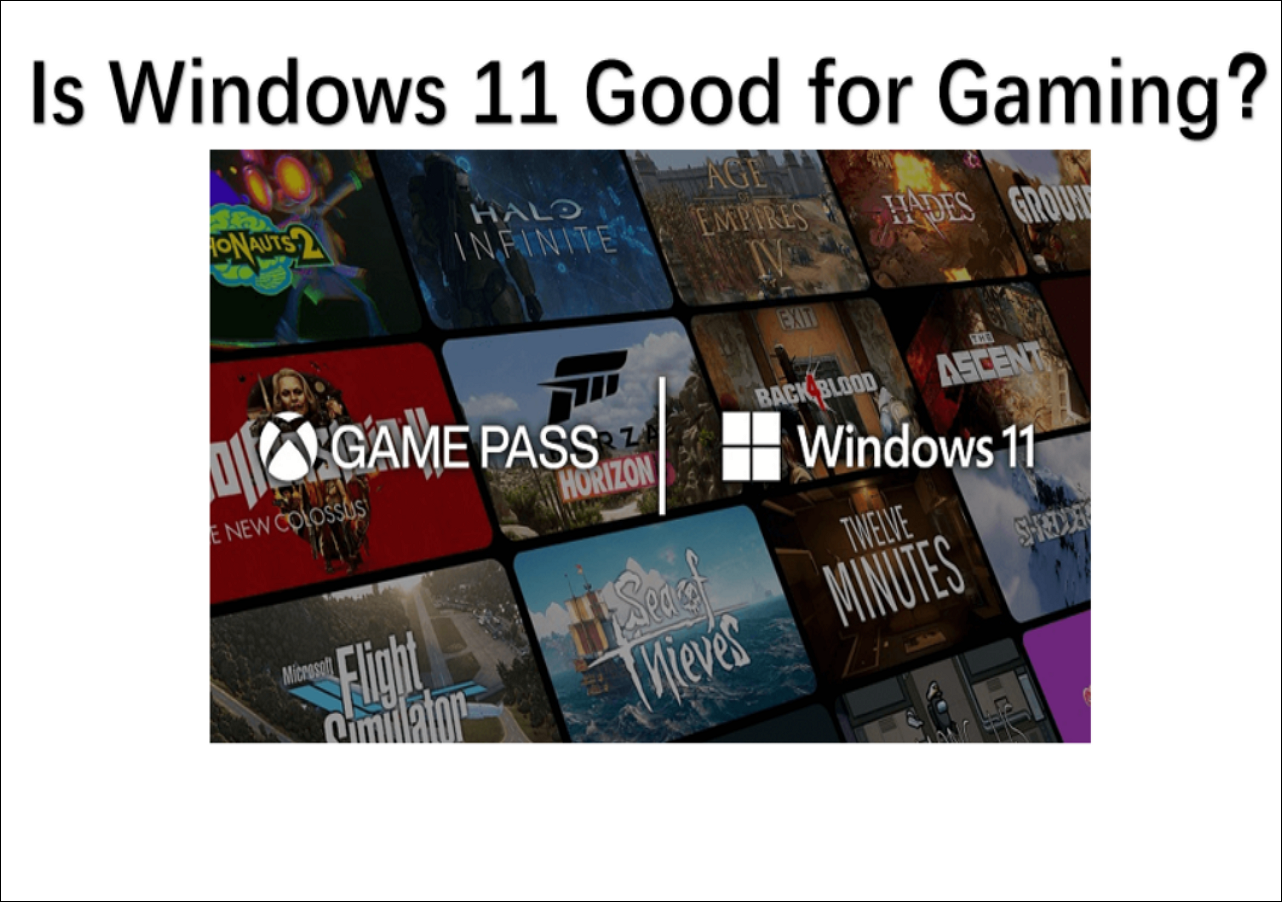
Is Windows 11 Good for Gaming?
Windows 11 is designed for gaming, with features such as improved performance, faster load times, and enhanced graphics capabilities, making it a good choice for gamers.
Windows 11 has garnered attention from gaming enthusiasts with its improved graphics, speed, and gaming options. However, to determine if it's good for gaming, we need to analyze its new features specifically and see how they impact gaming performance.
What Are the Features of Windows 11 for Gaming
Windows 11 offers several features that cater to gamers, including Auto HDR, DirectStorage, and Game Pass. These features were first introduced in the Xbox console and have now been brought to PCs to improve gaming performance. Auto HDR enhances visuals, DirectStorage optimizes storage, and Game Pass provides access to a library of games, making Windows 11 a compelling option for gamers.
1. Auto HDR
Auto HDR is a feature that automatically enables High Dynamic Range Imaging in games that support it, allowing for a more detailed gaming experience with a greater range of colors and brightness than Standard Dynamic Range.
Windows 11 allows older games to be played on HDR monitors by automatically adjusting the color and brightness to mimic the HDR effect.
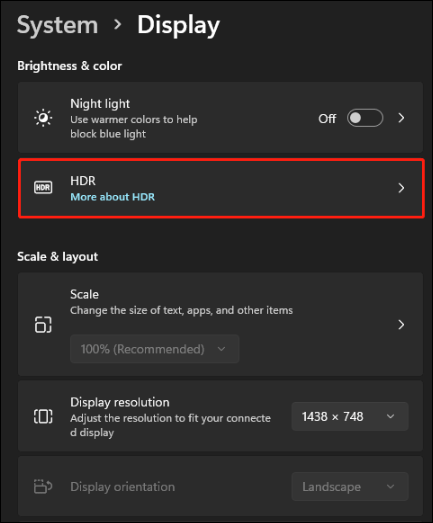
Make sure you're using an HDR-To enable Auto HDR on a Windows 10 PC, first ensure you have a compatible monitor. Then, go to Settings > System > Display > HDR, expand Display capabilities, and enable both Use HDR and Auto HDR.
2. DirectStorage
DirectStorage allows for faster storage speeds by bypassing the CPU, speeding up game and texture loading, and reducing game loading time and improving game performance, while also reducing CPU load.
To use this feature, you need an NVMe SSD and a compatible GPU, such as an AMD RDNA2 card, which supports Shader Model 6.0 and has amazing data transfer speeds.
DirectStorage is an API that enables the automatic handling of video games by the Windows operating system when launching DirectStorage-compatible games, allowing users to enable this feature without taking any action. Game developers use this API to develop games that can take advantage of the feature.
3. Game Pass
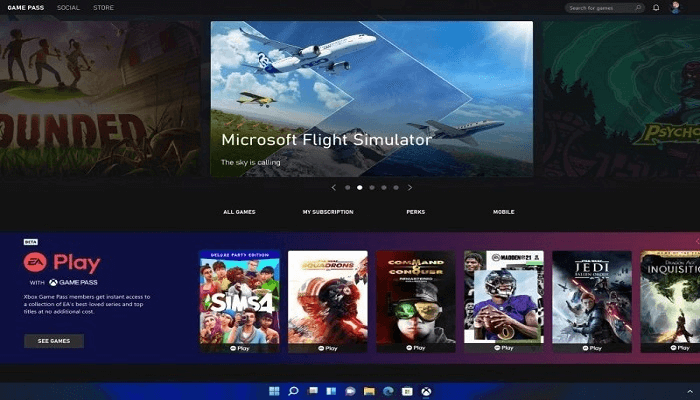
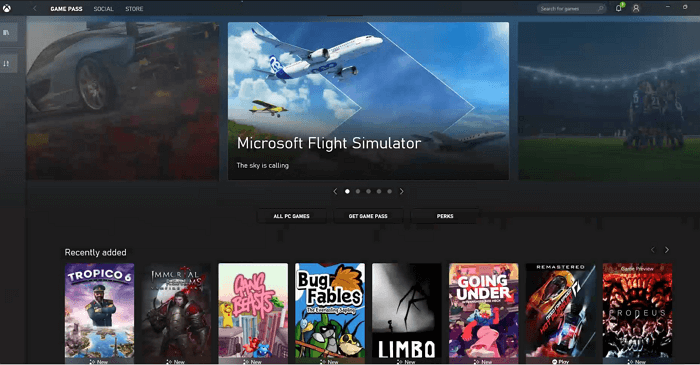
Xbox Game Pass is integrated into Windows 11, offering various third-party games, with a seamless experience on Xbox consoles, but previously caused issues on Windows 10, which have been resolved in Windows 11.
Xbox apps come bundled with Windows 11, allowing console gamers to access them even without an Xbox console. However, this feature is less useful for MMO gamers.
By understanding the gaming-Windows 11 offers several features that make it ideal for highly configured gamers, providing a better gaming experience. However, the necessity of upgrading to Windows 11 for gaming purposes compared to Windows 10 depends on the specific needs and configurations of the user. A comparison of the performance of Windows 11 and Windows 10 is needed to determine the best option.
If you found this guide helpful in understanding Windows 11 gaming performance, consider sharing it with others by clicking the social buttons.
Should I Upgrade to Windows 11 for Gaming? Windows 10 VS Windows 11 Gaming
This section compares Windows 10 and Windows 11 in terms of gaming performance, determining whether an upgrade to Windows 11 is necessary for gamers. We will examine three key aspects:
1. Benchmarks
You can test the benchmark level of a drive by plugging it into a Windows PC with a different system. Help Desk Geek's tests selected FPS for two games, allowing you to compare the drive's performance.
| Games | FPS for Windows 10 | FPS for Windows 11 |
| Far Cry 5 | 76 | 77 |
| Assassin's Creed Valhalla | 66 | 61 |
Windows 11 doesn't offer significant changes and may show slightly lower results in some games, but benchmarking shows identical results when running Windows 11 and 10 on the same hardware. Upgrading to Windows 11 is not necessary for FPS.
If you want to run the Windows 11 and Windows 10 benchmarks, check them out via the link below.

Full Guide on HDD Benchmark on Windows [2023 Newest]
This article will guide you through the HDD benchmark test process, providing a detailed explanation and a professional HDD benchmark tool to help you complete a hard drive speed test.
2. Configuration
With the gaming features of Windows 11, we already know that Windows 11 games are more suitable for users with high-end configurations. For users with lower-end configurations, we recommend playing less demanding games, such as Minecraft, League of Legends, and Team Fortress 2, which can run smoothly on lower-end hardware. On the other hand, users with high-end configurations can enjoy more demanding games like Cyberpunk 2077, Assassin's Creed Valhalla, and Call of Duty: Black Ops 4.
| Entry-level Configuration | Mid-range Configuration | High-end Configuration | |
| CPU | Intel Core i5 10400F or R5-3600 | Intel Core i5 11600 or AMD Ryzen R5-5600X | Intel Core i7 11700K, or AMD Ryzen R9-5900X |
| Memory | 8GB DDR4-2400 | 16GB DDR4-3200 | 32GB DDR4-3600 |
| Graphics Card | GTX 1650 or RX 5500XT | GTX 3060 or RX 5700XT | (GTX 3080 or RX 6800XT |
Recommendation:
- For entry-level configuration: Upgrading to Windows 11 may negatively impact gaming performance and overall gaming experience.
- For mid-range configuration: The gaming performance of Windows 11 in this configuration is almost the same as Windows 10, and you can upgrade after the patch update.
- For high-end configuration: This configuration is better for Windows 11 games, allowing for a more enjoyable gaming experience.
3. Performance
Windows 11 offers a range of features, providing a great gaming experience with its new and improved features. However, for gamers using AMD processors, the operating system presents some performance issues.
- Auto HDR can cause a slight decrease in frame rate due to increased load on the graphics card and CPU.
- Enabling VBS in a game may decrease the average frame rate by up to 28%.
Windows 10 allows for a mix of native games, retro game support, and Xbox One streaming, but requires some adjustments for optimal gaming experience.
If you are a high-end configuration user, please follow these steps to upgrade from Windows 10 to Windows 11:
Stage 1. To access the Windows 11 ISO file from the official Microsoft website, go to the Microsoft website and navigate to the Windows 11 download page. From there, click on the "Download" button to begin the download process.
Stage 2. To create a bootable USB drive and burn an ISO image to it, you can use Qiling Disk Master. This tool allows you to easily and quickly create a bootable drive, making it a convenient option for users who want to install an operating system or run a live CD on their computer.
This software offers a straightforward solution for installing Windows 11, making it easy to use. To burn the Windows 11 ISO, you can follow these steps:
Step 1. Launch Qiling Disk Master and go to the Bootable Media section, then click "Create bootable media".

Step 2. Connect the target USB to the computer and select it as the destination drive in the software. Click "Proceed" to start the backup process.

Burning the ISO file using Qiling Disk Master is a simple process. Once the burning is complete, the USB drive can be used as an installation disk to install the Windows 11 operating system. This process helps to manage the USB drive effectively.
Qiling Disk Master can bring more features:
To upgrade Windows 10 to Windows 11 without losing programs, it's recommended to back up your data and click on the provided link for more details on the process.
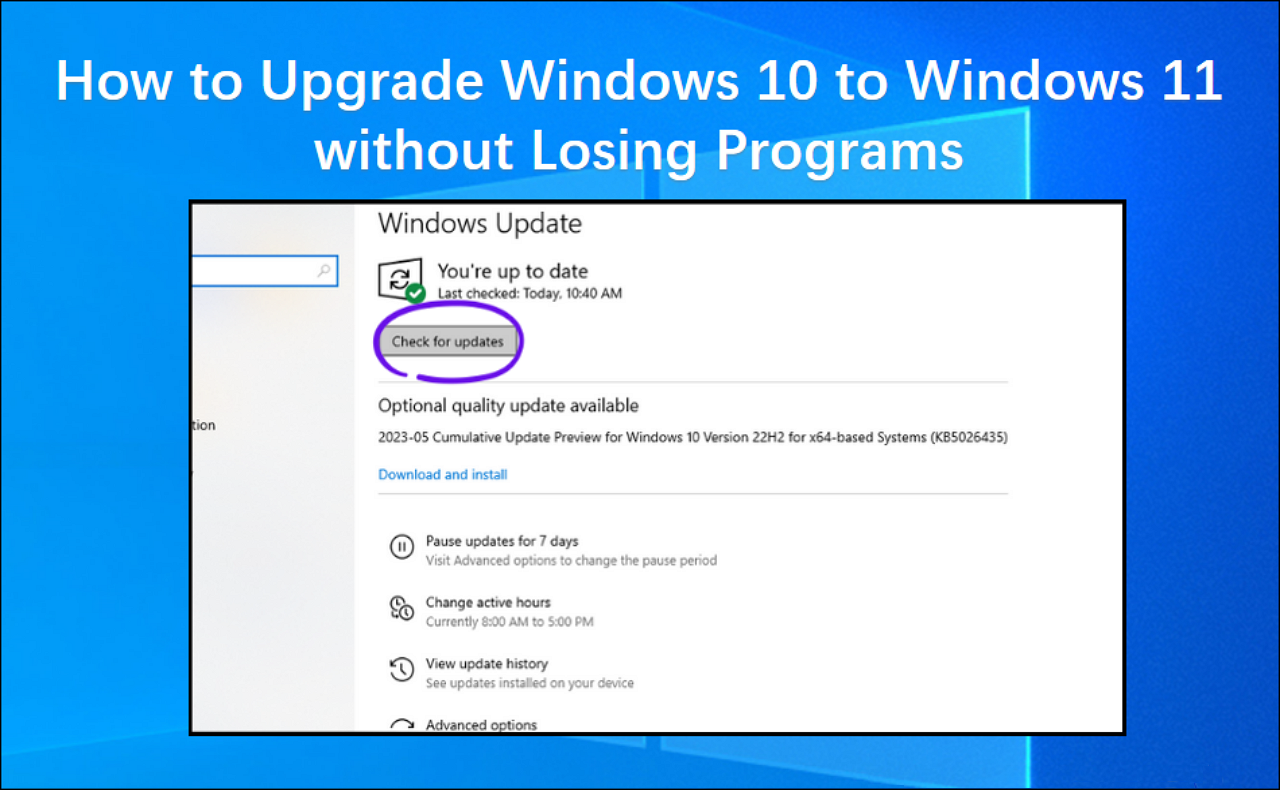
To upgrade Windows 10 to Windows 11 without losing programs, start by checking if your computer meets the system requirements for Windows 11. Then, go to the Windows 11 download page and click on the "Download Now" button to get the Windows 11 installation assistant.
Read this how-Upgrading Windows 10 to Windows 11 is a straightforward process that can be completed without losing any programs. To do so, simply go to the Microsoft Update Assistant website, download the tool, and follow the step-by-step instructions provided.
Bonus Tips to Optimize Windows 11 for Gaming Performance
To ensure the best gaming experience on Windows 11, it's recommended that you optimize your system by following these steps: 1) Ensure your graphics drivers are up-to-date, 2) Disable any unnecessary startup programs, 3) Turn off unnecessary animations and visual effects, 4) Set your power plan to "High Performance", and 5) Consider upgrading your RAM and storage to meet the system requirements for your games. By taking these steps, you can help ensure a smooth and enjoyable gaming experience on Windows 11.
- Turn On the Game Mode
- Use Auto HDR
- Use Per-App GPU Selection Settings
- Use Dedicated Software for NVIDIA and AMD GPUs
- Optimize Gaming by Turning On High-Performance
- Increase C Drive Space
If you would like a detailed step-by-step guide, please click on the following link to view it:
How to Optimize Windows 11 for Gaming (6 Ways)
This post will walk you through the Windows 11 optimization guide and provide a step-by-step guide on how to optimize Windows 11 for gaming.
Conclusion
Windows 11 can enhance PC gaming with its features, but as a new system, it may have instabilities. If you already have Windows 11 installed for gaming, you can follow the tips in this article to improve performance.
FAQs About Is Windows 11 Good for Gaming
Windows 11 is a solid choice for gaming, offering a smooth and responsive experience. The operating system provides a range of features that cater to gamers, including improved performance, enhanced graphics, and support for the latest gaming technologies.
1. Will Windows 11 make gaming slow?
Windows 11 performs similarly to Windows 10 in gaming, with some tests showing slightly higher overall scores, but occasional lower frame-per-second (FPS) performance in specific games, and better FPS in others.
2. Which is more suitable for gaming, Windows 11 or Windows 10?
Windows 11 is more suitable for gaming, especially for high-end gamers, as it optimizes game performance in windowed mode and supports features like Auto HDR and DirectStorage, which can improve game loading times.
3. How to improve Windows 11 for gaming performance?
To improve Windows 11 gaming performance, consider the following suggestions: updating your graphics drivers, disabling unnecessary startup programs, closing unnecessary apps, disabling animations, and enabling the Game Mode feature. You can also try adjusting your power settings to prioritize performance, disabling background apps, and using a solid-state drive (SSD) to store your games.
- Turn on the gaming mode
- Use Auto HDR
- Turning on high performance
For more ways to do this, check out the additional tips in this article.
Related Articles
- 3 Ways to Factory Reset Samsung Laptop on Windows 10/8/7
- What Is an Active Partition in 2023, Everything You Need to Know
- [Linux Format Disk Guide] How to Format Disk in Linux
- How to Backup Gmail Emails to Outlook for Windows 11/10/8/7
- What Is Power Automate? Everything You Need to Know about Microsoft Automation Tool
Learn what Microsoft Power Automate is and how to use it to automate repetitive tasks, streamline workflows, and boost workplace productivity with real-world examples. - 6 Fixes: Windows Has Problem Ejecting USB Mass Storage Device
This article is mainly about the problem of failed to eject USB mass storage devices. No matter you are using a USB flash drive or an external hard drive, you can apply the methods introduced on this page to solve your problem.
Products
Articles & Tutorials
- Data Recovery
- Data Backup
- File Recovery
- File Backup
- System Backup and Restore
- Disk and Partition Clone
- Technical articles
- Mobile articles
- Disk Master Help
- Windows Data Recovery Tutorials
- Windows Secure Delete Tutorials
- Windows Partition Management Tutorials
- Windows File Backup and Restore Tutorials
- Windows System Backup and Restore Tutorials
- Windows Disk Backup and Restore Tutorials
- Windows Clone Tutorials