3 Ways to Factory Reset Samsung Laptop on Windows 10/8/7
If you're looking to give your Samsung laptop to someone or have encountered issues like malicious software or slow performance, the best course of action is to factory reset it. This will restore the laptop to its original settings, effectively wiping out any personal data, settings, or software installed on the device. This is especially useful if you're selling or gifting the laptop, as it ensures a clean slate for the new user. Additionally, if your laptop is experiencing issues due to malware or slow performance, a factory reset can help resolve these problems by removing any problematic software or settings.
Factory resetting a Samsung laptop To factory reset a Samsung laptop running Windows 10, 8, or 7, follow these steps: please note that you should read this article till the end to understand the process clearly. The process may appear a little complex to some people.
- Fix 1. Factory Reset Samsung Laptop Using Samsung Recovery
- Fix 2. Factory Reset Samsung Laptop with Windows Recovery
- Fix 3. Reset a Samsung Laptop to Factory Settings Without Password
Preparation Before Factory Resetting a Samsung Laptop
Formatting a drive does not completely wipe it, but rather deletes the file system and any data that is stored in it. A factory reset, on the other hand, is a more thorough process that can completely wipe a device's data, including system files and user data. It is still recommended to take a backup of important data before performing a factory reset.
You can use various media like external hard drives, SSD, or cloud storage options like Onedrive or Google Drive to back up your data, but these methods require manual steps and can be a bit inconvenient for users.
On the other hand, software like Deep Data Recovery, with multiple high-end data recovery features, provides a perfect solution for recovering files after factory resetting Windows 10.
The software allows you to recover data lost during complex processes or recover permanently deleted files on your external or internal hard drives. It's the only software you'll ever need for data recovery.
If you're concerned about downloading potentially harmful content on your Samsung laptop, don't worry - just check out the real user reviews.
Qiling Data Recovery has been reviewed as safe by users, with no major concerns reported. However, as with any software, it's essential to exercise caution and carefully evaluate the product's features, pricing, and customer support before making a purchase.
This article discusses the professional data recovery software - Deep Data Recovery.
How to Factory Reset a Samsung Laptop
To factory reset a Samsung laptop, you can try three different methods. The first and most straightforward method is to go to Settings > Recovery and reset your laptop. If this method doesn't work, you can try booting your laptop in safe mode and then resetting it.
Fix 1. Factory Reset Samsung Laptop Using Samsung Recovery
Using Samsung Recovery is one of the most straightforward ways to factory reset your Samsung laptop, as it comes pre-installed and allows for factory reset, data backup, and other recovery purposes.
Sorry, but it seems there is no such thing as a Samsung laptop. Samsung is a company that produces a wide range of electronic devices, including smartphones, smartwatches, and home appliances, but they do not manufacture laptops.
Step 1. To access the Samsung recovery mode, open the Start menu and search for "Samsung recovery". Click to open when it appears in the list.
Step 2. To reset your computer, click on the "Computer Factory Reset" option in the app, and then select the "Start Factory Reset" option on the next page.
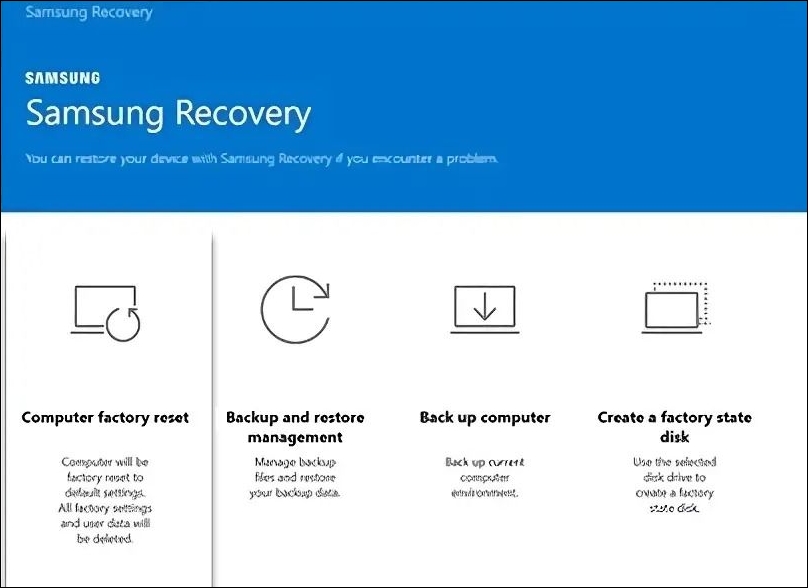
Step 3. Proceed with the onscreen instructions to initiate the factory reset process, which will automatically restart your laptop once completed.
To factory reset a Samsung laptop, follow these steps: first, click on the Start button and select Settings, then click on Update & Security, followed by Recovery, and finally, Reset this PC. Next, choose whether you want to keep your files or remove them, and then select the type of reset you want, either a standard or a more advanced option.
Fix 2. Factory Reset Samsung Laptop with Windows Recovery
Windows Recovery is an advanced troubleshooting menu that allows you to perform various troubleshooting and recovery actions, but it cannot be accessed from the Windows settings. Instead, it needs to be accessed while booting the PC up. To factory reset a Samsung laptop with Windows recovery, you can follow these steps.
Step 1. To access the login screen, hold the "Shift" key while clicking on the power button from the bottom right, then select "Restart".
Step 2. To boot your PC into Windows recovery, follow these steps: On the screen that appears, open the "Troubleshoot" options.
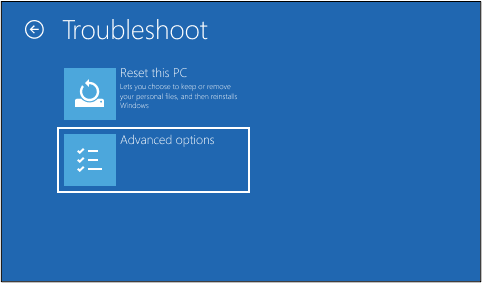
Step 3. To troubleshoot your Samsung laptop, click on the "Reset this PC" option in the troubleshooting settings. From there, follow the on-screen instructions to complete the factory reset process, which will restore your laptop to its original factory settings.
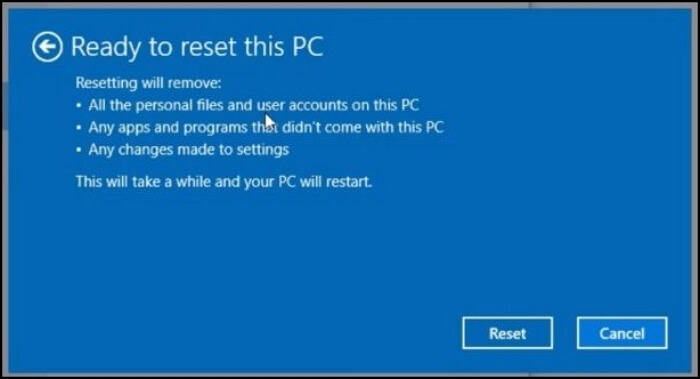
This method will reinstall Windows on your Samsung laptop. To do this, ensure you don't complete the setup process but instead leave it at the start of the setup screen.
Windows Recovery Environment [How to Access with Video]
This article introduces the Windows Recovery Environment (WinRE), a feature that allows users to access a set of tools for troubleshooting and repairing their Windows operating system. To enable and access WinRE, follow these steps below.
Fix 3. Reset a Samsung Laptop to Factory Settings Without Password
If you forget your Samsung laptop's password, you won't be able to access Samsung Recovery, so you'll need to try factory resetting your laptop using Windows recovery or resetting the password instead.
Here's how to factory reset a laptop without a password:
Step 1. On the login screen, if you're logged into Windows with a Microsoft account, click on the "I forgot my PIN/password" option.

Step 2. After completing the setup process, a new window will open, prompting you to log in to your Microsoft account. Enter your Microsoft account credentials and complete the login process.
Step 3. Once you are done doing that, you will be able to set a new password for your Windows account.
Step 4. If you were logged in with a local account, click on the "Reset password" option on the lock screen.

Step 5. Now, on the next page, proceed by answering the security questions or using a password reset disk to reset your Windows password.
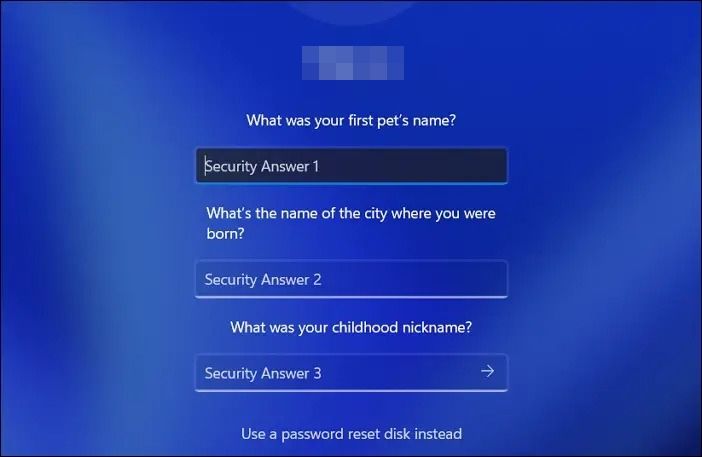
Step 6. Once you reset your password, you can reset your Samsung laptop using the Samsung recovery method, which involves booting from a USB drive or CD/DVD, accessing the recovery menu, and selecting the reset option. This will erase all data on the laptop and restore it to its original factory settings.
To change the account type from a Microsoft account to a local account, you'll need to follow these steps. First, go to Settings > Accounts, and then click on "Your email and accounts" or "Accounts" depending on your Windows version.
Conclusion
Factory resetting a Samsung laptop on Windows 10/8/7 is a relatively straightforward process, regardless of the reason. You can use built-in tools like Samsung Recovery or native Windows methods to restore your Samsung laptop to its original settings, making it a reliable and sleek option in the market.
Factory resetting a Samsung laptop is a necessary step, but it often comes with the risk of data loss. Fortunately, a reliable data backup and recovery software like Deep Data Recovery can help mitigate this issue with its useful features, making it a perfect solution for such situations.
Factory Reset Samsung Laptop FAQs
While we tried our best to provide you with the easiest and most reliable ways to factory reset your Samsung laptop, some questions still remain unanswered. You can find the answers to them here.
1. How do I Reset my Samsung laptop to factory settings?
Resetting your Samsung laptop to its factory settings can be achieved using multiple methods, with one of the most straightforward techniques involving the use of the Samsung Recovery utility, which comes pre-installed on all Samsung laptops.
To use the Samsung recovery tool, open the start menu, search for "Samsung recovery", and launch it. Click on "Computer Factory Reset", then "Start Factory Reset" and follow the on-screen prompts. The laptop will restart upon completion.
2. How do I factory reset my Samsung notebook laptop without a password?
If you've forgotten your Samsung laptop password, accessing Samsung Recovery is challenging, but you can use Windows Recovery or reset your password as an alternative.
Microsoft account users can reset their password on the login screen, while local account users can reset theirs on the lock screen by answering security questions or using a password reset disk. After resetting, you can factory reset the laptop using Samsung Recovery.
Related Articles
- 6 Ways to Fix Blue Screen Error APC Index Mismatch in Windows 10 [Full Guide]
- How to Stop Windows 10 Deleting Files Automatically
- Fix 'Windows Can't Find A System Image on This Computer' Error
- How Long Does It Take to Format an External Hard Drive [Full Guide]
- Qiling Disk Drives Stats 1 (Size/Brands/Type) for 2024
Choosing hard drive type, brand, and capacity has always been a dilemma for users. To better answer these questions for you, we surveyed 207,797 users and 754,142 hard drives over the past three months, including 346,477 SSDs, 200,818 HDDs, and 206,847 USB drives. - Qiling Disk Drives Stats 2 (Disk Number/Disk Types/C Drive Size) for 2024
Qiling conducted user research in 2024 to summarize the hard drive usage habits of users, including the number and capacity of hard drives, type of disk, size of the C partition, and status of their hard drive operating system.
Products
Articles & Tutorials
- Data Recovery
- Data Backup
- File Recovery
- File Backup
- System Backup and Restore
- Disk and Partition Clone
- Technical articles
- Mobile articles
- Disk Master Help
- Windows Data Recovery Tutorials
- Windows Secure Delete Tutorials
- Windows Partition Management Tutorials
- Windows File Backup and Restore Tutorials
- Windows System Backup and Restore Tutorials
- Windows Disk Backup and Restore Tutorials
- Windows Clone Tutorials