6 Ways to Fix Blue Screen Error APC Index Mismatch in Windows 10 [Full Guide]
You're experiencing a frustrating computer crash with an APC Index Mismatch error on your blue screen, right on the verge of meeting your deadline.
The Blue Screen of Death (BSOD) typically occurs due to faulty hardware, incorrect configurations, or incompatible drivers, resulting in lost work. However, the issue is fixable by identifying and addressing the root cause, whether it's disabling/removing the problematic component or exploring alternative solutions.
Here are some top fixes you can carry out when this error prompt appears on Windows 10.
Fix 1. Uninstall Update
The APC Index Mismatch Windows 10 issue can occur due to outdated systems, unforeseen errors, or incompatibility issues after updating to the latest Windows version.
To fix this issue, you need to check if the error occurred after upgrading your device. If so, you'll need to downgrade to the previous version and wait for the new updates to come out. This is a relatively rare situation, but it's a necessary step to resolve the problem.
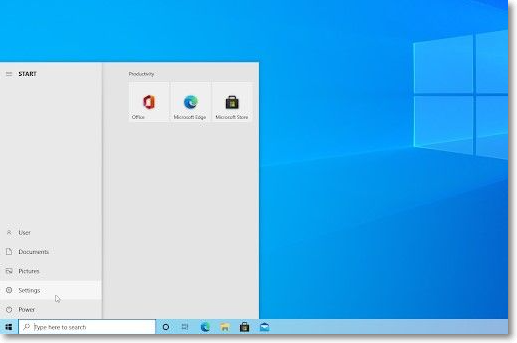
Step 1. To access the Windows settings, tap on the Windows icon at the bottom left of your screen to open the Start menu, then select the "Settings" option.
To open the Settings app on Windows, you can either click on the Win + I keys on your keyboard or type "Settings" in the text field and select the first option, which will take you directly to the Settings app.
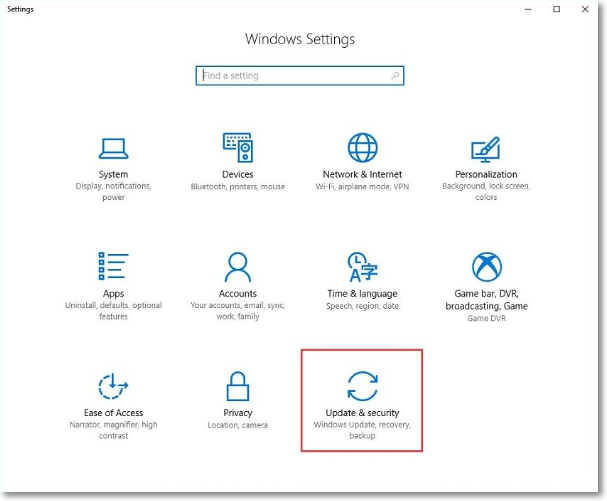
Step 2. Among the tiles that appear, choose Update & Security.
Step 3. Click on the Windows Update option on the left-hand-side navigational bar.
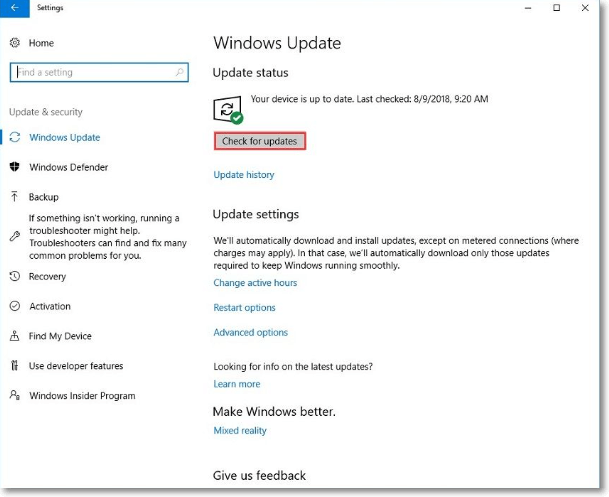
Step 4. Press the "View update history" in the next window.
Step 5. To uninstall recently installed updates, tap on the "Uninstall Updates" option and wait for the PC to remove all recently installed updates.
Fix 2. Try to Roll Back to A Previous Version of Windows 10
After upgrading from an older Windows version, the previous version remains in the hard drive memory for 28 days. If an APC Index Mismatch occurs during this period, reverting to the previous version can resolve the issue.
Step 1. First, plug the computer device into the power socket. Then, click the Next button.
Step 2. To access the recovery tool, press the Start icon on your Windows 10 homepage taskbar and type in the term "recovery" in the text field. This will open the Recovery page, where you can find options to reset your PC, troubleshoot common problems, and more.
Step 3. Choose "Recovery options (System settings)" next.
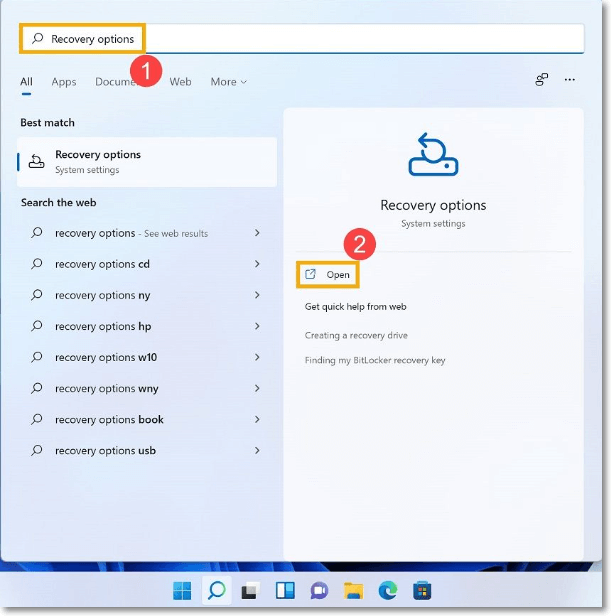
Step 4. In the next Recovery screen, tap on Go back to Windows [X], where [X] represents the previous Windows version your system had.
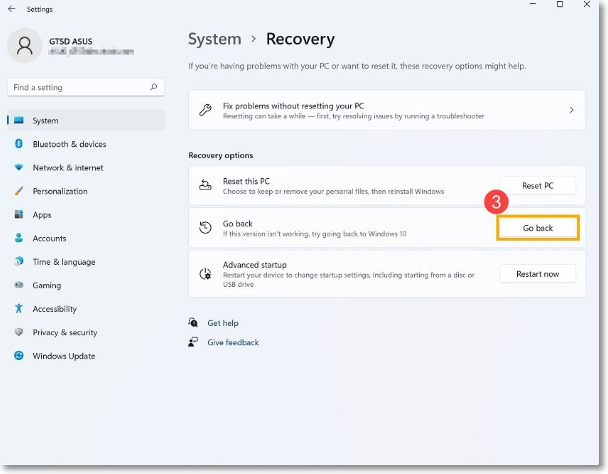
Step 5. Choose why you will roll back and press the Next button.
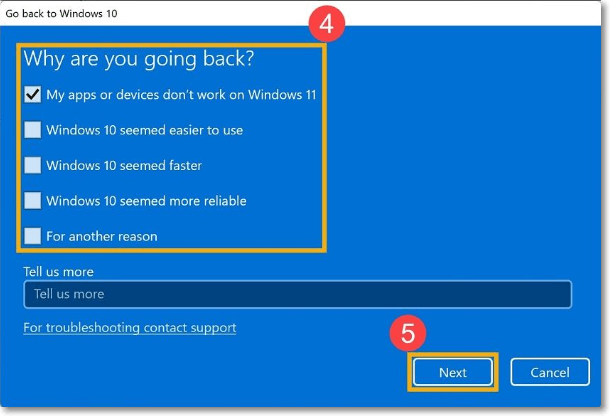
Step 6. To revert to a previous Windows version, tap the Go Back to Windows [X] button. Then, follow the rollback instructions on the screen, which will guide you through the process. Once complete, your system will automatically boot up to the previous Windows version.
You can easily roll back to a previous version of Windows using Qiling's free system rollback software, Qiling System Goback. With just a few simple actions, you can get back to the version you want to roll back to.
Fix 3. Check The Drivers in Your Computer
The APC Index Mismatch Windows 10 prompt may be caused by an incompatible device, such as an external webcam, which is not pairing well with the system's drivers. To resolve the issue, check all drivers and upgrade the incompatible one.
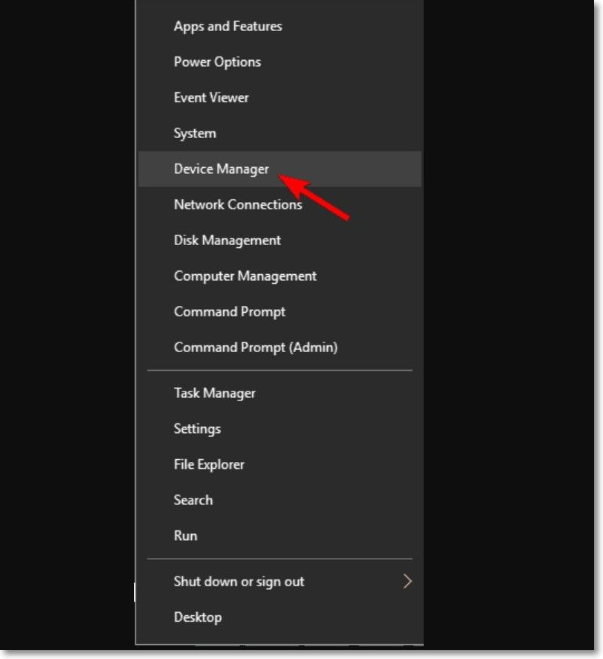
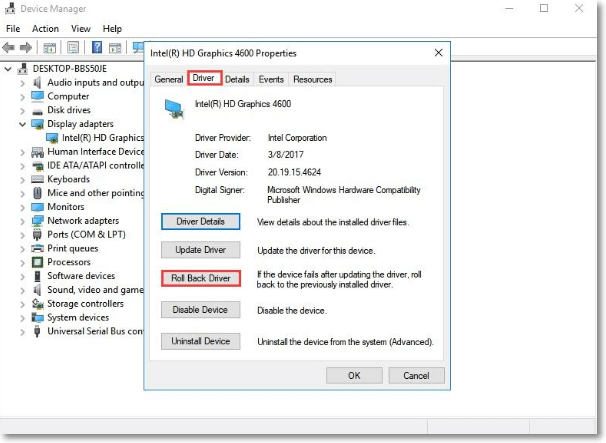
Step 1. To access the Device Manager, press the Win + X keys on your keyboard, then select Device Manager from the options that appear.
Step 2. Look for the device with a yellow triangle or marked as Unknown Device in the list of drivers, right-click on it, and select Update Driver to find the recently installed device.
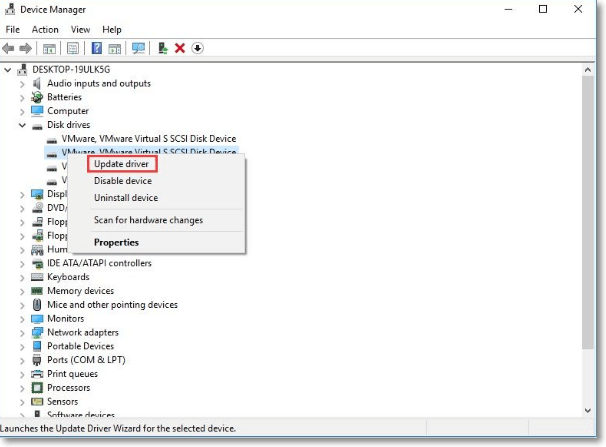
Step 3. Wait until the operating process is complete.
To roll back the incompatible driver, double-click on it, go to the Driver tab, select Rollback Driver, and then click OK.
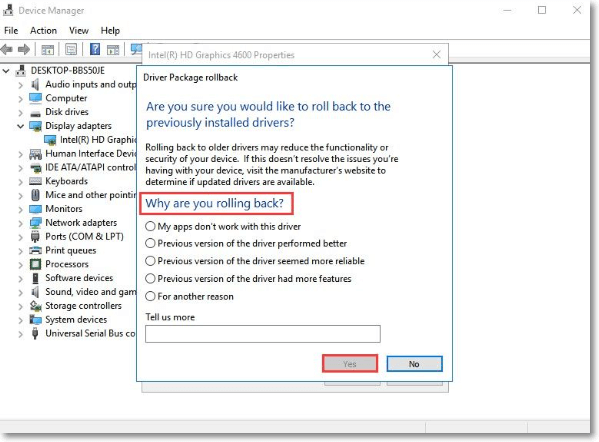
Choose the reason and tap on YES. Then, restart the device.
Fix 4. Check RAM frequency in Task Manager
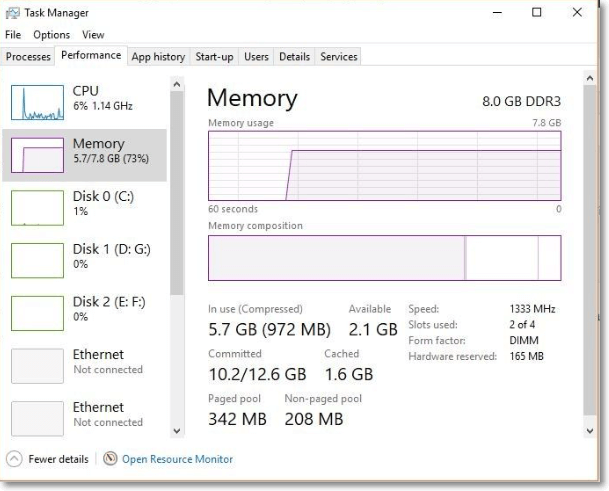
To resolve the APC Index Mismatch issue, check your RAM frequency through Task Manager, but be cautious as this can cause system instability if not done correctly, and only consider this solution if other methods fail or if you have the necessary technical expertise.
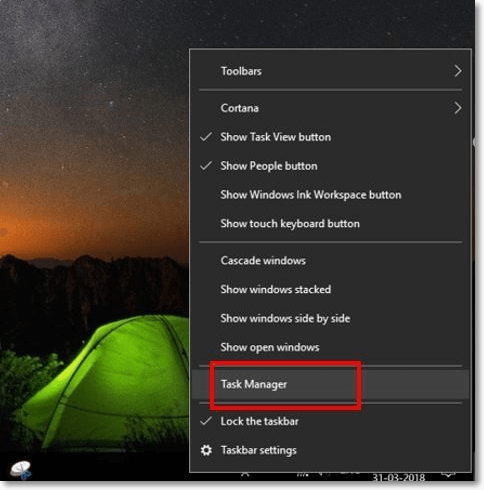
Step 1. To open the Task Manager in Windows 10, right-click on the Taskbar, which is usually located at the bottom of the screen, and select "Task Manager" from the context menu that appears. This will open the Task Manager window, where you can view and manage running applications, processes, and system resources.
Step 2. In the next window, tap the Performance tab and choose Memory to see details like slot used, RAM speed/frequency, total memory used/available.
The APC Index Mismatch error may occur due to active Trend Micro tools or Virtualization feature issues in the system, which can be resolved by deactivating the setting from the BIOS.
Fix 5. Disable Virtualization Technology
The APC Index Mismatch error can occur due to active Trend Micro tools, which may be caused by Virtualization feature issues in the system, disrupting the normal functioning of other system tools. To resolve this, deactivate the Virtualization setting from your BIOS.
Step 1. Tap on the Windows icon to open Start.
Step 2. To restart your device, press the Power button, which will immediately shut down all running functions. This is the simplest way to restart your device.
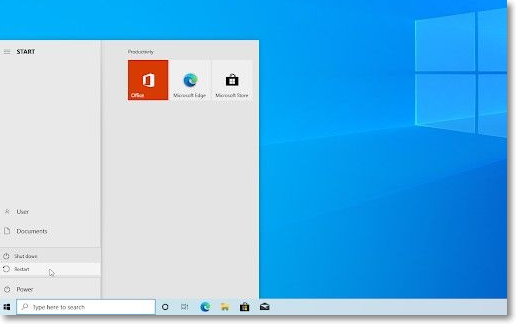
Step 3. While the device is booting, hit F2 on the keyboard. This can differ in some laptop/computer models, where other possible keys include F10, F8, F12, or Del keys.
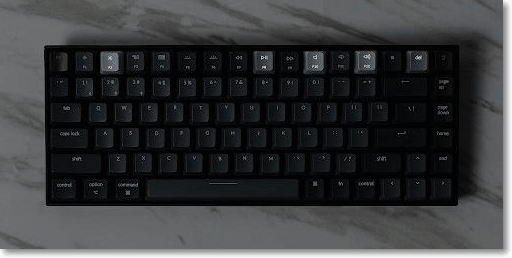
Step 4. To disable the Virtualization feature in the BIOS, tap on Advanced, then disable the Virtualization feature, and finally restart your device.
Fix 6. Reset or Reinstall Windows 10
If none of the previous solutions resolve the APC Index Mismatch issue, the final resort is to reinstall or reset your Windows 10 PC. This approach will delete system configurations, personal files, and apps, so it should be considered a last resort.
Step 1. To access the Windows Settings, start from the Windows icon in the taskbar, which is usually located at the bottom right corner of the screen. Clicking on this icon will open a menu, and from there, you can choose the "Settings" option.
Step 2. Select Update & Security > Recovery.
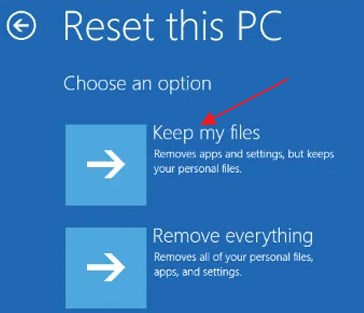
Step 3. When you see the Reset this PC option, tap on Get Started then select Remove Everything.
Conclusion
To fix the APC Index Mismatch issue on Windows 10, start by uninstalling any incompatible drivers or updates. If that doesn't work, check if the issue is caused by a more complex problem, such as a BIOS issue like the Virtualization feature, and try resetting the system if necessary. If none of these steps resolve the problem, it may be necessary to seek professional technical support if the issue is related to hardware.
Related Articles
- How to Fix Mac Flashes Folder with Question Mark on Startup? [macOS 13/12/11 Applicable]
- Fix macOS 10.13/10.13.4 High Sierra Update Failure/Stuck/Installation Error
- Can't Format External Hard Drive? 6 Ways to Help
- How to Restore Mac to a Previous Date with Time Machine/Migration Assistant/Recovery Software
- Quick Ways to Check Autodesk Inventor Serial Number and Product Key
To find the Autodesk Serial Number and Product Key, you can check the software itself, the registry, or use a key finder tool. If you don't have access to your Autodesk account, this method allows you to activate the software quickly. - How to Check Your PC's CPU Temperature [2 Methods]
When computers overheat, it is typically due to the CPU being too hot, If you begin to notice that your computer is hotter than normal, you will want to know how to check your CPU temperature.
Products
Articles & Tutorials
- Data Recovery
- Data Backup
- File Recovery
- File Backup
- System Backup and Restore
- Disk and Partition Clone
- Technical articles
- Mobile articles
- Disk Master Help
- Windows Data Recovery Tutorials
- Windows Secure Delete Tutorials
- Windows Partition Management Tutorials
- Windows File Backup and Restore Tutorials
- Windows System Backup and Restore Tutorials
- Windows Disk Backup and Restore Tutorials
- Windows Clone Tutorials