How to Repair Your Drive in Windows 10 Without Losing Your Data
A hard drive failure can be devastating for Windows users, potentially resulting in the loss of all stored data. However, timely data backup can minimize losses. If you're facing a hard drive crash, learning how to repair it can be crucial. Fortunately, there are resources available, such as the post you mentioned, that offer assistance with logical complex drive faults in Windows 10 and provide hard drive repair software.
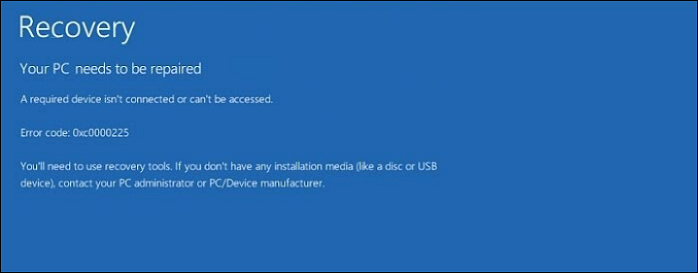
Why Drive Repair is Important
In Windows 10, drive inaccessibility, data loss, or poor performance may result from challenging drive problems caused by power outages, hardware malfunction, system crashes, or human mistakes. Users often check their hard drives periodically since disk errors can gradually slow down or harm a hard drive.
To resolve this problem, you should first determine whether a logical error is the cause of your inability to access the hard disk. If so, you can use the finest free hard disk drive data repair software to scan for disk issues, fix them, and recover any lost data from the disk. Here are some common drive errors and their causes of them.
Common Drive Faults and Causes of Them
Bad sectors. A damaged disk sector is a permanently damaged area on a disk storage unit, typically caused by mechanical damage, such as head collisions, manufacturing faults, physical shock, power outages, or dust infiltration, resulting in a sector that is no longer usable.
Lost clusters. When a file is deleted from a directory, but its corresponding entry in the File Allocation Table (FAT) still shows its file allocation, it is referred to as a "lost cluster."
Virus attack. Viruses can damage multiple systems on host computers and applications, with sector viruses targeting the hard drive's boot sector and Master Boot Record (MBR).
Improper or sudden system shutdown. Sudden system shutdowns can occur due to overheating, which may be caused by faulty or ineffective sectors, poor ventilation, dust accumulation, or inadequate power supply.
Windows 10 users should be aware of the errors and causes of hard drive corruption before attempting to repair the hard drive, as improper methods can lead to further damage and data loss.
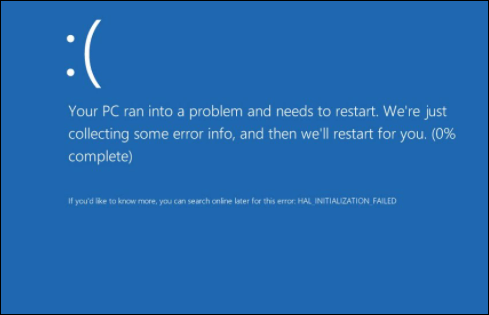
How to Repair Corrupted Drives in Windows 10
Windows users often check their hard drives periodically to prevent disk errors, which can slow down or harm the drive over time. There are typically two ways to prevent and fix Windows drive errors.
Launch Windows 10 utility and repair drive errors
Check disk (CHKDSK) is a system utility in Windows 10 that scans the integrity of a partition's file system and corrects logical file problems. It helps identify and rectify faults, such as hard drive issues caused by improper system shutdowns or erroneous removal of USB drives, making it necessary to format the partition before use.
Step 1. To access Disk Management, click on the Windows Start Menu and select Disk Management.
Step 2. In the Disk Management main interface, select the drive you wish to check and fix, right-click it, and choose Property. This will open the drive's properties window, where you can check and fix any issues.
Step 3. Click Check on the Tools tab.
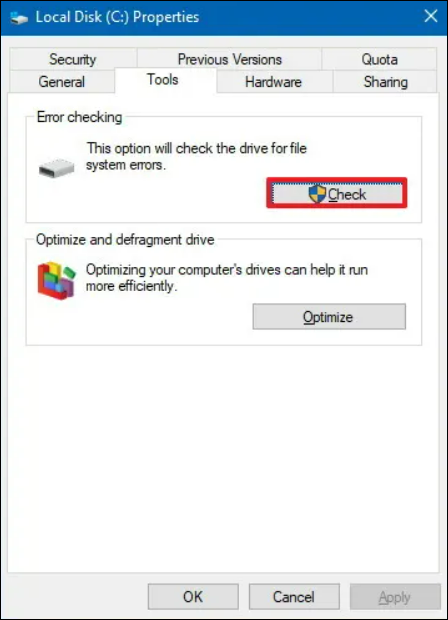
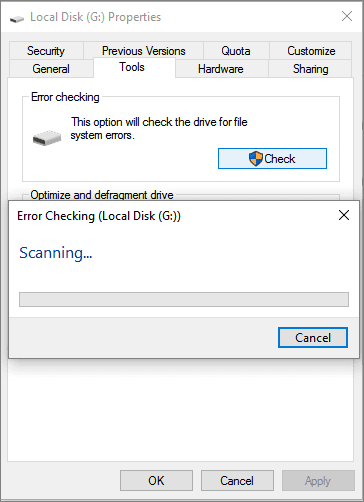
Step 4. You will be prompted to check the disk if the system finds any issues. If no mistakes are discovered, you will receive a message stating that the disk is clean.
Step 5. Windows will display a notice stating whether any errors were found, and if so, will request a restart to address the issues, or display "no error found" if none were discovered, and can be closed by clicking Close.
The damaged disk prevents access to data, and built-in Windows tools can't recover it. Therefore, data recovery software can be used to retrieve important data from the hard disk before it's fixed.
Drive repair Windows 10 with convenient software
If you find that using commands to repair Windows 10's hard disk is error-prone due to the need for accurate input, consider using powerful software as an alternative. Deep Data Recovery is a recommended option that makes drive fix for Windows 10 simple.
Deep Data Recovery is a simple partition manager that scans hard drives, corrects issues, and is easier to use than CHKDSK, taking less time and effort.
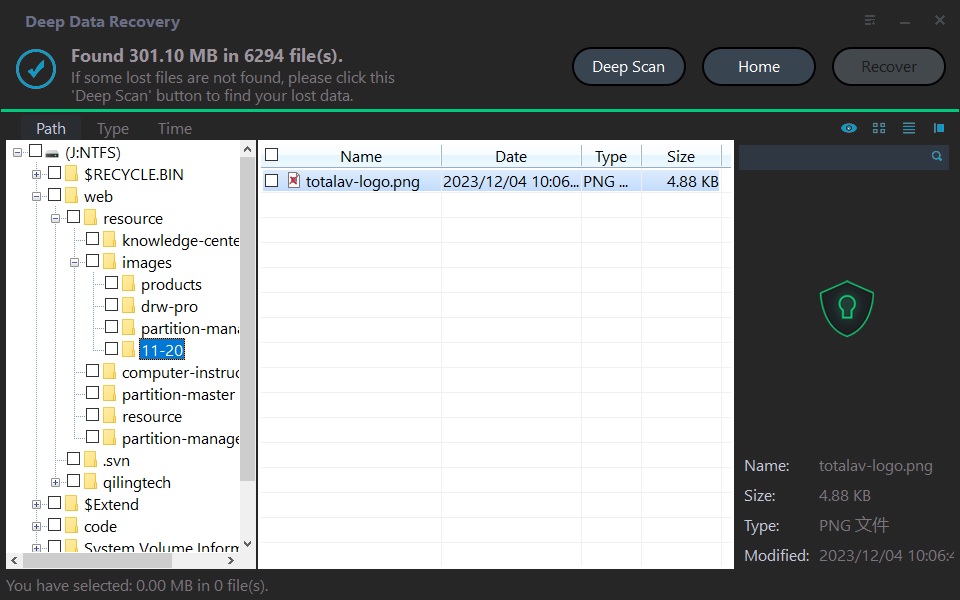
Deep Data Recovery can scan and fix driver issues in Windows 10 that cause hard disk drive corruption.
This partition management software provides various useful features beyond drive repair, ensuring complete safety and security for your disks. It allows you to select the disk location where your lost files and data were stored, and then click Scan from the menu to initiate the process.
Final Thoughts
The CHKDSK command program is a useful tool for maintaining your hard drive's health, but it requires manual intervention and may need to be restarted if it gets stuck during scanning. In such cases, third-party software can provide assistance.
Repair Your Drive in Windows 10 FAQs
Here are some other questions about repairing drives in Windows 10.
1. How do I launch CHKDSK in Windows 10?
To run CHKDSK in Windows 10, type 'cmd' in the Cortana search box, select the Command Prompt option, and run it as administrator. Then, type 'chkdsk e: /f' in the Command Prompt window, replacing 'e' with the drive letter you want to scan, and press Enter. This will initiate the scan and automatically correct any errors found.
2. Does repairing a drive erase it?
If the disk is severely damaged, there's a risk that the harm can't be fixed and data may already be lost. Additionally, attempting to repair the disk could cause further data loss if the damage was due to hardware issues, rendering the disk useless.
Related Articles
- How to Delete Files Older Than X Days on Windows 11/10 with File Explorer, CMD, PowerShell
- Fix Windows 10 Hangs or Stuck on Shut Down Error
- How to Fix macOS 13 Ventura Installation Failed/Stuck/Frozen (2022 Tips)
- Fixed: Windows 10 File History Doesn't Recognize the Hard Drive
- What Is The Root Directory and What Are The Folders in The Root Directory Used for
The root directory is the top-level folder on a drive, containing all other files and folders. In Windows, it is typically C:\, holding Program Files, Windows, and Users. - What Is the SysWOW64 Folder? SysWOW64 vs System32
Are you wondering what SysWOW64 Folder is on your Windows PC? Then follow this easy guide to learn about it, check if it's a virus, and you can safely delete the folder without breaking it.
Products
Articles & Tutorials
- Data Recovery
- Data Backup
- File Recovery
- File Backup
- System Backup and Restore
- Disk and Partition Clone
- Technical articles
- Mobile articles
- Disk Master Help
- Windows Data Recovery Tutorials
- Windows Secure Delete Tutorials
- Windows Partition Management Tutorials
- Windows File Backup and Restore Tutorials
- Windows System Backup and Restore Tutorials
- Windows Disk Backup and Restore Tutorials
- Windows Clone Tutorials