Can't Format External Hard Drive? 6 Ways to Help
The "Windows was unable to format a removable disk" error can be caused by a variety of factors, including a corrupted drive, a faulty USB port, or a problem with the disk itself. To resolve this issue, you can try using a different USB port, checking the drive for physical damage, or running a disk check using the built-in Windows utility. If the problem persists, you may need to seek further assistance from a professional.
This article explains the reasons behind the inability to format an external hard drive and provides six hassle-free steps to resolve the issue.
Possible Reasons Why You Can't Format External Hard Drive
There are a few possible reasons why you cannot format your external hard drive. These include issues with the drive's file system, a faulty drive, a corrupted file system, or a problem with the device or computer being used to format the drive. Additionally, if the drive is write-protected or has a password set, it may not be possible to format it.
Bad Sectors:
A storage device's bad sector has been damaged and is no longer responsive to read or write requests, and Windows does not support formatting a hard disk with damaged sectors.
There is a link to help you learn more about bad sectors.

[Bad Sector Explained in 2022] What Is Bad Sector?
A bad sector is typically caused by mechanical damage, such as a head collision, manufacturing flaws, wear and tear, physical stress, unexpected power interruptions, or dust entering the drive.
Physical damage:
Removable disks are more prone to physical damage than internal hard drives, and can be damaged if dropped or exposed to unfavorable environments. Techniques in this article will not fix physical damage.
Write-protection:
Writes protection on SD cards and flash drives prevents users from changing the drive in any way, including formatting or removing data, using either hardware-based or software-based methods.
Insufficient permissions:
Formatting a drive may require administrative access to your computer, but it can be easily done using Command Prompt or Disk Management.
Virus/malware:
If your device is infected with a virus or malware, your sensitive data could be stolen, compromised, or deleted, and the hardware could also be damaged.
If you connect a USB drive, SD card, or another device to a computer without antivirus software, you risk infecting the computer with a virus.
By the way, there are some links to help you if you cannot format a USB or SD card.
Can't Format External Hard Drive? 6 Ways to Help
In this part, there are six ways to help you solve this problem you can't format external hard drive. Follow these methods and you can find the reason why cannot format external hard drives.
Method 1. Scan and Repair Bad Sectors
Damaged sectors on the USB drive that can't be read or written cause the formatting process to fail. To resolve this issue, use software like Qiling Partition Master or CHKDSK.exe to scan and fix these damaged sectors. This should resolve the "Can't Format USB" problem.
First, let's use Qiling Partition Master to check the bad sectors. Here is the tutorial.
Step 1. Open Qiling Partition Master. Right-click the disk that you want to check, and then click "Surface Test" to check the disk.
Step 2. The operation will be performed immediately, and all bad sectors will be marked red.
With a few clicks, you can easily identify and locate the bad sectors on your hard drive.
You can also use the CHKDSK.exe software to scan bad sectors, but it can be a bit more troublesome. To use it, you can follow the steps to run the software and let it scan your hard drive for any bad sectors.
Step 1. To open the Command Prompt, press the Windows key + R to open the Run dialogue box, type "cmd" in the box, and press Enter. This will open the Command Prompt window, where you can type and execute commands.
Step 2. The Command Prompt window will open
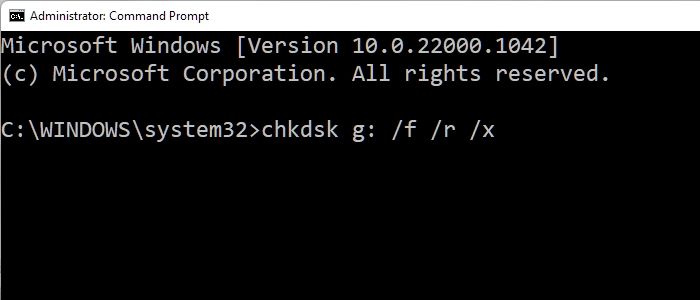
Step 3. To run the check disk utility on your flash drive, type `chkdsk g: /f /r /x` at the command prompt, replacing `g` with the drive letter of your flash drive.
Windows System has a built-in tool called "Disk Management" that can help resolve the "can't format USB" issue. You can access it by right-clicking on the Start menu, selecting "Disk Management", and then selecting the USB drive you want to format.
Method 2. Remove Write Protection
Windows cannot format a write-A flash drive may become write-protected due to a physical lock, being in read-only mode, incorrect registry settings, or a damaged file system. The appropriate response depends on the underlying cause.
1] Search For A Physical Switch.
To unlock a write-protected USB flash drive, look for a physical lock switch on the side and slide it to the unlock position. If it has one. Then, connect the drive to your computer and format it as needed. Once formatted, move the lock switch back to its original position to remove the write protection. You can then check if Windows System has a solution for the "can't format USB" issue.
2] Remove Read-Only Properties Using the Diskpart Tool.
Step 1. You can do this by plugging it into a USB port and checking the computer's file explorer or disk management tool to see if it appears as a connected device. Once you've confirmed that your flash drive is recognized, you can proceed with the steps to format it.
Step 2. To open the Diskpart Command Prompt, press Win + R to open the Run dialogue box, type "diskpart" into the dialogue box, and press OK.
Step 3. To list the available discs on the PC, type "list disk" and press Enter. This will display the list of discs available on the PC. Next, type "select disk n", where n is the drive letter of your flash drive, and press Enter to continue.
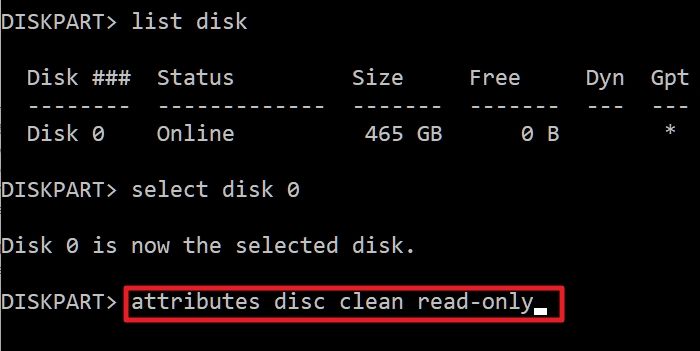
Step 4. To modify the USB drive's settings to make them no longer read-only, you can use the Diskpart command "attributes disc clean read-only" to execute the command. This will allow you to format the flash drive as per your needs.
Now you can check whether the issue is fixed.
3] Write Protection Can Be Disabled Through Registry Editing.
Make sure your flash drive can be identified by connecting it to your computer first.
Step 1. To open the Registry Editor, press the Windows key + R to open the Run dialog, type "regedit" and press Enter or click OK. This will open the Registry Editor where you can access and modify the Windows Registry.
Step 2. Go to the following path.
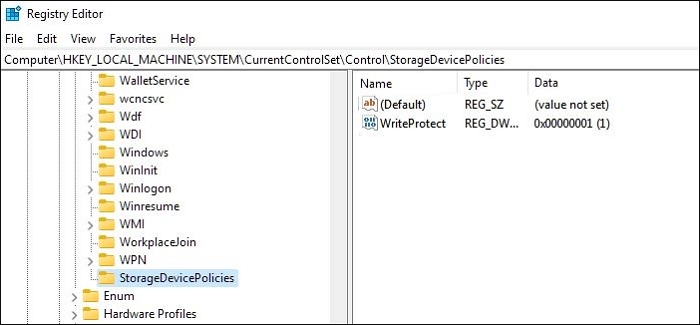
Computer\HKEY_LOCAL_MACHINE\SYSTEM\CurrentControlSet\Control\StorageDevicePolicies
If the StorageDevicePolicies key does not exist, manually create it by right-clicking on the control key and selecting New > Key.
Step 3. You can change WriteProtect by double-clicking it from 1 to 0.
If the WriteProtect key does not exist, create a new Dword value named WriteProtect under the StorageDevicePolicies key, then set its value to 0.
Step 4. After closing Regedit, restart your computer. Before reconnecting your USB device, make sure to correctly format it. This should resolve the issue.
Check if the issue persists.
Method 3. Remove the Virus
Small USB flash drives can spread viruses easily, but a reliable antivirus program can help remove malware or viruses that get transferred through them.
Step 1. To access the Windows Security settings, you can type "Windows Security" into the search box located to the right of the Windows logo on the computer screen. This will open the Windows Security app, allowing you to view and manage various security features and settings.
Step 2. To access the scan options, click on Virus & Threat protection, then select the Virus & Threat protection symbol. Under Current Threats, you can find Scan Options, which will display four different scan options.
Step 3. If you're checking everything for the first time, choose the Full Scan option. Select the radio button next to Full Scan and then click the Scan Now button.

Step 4. A complete system scan will start when you press this, and Window Security will show a progress bar with the findings. If everything is fine, it will display the message "No current threats".
Step 5. Microsoft Defender will notify you if it finds any threats, displaying a list of infected files. To remove the threats, click the Start Actions button, which will initiate Microsoft Defender's removal process.
Windows System has a built-in tool called "chkdsk" which can be used to check and fix any errors on the USB drive, and then try to format it again. The tool can be accessed by right-clicking on the USB drive in File Explorer, selecting "Properties", and then clicking on the "Tools" tab.
Method 4. Format External Hard Drive Using Command Prompt
The simplest method for external formatting media like USB, pen drives, etc., is through the Windows Command Prompt.
Step 1. Open the Command Prompt program from the Windows menu.
Step 2. Enter the following command with the appropriate drive letter and file system.
Eg. 1: format D: /fs:ntfs
E.g. 2: format J: /fs:FAT32
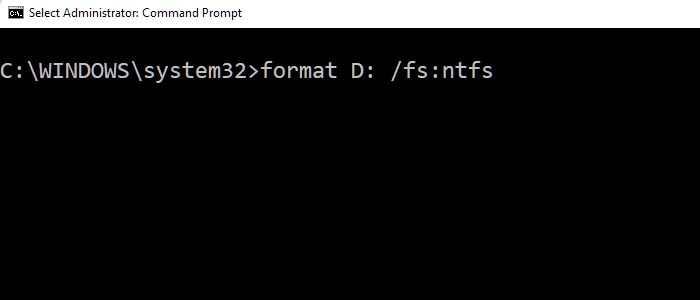
Microsoft has acknowledged the issue in Windows 10, but there is no specific "cure" for the problem. However, users can try some potential workarounds to resolve the issue.
Method 5. Format External Hard Drive Using Disk Management
Another excellent tool for managing disks and partitions on Windows computers is Disk Management. You can create a brand-new volume on the removable disc with a few easy clicks that Windows cannot format.
Step 1. To access Disk Management, right-click on "This PC" and select "Manage", then click on "Disk Management" to launch the Disk Management utility.
Step 2. Next, choose your external hard drive and right-click on it.
Step 3. To quickly format a drive, select the drive you want to format from the list of available drives, then click on the "Format" button. Next, choose the "Format" option and select the "Perform a quick format" option.
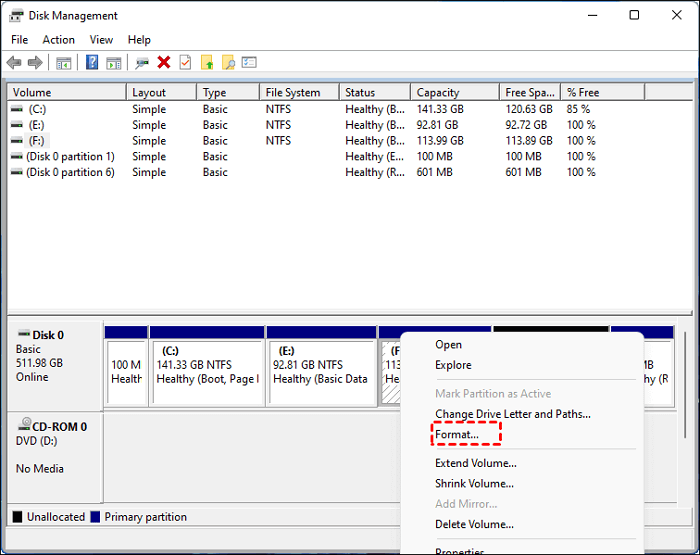
Step 4. Select the correct file format. Then click "OK".
Check if the issue has been resolved.
Method 6. Try Formatting on Another Linux OS
If you're unable to format a drive in Windows, you can try using Linux commands to format the disk into a compatible format like NTFS or FAT32, which can be read and written by Windows. This can be a useful alternative if the drive is not cooperating with Windows.
To format a disk in NTFS on Linux, execute the command `sudo mkfs.ntfs -L
sudo mkfs -t ntfs /dev/sdb1
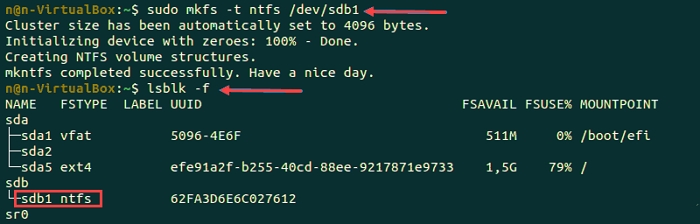
The command to format a USB drive into FAT32 is `sudo mkfs.vfat -F 32 /dev/sdX1` where `X` is the drive letter (e.
sudo mkfs -t vfat /dev/sdb1
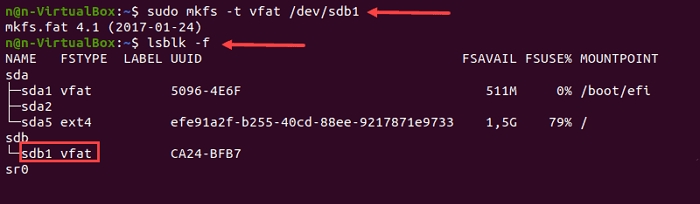
Once you've completed the process, you can verify the file system change by running the lsblk command.
To resolve the issue of your device not being recognized by Linux, follow these steps: First, check the device's power and ensure it's properly connected. Next, try to reset the device by unplugging it, waiting for 10 seconds, and plugging it back in. If that doesn't work, try to update the device's firmware.
Bonus Tip: How to Format External Hard Drive Safely?
Qiling Partition Master is a free partition manager for Windows that allows you to format an external hard drive to FAT32 in just three simple steps. Unlike other methods, this tool makes it easy to format a drive without any hassle, making it a convenient option for users.
Step 1. To format a partition on an external hard drive, USB, or SD card, launch Qiling Partition Master, right-click the partition you want to format, and select the "Format" option from the context menu.

Step 2. Assign a new partition label, file system (NTFS, FAT32, EXT2, EXT3, EXT4, exFAT), and cluster size to the selected partition, then click "Proceed".

Step 3. Click "OK" in the Warning window to begin formatting your external hard drive, USB, or SD card for use with your device.
Besides formatting an external hard drive, it still has many other features. Let's continue to learn.
What Makes Qiling Partition Master the Best Option?
The main features of Qiling Partition Master Free include:
Powerful yet free: Partition Master Free allows for various disk and partition operations, including resizing, moving, merging, migrating, copying, converting, altering labels, defragmenting, verifying, and investigating partitions.
Complete Disk Management Tool: This tool allows you to manage multiple storage devices and perform disk checks, as well as convert between MBR and GPT, and FAT32 and NTFS, giving you flexibility in managing your storage needs.
Wizards: If you're planning to move your operating system to a new, faster hard drive (HDD) or ultra-fast solid state drive (SSD), or want to duplicate or copy a partition, the Partition Master Free tool has a built-in Wizard to help with that and other purposes, and can also be used with SSDs.
Business License: Home entrepreneurs can quickly and easily get a Business License for Partition Master Free, which is a convenient and hassle-free process.
Don't hesitate to download it if you are facing disk management problems.
Conclusion
The article explains why an external drive formatting may fail and provides a solution to the issue. Additionally, it suggests using the Qiling Partition Master Free tool to safely format the external drive.
To avoid losing your data, it's essential to create backups of your external drive's contents, which can be done using cloud storage services or external hard drives. This way, even if you can't access your external drive due to formatting issues, you can still retrieve your data from the backups.
FAQ Related to Can't Format External Hard Drive
If you have any further questions about formatting external hard drives, check out the following frequently asked questions and their solutions:
1. Why can't I format my external drive?
Your external drive might not be formatable due to various reasons such as bad sectors, physical damage, write protection, insufficient permissions, or malware/virus infections.
2. How do I force format my hard drive?
Select the USB or external device you want to format from the context menu, choose the desired format settings, and then confirm the operation to format the selected partition.
3. How do I format an unresponsive external hard drive?
If your external drive is not functioning, try unplugging it and plugging it into a different USB port. If it still doesn't work, try using a USB 2.0 port instead of a USB 3.0 port, or connect it directly to your PC instead of a USB hub. This may resolve the issue.
Related Articles
- 5 Best SSD For Long Term Storage Recommendations in 2022
- 5 Ways to Uninstall Application on Mac [Complete Guide]
- What If Error Message -- We Couldn't Find Any Drives Appears? [2022 Fixed]
- NTFS VS Share Permissions, What's the Difference and How to Set Them?
- What Is CDR File and How to Open & Convert It? [Full Description]
What is a CDR file? Do you know how to open and convert it? This article will give you a full description of CDR files. - Where Is The Hard Drive on A Laptop?
Do you find it difficult to locate the hard drive on your laptop? In this article, you will learn all you need to know about a laptop hard drive and how to remove a hard drive from a laptop. Read on to find out.
Products
Articles & Tutorials
- Data Recovery
- Data Backup
- File Recovery
- File Backup
- System Backup and Restore
- Disk and Partition Clone
- Technical articles
- Mobile articles
- Disk Master Help
- Windows Data Recovery Tutorials
- Windows Secure Delete Tutorials
- Windows Partition Management Tutorials
- Windows File Backup and Restore Tutorials
- Windows System Backup and Restore Tutorials
- Windows Disk Backup and Restore Tutorials
- Windows Clone Tutorials