What If Error Message -- We Couldn't Find Any Drives Appears? [2023 Fixed]
If you're experiencing the "we couldn't find any drives" error while trying to install a Windows operating system on your computer, you're not alone. This issue can be frustrating, but understanding its causes can help you resolve it. This tutorial will delve into the reasons behind this error and provide guidance on how to overcome it, so you can successfully install Windows on your computer.
We'll also discuss possible fixes to the issue and ensure you proceed with the Windows installation process to completion.
Error Message: We Couldn't Find Any Drives
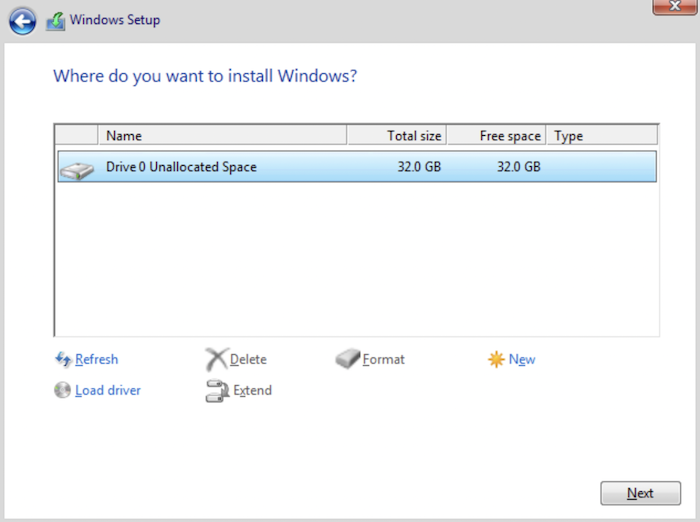
When installing a new operating system, you may encounter the "We couldn't find any drives" error, indicating that the OS can't detect any hard drive. To resolve this, you'll need to load a driver to allow the installation process to continue.
This error can occur due to incorrect hard drive settings or a corrupted disk, which prevents the OS from detecting drives for booting.
To fix the error and have your operating system installed normally, you can try checking the installation media, BIOS settings, and firmware updates, as well as disabling Secure Boot. If these steps don't resolve the issue, you can try a different installation method, such as a network installation or a virtual machine, or simply reboot and try again. If none of these steps work, it may be best to seek the help of a professional, such as a computer technician or system administrator.
How to Fix We Couldn't Find Any Drives?
To proceed with the Windows installation process, you'll need to resolve the "we couldn't find any drives" error first. There are three methods to fix this issue, which will be outlined in the following section.
- Method 1. Change the Storage Controller Type
- Method 2. Fix in VirtualBox
- Method 3. Use a Bootable USB Drive
Method 1. Change the Storage Controller Type (SATA Operation Type to AHCI)
To resolve the drive error, try changing your storage controller from SATA to AHCI, which can help your system detect the hard disk. This can be done by following these steps:
Step 1. Open the BIOS settings on your computer.
Step 2. Go to the "Storage" section.
Step 3. If the section for "RAID on" is enabled, change it to "AHCI/NVMe."
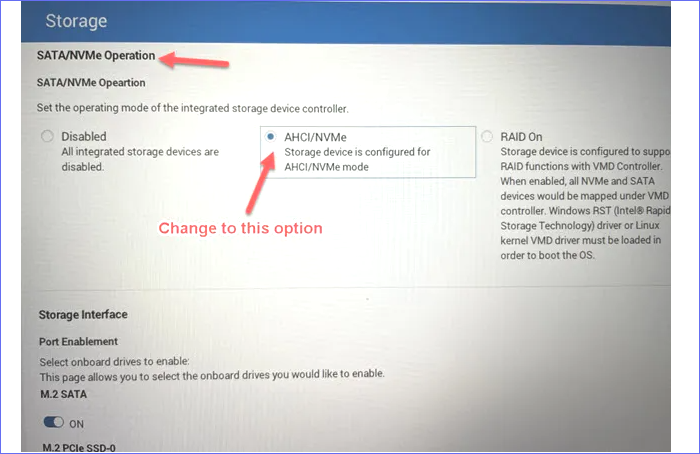
Step 4. Reboot your computer using the same USB device that had the Windows installation, and the system will detect the available hard drive, allowing you to continue the installation.
Method 2. Fix in VirtualBox
To fix the "we couldn't find any drives" error on your Windows computer, you can also use VirtualBox. This involves removing the existing storage devices and adding new ones, then selecting the correct ISO file.
Remove the Current Storage Devices
Step 1. Open VirtualBox and pick a given virtual machine.
Step 2. Click on "Settings"
Step 3. Navigate to the left panel and click on the "Storage" tab.
Step 4. From the list of available controllers, select "SATA."
Step 5. Click the option for "Removes selected storage controller."
Add a New Storage Device
Step 6. Select the "Add new storage controller" icon and click on it.
Step 7. Select "Add SATA Controller."
Step 8. Click on "Adds hard disk" and select "Create new disk."
Step 9. To create a new virtual hard disk, select "Dynamically Allocated" and let the system create a new virtual hard disk, being patient until the process is complete.
Select the Right ISO File
Step 10. Click on "Adds optical drive."
Step 11. Click on the "Choose disk" option.
Step 12. Select the required ISO file from the available options, or add a new one if none is available.
Step 13. Click "OK."
Step 14. Restart the virtual machine, then view the available partitions to boot Windows, and proceed with the Windows installation process.
Method 3. Use a Bootable USB Drive
To solve the error: "We couldn't find any drives" using a bootable USB drive, you can apply the following steps:
Step 1. First, set up a bootable USB drive.
Step 2. Download the Intel VMD driver, unzip the files, and save them to the bootable drive created.
Step 3. To access the BIOS setup on your computer, simply reboot your computer and immediately press the F2 key. This will take you to the BIOS settings, where you can make any necessary changes or adjustments.
Step 4. To access the F12 Boot Menu in the BIOS setup, navigate to the "Main" tab and verify that the "F12 Boot Menu" option is enabled. This allows you to select the boot device and initiate the boot process.
Step 5. To create a supervisor password, click on the "Security" tab and navigate to the "Set Supervisor Password" section.
Step 6. To enable secure boot on your computer, first, enter the BIOS settings by restarting your computer and pressing the designated key (usually F2, F12, or Del). Next, select the "Boot" tab and toggle the "Secure Boot" option to "Enabled." Save your changes and exit the BIOS settings. Finally, shut down your computer.
Step 7. To boot your computer from a USB drive, insert the drive into your computer and press F12 repeatedly. This will display the "Boot Options Menu", from which you can select your bootable drive.
Step 8. Follow the installation instructions and when you encounter the "we couldn't find any drives" error, click on the "Load driver" option to proceed.
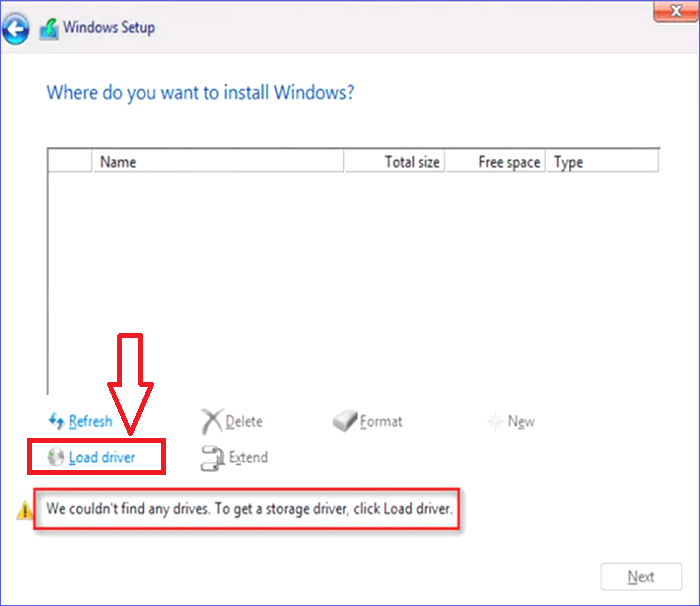
Step 9. Next, select the "Browse" icon.
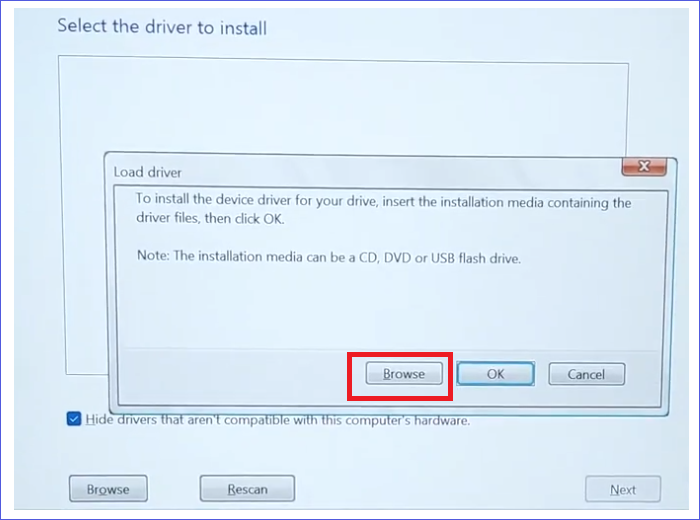
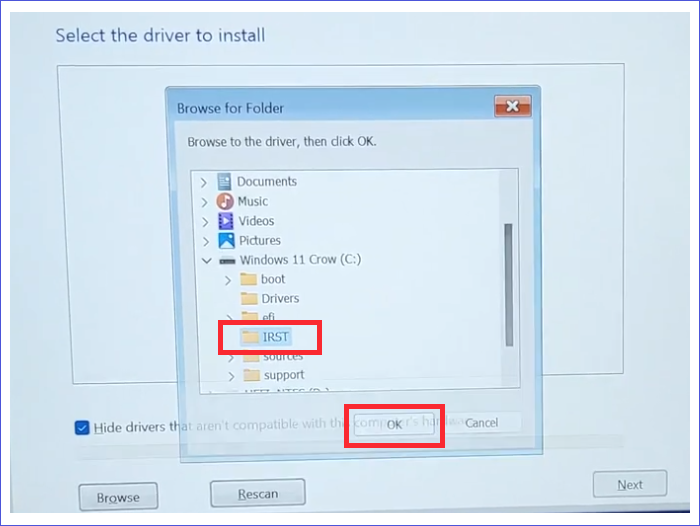
Step 10. Choose the Intel VMD driver folder saved on your bootable USB drive and click "OK".
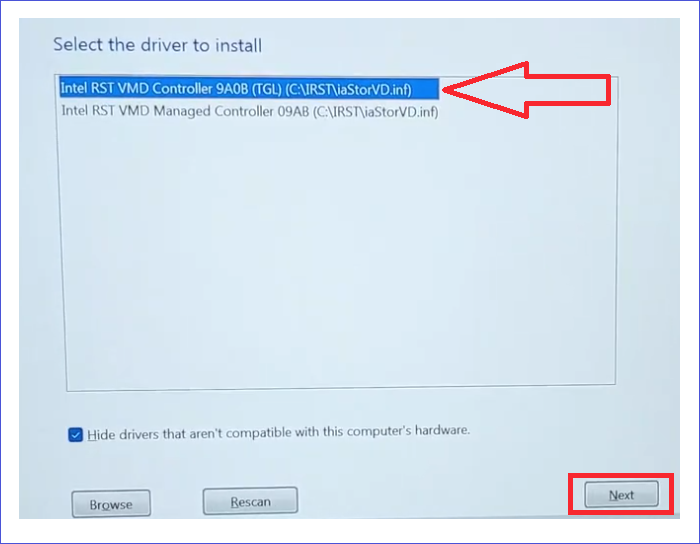
Step 11. When the "Select the driver to install" window appears, select the first option and click "Next". The system will automatically install the Intel VMD driver and display available drives to boot Windows, allowing the installation process to proceed.
Step 12. After completing the installation process, reboot your system and access the BIOS setup to remove the initial passwords you had set. Save and exit the BIOS setup.
Conclusion
If you encounter the "we couldn't find any drives" error when installing Windows on your computer, it shouldn't worry you anymore since we've listed the possible solutions for you. You can fix this error by changing the storage controller type from SATA to AHCI, creating a new storage device on a VirtualBox, or via a bootable USB drive.
If you're experiencing issues with installing Windows, try out any of the fixes mentioned, such as checking the USB drive, boot order, and disk space. If these solutions resolve the problem, you can proceed with the installation process. If not, you may need to seek further assistance.
FAQs
The "we couldn't find any drives" error is a common issue that can be frustrating to deal with. If you're experiencing this error, it's likely due to a problem with your computer's hardware or software configuration. To resolve the issue, you may need to check your computer's BIOS settings, ensure that all necessary drivers are installed, or troubleshoot any conflicts between hardware components.
1. Why Won't My PC Recognize My Hard Drive?
Your PC may fail to recognize your hard drive due to various reasons. These include a faulty hard drive controller, a malfunctioning motherboard, a corrupted BIOS, or a loose or damaged IDE or SATA cable.
- Connection issues.
- Faulty BIOS settings.
- Driver issues, etc.
2. Why Is My "D" Drive Not Showing Up?
If you're unable to find a file on your D drive, it's possible that you've accidentally deleted it or formatted the drive. To resolve this, you can try creating a new D drive in Disk Management. This will give you a fresh drive to work with. If the file is still present, you can then copy it back to the original drive.
3. How Do I Fix an Internal Hard Drive not Found?
You can try out the following options to fix the issue:
- Change the storage controller type from SATA to ACHI.
- Create a new storage device using VirtualBox.
- Use a bootable USB drive.
To get started, navigate to the above sections to get the detailed steps for these methods. This will provide you with a clear and concise guide on how to proceed with each approach.
4. Will Resetting BIOS Delete Files?
No. Resetting the BIOS won't affect your computer data, as it only restores the system BIOS settings to their factory defaults.
Related Articles
- Fix 'Can't Find the Specified File' Error When Rename/Move Folder in Windows 10/8/7
- What Are the Best External SSDs for Backup [5 Recommendations]
- [2022 Tips] Update Not Found - The Requested Version of macOS Is Not Available
- Fixed: Chrome Browser Not Open/Working in Windows 10 Creator
- Computer Keeps Crashing When Playing Games - How to Fix?
Have you encountered the computer keeps crashing when playing games error? What to do if the PC continues crashing while gaming? Please read about the best solutions, their steps, and additional safety benefits. - What to Do If Computer Restarts After Shutdown (for Windows 11/10/8/7)
Fix a computer that restarts after shutdown. Learn common causes, including Fast Startup, power settings, drivers, BIOS, and hardware issues.
Products
Articles & Tutorials
- Data Recovery
- Data Backup
- File Recovery
- File Backup
- System Backup and Restore
- Disk and Partition Clone
- Technical articles
- Mobile articles
- Disk Master Help
- Windows Data Recovery Tutorials
- Windows Secure Delete Tutorials
- Windows Partition Management Tutorials
- Windows File Backup and Restore Tutorials
- Windows System Backup and Restore Tutorials
- Windows Disk Backup and Restore Tutorials
- Windows Clone Tutorials