Where Is The Hard Drive on A Laptop?
A laptop's hard drive is its storage component, keeping data like files and media. Its location varies by model, often found at the bottom, front, or side. Regardless of its position, handling the hard drive with care is crucial, especially when removing it.
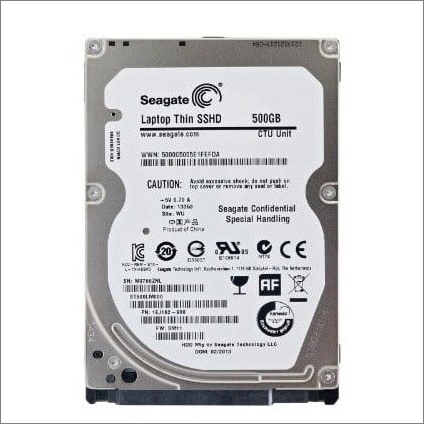
Types of Hard Drives
1. Internal Hard Drive
Internal hard drives are installed in laptops or desktop PCs, while external hard drives are connected to devices via USB or Firewire cables.
Internal and external hard drives have distinct characteristics despite containing spinning plates and writing data to magnetic discs. One notable difference is that internal hard drives are faster to use, as they directly interface with the motherboard, whereas external hard drives rely on a cable to connect.
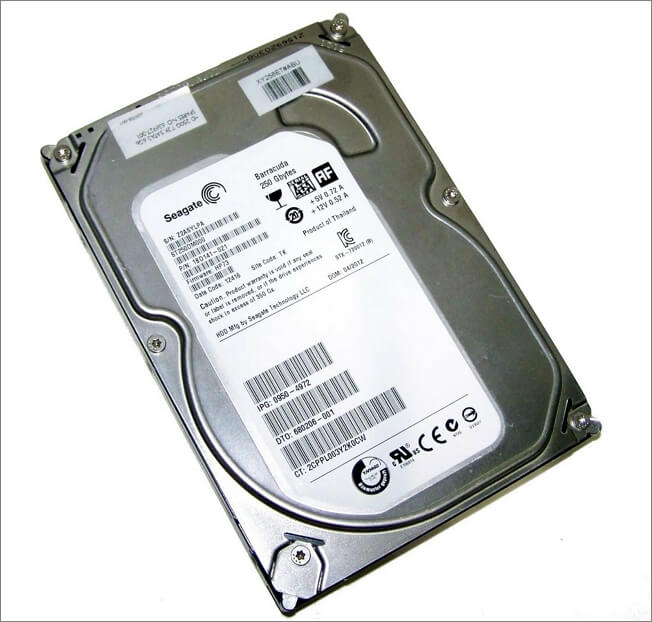
Internal hard drives are more affordable than external hard drives, especially when purchased with a laptop or desktop computer, and often have a larger storage capacity.
Internal hard drives are always connected to the laptop, eliminating the risk of loss or damage from external factors.
2. External Hard Drive
External hard drives are connected to a laptop via USB cables, allowing users to save files, including software, media, and documents, just like internal hard drives.
External hard drives can serve as a backup to laptop's internal HDDs, preventing loss or theft of important files. By duplicating files on an external hard drive, users can ensure the safety of their documents.
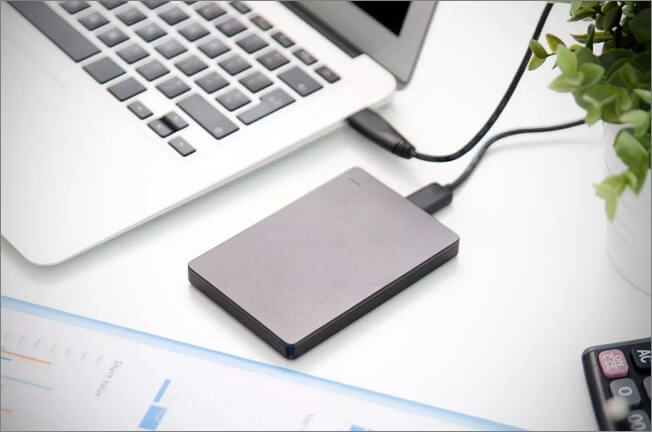
External hard drives are portable storage devices that offer huge storage capacity, allowing users to save a large number of documents, images, videos, and other files. Some models can be expanded with additional storage capacity, depending on the drive manufacturer and model.
data.
How Do I Locate the Hard Drive in a Laptop
The location of a laptop's internal hard drive can vary depending on the manufacturer and model, with some being mounted under the laptop, others installed on the front, and some located by the side.
- Bottom-mounted Hard Drive
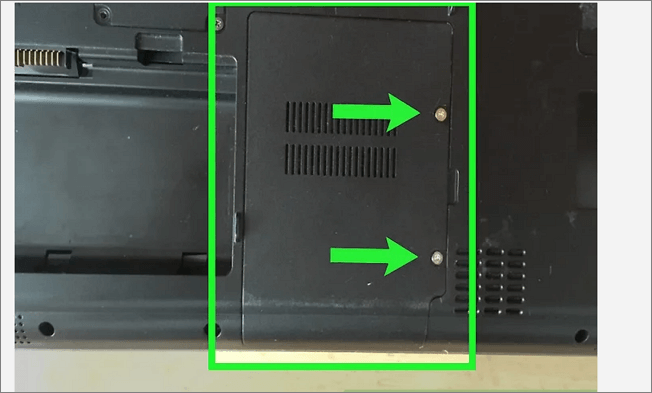
A bottom-To access the internal hard drive on a laptop, you can locate it by flipping the laptop over and finding a small section, usually rectangular, that indicates the hard drive's position. To access it, unscrew the plastic casing and carefully detach the hard drive. The same process is followed when replacing it.
- Front-mounted Hard Drive
Front-Mounted hard drives are typically located on the back or bottom of a laptop, not the front. To access the hard drive, you would typically need to remove the back or bottom panel of the laptop, not turn it over. This requires unscrewing the panel and gently prying it open to access the hard drive. It's essential to be careful not to damage any of the laptop's internal components, such as the screen, webcam, or flex cables. Once you've accessed the hard drive, you can disconnect it and reconnect it in the same manner. It's worth noting that front-mounted hard drives are not a common design and may require a different approach.
- Side-mounted Hard Drive
To access the internal hard drive, unscrew the side panel of the laptop, usually found on the left or right side, and carefully detach the hard drive.
How Do I Remove a Hard Drive From a Laptop
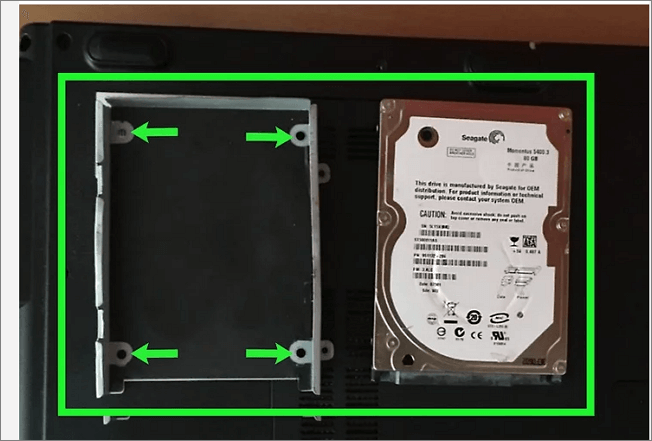
The internal hard drive is a crucial component of a laptop, storing files, credentials, music, photos, and movies. When removing it from the laptop, you must handle it carefully to avoid damage. To do this, follow these steps:
Step 1. Backup your important files
To avoid losing any of your files, it's essential to back them up, which can be done by saving them on an external hard drive.
Step 2. Disconnect the laptop from any power source or your battery
It's recommended to disconnect the laptop battery, unscrew nothing while still connected to power, and remove all cables, including USB and network cables, before attempting any repairs. This ensures safety from electric shock.
Step 3. Unscrew the access panel.
To remove the hard drive, it's essential to carefully unscrew the access panel and the hard drive mount, which serves as a protective covering for the hard drive, allowing for safe removal of the hard disk.
Step 4. Carefully detach the HDD from the connectors.
Carefully pull the hard drive from the connectors to detach it, possibly using a flat tool. Then, place the hard drive on a stable, dry surface.
Conclusion
Knowing the location of your laptop's internal hard drive is essential, whether you're replacing it or not. Understanding its location can also inform how you handle your laptop. This article has covered the types of hard drives, their differences and similarities, and outlined the possible locations of a laptop's hard drive, as well as provided a guide on removing it. Whether you're an engineer or a laptop owner, this information should be helpful.
Related Articles
- How to Fix Nikon 'This Memory Card Cannot Be Used' Error
- Best Ways To Fix Windows PowerShell Keeps Popping Up
- How to Clear Memory and Increase RAM in Windows 10/8/7?
- External Hard Drive Takes Forever to Load
- How to Fix "Disk 1 Removable No Media" Error [2023 Detailed Guide]
Fix Disk 1 removable no media errors on USB drives or SD cards and learn how to make the device show up correctly again. - How to Fix "Disk Showing as Raw Instead of NTFS" [2 Methods]
Fix a disk showing as RAW instead of NTFS, recover important files, and learn how to repair or format the drive safely.
Products
Articles & Tutorials
- Data Recovery
- Data Backup
- File Recovery
- File Backup
- System Backup and Restore
- Disk and Partition Clone
- Technical articles
- Mobile articles
- Disk Master Help
- Windows Data Recovery Tutorials
- Windows Secure Delete Tutorials
- Windows Partition Management Tutorials
- Windows File Backup and Restore Tutorials
- Windows System Backup and Restore Tutorials
- Windows Disk Backup and Restore Tutorials
- Windows Clone Tutorials