How to Clear Memory and Increase RAM in Windows 10/8/7?
How to clear memory and increase RAM in Windows 10/8/7?
You might have experienced a situation where your computer, despite having a large hard drive, still runs slowly. This paradoxical issue can be attributed to various factors, including the type of hard drive used. Traditional hard disk drives (HDDs) are mechanical devices that rely on spinning disks and moving parts to store and retrieve data, which can lead to slow performance and lag. In contrast, solid-state drives (SSDs) use flash memory to store data, making them significantly faster and more efficient.
Your computer is experiencing a high CPU usage issue, which means that its CPU and RAM are heavily occupied by certain programs and software, leading to a slowdown of your PC.
To fix the high CPU RAM usage error on a Windows PC, the best approach is to free up and clear memory, which can be achieved by closing unnecessary programs, deleting temporary files, and uninstalling unused applications. Additionally, increasing RAM can also help alleviate the issue, but if that's not feasible, consider upgrading to a solid-state drive (SSD) or replacing the existing hard drive with a faster one. Regularly running a disk cleanup, disk defragmentation, and a system file check (SFC) can also help identify and resolve any underlying issues contributing to the high CPU RAM usage. By implementing these steps, you can help optimize your PC's performance and prevent high CPU RAM usage errors.
If you're experiencing high CPU usage on your Windows PC, you can try increasing RAM to fix the issue. To do this, you can follow any of the methods provided, which can help free up memory and resolve the high CPU usage problem.
Quick Fix: Close Unnecessary Running Programs to Increase RAM
1. Press the keys Ctrl + Alt + Del simultaneously to open the Task Manager. This is a quick way to open the Task Manager on a Windows system.
2. To identify resource-intensive programs, open Task Manager, navigate to the Processes tab, and look for the programs consuming the most memory and CPU usage.

3. Identify the programs consuming the most CPU resources and click "End Task" to terminate them, freeing up your computer's processing power.
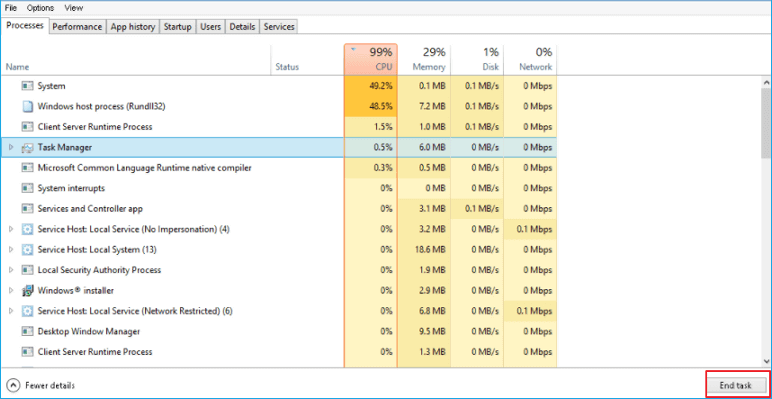
To resolve high CPU usage, restart your computer to clear any temporary issues and free up system resources. This simple step can help resolve the issue and get your computer running smoothly again.
Method 1. Disable and Remove Software/Programs from Startup to Increase RAM
To resolve the problem and increase RAM, it's recommended to disable and remove software and programs that boot from the Startup, which will effectively help increase the RAM on Windows PC.
Here are the detailed steps for disabling unnecessary programs and tools from Startup:
1. Right-click the Start and select Control Panel.
2. Enter Control Panel, find and double-click Administrative Tools.
3. Select and double-click on System Configuration.
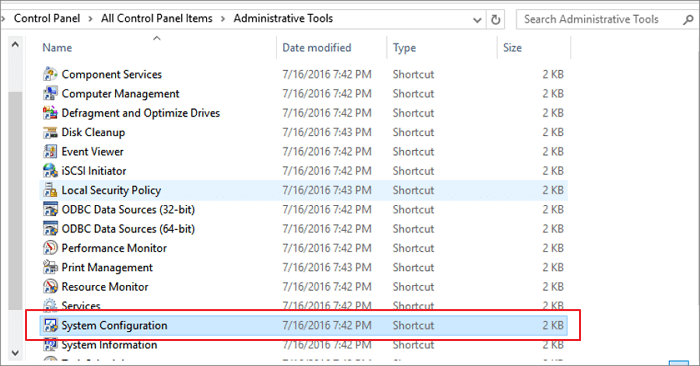
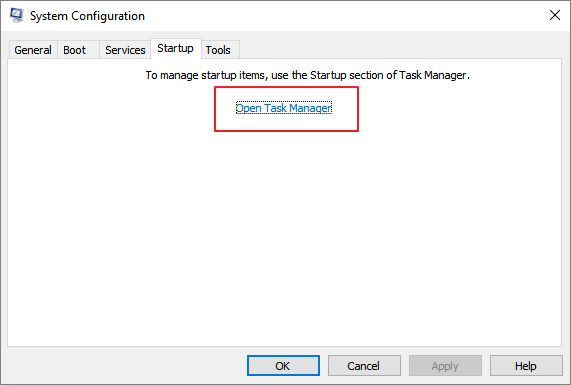
4. Go to Startup tab, click Open Task Manager;
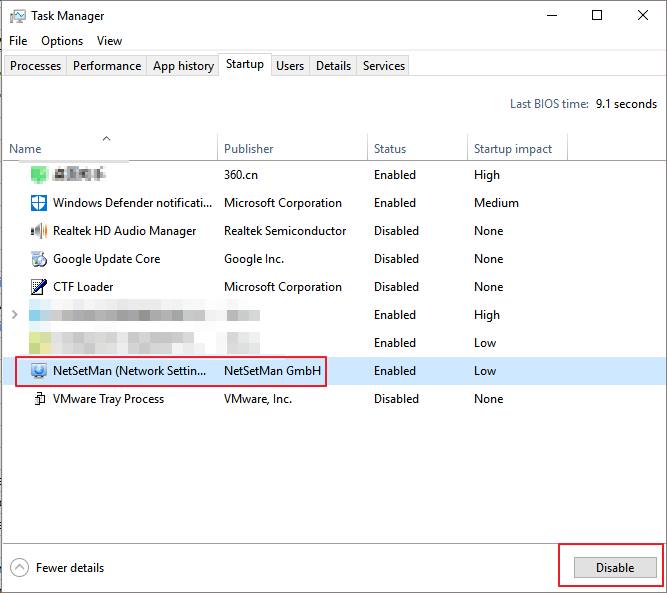
5. Select the unnecessary software and click Disable.
Method 2. Restart Windows Explorer to Clear Memory
1. To access the Task Manager, press the Ctrl + Alt + Del keys simultaneously on your keyboard, and select Task Manager from the menu that appears.
2.Find Explorer and click Restart.
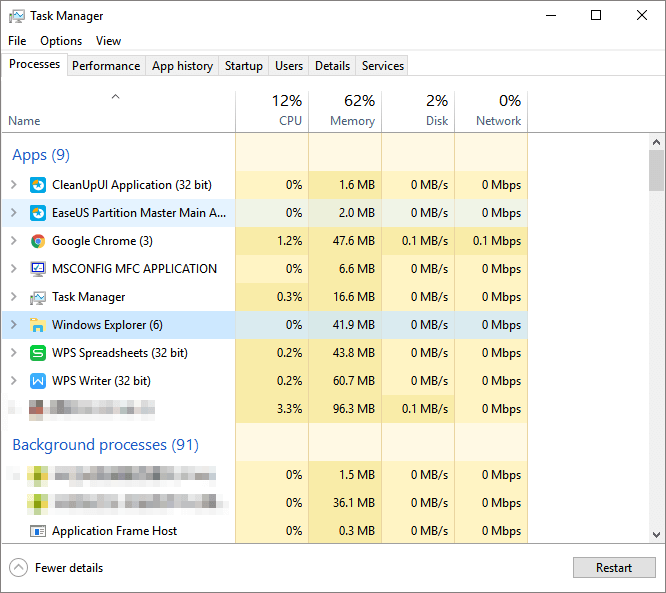
By doing this operation, the Windows will potentially free up some memory RAM.
Method 3. Install A RAM Cleaner Software/Tool
Under most circumstances, it's easy to clean the memory and free up RAM with professional RAM cleaner software.
There are several recommended RAM cleaner software available online, such as Cleanmen, Minimem, and Super Memory Cleaner (for Mac), that can be downloaded.
If you don't want to spend time cleaning up your computer, we recommend trying Qiling Disk Master Free, a software that allows you to remove useless programs and large files, and optimize your computer's performance with its "Large File Cleanup" and "App Migration" features, all for free in Windows 10/8/8.1/7.
Method 4. Add More RAM to Increase RAM
You can increase your computer's or laptop's RAM by adding more RAM to it.
1. The first step that you need to do is to detect and identify what kind of RAM your computer is using.
2. If your computer or laptop is running slowly, you can consider adding more RAM to improve its performance. You can purchase a new RAM module that matches the specifications of your current RAM, such as 4GB, 8GB, or 16GB, and install it in your device to boost its speed and efficiency.
Related Articles
- 4 Ways to Fix Windows System Backup Failed in Preparing the Backup Image
- [Fixed] The File Is Corrupted and Cannot Be Opened in Excel/Word
- 8 Fixes for WD External Hard Drive Slow Transfer Rate in 2022 [New]
- How to Recover Your Deleted Firefox Browsing History
- Reset Lenovo Ideapad (300, 110) with Lenovo Onekey Recovery
Learn what Lenovo ideapad onekey recovery? What is it used for? How to use it? Is there problem about it and is it replaceable is. - The Solution to Lenovo One Key Recovery Error
Many people may encounter one key Recovery error prompt when they use Lenovo one key recovery to restore system, Qiling Disk Master and its programmers will tell you how to solve such problem.
Products
Articles & Tutorials
- Data Recovery
- Data Backup
- File Recovery
- File Backup
- System Backup and Restore
- Disk and Partition Clone
- Technical articles
- Mobile articles
- Disk Master Help
- Windows Data Recovery Tutorials
- Windows Secure Delete Tutorials
- Windows Partition Management Tutorials
- Windows File Backup and Restore Tutorials
- Windows System Backup and Restore Tutorials
- Windows Disk Backup and Restore Tutorials
- Windows Clone Tutorials