How to Recover Your Deleted Firefox Browsing History
There are two ways to recover your deleted firefox browsing history. Go through the contents to help you out.
| Workable Solutions | Step-by-step Troubleshooting |
|---|---|
| Fix 1. Use backup copies | If you have accidentally delete Firefox history, you can recover it by locating the index.dat backup file. Click "Start" > "Search" > "Tools" > "Folder Options"...Full steps |
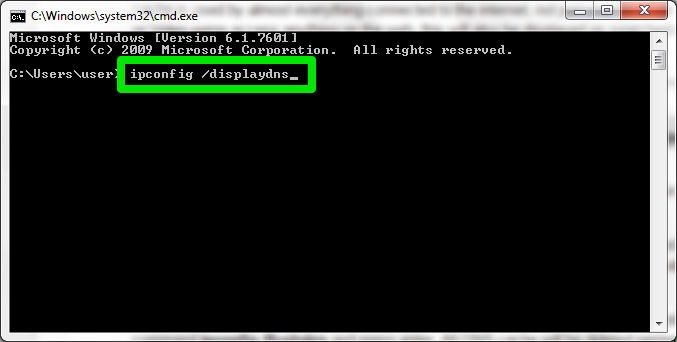
| Fix 2. Use DNS cache | To open Command Prompt in Windows, you can either press Windows + R, type "cmd" and click OK, or type "cmd" in the Windows search bar, and then open the Command Prompt window. Once open, you can type commands to execute specific tasks.ipconfig /displaydns...Full steps |
"Unfortunately, once you've deleted your Firefox browsing history, it's generally gone for good. However, you might be able to recover some data using specialized software or by checking your computer's Recycle Bin or Trash folder, depending on your operating system. But be aware that the chances of recovering deleted data are relatively low, and it's always a good idea to save your bookmarks and history regularly to avoid such situations in the future."
If you've accidentally deleted your Firefox browsing history, you can recover it using several methods. If you've cleaned the Firefox browser or deleted the history files, look for backup copies known as index.dat files, which may contain your browsing history. Alternatively, you can try to recover deleted Firefox history using DNS cache.
Another useful tutorial: View and Restore Firefox Cache Files
Method 1. Restore Firefox History Using Backup Copies
If you've accidentally deleted your Firefox history, you can recover it by looking for a hidden file named index.dat, which stores backup copies of deleted history.
1. Click "Start" > "Search" > "Tools" > "Folder Options."
2. To access the hidden files and folders, click on the "View" tab in the File Explorer window, select the "Show hidden files and folders" option, and uncheck the boxes next to "Hide extensions for known file types" and "Hide protected operating system files".
3. To find the index.dat file, go to the "All Files and Folders" search in the C Drive, type "index.dat" in the search bar, and click "Search".
4. If you don't have an index.dat file reader on your PC, you can download and install one to access and view the index.dat file.
5. To restore Firefox browsing history, open the index.dat file within the reader, select the Firefox browsing history you want to restore, and click "Restore". Once completed, you can open your Firefox browser to verify that all your history has been successfully restored.
Extra Tip: How to Recover Deleted/Lost Firefox Backup files
Firefox browsing history files are stored on your computer in a specific path. When you browse pages in Firefox, the histories are saved locally. If you delete or clean the Firefox browser, the history files on your PC will also be deleted. However, if you've made a backup of the local history database before deleting Firefox browsing history, you can restore the history by importing from the backup.
To find Mozilla Firefox history files on your PC, you can follow a simple path. First, open the Firefox browser and click on the three horizontal lines in the top right corner to open the menu.
C:\Users\(username)\AppData\Roaming\Mozilla\Firefox\Profiles\
If you accidentally deleted or lost backup files, you can recover them using professional data recovery software, such as Deep Data Recovery, which can make the recovery process as easy as a few clicks.
This data recovery program allows you to restore all lost Firefox history files with just three easy steps: launch the software, select and scan the location where your Firefox history files were, and then preview and recover your Firefox history data.

Method 2: Use DNS Cache to Recover Firefox History
DNS cache can only restore deleted Firefox browsing history if the computer is not shut down, but it's ineffective if the PC is restarted.
1. To open the Command Prompt, you can press Windows + R, type "cmd" and click OK, or simply type "cmd" in the Windows search bar.
2. To view recently visited websites in Firefox, open Command Prompt, type "ipconfig /displaydns", and press Enter. This will show you the recently visited websites, which you can then copy and paste into Firefox to save as bookmarks.
Related Articles
- Will System Recovery Delete My Files? Answered Here!
- Fixed: Windows 10 File History Doesn't Recognize the Hard Drive
- Fixed: Windows 10 Will Not Update with Error Code 0x80240fff
- How to Solve Webcam Freeze Up in Windows 10 Error?
- Why Is My SD Card So Slow [All Reasons Explained 2023]
Find out why your SD card is slow and how to improve speed. Check card class, file system, device compatibility, errors, and formatting options. - [Solved!] How to Fix Windows 10 Activation Key Not Working
Do you know how to fix Windows 10 activation key not working? This article will share 6 ways to help you easily solve Windows 10 activation key not working error. After reading this article, you can pick one to cope with this error.
Products
Articles & Tutorials
- Data Recovery
- Data Backup
- File Recovery
- File Backup
- System Backup and Restore
- Disk and Partition Clone
- Technical articles
- Mobile articles
- Disk Master Help
- Windows Data Recovery Tutorials
- Windows Secure Delete Tutorials
- Windows Partition Management Tutorials
- Windows File Backup and Restore Tutorials
- Windows System Backup and Restore Tutorials
- Windows Disk Backup and Restore Tutorials
- Windows Clone Tutorials