View and Restore Firefox Cache Files
Overview
The Firefox cache files are stored in the following directories: Windows: C:\Users\YourUsername\AppData\Local\Mozilla\Firefox\Profiles\YourProfileName\cache2; macOS: ~/Library/Caches/Mozilla/Firefox/Profiles/YourProfileName/cache2; Linux: ~/.cache/mozilla/firefox/YourProfileName/cache2. You can find YourProfileName by going to about:support in Firefox and looking for the Profile Folder section.
Have you ever thought about how to restore deleted Firefox or other browsers' cache files? If you've cleared your browser cache and now can't visit a webpage, image, or load other content pages quickly, you might be wondering what to do.
Finding the Firefox cache location can be a challenge, but with the right guidance, you can easily locate it. This page provides effective ways to find the cache location, and also offers a solution to restore cleared Firefox Cache using reliable file recovery software.
| Workable Solutions | Step-by-step Troubleshooting |
|---|---|
| Fix 1. Locate and View on PC | For Windows 10/8: \Users\{user}\AppData\Local\Mozilla\Firefox\...Full steps |
| Fix 2. Find Through Firefox Browser | Input: about:cache in Firefox and hit "Enter"...Full steps |
| Fix 3. Check the Local Drive | Go through the path on your PC: C:\Users\...Full steps |
| Fix 4. Use File Recovery Software | Run Deep Data Recovery on your computer. Choose the drive...Full steps |
Firefox Cache Viewer: View and Find Firefox Cache Files
Most browsers are programmed to automatically record internet browsing history and cache files, which allows users to easily pick up where they left off when closing and reopening the browser window.
If you're trying to locate the Firefox cache files on your PC, you can follow these steps to find and view them easily:
Method 1. Manually Locate and View on PC
If you haven't changed the install location of Firefox cache, you can find all the present Firefox browser cache files at the following paths:
- For Windows 10/8: C:\Users\{user}\AppData\Local\Mozilla\Firefox\Profiles\{profile folder}\cache2
- For Windows 7: C:\Users\{user}\AppData\Local\Mozilla\Firefox\Profiles\{profile folder}\Cache\
- For Windows XP: C:\Documents and Settings\{user}\Local Settings\Application Data\Mozilla\Firefox\Profiles\{profile folder}\Cache\
To find browser history, downloads, and cookies, navigate to the following path: C:\Users\{user}\AppData\Roaming\Mozilla\Firefox\Profiles\{profile folder}\
Method 2. Find Through Firefox Browser
Firefox browser automatically records all internet browsing history and caches. You can view all Firefox caches by following these steps:
Step 1. Input: about:cache in Firefox and hit "Enter".

Step 2. The Network Cache Storage Service page will display all cached information.
On this page, you'll be able to view memory, disk, and appcache information.
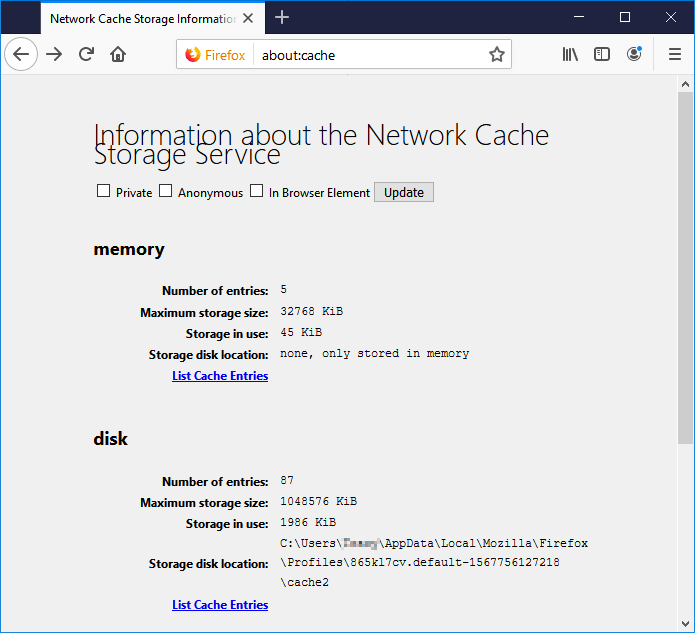
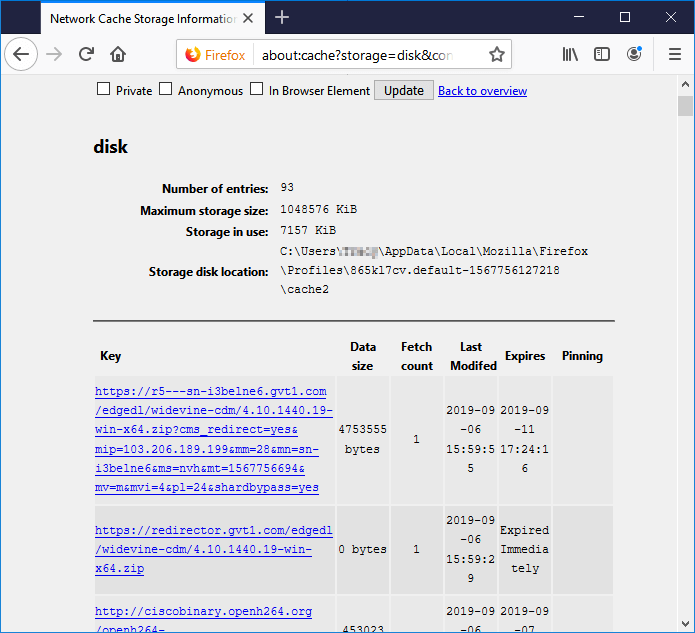
Step 3. To view all the detail caches of Firefox, click on "List Cache Entries" under the memory or disk usage section. This allows you to see all the cache entries stored in Firefox.
Restore Deleted or Lost Firefox Cache Files
If you've accidentally deleted or cleaned up Firefox browsing history and cache files, there are ways to recover them. You can try using the Firefox cache viewer, which allows you to view and recover cache files. Alternatively, you can use professional file recovery software like Deep Data Recovery to scan your computer for deleted cache files and restore them.
# 1. Manually Check the Local Drive to See If Cache Files Were Removed
To check if the saved caches were removed, you can look for the Firefox cache folder. Inside this folder, look for cache files with a .cache extension.
Step 1. Go through the path on your PC:
C:\Users\{user}\AppData\Local\Mozilla\Firefox\Profiles\dz9halnw.default\cache2.
Step 2. Check out whether you can find the removed caches at the relative location on your PC.
If no cache files are found, consider using professional file recovery software for assistance.
# 2. Restore Deleted or Lost Firefox Caches with File Recovery Software
You can try a file recovery software called Deep Data Recovery from Qiling, which allows you to restore up to 2GB files for free.
To recover lost Firefox cache files, you can directly download the software from here and follow these steps:
You can select to scan C drive to find your Firefox cache files, and locate the folder by the path C:\Users\YourUsername\AppData\Local\Mozilla\Firefox\Profiles\YourProfileID\Cache.
Step 1.Launch Deep Data Recovery, select the desired file types, and click "Fast Scan" to initiate the recovery process.

Note: You can choose different search modes based on where and why the data was lost.
Step 2. To recover lost files, choose the drive where the files were lost and start scanning. This software can recover data from various devices, including hard drives, solid state drives, USB drives, SD cards, pen drives, cameras, and more.

Step 3. You can browse the full scan results and choose the file type you need by clicking on the file type filter, with Qiling data recovery software supporting over 1000 file types including photos, videos, documents, emails, audio files, and more.

Step 4. To preview and recover selected files, click on the files you want to recover, then click "Recover" and select a storage location to save the recovered data.
Save the cache folder to a secure location, replace it with the restored folder in C drive, and reboot your PC to view and check your Firefox cache files again.
Related Articles
- Top 11 Best Photo Repair Software for PC/Mac
- How to Recover Deleted Screenshots on Windows 10/8/7
- Repair Corrupted PSD Files with Online Free PSD Recovery Tool
- How to Repair Office 2016, 2013, 2010 with Microsoft Repair Tool
- Download Deep Scan Data Recovery Software
Download Qiling deep scan data recovery software to recover lost, deleted, hidden, formatted, and virus-infected documents, photos, videos, and emails from USB flash drives, memory cards, HDD, SSD, and other storage devices efficiently and. - How to Delete Files, Folders, and Directories in Linux Using Command
To delete a file in Linux, simply navigate to the Terminal and use the “rm” command followed by the file name. If you want to delete a folder or directory, you would use the “rm -r” command, followed by the directory name.
Products
Articles & Tutorials
- Data Recovery
- Data Backup
- File Recovery
- File Backup
- System Backup and Restore
- Disk and Partition Clone
- Technical articles
- Mobile articles
- Disk Master Help
- Windows Data Recovery Tutorials
- Windows Secure Delete Tutorials
- Windows Partition Management Tutorials
- Windows File Backup and Restore Tutorials
- Windows System Backup and Restore Tutorials
- Windows Disk Backup and Restore Tutorials
- Windows Clone Tutorials