How to Repair Office 2016, 2013, 2010 with Microsoft Repair Tool
As a business professional, you're likely no stranger to the frustration of losing important work, such as a spreadsheet, document, or email, only to have it disappear right before your eyes. This can cause Microsoft Office applications to malfunction or freeze entirely, leaving you with a sense of panic and lost productivity. Fortunately, you don't have to stress about this happening.
We'll provide perfect solutions to repair Microsoft Office products, including Word, Excel, PowerPoint, and Outlook. We'll also recommend an ideal Microsoft Office repair tool to successfully resolve your software issues. Let's move forward with these solutions to fix your software problems.
How to Repair Office 2016, 2013, 2010 or 2007
If Microsoft Office products like Outlook or Word are crashing and not responding as expected, the first step to resolve the issue is to disable any additional plugins that may be causing the problem. This can often resolve the issue and get the product working normally again.
To repair Microsoft Office Suite or product, you may need to repair the Office installation, which can involve completely uninstalling and reinstalling the Office product. However, using the Microsoft Office Repair Tool can often solve issues instantly, and this guide will provide steps to do so. By following these instructions, you can troubleshoot and resolve any problems with your Microsoft Office installation.
How-To Guide to Repair Office 2016, 2013, 2010, or 2007
Following are the steps to repair Microsoft manually. Read on to repair Microsoft as soon as possible.
Step 1. To access the Programs and Features section, press the Windows key + R to open the run command box, then type "appwiz.cpl" and click "OK".

Step 2. After experiencing issues with Microsoft Office, go to "Programs and Features", select the problematic "Microsoft Office Program", and click on "Change" to resolve the issue.
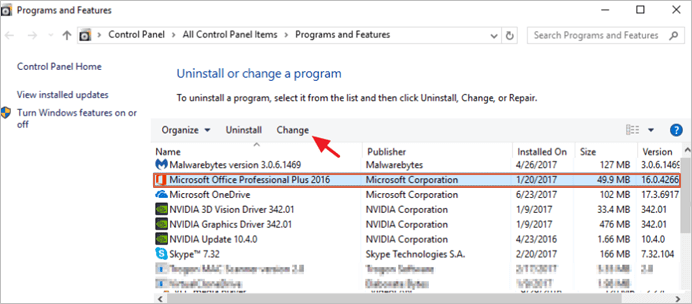
Step 3. To repair MS Office, click on the repair option after selecting the program. A series of required steps will follow, leading you to successfully repair the program.
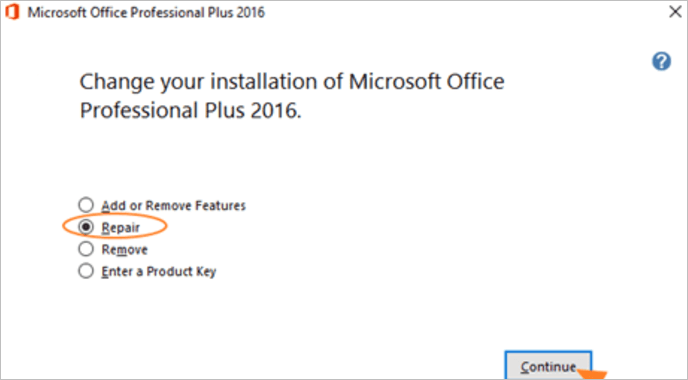
Point to be noted: After clicking Repair, you'll be prompted to choose how to repair your Office programs. Select the "Quick Repair" option to scan and replace any corrupted or missing files. If the issue persists, you can also opt for the "Online Repair" to reinstall the Office product.
How to Repair Office Files with File Repair Tool
Microsoft Office files, such as Excel, Word, or PowerPoint, can become corrupted, requiring time and expertise to repair. The process can be lengthy and may involve further damage if outdated or inefficient methods are used, increasing the risk of data loss.
The Qiling file repair tool is a professional solution that can help resolve file corruption issues in a complete and efficient manner. It is designed to scan and fix damaged files, restoring their original state and functionality. With its advanced algorithms and techniques, the tool can identify and repair corrupted files, making it an ideal solution for users who need to recover their important data. Its user-friendly interface and simple operation make it accessible to both technical and non-technical users, ensuring that anyone can use it to repair corrupted files without any hassle.
Deep Data Recovery is a tool that allows users to repair damaged office files, including Excel, Word, and PowerPoint, without size limitations, and is compatible with various Microsoft Office versions.
Features:
- Assists in repairing Word files keeping the original formatting intact.
- This software enables the repair of Excel files in both .xls and .xlsx formats, ensuring that all components of the files are corrected and restored to their original state.
- This tool aids in repairing PowerPoint files with .ppt, .pptx, and .pptm extensions, helping to restore them to their original form.
- This software allows users to repair corrupted, damaged, or inaccessible files in the form of PDF, recovering all the same elements.
- It assists in repairing multiple office files while selecting them in batch mode, offering convenience and efficiency. Additionally, with the preview option, users can check all the repairs before saving the file.
Let's see how Qiling assists in carrying out the Excel repair function.
This software ensures that your data is safe and can be recovered in case of a corrupted file, saving you time and preserving minute details.
Step 1. Launch Deep Data Recovery software, select the desired file types, and click "Fast Scan" to begin the recovery process.

Note: You can choose different search modes based on where and why the data was lost.
Step 2. This software enables you to fix damaged Word, Excel, PPT, and PDF files in the same steps by scanning the disk with corrupted documents.

Step 3. Qiling data recovery and repair tool scans for all lost and corrupted files, allowing you to find target files by type or search by name in a search box.

Step 4. Deep Data Recovery can automatically repair damaged documents. After previewing the file, you can click "Recover" to save the repaired Word, Excel, and PDF files to a safe location.
How to Repair Microsoft Office Outlook Files
In MS Outlook, personal folders are stored in PST files, which have a 2GB storage limit per user. Despite optimal usage, PST files can become damaged, corrupted, or lost, rendering the entire Outlook email inaccessible if the .pst files cannot be opened.
In cases where a PST file becomes corrupted, a complete solution for repair is required, which can be efficiently achieved using professional PST tools, such as Deep Data Recovery, making it possible to resolve the issue.
Deep Data Recovery
This software is a brilliant tool that can recover lost or deleted emails, along with other important details like contacts, notes, appointments, and email files. It also allows users to retrieve email attachments and repair corrupted PST files.
Features:
- This software allows for the recovery of mailboxes from various versions of Microsoft Outlook, including 97, 98, 2000, 2002/XP, 2003, 2007, and 2010, and enables mailbox recovery.
- Assists in fixing any inaccessible or corrupted PST file quickly.
- Allows preview option before continuing with the recovery of data.
- The safe and read-only feature that does not modify the content while restoring the lost data in a new file is the "Restore" feature.
- Easy to set up and use.
Steps to repair PST files with Deep Data Recovery
Step 1. Launch Deep Data Recovery software, select the desired file types, and click "Fast Scan" to initiate the recovery process.
Note: You can choose different search modes based on where and why the data was lost.
Step 2.To repair corrupted files, select a disk location where the files are saved, click "Scan" to start finding the broken files, and Qiling file repair tool can fix damaged documents, videos, and pictures in different formats.
Step 3.After scanning, you can quickly identify corrupt data by file type. To repair damaged files, select the relevant category: Documents for Word, Excel, or PDF files, or Pictures and Videos for common types like JPEG, PNG, BMP, MOV, MP4, GIF, and more. This allows you to easily target specific file types for repair.
Step 4.Qiling file repair software automatically fixes broken files, allowing you to preview the repaired files before recovery. To recover, simply click "Recover" and save the files to a different location to avoid data overwriting.
Tips & Tricks on MS Office Repair
When dealing with errors in MS Office, it's essential to ensure the built-in functions are working correctly. A repair process may be necessary, which can be initiated with the right software. This can help fix corrupted files, including Word, Excel, and others. Additionally, following our provided tips and tricks can further assist in resolving issues and staying organized in the long run.
1. Install Microsoft Office Updates
Office 365 offers a subscription-based online service that allows users to store and access their work in apps like Excel and Word. However, to ensure optimal performance, it's essential to regularly update these apps to prevent glitches and technical issues.
2. Use "System Restore" Utility
The "System Restore" utility allows you to repair and protect your computer software in case of data corruption by using snapshots of system files and the Windows registry to create restore points. This enables you to restore your system to a working condition, reverting settings and files to a previously frozen state.
3. Stop and Re-launch MS Office Service
Uninstalling MS Office services through the Control Panel and then re-launching them using the click-to-run feature can be a solution to resolve errors in MS Office apps. This approach stops and restarts the MS Office Service, potentially fixing any issues with the apps. It may be a last resort, but it can be effective in resolving problems.
4. Updating the Windows Drivers
To keep your Windows Drivers up-to-date, you can regularly check the control panel for updates. This will help prevent any unnecessary glitches in the software.
Conclusion
Our guide to repairing Microsoft Office tools provides essential help to retrieve key information. The Qiling File Repair Toolkit enables you to recover and repair files related to Word, Excel, PowerPoint, and Outlook, including recent versions of Outlook. This tool works well with all Outlook versions and helps resolve issues related to repair and recovery in easy steps, requiring no technical expertise.
Related Articles
- Left-Click Mouse Causes Deletion in Windows 10/8/7 [Solved]
- Remove Shortcut Virus from USB, Pen Drive, SD Card, Hard Drive
- Recover Deleted or Missing Outlook Folder
- Recover Hidden Files From External Hard Disk
- Best Hetman Partition Recovery Free Alterantive Software Download
Learn why cracked Hetman Partition Recovery keys are risky and try a safer free alternative to recover data from hard drives, USB drives, or SD cards. - Free Download Hidden File Recovery Software to Recover Hidden Files
If you need to show and recover hidden files on your Windows PC, SD card, USB drive, or external hard drive, there's a simple solution. A hidden file recovery software can be downloaded for free, allowing you to recover all hidden files with ease, following detailed guidelines.
Products
Articles & Tutorials
- Data Recovery
- Data Backup
- File Recovery
- File Backup
- System Backup and Restore
- Disk and Partition Clone
- Technical articles
- Mobile articles
- Disk Master Help
- Windows Data Recovery Tutorials
- Windows Secure Delete Tutorials
- Windows Partition Management Tutorials
- Windows File Backup and Restore Tutorials
- Windows System Backup and Restore Tutorials
- Windows Disk Backup and Restore Tutorials
- Windows Clone Tutorials