Left-Click Mouse Causes Deletion in Windows 10/8/7 [Solved]
Problem: Files Get Deleted Automatically When Left-Click
The issue where mouse click behavior on a Windows 10 system causes a deletion, resulting in unintended file or program deletions, is a reported problem by many users. This issue is often caused by incomplete installation of programs, a problematic Windows OS, outdated mouse driver, virus attacks, or false registry changes on the system. When this problem occurs, users may experience unintended deletions when attempting to interact with files or programs using their mouse.
- Programs, shortcuts, files, or folders won't open on double left-click as normal. Instead, they get deleted straightly without asking.
- Clicking on an empty folder will delete it, but if the folder has files inside, Windows will repeatedly ask for confirmation to delete it before actually deleting it.
- When the mouse pointer is on a file or folder icon, Windows automatically generates a delete action, and the deleted files cannot be found in the Recycle bin.
The left mouse click delete function can cause big data loss trouble, frustrating users who need to recover crucial files. First, check if the deleted files are in the Recycle Bin and restore them back if they are. If the files bypass the Recycle Bin and are lost permanently, use professional data recovery software to recover the lost data. Later, take measures to fix the left-click deleting files problem to minimize data loss.
Things to Do First: Recover Left-Click Deleted Files Instantly
To recover files or folders deleted by a malfunctioning mouse, using Deep Data Recovery is a good option. It can recover data from emptied Recycle Bin, hard drives, solid state drives, USB drives, SD cards, and other storage devices.
Qiling Deleted File Recovery Wizard
- Recover lost or deleted files, documents, photos, audio, music, and emails with ease. Utilize data recovery software or services to salvage your important digital content, even from formatted or corrupted storage devices.
- To recover deleted files from an SD card, emptied recycle bin, memory card, flash drive, digital camera, and camcorders, you can use data recovery software. This software scans the device for deleted files and allows you to recover them.
- Data recovery support is available for sudden deletion, formatting, hard drive corruption, virus attacks, and system crashes, covering various situations where data loss occurs.
To recover lost data, install the software and run a scan of the entire file location. Once the scan is complete, you can recover unlimited files in just three easy steps.
Step 1. Select file types and click "Fast Scan" to start
To start the Deep Data Recovery process, launch the software on your PC, select the desired file types, and click "Fast Scan" to initiate the recovery process.

Note: You can choose different search modes based on where and why the data was lost.
Step 2. Select a location and start scanning
To recover deleted files, hover over the partition/drive where the deleted files were stored. Then, click on "Scan" to initiate the search for lost files.

Step 3. Select the files you want to recover
Once the scanning process is complete, select the deleted files you want to recover. You can filter the results by file type or search for specific files using the "Search files or folders" box. This is a quick way to find the target file if you remember its name.

Step 4. Preview and recover deleted files
Preview the recoverable files, select the ones you want to restore, and click "Recover" to save them at a new storage location.
How to Fix Left-Click Deletion Files problem
After recovering files, resolve the double-click deletes files issue by checking if mouse settings have been changed and resetting them if necessary. If the issue persists, try using a different mouse or computer to determine if the problem is with the original mouse or computer. If the issue still exists, consider more advanced troubleshooting methods.
Method 1. Clean Malware and Virus with Antivirus Software
Left-If you click on a suspicious link and your files are deleted, it's possible that your computer has a virus. To fix this, you can use your antivirus software to scan for malware and viruses. Alternatively, if you're comfortable with using the command line, you can try removing the virus using CMD.
Method 2. Update or Reinstall Driver
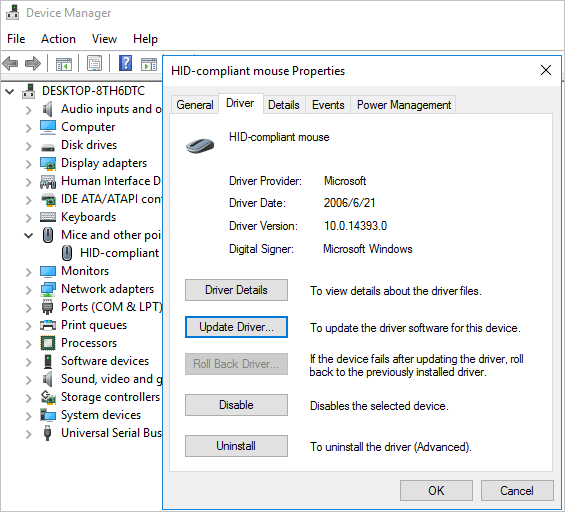
Step 1. Press "Windows + X" keys and choose "Device Manager". Open "Mouse and other pointing devices".
Step 2. Switch to the "Driver" tab and then click the "Update Driver" button.
If the driver update doesn't work, you can try uninstalling and reinstalling the mouse driver, which should resolve the issue of the driver being deleted automatically.
Method 3. Modify Registry
A wrong registry alteration can lead to the left-click deleting files problem. This issue can be resolved through various methods, including solving the problem, deleting the file, and restoring the registry.
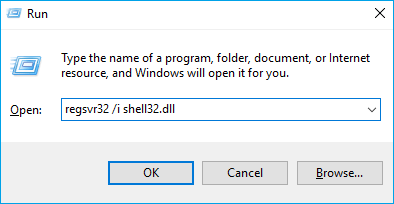
Step 1. Press the "Windows + R" keys to start the "Run" windows.
Step 2. Input regsvr32 /i shell32.dll and click "OK" to run the command to revise the registry.
Or you can try a more complex way to do this.
Step 1. Press the "Windows + R" keys to open the Run windows. Then, type regedit to open the registry.
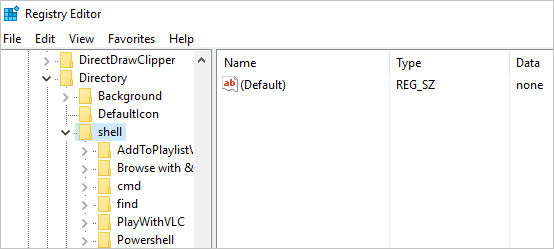
Step 2. Expand HKEY_CLASSES_ROOT\Click Directory\shell, and change the default value of the right window to none.
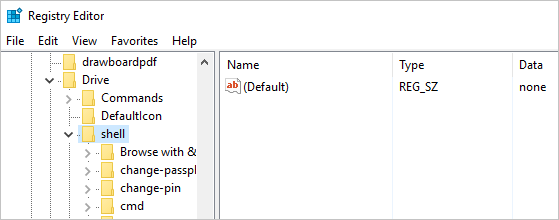
Step 3. Continue to expanding HKEY_CLASSES_ROOT\Drive\shell, and also set the default value of the right window to none.
Method 4. Repair Windows Problem
Corrupted system files or system image corruption from a Windows Update source can cause the double-click delete issue. To resolve this, follow the guides below.
Fix System File Corruption
Step 1. Click the search button and look for Command Prompt. Right-click it and choose "Run as administrator".
Step 2. Run System File Checker. Execute sfc /scannow command to fix any system file corruption from the resident component store.
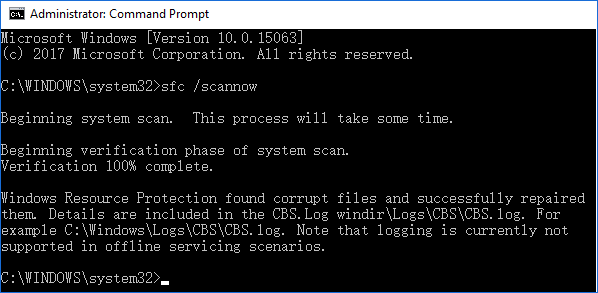
If you're experiencing issues with Windows Update, you may need to repair the Windows Component Store. This can be done using the DISM tool, which can be accessed by searching for it in the Start menu.
Fix Windows Component Store
Step 1. Press "Windows + X" keys and select "Command Prompt (Admin)".
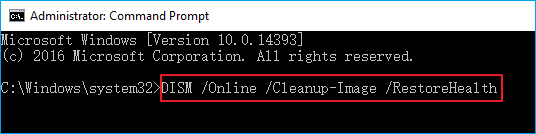
Step 2. To fix system image corruption from a Windows Update source, run the DISM tool by entering and running the command "DISM /Online /Cleanup-Image /RestoreHealth" in the Command Prompt. This process may require internet access and can help repair any issues with the system image.
Do not interrupt or close the window in case it takes a long time to find the corruption and fix it alright.
Conclusions
If your mouse is acting erratically, such as deleting files on a left-click, stay calm and take the necessary steps. First, if data loss occurs, recover the files. Then, take a moment to identify the issue and try the solutions outlined on this page, which have been tested and proven effective.
Related Articles
- Delete and Remove Virus Without Antivirus
- How to Recover 0 Byte Word Document in Windows 10/8/7
- GIF Repair | How to Repair Corrupted GIF Files
- Accidentally Closed Word Without Saving in MS Word 2003/2007/2010/2013/2016
- External Hard Drive Keeps Freezing or Freezes Computer (3 Solutions)
If your external hard drive freezes, causing your computer or Windows Explorer to lock up, we have solutions to revive it. If the files are still there but inaccessible, Deep Data Recovery can help recover data from the frozen hard drive. - Fix External Hard Drive Not Initialized, I/O Device Error
To resolve the Disk Unknown Not Initialized error on an external hard disk, initialize the disk first. If the problem persists, consider using a disk repair tool or seeking professional assistance to recover data from the disk.
Products
Articles & Tutorials
- Data Recovery
- Data Backup
- File Recovery
- File Backup
- System Backup and Restore
- Disk and Partition Clone
- Technical articles
- Mobile articles
- Disk Master Help
- Windows Data Recovery Tutorials
- Windows Secure Delete Tutorials
- Windows Partition Management Tutorials
- Windows File Backup and Restore Tutorials
- Windows System Backup and Restore Tutorials
- Windows Disk Backup and Restore Tutorials
- Windows Clone Tutorials