How to Delete and Remove Virus Without Antivirus
You can remove viruses and malware from your Windows PC without paying for antivirus software. This page provides reliable methods to help you eliminate existing or potential viruses. If you accidentally delete files during the process, deep data recovery software with CMD command line can help you locate and recover the lost files.
This article presents four effective methods for removing viruses from a laptop or computer without using antivirus software. The detailed content is available for further reading.
Fix 2. Disable unknown process
Fix 3. Turn on Windows defender
Fix 4. Use virus & threat protection
How Can I Remove Virus from My Computer Without Antivirus
You experienced a sudden drop in PC performance, assumed it was a virus, and downloaded free antivirus software, only to find that some of them are not truly free, as they require payment to clean out the virus.
You can try using a USB drive with a Linux operating system to remove a virus without antivirus software. This is because many viruses are not compatible with Linux, and the operating system can often safely remove the malware. To do this, you would need to create a bootable USB drive with a Linux distribution, such as Ubuntu, and then boot your computer from the USB drive. From there, you can access your computer's files and remove the virus without the need for antivirus software. However, this method may not work for all types of viruses, and it's always best to exercise caution when attempting to remove malware.
To resolve virus issues on your computer, you can find free virus removal methods and take preventive measures. You can clean existing viruses from your PC and external storage devices without losing data by using practical solutions provided in three parts, including virus removal methods, virus checking, and virus prevention.
Part 1. Remove Virus from PC or Laptop Without Antivirus
To fully protect your Windows computer or laptop from viruses without using antivirus software or tools, follow these steps: first, disconnect the computer from the internet and unplug any external devices; then, boot the computer in safe mode; next, delete any suspicious files or programs; after that, update the operating system and installed programs; finally, reinstall the operating system and restore the computer to its original settings. By following these steps, you can effectively clean the virus from your Windows computer or laptop.
#1. End Running Virus-Related Processes in Task Manager
This process will end running virus-related programs on your PC, stopping the virus from spreading over your device.
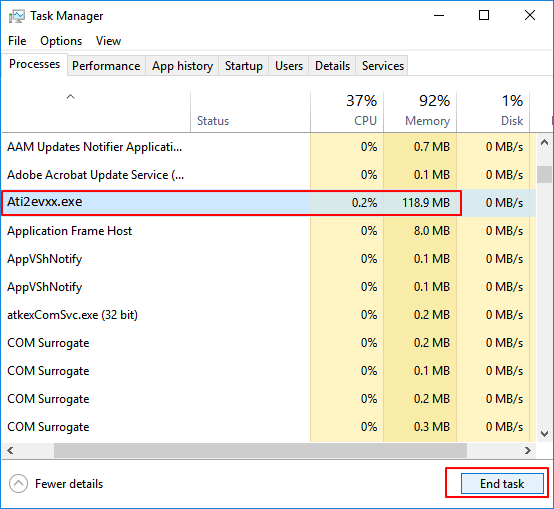
Step 1. Press Ctrl + Alt + Delete to open Task Manager.
Step 2. On the Processes tab, check each running process listed in the window and select any unfamiliar processing programs, search online to confirm their legitimacy.
Once you confirm it is a virus-related program, immediately click "End Task" to stop it from infecting your PC and device. This action will terminate the program and prevent it from causing further harm.
#2. Disable Unknown or Strange Process from Windows Startup
Blocking strange malware or viruses from taking over your computer at startup can be an effective action.
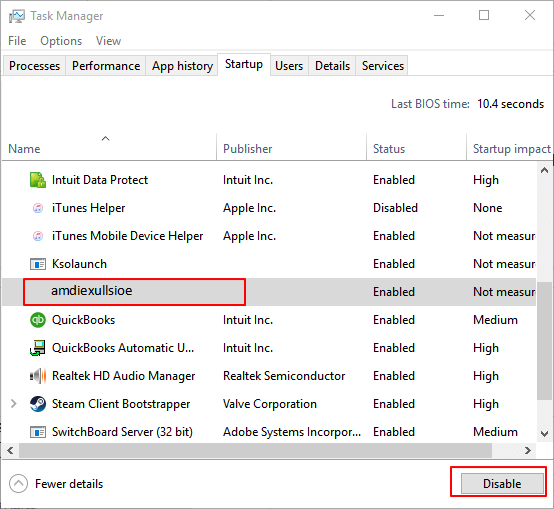
Step 1. Open System Configuration or Task Manager, go to the Startup tab.
Step 2. Scroll down to select all programs with unknown manufacturers and click "Disable"
Programs with unknown manufacturers are often associated with malware and viruses.
#3. Turn Windows Defender Firewall On
By doing so, it will block further viruses from infecting your computer and storage devices.
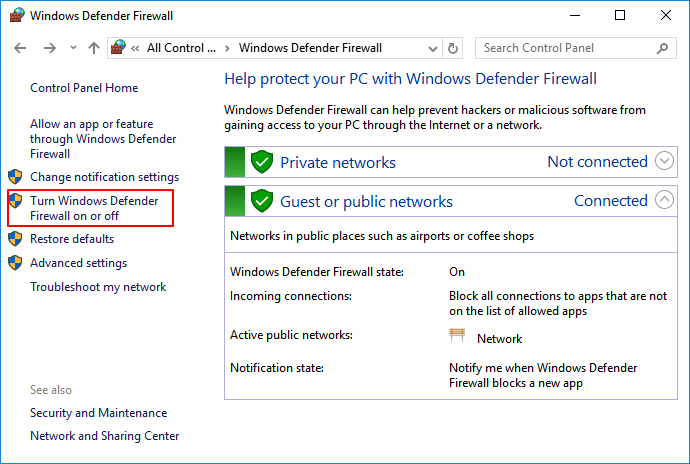
Step 1. Open Control Panel > click "Windows Defender Firewall" > Turn Windows Defender Firewall on or off.
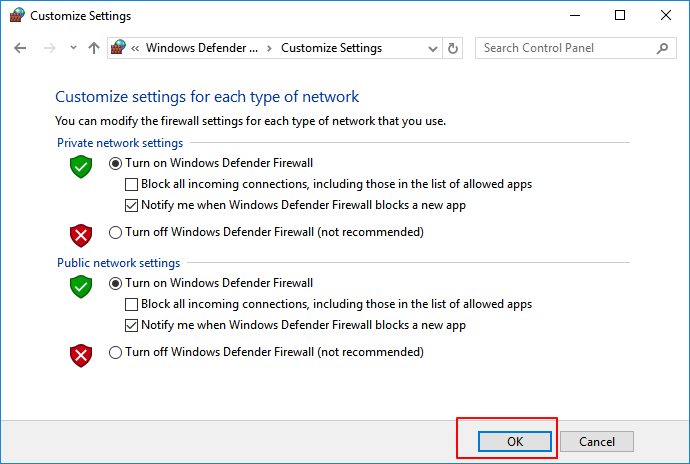
Step 2. Check the boxes of "Turn on Windows Defender Firewall" and click "OK" to confirm.
#4. Remove Virus with Virus & threat Protection in Windows Defender
To protect your Windows computer from virus infections and remove existing viruses, enable the built-in Virus & threat Protection feature. This feature safeguards your PC and helps remove viruses. Follow the steps below to get started.
First. Turn On Virus & threat Protection in Windows Defender
Step 1. Right-click Windows icon and select "Settings" > Click "Update and Security".
Step 2. On the Windows Security section, click "Open Windows Defender Security Center".
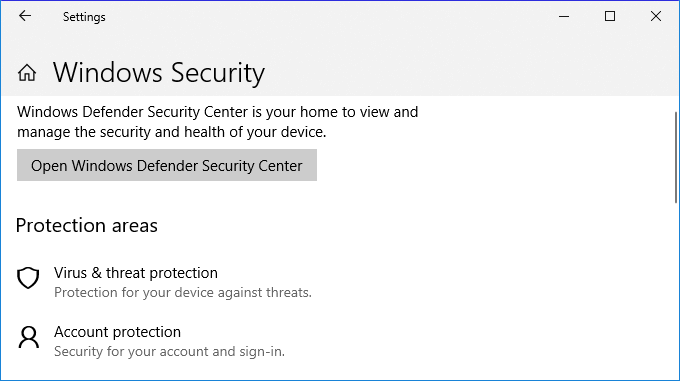
Step 3. Click "Virus & threat protection" on the new window > Go to Virus & threat protection settings.
Step 4. Turn on these three options: Real-time protection, Cloud-delivered protection, and Automatic sample submission.
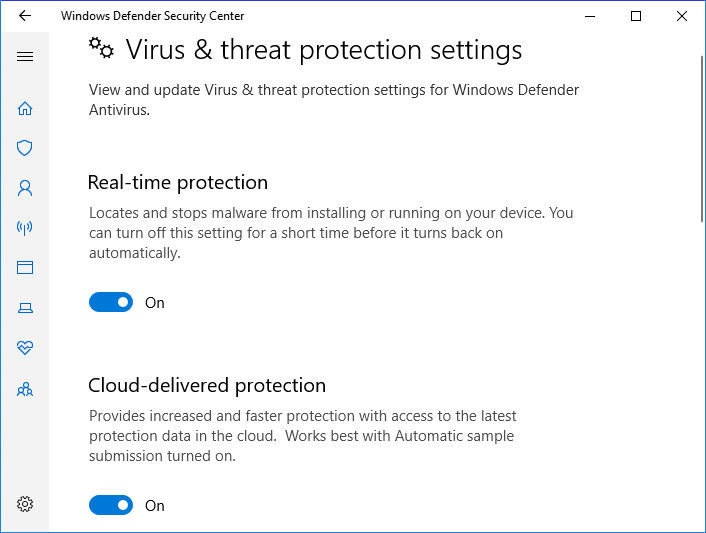
Once enabled, Windows Defender automatically scans all drives and files to detect and remove viruses on your computer, taking action if any are found.
Next. Remove Existing Virus from PC by Using Virus & threat Protection
Sometimes, you may also manually run this feature to scan and remove viruses from your Windows computer.
Step 1. Go to "Settings" > "Update & Security" > "Windows Security".
Step 2. Click "Virus & threat protection".
Step 3. In the "Threat history" section, click "Scan now" to scan for viruses on your computer.
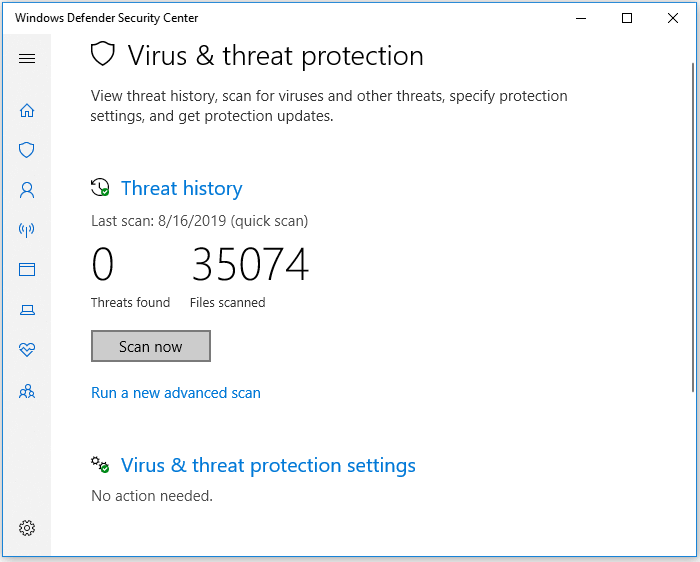
After this, you can restart your computer and the device is now clean of virus, malware.
If your computer is infected with a specific virus like write-protection or shortcut virus, you may need alternative solutions. The methods mentioned earlier are designed to remove viruses from your PC, not address specific types of infections. If you're dealing with one of these viruses, you'll need to explore other solutions to effectively remove the infection.
Here are some tutorials that may help you remove specific viruses from your PC and storage devices:
4 Ways to Remove Shortcut Virus
Remove Write-Protection from HDD/SSD/External Hard Drive/USB
Decrypt WannaCry Virus Infected Files
Part 2. Recover Files after Removing Virus from Windows PC
After removing a virus from your Windows computer, you can check and continue using your device and files again. If some files are missing, don't worry, as they can likely be recovered.
To remove a virus from your computer, follow the steps from Part 1. Once your computer is virus-free, you can proceed with the data recovery methods outlined in this part to recover lost or missing files.
Method 1. Recover Deleted or Missing Files after Removing Virus
After removing a computer virus, it's essential to verify that your storage device hasn't suffered data loss, as the process of removing the virus can sometimes inadvertently delete non-virus files.
Reliable data recovery software like Deep Data Recovery can scan your entire storage device to recover lost files due to accidental deletion or virus removal.
This software provides a simple and straightforward solution for recovering data that has been deleted by a virus. It allows you to restore your important files and data with ease.
Step 1: Launch Deep Data Recovery and select file types that you want to recover. Click the "Fast Scan" button to start.

Note: You can choose different search modes based on where and why the data was lost.
Step 2: Select the disk drive where you have lost files after using an anti-virus program and click "Scan".

Step 3: After scanning, all lost and deleted files on the selected drive will appear. You can find the antivirus deleted items in the tree-view pane or use the "Filter" function to locate specific file types. If you know the file name, you can search for it in the search box.
If you need more data to be recovered, click the "Deep Scan" button.

Step 4: Double-clicking a file allows previewing. Select the files and click "Recover". Save the recovered files to a different drive to avoid data overwriting.
Method 2. Use CMD to Unhide Files (That Were Hidden by Virus)
Warning
Be cautious when using the command line (cmd) as incorrect commands can cause significant damage to your system. Only enter commands from trusted sources and type them carefully to avoid any issues.
Viral infections can have devastating effects, not only extorting money by threatening to decrypt your devices but also hiding your files, making it seem like they've been deleted.
You can try running the command `attrib -h -s` in the Command Prompt to unhide files that were hidden by a virus. This will remove the hidden and system attributes from the files, making them visible again. However, please exercise caution when running this command, as it may also unhide files that were intentionally hidden by the user.
Step 1. Run Command Prompt as an administrator.
Step 2. Type the drive letter of the infected device followed by a colon (e.g., E:) and press Enter.
Step 3. Type del autorun.inf and hit "Enter". If the suspicious file uses another extension, replace .inf with the actual extension before running the command.
Part 3. Prevent Computer and Data from Virus Infection
In addition to providing reliable solutions to remove viruses from your computer and restore lost files, you may also have concerns about virus prevention and data protection.
Here are some top concerned questions and answers to help you out:
1. How do I check my laptop for a virus
If your computer or laptop is infected with a virus, you may notice various symptoms, such as sudden shutdowns, encrypted hard drives, or files turning into shortcuts. To check for a virus, you can run the Virus & threat protection feature, or use virus cleaning software like Kaspersky, McAfee, Norton 360, VAG, Avast, and others to scan and remove viruses and malware from your computer.
2. How do I prevent virus from infecting or encrypting my computer
To prevent virus infection, enable real-time protection in Windows Defender and activate Virus & threat protection on your computer. Additionally, running antivirus software like AVG, Avast, Avira, or Kaspersky can provide ongoing protection.
3. How do I prevent my files from being deleted or infected from viruses
To protect your PC from viruses and malware, enable Real-time Protection in Windows Defender or use virus cleaning software. Additionally, save a copy of your valuable files to an external hard drive as a backup to ensure you can recover them in case of an infection. This way, you can minimize the impact of a virus or malware attack on your computer.
Use a reliable file backup software to selectively back up desired files to an external hard drive at one time.
To save file images, select the external hard drive as your target device.
Step 1. Launch Qiling Backup software and then choose "File", "Disk/partition" or "OS" for different backup purpose.
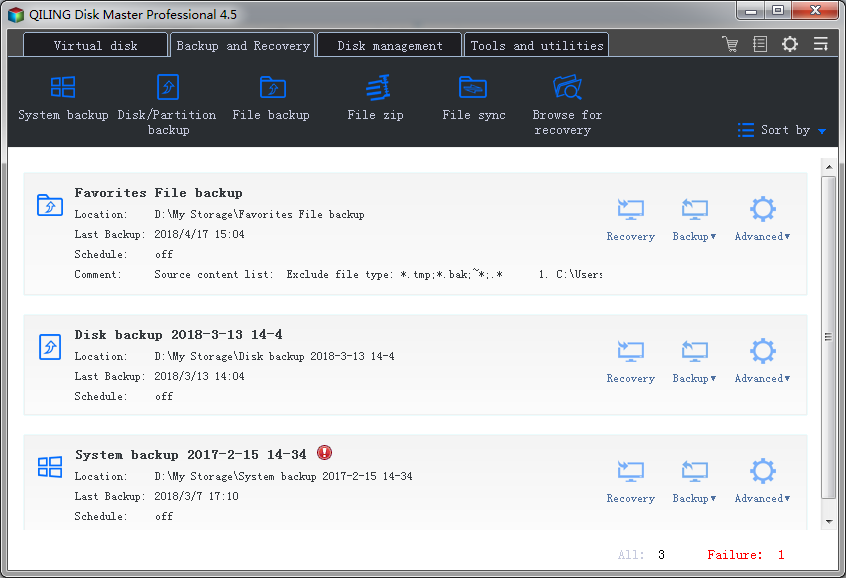
Step 2. To back up your data, select the system, disk partition, files or apps you want to save, then click "Browse" to choose a location for the backup file.
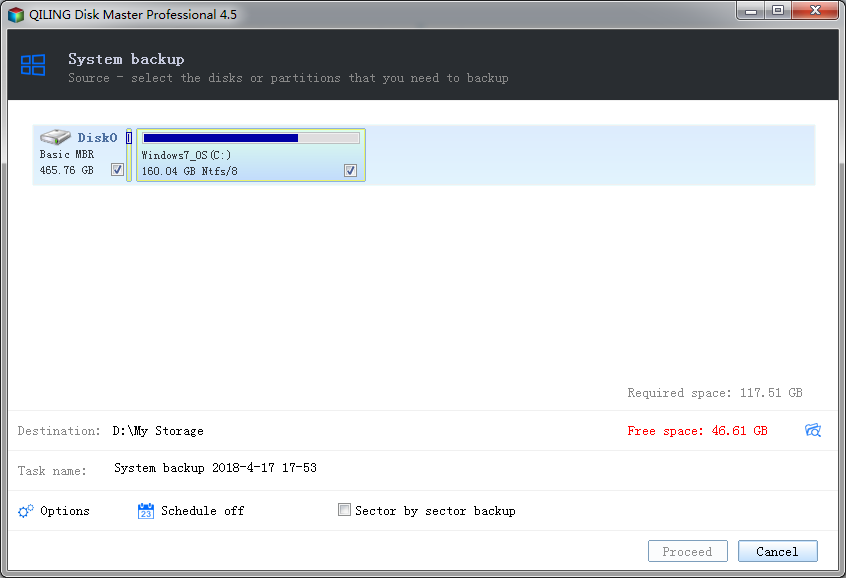
Step 3. Click "Proceed" to start the data backup process.
Bonus Tips: How to Remove Virus from Laptop with Antivirus
If your PC or laptop has a virus, you can remove it by following some simple steps. First, disconnect your laptop from the internet to prevent the virus from spreading.
1. Download and install a virus scanner.
2. Disconnect from internet.
3. Reboot your computer into safe mode.
4. Delete any temporary files.
5. Run a virus scan.
6. Delete or quarantine the virus.
7. Reboot your computer.
8. Change all your passwords
9. Update your software and operating system to the latest version.
Related Articles
- .Bak File Recovery Software Free Download
- Solved: Files Saved to Desktop Not Visible in Windows 10/8/7
- How to Repair Corrupted Files After Recovery
- How to Recover Files Lost While Moving
- Top 6 iPod Recovery Software for 2023
Looking for the best iPod data recovery software? We've can help! The top 6 iPod recovery software can help you recover lost data on your iPod easily and effectively, making it a reliable solution for your data recovery needs. - How to Recover Data from Corrupted SD Card
If you need to recover photos and videos from a corrupted SD card, follow these steps with Deep Data Recovery.
Products
Articles & Tutorials
- Data Recovery
- Data Backup
- File Recovery
- File Backup
- System Backup and Restore
- Disk and Partition Clone
- Technical articles
- Mobile articles
- Disk Master Help
- Windows Data Recovery Tutorials
- Windows Secure Delete Tutorials
- Windows Partition Management Tutorials
- Windows File Backup and Restore Tutorials
- Windows System Backup and Restore Tutorials
- Windows Disk Backup and Restore Tutorials
- Windows Clone Tutorials