How to Repair Corrupted Files After Recovery
Why Files Corrupt After Data Recovery
Deep Data Recovery is a top-rated data recovery software used worldwide, helping users recover lost files in various situations, including deletion, formatting, and RAW disk partitions. While many appreciate its assistance, some users face an issue where recovered files are corrupted, making them inaccessible.
Files recovered using Qiling data recovery software or competitors like Recuva or iCare may become corrupted due to new data overwriting the original files, making it impossible to open the recovered files.
Part 1. How to Repair Corrupted Files After Recovery on Windows 10
If a file is damaged or corrupted, Word, Excel, or PowerPoint may struggle to open it normally, and even a recovered file can be damaged on your PC or laptop. Fortunately, there are solutions to repair corrupted files after recovery, which can help you restore the file to its original state.
Method 1. Use the File Repair Tool to Repair Corrupted Files
For Qiling customers, we recommend saving recovered data to a different location to prevent data overwriting and file corruption.
If you're not a Qiling user but facing the same issue, you can download Qiling file recovery software to help you recover overwritten files. The software can scan your device and find raw files, which may contain intact pieces of corrupted files. This can be helpful if the overwritten files have lost their original names and directory structure.
Qiling file recovery and repair tool
- Recover permanently lost or deleted files, documents, photos, audio, music, emails, and other data with ease, using advanced software and techniques that can effectively retrieve and restore lost information, even from formatted or corrupted storage devices.
- Repair damaged JPEG/JPG files and recover data from various storage devices, including PCs, laptops, external hard drives, SD cards, and USB flash drives, with a reliable tool. This utility can salvage corrupted images and restore them to their original state, making it an ideal solution for photographers and individuals who frequently work with image files.
3 Steps to Recover and Repair Corrupted Files
Step 1. Run Deep Data Recovery. Select file types and click "Fast Scan" to start the recovery process.

Note: You can choose different search modes based on where and why the data was lost.
Step 2.To recover corrupted files, launch Deep Data Recovery, select a disk location where the files are saved, and click "Scan" to start the process. Qiling file repair tool can then fix damaged documents, videos, and pictures in various formats.

Step 3. After scanning, you can quickly find corrupt data by file type. If you want to repair damaged Word, Excel, or PDF documents, select Documents and filter a specific category. For pictures and videos repair, common types such as JPEG, PNG, BMP, MOV, MP4, GIF, and more are supported.

Step 4.Qiling file repair software automatically fixes broken files, allowing you to preview the repaired files before recovery. Once ready, click "Recover" and save the recovered files to a different location to avoid data overwriting.
Method 2. Run the Open and Repair Option of Office
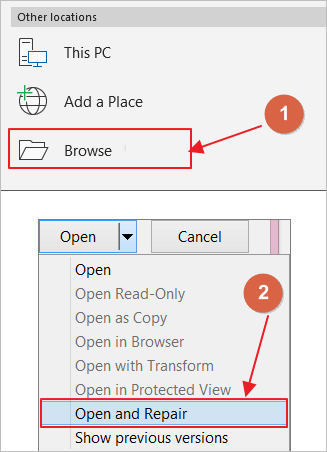
If the files are a Word, Excel, or PowerPoint document, the Open and Repair command might be able to recover and repair your file. Here's an example of repairing a Word document with Office 2013.
Step 1. Click "File > Open > Browse".
Step 2. Go to the location where the document is stored.
Step 3. Click the file you want.
Step 4. Click the arrow next to Open, and select Open and Repair.
Part 2. How to Repair Corrupted Files After Recovery on Mac
If recovered files cannot be opened on your MacBook or other devices, you can use the Mac file repair tool, Qiling Mac data recovery and repair software, to solve this error. This all-in-one program can retrieve corrupted files and help you recover and repair files on your MacBook.
- Restore lost or deleted files from your Mac's Trash, hard drive, SSD, or other storage devices with ease.
- Repair corrupted or damaged files with ease. Recover JPG/JPEG, PNG, GIF, Word, Excel files, and more with our efficient repair tool, which can fix even the most severely damaged files.
- Recover and repair damaged videos, including .mp4 and .mov files, from your hard drive or storage devices with ease.
Download the file repair tool, and then follow the steps below to recover and repair corrupted files.
Step 1. Select the disk location where you lost the corrupted files. Click the "Scan" button.
Step 2. Deep Data Recovery for Mac scans your selected device and displays documents, videos, and photos in the left pane, allowing for immediate access to recovered files.
Step 3. To recover corrupted photo files, select the files to preview from the scan results. If a file is found to be corrupted, the software will automatically repair it, allowing you to preview the repaired file. Once the file is repaired, click the "Recover" button to recover the photo file.
Part 3. Repair Corrupted Files After Recovery Online
If the last try fails, you may need to resort to using capable file repair software to fix corrupted or damaged files, including Office documents, images, videos, and more. If recovery is not possible, consider using one of the five highly-reputed tools available online, which can help you recover your files.
- System File Checker
- Stellar File Repair Toolkit
- Digital Video Repair
- Hetman File Repair
- Recovery Toolbox
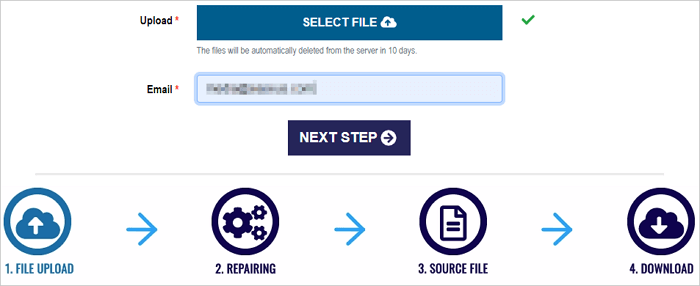
Regardless of whether you're a Mac, Windows, or iOS user, you can repair corrupted files using an online repair tool, although the repair speed may be affected by your device's internet connection. For example, Recovery Toolbox can be used for file repair.
Step 1. Upload the corrupted files.
Step 2. Enter your email and click "Next Step".
Step 3. Your files will be uploaded and repaired automatically.
Step 4. After repairing the damaged files, preview them and download them. If the repair is successful, you may be prompted to pay a fee of $10 to complete the process.
Prevent File Corruption in the Future
Here are some ways to avoid file corruption after recovery: Protect your data by creating regular backups, use a reliable backup software, and store backups in multiple locations. This way, you can prevent data loss and corruption in case of system crashes, hardware failures, or other accidents.
1. Using secure and safe data recovery software is a better option than relying on cracked software, which can put your data and system at risk. By opting for legitimate data recovery tools, you can ensure a safe and effective recovery process.
2. Make a backup regularly to avoid all kinds of accidents.
3. When you're done using a USB drive, click the Safely Remove Hardware icon in the taskbar to disconnect it safely and prevent data loss.
4. When recovering files, it's essential to save them to a different drive than the one from which they were recovered, to avoid overwriting any existing files. This ensures that the recovered files are safe and can be accessed separately from the original files.
Conclusion
A data recovery tool can instantly restore valuable photos and videos, but sometimes recovered files may not open. Solutions exist to solve this issue, and can be tried based on the device being used. If still unsuccessful, additional help can be sought.
Related Articles
- 4 Ways to Show Hidden Files Using CMD, Control Panel and Software
- Windows Photo Viewer Can't Display This Picture Windows 11/10/8/7
- Folder Shows Empty but Files Are There Windows 10/8/7
- 3 Ways to Recover Deleted or Lost Torrent Files
- RAW SSD Data Recovery - How to Recover Data from RAW SSD
The RAW file system makes it impossible for you to access the data. deep data recovery lets you recover data from RAW SSD in Windows 10/8/7/XP, saving all the important files. Free get the RAW SSD recovery tool now! - Seagate Hard Drive Recovery - How to Recover Data from Seagate External Hard Drive
Before you start the file recovery process, make sure the Seagate external hard drive is connected to your Mac or Windows PC.
Products
Articles & Tutorials
- Data Recovery
- Data Backup
- File Recovery
- File Backup
- System Backup and Restore
- Disk and Partition Clone
- Technical articles
- Mobile articles
- Disk Master Help
- Windows Data Recovery Tutorials
- Windows Secure Delete Tutorials
- Windows Partition Management Tutorials
- Windows File Backup and Restore Tutorials
- Windows System Backup and Restore Tutorials
- Windows Disk Backup and Restore Tutorials
- Windows Clone Tutorials