Folder Shows Empty but Files Are There Windows 10/8/7
If you're experiencing an issue where a folder appears empty on Windows 10/8/7, but the files are actually there, there are three possible solutions. A table provides an overview of the solutions, and detailed content is available for each step.
| Workable Solutions | Step-by-step Troubleshooting |
|---|---|
| Fix 1. Recover files with software | The most effective way to show hidden and recover lost/missing files is using a data recovery tool...Full steps |
| Fix 2. Show files in File Explorer | In the search box, type folder option, click "View". Select "Show hidden files, folders, and drives"...Full steps |
| Fix 3. Show files using CMD | Press Windows + R keys together and input cmd in the search box. Open the command prompt...Full steps |
The Folder Shows Empty but Has Size Overview
You're experiencing a situation where the folder on your D drive appears empty, but you're certain the files were transferred from your Canon camera to your PC. Since you didn't keep a copy on your camera storage, you're concerned about recovering the lost files. To address this, I recommend checking the following: Ensure you're looking at the correct folder and drive, as it's possible you're viewing a different location. Next, try searching for the files using the Windows search function, as sometimes files can be hidden or not indexed properly. If the files still can't be found, you might want to consider using a file recovery software like Recuva or Deep Data Recovery to scan your drive for any deleted or lost files. Additionally, you can also try checking your camera's memory card for any remaining files, as it's possible they were transferred but not saved to the correct location. If you're still unable to find the files, you may want to consider seeking professional help from a data recovery service.
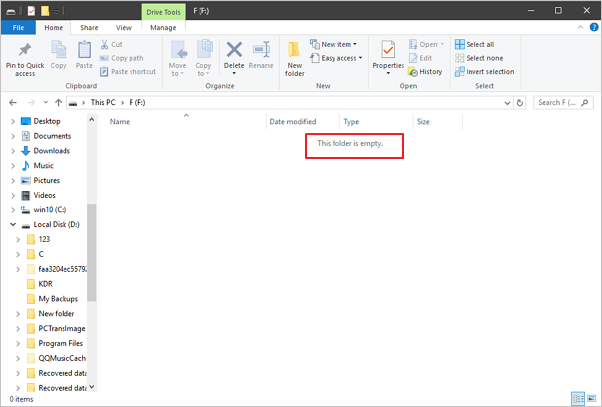
Are you seeing an empty folder that should have contained files in it? The folder shows empty as the picture.
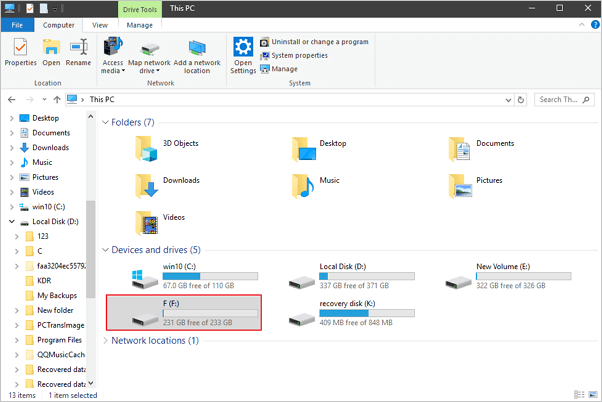
But in fact, the folder has size.
Imagine creating a folder to store specific files, such as downloaded apps, photos, documents, or video files, only to find it empty when you try to open it, with no option to move the contents to another storage location. This frustrating issue can be caused by various factors, and fortunately, there are solutions to fix the "This folder is empty" problem.
Why Would a Folder Shows Empty but Files Are There
In most cases, files or folders not showing up though they still exist usually indicate a hidden attribute, causing the files to be invisible in the folder, resulting in an empty folder with a size.
The folder appears empty but files are present due to a possible virus or malware infection, which hides the files, or other reasons such as improper removal of external storage devices or system updates that cause hard drive corruption, preventing proper viewing. To resolve this, repair any corrupted storage devices first, and then follow the suggested solutions to recover data in a timely manner.
Solutions to Solve This Folder Is Empty Issue and Recover Missing Files
To solve the issue of a folder showing empty but files are present on Windows 10, 8, and 7, you have three options. Firstly, you can show hidden files from Windows Explorer by going to File Explorer options, then View, and checking the box for "Show hidden files, folders, and drives." Secondly, you can use the command prompt line by typing "dir /a" in the command prompt to show all files, including hidden ones.
1. Recover Hidden Files in an Empty Folder With Data Recovery Software
The most effective way to show hidden and recover lost/missing files is by using third-party data recovery software. Qiling file recovery software is highly recommended to retrieve all kinds of files that were deleted, hidden, or disappeared for no reason, requiring no computer skills and an effortless recovery procedure. Simply follow the three steps below to find your lost files.
Step 1. Select file types and click "Fast Scan" to start
Run Qiling virus file recovery software on your Windows PC, select file types and click "Fast Scan" to start the recovery process.

Note: You can choose different search modes based on where and why the data was lost.
Step 2. Select the virus infected drive to scan
To scan for lost or hidden files, select the disk that was attacked by the virus.
- If a virus has hidden or deleted files on an HDD, it's recommended to install recovery software on a separate volume or an external USB drive to prevent overwriting of existing data.
- If the infected device is an external hard drive, flash drive or memory card, you can install the software on the local drive of the computer, regardless of the device type.
Note: You can choose different search modes based on where and why the data was lost.
Step 3. Check all scanned results
Deep Data Recovery will start a scan process to find deleted or hidden files on a virus-infected hard drive, allowing users to locate specific files quickly using filtering or type grouping features.

Step 4. Preview and recover deleted/hidden files
Once the scanning process is complete, you can preview the recovered files and select the ones you want to recover. Click the "Recover" button to save the selected files to a safe location, avoiding the original lost location.
2. Show Hidden/Lost Files in an Empty Folder in File Explorer
Microsoft provides a step-by-step guide to help users display hidden files in Windows versions 10, 8.1, 8, and 7. Although there are slight differences in the process for each version, the basic operation remains the same: finding the unhiding option within File Explorer. In Windows 10, users can easily unhide all files by following just two simple steps.
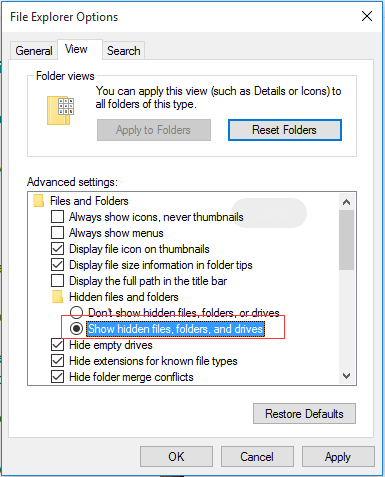
Step 1. In the search box on the taskbar, type "folder option", click "View".
Step 2. To show hidden files, folders, and drives in Windows, go to File Explorer, click on "View" in the top menu, select "Options" (or "Folder Options" in older versions), and then click on the "View" tab. Under "Hidden files and folders", select "Show hidden files, folders, and drives" and click "OK".
3. Show Missing Files in an Empty Folder From Command Prompt
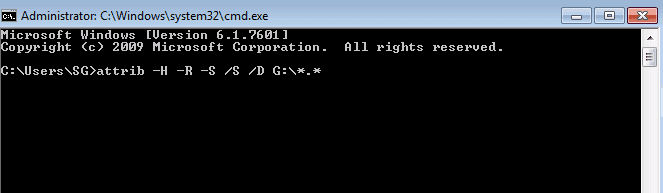
A highly effective way to see hidden files using command lines is to use the `attrib` command. This command can remove hidden, read-only, and system attributes from files, making them visible again.
Step 1. Press the Windows key + R to open the Run dialog, type "cmd" in the search box, and press Enter to open the Command Prompt. To run it as an administrator, right-click on the Command Prompt icon and select "Run as administrator".
Step 2. To fix a folder showing empty on drive G, type the command "attrib -h -r -s /s /d g:\*.*" and press Enter, then refresh the folder to see if the files appear.
Manual execution of the command line is not suitable for everyone, especially computer professionals, as incorrect commands can cause more harm than good. For security and usability, it is recommended to use an automatic command line alternative, such as Qiling CleanGenius, which can check and fix file system errors, enable/disable write protection, and update the system with a single click, eliminating the need to type intricate command lines.
To show hidden files using this 1-click-fix software, simply follow these simple steps.
Step 1. DOWNLOAD Qiling CleanGenius for Free.
Step 2. Start Qiling CleanGenius, choose "Optimization" on the left panel. Next, click "File Showing" on the right panel.
Step 3. Select the hard drive and click "Execute".
Step 4. After the operation completes, click the here link to check the hidden files.
Conclusion
You can retrieve your missing folder contents by checking the Recycle Bin, System Restore, and previous backups, and also by using a file recovery software to scan for deleted files. Don't give up, as these methods can be effective in recovering your lost files.
Related Articles
- How to Open ASD File and Recover Lost Word Document Easily
- How to Recover and Repair Corrupted Excel Files in Windows 10/11
- How to Recover Deleted Windows.old Folder in Windows 11/10
- Recover Sticky Notes in Windows 10/8/7
- How to Restore Previous Version of Files (4 Ways)
Want to restore previous versions of files in Windows? You can do so by clicking on the article, which provides 4 effective methods to recover edited or overwritten files in Windows 7, 8, 10, 11, and other versions. - 7 Fixes | This Device Cannot Start Code 10!
Learn how to fix this device cannot start code 10 via seven fixes in this guide. Besides, you can get top-rated data recovery software for Windows to recover files.
Products
Articles & Tutorials
- Data Recovery
- Data Backup
- File Recovery
- File Backup
- System Backup and Restore
- Disk and Partition Clone
- Technical articles
- Mobile articles
- Disk Master Help
- Windows Data Recovery Tutorials
- Windows Secure Delete Tutorials
- Windows Partition Management Tutorials
- Windows File Backup and Restore Tutorials
- Windows System Backup and Restore Tutorials
- Windows Disk Backup and Restore Tutorials
- Windows Clone Tutorials