How to Recover Deleted Windows.old Folder in Windows 11/10
How to recover deleted Windows. old folder in Windows 11/10/8/7? Go through the steps quickly.
- 1. Install and run Deep Data Recovery, then scan for deleted Windows.old folder.
- 2. Once the scanning process is complete, navigate to the Windows.old folder, which can be found by searching for it in the File Explorer. Previewing this folder will allow you to see the contents of the previous Windows installation, including any files and settings that were not transferred over to the new version. This can be useful for troubleshooting or recovering specific data from the previous installation.
- 3. Recover the deleted Windows. old folder with files.
What Is Windows.old Folder? I Can't Go back Without it
"We're sorry, but you can't go back." This is the Windows 10 downgrading trouble that I've met, and I've tried so many times but failed. I checked on forums and was told that I might have lost or deleted the data and files in Windows. old folder. What is that? Is Windows.old file recovery possible? It seems that I can't downgrade Windows 10 to Windows 8.1 now that I haven't backed up the system before upgrading."
The Windows.old folder is a file folder that stores data and files from your previous Windows system. It's typically created when you upgrade to a new version of Windows, such as Windows 10. This folder can be safely deleted after a successful upgrade to free up disk space, especially if you have a system backup or don't plan to roll back to the previous system. In fact, Windows can automatically delete the Windows.old folder after ten days following an upgrade.
If you don't have a backup or the Windows.old folder has been removed, reverting to the old Windows version can be difficult unless you have a Windows installation media and the old Windows version is still intact.
How to Recover Deleted Windows.old Folder in Windows 11/10/8/7
You can recover a deleted Windows.old folder in Windows 11/10/8/7 by following the steps outlined in this article, which will guide you through the process of retrieving the folder after it has been deleted or lost.
Method 1. Recover Deleted Windows.old Folder in Windows 11/10 with Software
To recover a deleted Windows.old folder and roll back to a previous version, you can use Qiling hard drive recovery software, which allows you to restore the folder in Windows 10 after deletion, formatting, virus attack, or OS crash. This program also provides full recovery of files and folder structure, making it a useful tool for recovering lost data.
Step 1. Select file types
Launch Deep Data Recovery, select the desired file types, and click "Fast Scan" to initiate the recovery process.

Note: You can choose different search modes based on where and why the data was lost.
Step 2. Select a folder to scan for lost files
Choose the partition where you lost data and click "Scan" to scan the lost folder.

Step 3. Find and preview found files in the lost folder
If you remember the folder name, type it in the search box to quickly find the lost files, then open the found folder and double-click to preview scanned files, or use the Filter feature to find a certain type of files.

Step 4. Recover and save the lost folder
Select the folder and files you need, click "Recover", and then choose a secure location on your PC to save the recovered data.
- Important
- Now that you've restored the Windows.old folder using a professional data recovery program, it's a good idea to develop a habit of creating backups to keep your OS and files safe. If manual backups are too much to handle, consider using a Windows schedule backup software for automatic backup.
Method 2. Run System Restore or a Backup
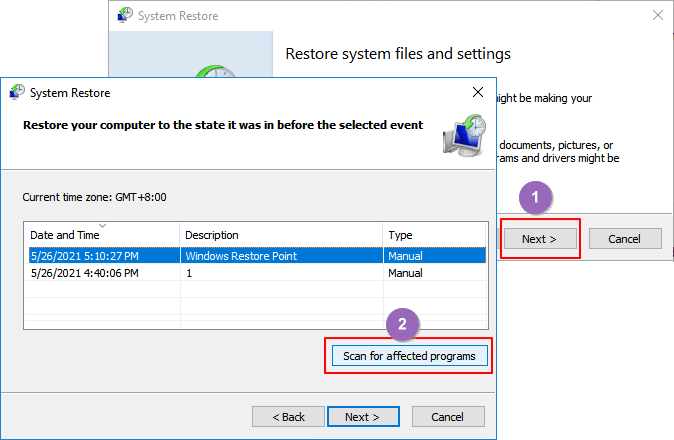
If you have System Restore enabled, you have a backup image of your Windows OS, configuration, and settings, which can be restored to an earlier date when a restore point was created. To recover Windows.old with System Restore, simply follow the steps below.
Step 1. Open Start.
Step 2. Type Restore and click on the top result.
Step 3. Select System Restore.
Step 4. Choose your Restore Point.
Step 5. The process of reverting your PC to a previous restore point involves clicking the "Next" and "Finish" buttons on the System Restore window, which will initiate the restoration process to the specified restore point.
Method 3. Retrieve Files from the Windows.old Folder
Restoring files manually is the easiest way to retrieve them, but only if the Windows.old folder was not deleted within 28 days. This folder temporarily saves personal files for 28 days after they're deleted, allowing for manual retrieval. To do this, follow the steps outlined.
Step 1. Do double-click "This PC" or "My Computer".
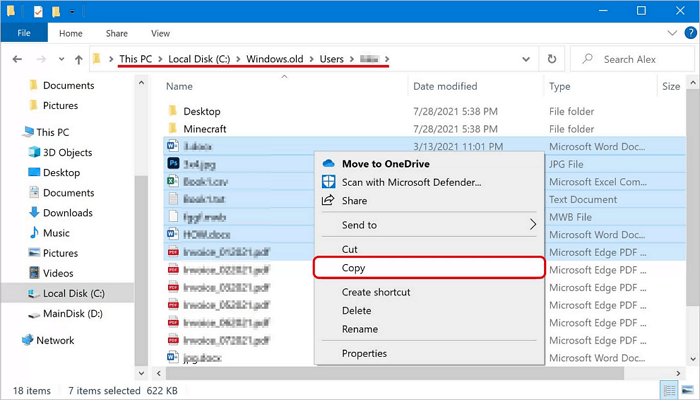
Step 2. Go to C drive and open the Windows.old folder.
Step 3. double-click the Users folder.
Step 4. Double-tap or double-click your user name.
Step 5. To recover files from a corrupted or damaged hard drive, you can try using a data recovery software or physically accessing the drive. If the drive is still accessible, you can try copying the files to an external drive or cloud storage.
Step 6. You can copy and paste the files you want from each folder to another location, such as a new folder or a cloud storage service, by selecting the files, right-clicking on them, and choosing the "Copy" option. Then, navigate to the destination folder and right-click to select "Paste" to move the files.
Conclusion
Even if you can't find the Windows.old folder, you can still recover files from it. You can easily move files from the Windows.old folder to keep them permanently if you follow the instructions in this post.
Recover Deleted Windows.old Folder FAQS
1. How do I restore a Windows old folder?
In addition to using Deep Data Recovery to restore a deleted Windows.old folder, you can also manually restore Windows.old by following easy steps.
Step 1.You need to open up the Computer panel and navigate to the system partition.
Step 2. Double-tap or double-click the "Windows. old folder > Users folder > your username".
Step 3. To copy files from multiple folders in Windows 10, create a new folder, and then drag and drop the desired files from each folder into this new folder. Alternatively, you can right-click on the new folder, select "Paste" or press Ctrl+V to paste the copied files into it.
2. What happens if Windows old folder deleted?
The Windows.old folder contains all the files and data from your previous Windows installation, allowing you to restore your system to the old version. However, Windows will automatically delete the folder after a month to free up space if you don't use it. if the folder is lost, as Deep Data Recovery can still help you recover the deleted Windows.old folder.
3. Where can I find old Windows files?
To access your personal files after a Windows update, simply open File Explorer, navigate to the Windows.old folder at C:\Windows.old, and browse to C:\Windows.old\Users\your_name to find your files.
4. How do I restore a deleted file in Windows?
If you've accidentally deleted a file in Windows, there are three ways to potentially recover it. You can try using the "Previous Versions" feature in File Explorer, which allows you to restore a file from a previous backup.
Method 1. Recover a deleted file from Recycle Bin
Method 2. Restore deleted files from the previous version
Method 3. Recover deleted files with deleted file recovery software
5. How do I recover permanently deleted folders on my computer?
To recover permanently deleted folders on your computer, you can restore from previous versions, Windows backup, or using professional file recovery software. However, the former two methods require you to create a backup before, making them less helpful. The most effective way to recover permanently deleted folders on Windows 10/8/7 is by applying a file/folder recovery tool.
6. How do I recover a deleted file from years ago?
You still have a chance to recover deleted files, even if they've been gone for a month, a year, or several years, as long as they haven't been overwritten with new data.
Related Articles
- How to Delete a Page in Word 2019, 2016, 2013, 2010
- How to Recover Overwritten Files in Windows 10/8/7 Easily
- [Solved] This Folder Is Empty on This PC/USB
- How to Repair Corrupted Files After Recovery
- Fix Stuck at Windows Is Loading Files Loop
During the Windows setup process, users of Windows 7 or Windows Vista may get stuck at the “Windows is loading files” screen or experience a loop, preventing them from completing the setup. - Fix Word Document Is Blank When Opened
If you're experiencing the issue of a saved Word document appearing blank when opened, there are practical methods to solve this problem. You can try using robust file repair software to efficiently repair corrupted Word files.
Products
Articles & Tutorials
- Data Recovery
- Data Backup
- File Recovery
- File Backup
- System Backup and Restore
- Disk and Partition Clone
- Technical articles
- Mobile articles
- Disk Master Help
- Windows Data Recovery Tutorials
- Windows Secure Delete Tutorials
- Windows Partition Management Tutorials
- Windows File Backup and Restore Tutorials
- Windows System Backup and Restore Tutorials
- Windows Disk Backup and Restore Tutorials
- Windows Clone Tutorials