How to Delete a Page in Word 2019, 2016, 2013, 2010
Microsoft Word often displays blank pages that can be frustrating to deal with. To remove these blank pages, follow these steps: select the blank page, go to the "Layout" tab, click on "Breaks," and choose "Next Page." This will remove the blank page and keep the rest of your document intact. Alternatively, you can also use the "Navigation Pane" to select and delete the blank page. By following these simple steps, you can easily get rid of unwanted blank pages in Microsoft Word.
How to Delete a Page in Word on Windows 10/11
1) The "page" in question may actually be a page break or section break in the document, which you can delete by going to the "Layout" tab, clicking on "Breaks," and selecting "Remove Break."
- Type 1. Delete a Blank Page in the Middle of a Word Document
- Type 2. Delete an Extra Blank Page at the End of Word
We will provide you with details of both cases, following the steps given below.
Type 1. How to Delete a blank page in the middle of a Word Document
If you want to delete a blank page in the middle of a Word document, follow the given steps below.
Step 1.To get a paragraph symbol (¶) at the end of every paragraph and each blank line, press CTRL+SHIFT+8, go to the Home tab, and click the paragraph icon. This will enable the feature where a paragraph symbol is inserted at the end of every paragraph and a new blank page is started whenever you press the ENTER key.
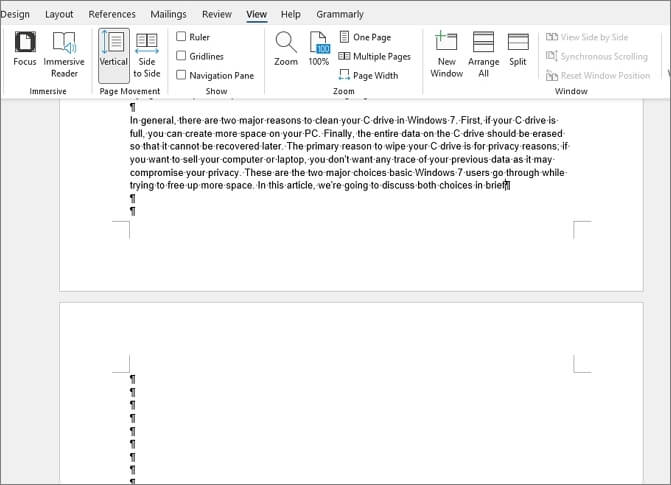
Step 2.To remove extra pages from a document, highlight the paragraph markers with your mouse and press the DELETE key. If any markers remain, use the BACKSPACE key to remove them.
Step 3. You can remove all the blank pages by going to the blank pages and pressing the BACKSPACE key until the paragraph markers are wiped out.
Type 2. How to Delete an Extra Blank Page at the End of Word
If you want to delete an extra blank page at the end of Word, follow these steps correctly.
Step 1. To delete an extra blank page at the end of a Word document, click the "View" tab, check the "Navigation Pane" box to enable the navigation panel, and then delete the extra page.
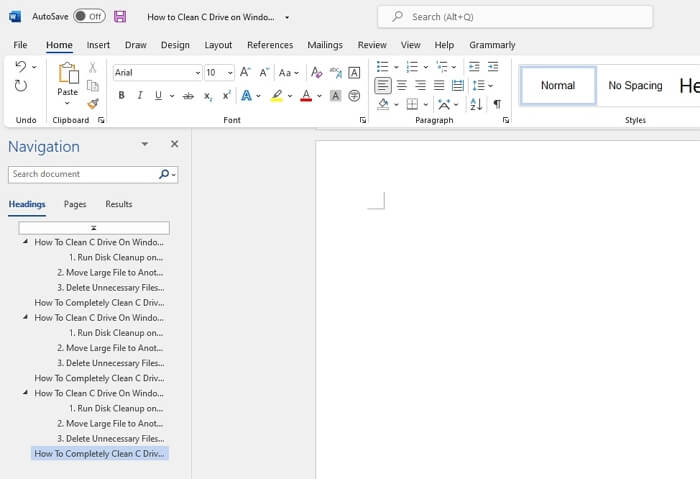
Step 2. To access the document pages, go to the navigation panel and click on the "Pages" tab, which will display all the document pages in the sidebar.
Step 2. To fix the extra blank page, click on it and press the DELETE key, or use the BACKSPACE key. This will remove the extra page.
How to Delete a Page in Word on Mac
If you are using Mac and want to delete a page in Word on your system, follow the steps given below.
Step 1. To delete a page in Microsoft Word on a Mac, open the program, navigate to the page you want to delete, and manually scroll down to locate the page.
Step 2. Press the Option key + ⌘ + G on your keyboard to quickly access the Go To function in Microsoft Word, allowing you to jump to a specific page or select and highlight content on a page.
Step 3. Now type \page To delete the page content, select it, then click the Go To button, and click Close. Next, press Delete or Backspace on your keyboard.
How to Recover Permanently Deleted Word Document on Windows 10
Worried about accidentally deleting important documents from your Windows or Mac system? You can use a third-party recovery tool like Deep Data Recovery to quickly recover deleted files, even if they've been permanently deleted. This tool can help you recover documents from Word, Excel, PDF, and other file types.
Deep Data Recovery is an advanced tool that can quickly recover accidentally deleted files and data from damaged and formatted hard drives, making it a simple solution to recover lost Word documents.
Step 1. Select file types and click "Fast Scan" to start
Launch Deep Data Recovery, select the desired file types, and click "Fast Scan" to initiate the recovery process.

Note: You can choose different search modes based on where and why the data was lost.
Step 2. Choose the Word file location
Select the drive or folder you want to scan and click the "Scan" button to start the process.

Step 3. Locate your Word files
The software will immediately scan the selected drive for lost data, then click "Documents" in the left panel, select "Word" from the category bar, and finally click "Preview".

Step 4. Recover Word files
To recover lost Word files, preview the files first, select the desired ones, and then click "Recover" to save them in a chosen folder.
Qiling data recovery software is a powerful tool designed to recover lost or deleted data from various storage devices, including hard drives, solid-state drives, USB drives, and memory cards. Its features include advanced algorithms to scan and recover data from corrupted or damaged storage devices, support for multiple file systems, and the ability to recover data from formatted or deleted partitions.
- Raw recovery:Deep Data Recovery helps recover data from RAW hard drives by scanning the files from the inaccessible storage device and safely recovering them.
- Deleted file recovery: If you've accidentally deleted a file, don't worry - Deep Data Recovery can help. This service can quickly retrieve all your lost files, so you can breathe a sigh of relief and get back to work.
- Formatted recovery: The Deep Data Recovery tool can quickly recover data from formatted hard drives, SD cards, SSDs, USB drives, and Flash drives within a few minutes.
- More data recovery: Deep Data Recovery is useful in recovering data lost due to various reasons such as formatting, virus attacks, power failures, human errors, software crashes, and other unforeseen events.
- Preview before recovery: Deep Data Recovery enables users to preview lost files before proceeding with the recovery process.
- Free remote assistance: Complicated cases will receive free remote assistance from specialists to help recover their data.
- Flexible scanning modes: The Deep Data Recovery tool offers two scanning methods to quickly retrieve deleted data. The fast scan mode uses a simple algorithm to quickly search for deleted data, while the advanced scanning process scans the storage device part-by-part to provide more comprehensive recovery results.
Conclusion
If you're still unsure about deleting a page in Word, you can follow the methods and steps outlined in this post to manually delete a page on both Windows and Mac systems. Additionally, if you've permanently deleted a Word or Excel document, you can use the Deep Data Recovery tool to recover it on Windows or Mac, which is a reliable third-party tool with special recovery features.
Related Articles
- [Solved] This Folder Is Empty on This PC/USB
- How to Recover Permanently Deleted Emails from Gmail Account
- Dropbox Deleted Files by Itself, How to Recover Missing Files in Dropbox in 4 Ways
- Solved: Files Saved to Desktop Not Visible in Windows 10/8/7
- Fix SD Card Files Not Showing in Mobile Phone, Camera or PC
If your SD card is not showing files on your mobile phone, camera, or computer, follow a comprehensive solution. First, recover important data such as photos, videos, audio, and documents on the SD card using data recovery advice. - [2022 Tutorial] How to Recover Formatted SD Card on Windows & Mac
If you've accidentally formatted your SD card and lost all your saved files, First, stop using the card to prevent any further data loss.
Products
Articles & Tutorials
- Data Recovery
- Data Backup
- File Recovery
- File Backup
- System Backup and Restore
- Disk and Partition Clone
- Technical articles
- Mobile articles
- Disk Master Help
- Windows Data Recovery Tutorials
- Windows Secure Delete Tutorials
- Windows Partition Management Tutorials
- Windows File Backup and Restore Tutorials
- Windows System Backup and Restore Tutorials
- Windows Disk Backup and Restore Tutorials
- Windows Clone Tutorials