Fix SD Card Files Not Showing in Mobile Phone, Camera or PC
Overview of SD Card Files Not Showing
"My 16GB Samsung microSD card is not showing any files, including videos, audios, pictures, documents on it even it is nearly full. I tried to connect the SD card to computer, but Windows asks me to format it before I can use it. I don't want to follow the instruction because I don't want to lose a single file on the SD card. I need help."
When transferring photos from your camera's SD card to your computer, the SD card may appear empty on the computer, even though you can view the photos on the camera. This issue can occur due to hidden files, file system errors, or compatibility problems. To resolve this, try using a card reader to connect the SD card directly to your computer, or check if the SD card is compatible with your computer's operating system.
Many people are experiencing issues where files on their SD card, such as photos, videos, or apps, are not showing up on their mobile, camera, or computer. To resolve this, third-party software like Deep Data Recovery can be used to scan and find the hidden files on the SD card.
| Workable Solutions | Step-by-step Troubleshooting |
|---|---|
| Fix 1. Check the lock switch | Some memory cards are designed with...Full steps |
| Fix 2. Unhide files in Explorer | Open File Explorer, navigate to "View" and...Full steps |
| Fix 3. Scan and remove virus | If you use the SD card frequently across multiple...Full steps |
| More Fixes | Run SD card recovery software and scan the...Full steps |
Reasons for SD Card Files Not Showing
The issue of disappearing files on an SD card can be frustrating, but before troubleshooting, it's helpful to understand the possible causes and how to react.
You may see an empty or blank SD card when checking its files on a phone, digital camera, or computer (Windows or Mac), due to various reasons such as the card being newly purchased, recently formatted, or having its contents deleted, or the device not being able to read the card's contents.
- Files were hidden
- SD card is locked
- SD card corruption
- Unknown virus infection
The reasons for not being able to see present files on the SD card can vary, so it's essential to take a step back and explore the real causes of your issue. A quick examination can help identify the root of the problem, allowing you to take the necessary steps to resolve it.
First, check if there is a lock switch on the SD card
If you can view files on a camera but not on a PC, try unlocking the SD card by switching the lock switch from lock to unlock position, which is designed to prevent accidental deletion or modification of files. This is a common feature in some memory card brands and types, including microSD, SD, SDHC, and SDXC cards. The lock switch disables file read/write access to the card, and toggling it can resolve the issue.
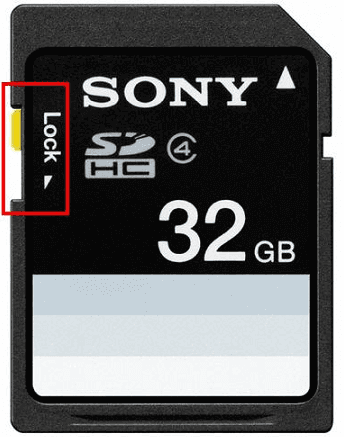
To remove write protection from an SD card without a lock switch, you can try formatting the card in a computer, using a card reader, or by using a software tool like SD Formatter. If the card is still write-protected, you can try using a third-party software tool like Qiling Disk Master or DiskGenius to remove the protection. Alternatively, you can also try using a hardware tool like a USB SD card reader with a built-in write protection removal feature.
Second,try to unhide files in Windows 10/8.1/8/7 computers
Many users experience the issue of not being able to see files on their SD card when connected to a computer. This problem is often resolved by realizing that the memory card has been set to be hidden, and manually un-hiding it is necessary to access its files.
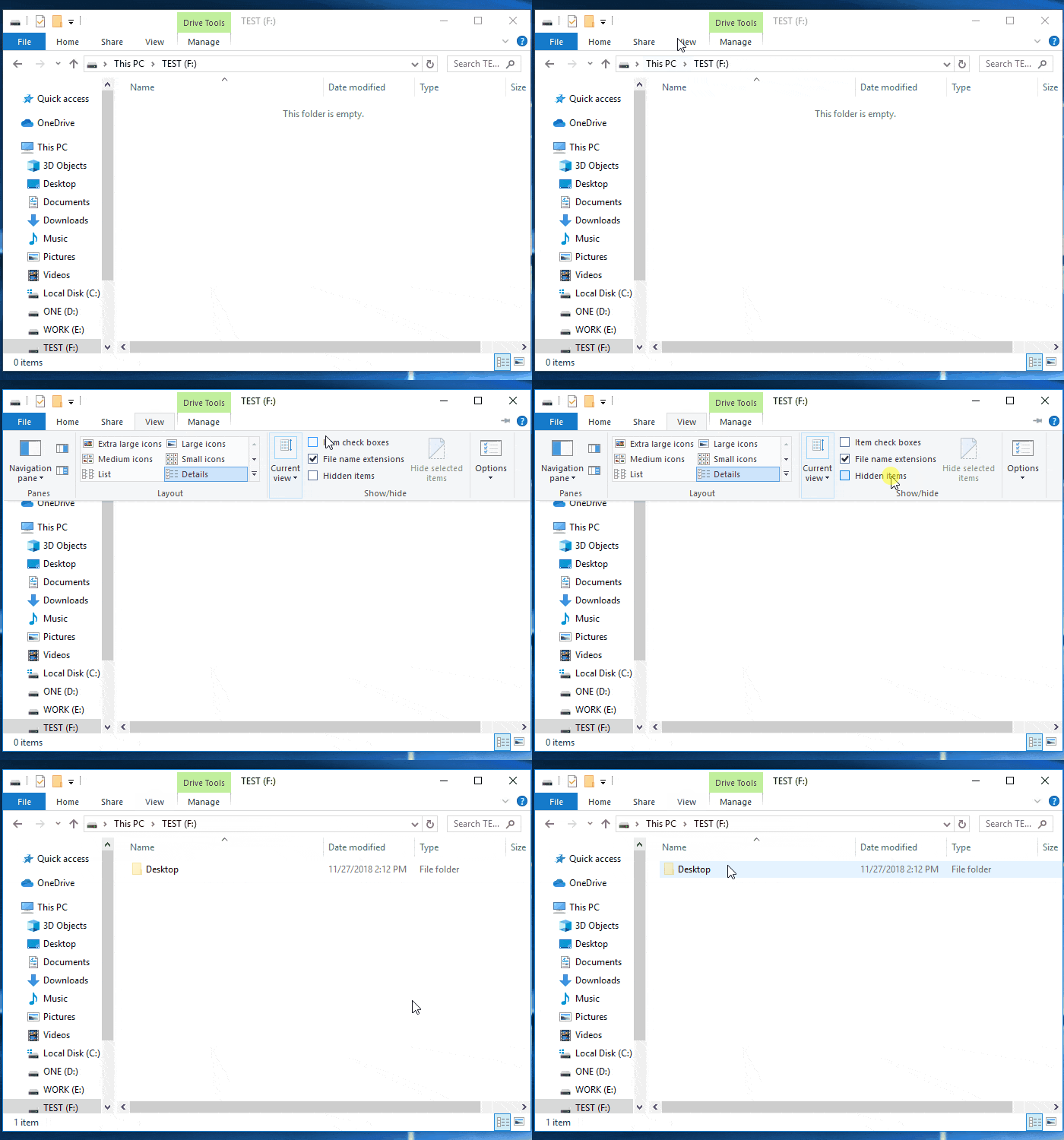
To show SD card files in PC:
Open File Explorer, go to the "View" tab, and check the box next to "Hidden items" to make hidden files visible.
Third, scan and remove virus
If you're experiencing issues with your SD card, such as files not showing up, you might also notice other problems like slow app opening or frequent Windows freezes. If you frequently use your SD card across multiple devices, it's possible that your card has been infected by a computer virus, which could be the root cause of these issues.
You can easily scan and remove viruses from your computer using anti-virus software, or even do it without the software if you know what you're doing.
Video Tutorial: Troubleshoot SD Card Not Showing Up or Not Detected Error
This video provides fixes to help troubleshoot the issue of an SD card not being detected or showing up on your computer. It offers detailed solutions to resolve the problem.
Further Troubleshooting for SD Card Files Not Showing Up
If unlocking and unhiding files from the SD card didn't help, further troubleshooting is needed. If there's important data to be recovered, follow these steps carefully. First, download Deep Data Recovery Free to scan and recover all existing files on the SD card. Then, attempt to fix the corrupted SD card.
Recover files not showing up in the SD card:
Step 1. Choose file types and click "USB/SD Scan" to start
- Download and install Deep Data Recovery on your Windows PC.
- Use the proper way to connect your SanDisk/Lexar/Transcend SD card to the computer.
- Open Qiling SD card recovery software, choose the file types you want to recover, and click "USB/SD Scan" to start the recovery process.

Note: You can choose different search modes based on where and why the data was lost.
Step 2. Select the SD card to scan
- Select the SD card you want to scan and click the "Scan" button to proceed with the recovery process.

Step 3. Check for scan results
- Wait for the scanning process to complete.
- Click "Filter" and select one or multiple file types to display, such as Pictures, Word, Excel, PDF, Videos, and more.
- Click "Preview" to check if they are the wanted files.

Step 4. Recover SD card data
- Choose desired files and click "Recover".
- To avoid overwriting the original data, it's recommended to choose a different location to save the recovered files instead of the original SD card. This will ensure that the recovered data is safely stored without any risk of data loss or corruption.
Deep Data Recovery Free allows for 2GB file recovery for free, and can be upgraded to Deep Data Recovery Pro for unlimited data recovery.
Fix a corrupted SD card not showing files:
The CHKDSK command and Windows Disk Management can be used to fix a corrupted SD card, which is usually recognized by symptoms such as a RAW file system, unallocated space, or Windows prompting to format it. Both tools can be used to repair the SD card and make it usable again.
Solution 1. Show Hidden Files on SD card using CMD
Step 1: Open Windows Comand Prompt (Windows + X keys) as admin.
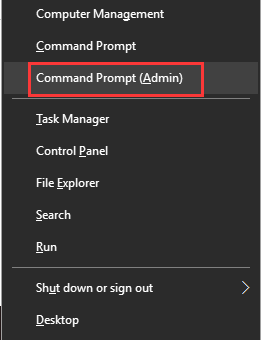
Step 2: Type attrib -h -r -s G:\*.* /s /d and hit Enter. (replace g with your own sd card drive letter)
Step 3: Wait until the command takes effect.
Once completes, type exit to close the command prompt window.
Qiling CleanGenius is a user-Fix errors in your computer's file system with a safe and lightweight tool that's perfect for replacing the CHKDSK command. This one-click solution makes it easy to repair damaged file systems, providing a hassle-free experience for users.
Step 1. DOWNLOAD Qiling CleanGenius on your computer and complete the installation.
Step 2. Run the software. Click "Optimization", and then choose "File Showing".
Step 3. Select the drive with a corrupted file system. Tick the "Check and fix file system error" option and click "Execute".
Step 4. Wait the tool performs the repairing task. After that, click the "here" button to check the drive.
Solution 2. Format a corrupted SD card with Disk Management
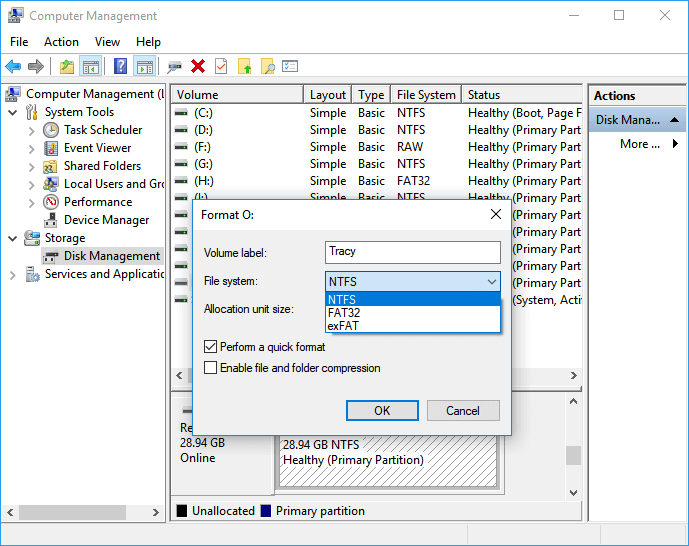
Step 1: Open Windows Disk Management (Windows + R to bring up the Run box, type diskmgmt.msc and hit Enter)
Step 2: Locate your SD card, which should be a removable disk, right-click on it and choose Format...
Step 3: Choose a file system from the list, usually NTFS/FAT/FAT32, and perform a quick format.
If you didn't recover data from the SD card before formatting, you can try downloading and installing Deep Data Recovery to recover data from the formatted SD card.
Related Articles
- How to Fix 'Photos Disappeared from Camera SD Card' Efficiently
- Fix Hard Drive Not Detected/Recognized in BIOS Without Losing Data
- Fix and Restore External Hard Drive Shows Only 32GB to Full Capacity
- Fixed: USB/External Hard Drive Shows in Device Manager Not This PC
- The Top 10 Data Recovery Services in Bay Area, CA Near Me
In the Bay Area, there are many data recovery services available. These nearby companies can assist you in recovering almost any type of mistakenly lost, deleted, or damaged digital material. We provide a list of recovery services and their contact information for your convenience. - Top 6 Data Recovery Services in Boston, MA
Want to find data recovery services in Boston, Massachusetts that can help you recover photos, documents, and emails from computers or laptops? this guide will definitely solve your issues.
Products
Articles & Tutorials
- Data Recovery
- Data Backup
- File Recovery
- File Backup
- System Backup and Restore
- Disk and Partition Clone
- Technical articles
- Mobile articles
- Disk Master Help
- Windows Data Recovery Tutorials
- Windows Secure Delete Tutorials
- Windows Partition Management Tutorials
- Windows File Backup and Restore Tutorials
- Windows System Backup and Restore Tutorials
- Windows Disk Backup and Restore Tutorials
- Windows Clone Tutorials