[2022 Tutorial] How to Recover Formatted SD Card on Windows & Mac
If you've accidentally formatted your SD card, stop using it first. Then, follow the provided solutions to recover your formatted SD card and retrieve all lost files immediately.
The sd card format recovery solution also applies to recovering files from formatted hard drive partition, external hard drive, USB, camera, media player, etc., devices.
Can You Recover Formatted SD Card
Case 1 - Unfortunately, once you format a SD card, the data is lost and can't be recovered. Formatting the card erases all the data on it, including your pictures. However, if you act quickly, you might be able to recover some of the data using data recovery software or a professional service. The sooner you try to recover the data, the better chance you have of getting some of it back. I can guide you through the process if you'd like.
Case 2 - Unfortunately, once an SD card is formatted, its contents are deleted and cannot be recovered using normal methods. However, you can try using data recovery software to scan the card for any remaining data. This may be able to recover some or all of the deleted files, but it's not guaranteed. You can also try using a professional data recovery service, but this may be expensive. To prevent this from happening again, make sure to double-check which SD card you're formatting before doing so.
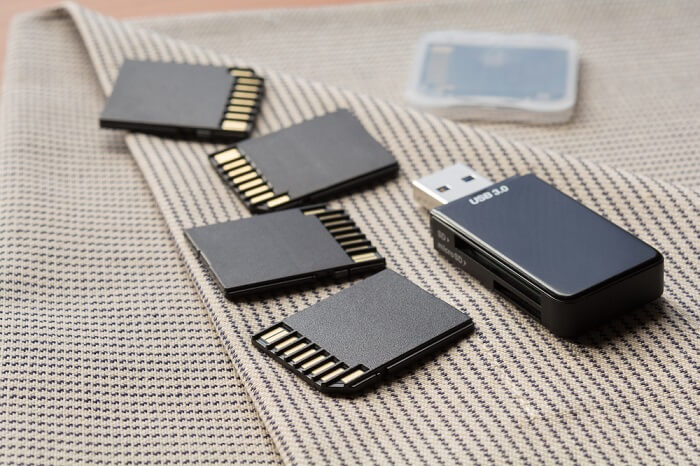
When you accidentally format your SD card, it's a good idea to search for ways to recover it online. However, the overwhelming results from search engines can be confusing. Stay calm and know that there are ways to recover your formatted SD card, whether it's from your camera, computer, or cellphone.
If you've mistakenly formatted your SD card, USB, external or internal hard drive, There are steps you can take to recover your data.
- Important
- 1. Stop using the formatted SD card immediately.
- 2. Take it out of your device, insert it into your computer.
- 3. If you're facing a situation where you've lost important files from your SD card, a reliable SD card recovery solution can help you recover them instantly.
Download Formatted SD Card Recovery Software for Help
We recommend using Deep Data Recovery, a straightforward data recovery tool that can recover files from formatted SD cards, memory sticks, USB drives, and internal/external hard drives, eliminating the need to search and test multiple software options online.
Download and install data recovery software on your computer. Then, use the software to scan the formatted device, recovering missing files like photos, videos, audio files, Microsoft files, and Adobe files in a few simple steps.
Besides formatted recovery, this software can also be used to recover data from accidental deletion, OS crash, partition loss, virus attack, RAW, etc., errors.
How to Recover Formatted SD Card
Recover files from a formatted SD card with the Qiling data recovery tool. First, download and install the software, then connect the SD card to your computer. Then, run the software and follow the on-screen instructions to select the SD card as the target drive. The tool will scan the card and display a list of recoverable files.
# 3. 3-step Tutorial of Formatted SD Card Recovery
To recover your formatted SD card, you can follow these easy steps. First, download and install a reliable data recovery software, such as Deep Data Recovery.
Step 1. Launch Deep Data Recovery, select the file types you want to recover, and click "Format Scan" to initiate the recovery process.

Note: You can choose different search modes based on where and why the data was lost.
Step 2.To recover lost files, connect your USB drive to your computer and launch Deep Data Recovery. Select the formatted SD card, USB flash drive, or Pen drive from which you want to restore the lost files and click "Scan".

Step 3. After the scan is complete, all scan results will be displayed on the screen, and you can use the "Filter" or "File Type" feature to find your target files.

Step 4. Choose the files you want to recover from your formatted external drive and click "Recover". A new window will appear, prompting you to select a new location to store the files. Click "OK" to confirm and the recovery process will begin.
Why Is It Possible to Recover Files from Formatted SD Card
Two key questions often arise: What does "formatting an SD card" mean, and can files still be recovered from a formatted SD card?
If you happen to have doubts about these two questions, follow and learn why.
#1. What Does 'Format SD Card' Mean
Formatting an SD card is a process of preparing it for data storage. The process involves erasing all data on the card, including any existing files, folders, and file system structures. This is done to ensure that the card is completely blank and ready for new data to be written to it.
- You can change the file system on your SD card to a different format, such as formatting it from NTFS to FAT32 or exFAT. This allows you to use the SD card with devices that may not support the original file system.
- To restore the full capacity of the SD card, you can remove all existing data from it. This will erase all files, folders, and other content currently stored on the card, effectively resetting it to its original, blank state.
When you get a new SD card, it's often pre-formatted and ready to use. However, there are situations where you need to format it manually, such as when you want to use it as a normal storage device.
- Fix and repair RAW SD card, Format corrupted SD card
- Convert RAW to NTFS
- SD card won't format
- Format 64GB SD card to FAT32
# 2. Why Is It Possible to Recover Files from Formatted SD Card
Formatting an SD card doesn't erase the data, it just breaks the file structure and marks the card as empty, but the data remains on the card.
You can recover files from a formatted SD card if you don't overwrite the data with new content.
Once your device is formatted, you can recover your files using a reliable data recovery tool like Deep Data Recovery, which can help you bring your files back.
Bonus Tips for SD Card Format Recovery
Although recovering files from a formatted SD card with Deep Data Recovery is useful, it's always better to nip the data loss in the bud. Here we collect some useful tips to help you protect your SD card data from formatting, deleting and even virus attacking.
To do so, you have three choices as listed here:
- Before attempting to recover data from your SD card, it's essential to create a full backup of the card in advance. This will ensure that all your data is safely stored, and you can recover it if needed. You can use a USB adapter to connect the SD card to your computer and use software like Qiling Disk Master, iMazing, or MiniTool Partition Wizard to create a backup.
You have three options to back up your SD card files: use a computer, use a phone, or use a portable storage device. You can connect your SD card to a computer using an adapter, then copy the files to the computer's hard drive.
- 1. Manually Back-Up Files via Copy and Paste
- 2. Back Up the Device with Third-Party Software
- 3. Back-Up the SD Card to Cloud Storage
Free backup software like Qiling Backup can help you make a backup of device files with simple steps, allowing automatic SD card backup and saving space by backing up files to Cloud.
- Tip 2. Run Antivirus Software to Clear Virus or Malware
A virus or malware infection can render your device unusable or even lock it, and it's common to experience file loss. To prevent this, it's a good idea to keep your SD card and other storage devices safe with antivirus software.
- Tip 3. Eject and Use SD Correctly
To prevent data loss on your SD card, it's essential to develop good habits when using it. Regularly backing up your files is crucial, but it's also important to use the storage device correctly. For instance, failing to properly eject the SD card before unplugging it from your computer can lead to issues such as the SD card becoming RAW, requiring formatting.
The Bottom Line
Data loss on SD cards is a common issue, often caused by accidental formatting. To recover data from a formatted SD card, a direct approach is to use third-party software like Deep Data Recovery.
Being 100% secure, virus-Deep Data Recovery is a plug-in free, and free software that can recover data from formatted SD cards, making it a good choice for this type of recovery.
To recover lost data, it's essential to have a trustworthy data recovery tool. However, prevention is also key, and backing up your files elsewhere is crucial. The Bonus Tip section outlines possible ways to do so.
People Also Ask
Many users have questions on SD card formatting beyond resolving the issue of recovering data from a formatted SD card, such as what happens to the data on a formatted SD card, how to recover data from a formatted SD card, and how to prevent data loss when formatting an SD card.
Here, we collected 3 top concerned questions and left a brief answer below each question. If you are concerning one of these questions, follow to find the answer now.
1. Can I use the CMD command to recover formatted SD card data?
Using the command prompt for data recovery on a formatted SD card is not effective, as the cmd command only works to find hidden files, not deleted, formatted, or emptied data.
Actually, the "-The "chattr" command with the "-i", "-r", and "-s" options is used to clear the hidden, read-only, and system attributes, respectively.
Unfortunately, you can't use the CMD command to recover data from a formatted SD card. However, there is reliable data recovery software like Deep Data Recovery that can help you recover your lost data.
2. When do you need to format an SD card?
Here are some common situations where you may format your storage device:
- To format a brand new SD card that is not pre-formatted, you can use a computer or a camera with an SD card slot. On a computer, insert the SD card into the card reader and open the File Explorer.
- To remove a virus on your SD card.
- To allocate a new file system that is compatible with your computer.
- To resolve errors such as "You need to format the disk in drive", "The disk is not formatted" or "SD card showing the wrong size", you can try formatting the device, checking the disk for errors, or using a tool to resize the SD card. In some cases, you may need to use a third-party tool or consult the device's documentation for specific instructions.
3. How do I format and restore my sd card to the original size without deleting files?
Formatting an SD card will delete all existing data and information on the card. If you want to keep your files, you'll need to back them up before formatting the card.
Here are the steps that you can do:
- Step 1. Connect SD to your computer.
- Step 2. Copy and back up SD card files to another safe location.
- Step 3. Open File Explorer, locate and right-click on SD card, select "Format".
- Step 4. Reset file system for SD card - FAT32 or NTFS, tick "Quick Format" and click "OK" to start.
Related Articles
- 4 Efficient Ways Are Ready! Fix Compile Error in Hidden Module
- Fix Seagate External Hard Drive Light Blinking but Not Working/Detecting Error
- How to Initialize Disk without Losing Data In 3 Procedures Step by Step
- 10 Best Data Recovery Software for Windows 7 Free Download Full Version
- Chicago Data Recovery Services [HDD, SSD, RAID]
this guide provides you detailed information about ten Chicago data recovery services. We will provide the address, numbers, and working hours to help you get full information. - The 5 Data Recovery Services Near Me in Columbus, OH (2023)
In Columbus, data recovery services are commonly accessible. You may recover any digital data that was mistakenly lost with the assistance of these local businesses. We provide a list of data recovery services in Columbus, OH.
Products
Articles & Tutorials
- Data Recovery
- Data Backup
- File Recovery
- File Backup
- System Backup and Restore
- Disk and Partition Clone
- Technical articles
- Mobile articles
- Disk Master Help
- Windows Data Recovery Tutorials
- Windows Secure Delete Tutorials
- Windows Partition Management Tutorials
- Windows File Backup and Restore Tutorials
- Windows System Backup and Restore Tutorials
- Windows Disk Backup and Restore Tutorials
- Windows Clone Tutorials