Command Prompt for USB Recovery: Recover Files Using CMD
Overview of Command Prompt for USB Data Recovery
The Command Prompt, a built-in Windows utility, can help you recover files after they've been hidden, accidentally deleted, corrupted, or infected by a virus. Using CMD, you can retrieve files from a computer's hard disk, as well as from external devices like USB flash drives, pen drives, memory cards, and external hard drives.
Compared with professional data recovery software The command prompt for data recovery offers several advantages, including its ability to recover data from corrupted or damaged files, retrieve deleted files, and even recover data from formatted or reformatted hard drives. Additionally, it provides a high level of customization and flexibility, allowing users to tailor their recovery process to specific needs.
Advantages:
- Free to use
- Pre-installed on Windows, no need to download any more
Disadvantages:
- The command line interface requires manual entry of commands, which can be challenging for beginners. It demands a certain level of technical knowledge and understanding of specific commands and syntax, making it less suitable for those new to computers.
- Using CMD commands can help recover some lost files, but it may not be as effective as a professional file recovery tool. It may not be able to restore every lost file.
- In complex data loss scenarios, such as recovering permanently deleted files from a USB drive, traditional file recovery methods may not be effective.
You can recover files from a USB drive using CMD or other command lines. To retrieve hidden files, use the CMD attrib command. However, if the CMD fails, you can also use Deep Data Recovery to recover files from the USB drive.
How to Recover Files Using CMD
You can use various data recovery command lines to recover files from a virus-infected hard drive, a corrupted drive with bad sectors, or an inaccessible RAW drive. These command lines can help you recover files in specific situations, such as recovering files from a virus-infected hard drive, recovering files from a corrupted drive with bad sectors, and recovering inaccessible files from a RAW drive.
- 1. Recover Files from USB Using CMD Attrib
- 2. Recover Deleted Files from Recycle Bin Using CMD
- 3. Recover Files from RAW Drive Using CMD chkdsk and rescan
- Notice:
- The Command Prompt has limited capabilities in recovering deleted files, meaning you may not be able to fully restore every lost file using CMD.
Be cautious when using command lines, as a small typo can lead to unexpected and potentially serious consequences.
1. Recover Files from USB Using CMD Attrib
Applicable to: Deleted, lost, hidden and even virus-infected files recovery
The device supports various storage devices such as Windows hard drive, external HDD, USB, and SD card, among others.
The attrib command is only useful for recovering hidden files that have been unintentionally hidden or infected by a virus. If you've experienced other types of data loss, such as formatting, partition turning RAW, or files being deleted, the attrib command will not be effective in recovering your lost data.
Step 1. To use the plugin, simply connect your hard drive, memory card, or USB drive to your computer.
Step 2. To open the command prompt, go to the Start menu, type "cmd" in the search bar, and press Enter. This will open the Command Prompt, also referred to as "cmd.exe," which is a program listed under the Start menu.
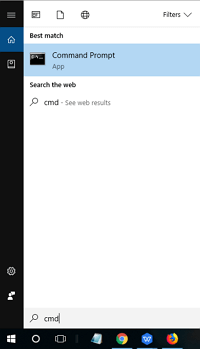
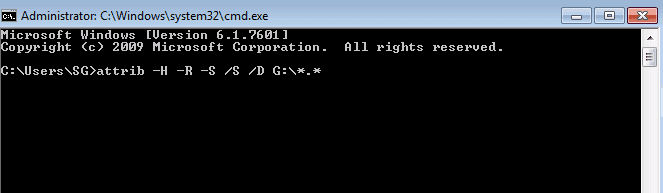
Step 3. Right-click on "cmd.exe" and you'll get a command window where you can recover virus-infected files.
Type in attrib -h -r -s G:\*.* /s /d and hit Enter.
(Replace G with the drive letter of your hard drive or external storage device where you lost files.)
2. Recover Deleted Files from Recycle Bin Using Command Prompt
Applicable to: Deleted file recovery, recycle bin file recovery
Supported devices: Windows hard drive, Desktop
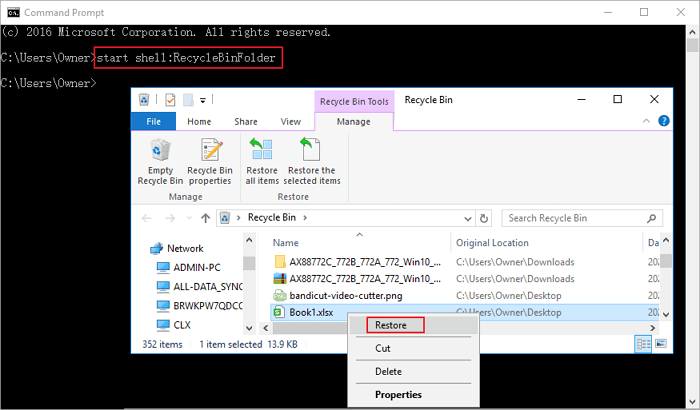
If you deleted files to the Recycle Bin, you can either right-click files in the Recycle Bin or use command lines to restore them to their original location before emptying it.
Note: The command line can only recover files that are still in the recycle bin, not files that are not in the recycle bin or on the hard drive. To recover files from an emptied recycle bin, follow these tutorials.
Step 1. To open the Command Prompt, go to the Start menu, type "cmd" in the search bar, and press Enter. Then, click on "cmd.exe" in the list of programs to open the Command Prompt.
Step 2. Type: start shell:RecycleBinFolder and press Enter.
Step 3. Select the files to restore.
3. Recover Files from RAW Drive Using chkdsk and rescan Command
Applicable to: RAW file system or corrupted file system recovery
Supported devices: RAW drive, inaccessible external HDD/USB/SD
If you lost files on external storage devices, connect the device to your computer, open the command prompt, and log in with your administrator account and password if necessary.
Step 1. To check and repair a corrupted storage device, type "chkdsk drive letter: /r/f" and hit Enter, replacing "drive letter" with the actual letter of the device where files were lost. For example, if the issue is with the D drive, you would type "chkdsk d: /r/f".
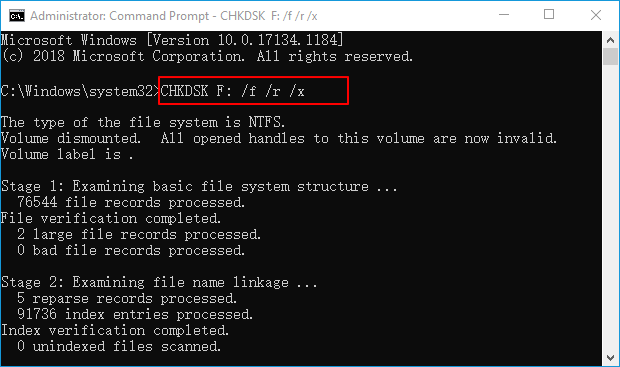
Step 2. On the command prompt window, type diskpart, and then hit on Enter.
Step 3. Type rescan and then hit enter.
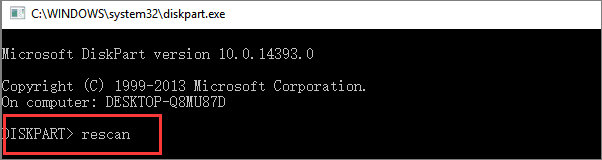
Step 4. Exit DiskPart, type chkdsk /f d: in CMD and hit Enter. (Replace d with the drive letter of your storage device where you lost data.)
If you've lost files, you can try using the built-in command prompt to restore them. Wait for the process to complete, and then check the device to see if your files have been recovered. If this method doesn't work or you need to recover files from a more complex situation, such as a lost partition, Deep Data Recovery can help with its advanced features.
How to Recover Files from USB Using the Best CMD Alternative
Since the command prompt is unable to retrieve files in many situations, such as restoring data from a dead computer hard drive, unformatting a hard drive, or recovering an emptied recycle bin, you need a CMD alternative for USB file recovery.
Deep Data Recovery can fully replace command prompt and allows you to recover lost data, scan and fix disk errors, and clone disks.
- Data recovery software can recover deleted, formatted, and inaccessible data in various data loss situations, such as accidental deletion, formatting, virus attacks, and hardware failure. These tools can scan storage devices, including hard drives, solid-state drives, and USB drives, to locate and retrieve lost files, even if they have been overwritten.
- Restore all types of digital content, including photos, audio, music, and emails, from any storage device safely and completely.
- To retrieve lost data, you can try checking the recycle bin, as well as other storage devices such as the hard drive, USB drive, memory card, and flash drive. Additionally, you may also want to check your digital camera and camcorder for any stored data.
- Repair corrupted Excel, Word, PowerPoint, photos, and videos effectively.
To recover files from USB or pen drive without CMD, do as follows.
Step 1. Select file types and click "Fast Scan" to start
Launch Deep Data Recovery, select the desired file types, and click "Fast Scan" to initiate the recovery process.

Note: You can choose different search modes based on where and why the data was lost.
Step 2. Select a drive and start scanning
To recover lost data, hover over the partition where the data was lost, click on it, and then select the "Scan" option.

Step 3. Check and preview scanned files
To narrow down the scan results, use the file format filter on the left or upper right corner, and then preview the content of the files you need by clicking the "Preview" button or double-clicking on them.

Step 4. Recover lost data to a secure location
To recover lost data, click the checkbox next to the file and click "Recover" to restore it to a secure location, avoiding the original disk to prevent further data loss.
Final Verdict
This post covers command lines to recover hidden files, restore data from the recycle bin, and retrieve files from a RAW partition. Follow the examples carefully, as wrong command lines can worsen data loss.
Deep Data Recovery is an easy-to-use data recovery software highly recommended for computer beginners. It allows you to recover deleted or lost files with just a few clicks, eliminating the need to use the command prompt for file recovery.
Recover Files from USB Using CMD Attrib FAQ
The following are the highly relevant questions about how to recover files using CMD. Check the brief explanations if you also have any of these problems.
What is attrib command in CMD?
The attrib command in MS-DOS and Windows allows users to change the attributes of files or folders, such as recovering hidden files, through the Command Prompt in Windows 10, 8, 7, Vista, XP, and other older versions.
How can I recover files from a corrupted USB?
If your USB drive is corrupted, you can recover and open files using Qiling data recovery software. This program can help you retrieve files from damaged, formatted, or corrupted hard drives, solid-state drives, USB flash drives, external hard drives, pen drives, SD cards, and CF cards.
Step 1.Connect the corrupted USB flash drive to your computer and launch Qiling USB data recovery software on your PC.
Step 2. Select your USB drive, which marks as a removable disk, and click "Scan" to start looking for your files.
Step 3. Preview and recover all the files from corrupted USB.
How do you attrib a flash drive using command prompt?
To recover files from a USB flash drive using CMD attrib, follow these steps: First, open the Command Prompt as an administrator and navigate to the USB drive's root directory. Next, use the attrib command to remove the hidden attribute from the files you want to recover, and then use the copy command to copy the files to a safe location.
Step 1. Right-click Windows icon and type cmd in the search bar.
Step 2. Select to run Command Prompt as Administrator. Sign in with your administrator account if necessary.
Step 3. The command `attrib -h -r -s G:\*.* /s /d` is used to display hidden files on a specific drive. Replace `G` with the actual drive letter where you want to show hidden files, then press Enter.
How do you use CMD to recover lost or deleted files?
You can use the attrib command to recover hidden files from a storage drive like hard drives, flash drives, USB, etc. by following commands in the command prompt to easily retrieve deleted files from Windows 10, 8, 7.
Step 1. Press the Windows key + R key together to open the Run dialog box, type "CMD" in the search box, and press Enter to open the Command Prompt.
Step 2.To run a check on a specific drive, open the Command Prompt window, type `chkdsk drive letter /f`, and press Enter. For example, if you want to check the D drive, you would type `chkdsk D: /f`.
Step 3. To reset a Windows computer, press the Windows key + X and select the Power option. Press Y 'Yes' until the command lines start again. Then, enter the drive letter and click Enter.
Step 3. Type drive letter and press Enter.
Step 4. The command `attrib -h G:\*.* /s /d` will remove the hidden attribute from all files in the storage device, making them visible again.
- -r stands for Read-only attribute, meaning files are readable and cannot be changed
- -s assigns 'System' attribute of the selected multiple files
- -h command means 'Hidden' attribute to only selected files
- /S indicates to search the particular path including subfolders
- /D command involves the process folders
Related Articles
- [DIY Guide] Where Do I Find My Scanned Documents on Windows/Mac
- Camtasia Recording Recovery | How to Retrieve Camtasia Projects/Videos
- Does Formatting a USB Delete Everything? (What Really Happened)
- Free Download Transcend JetFlash Online Recovery Tool
- Recover and Repair Word Document Opens with Random Codes
If you've lost an important Word document or one that opens with random codes or gibberish, this article can help you recover and repair it. The steps to follow are divided into two parts, and are applicable to various versions of Word, including 2017, 2016, 2010, and 2007. - How to Recover Unsaved, Deleted, and Lost WordPad Documents in Windows 10/8/7
You may lose a WordPad document unsaved due to a program or computer failure, or accidentally delete it. However, you can recover lost WordPad documents by searching for temp files or using a data recovery software like Qiling. Just give it a try.
Products
Articles & Tutorials
- Data Recovery
- Data Backup
- File Recovery
- File Backup
- System Backup and Restore
- Disk and Partition Clone
- Technical articles
- Mobile articles
- Disk Master Help
- Windows Data Recovery Tutorials
- Windows Secure Delete Tutorials
- Windows Partition Management Tutorials
- Windows File Backup and Restore Tutorials
- Windows System Backup and Restore Tutorials
- Windows Disk Backup and Restore Tutorials
- Windows Clone Tutorials