Does Formatting a USB Delete Everything? (What Really Happened)
Formatting a drive, whether quick or full, will delete all data on the drive, including any files you're trying to recover. If you need to recover data from the drive, it's essential to stop the formatting process immediately and use a data recovery tool to extract the files before proceeding with any further actions on the drive.
How to Recover Files from a USB Flash Drive After Formatting
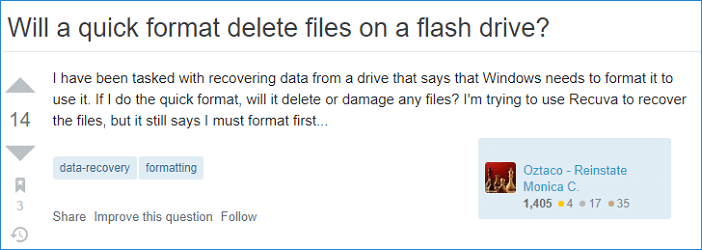
When a USB flash drive or memory stick prompts you to format it, you may be concerned about losing the data stored on it. Fortunately, formatting a USB drive will not permanently delete the data, and it can be recovered using data recovery software. This means you can safely format the drive and then use the software to retrieve your files.
Deep Data Recovery is the solution you need in any data loss situation. This professional software can recover data after formatting storage devices, restoring files after accidental deletion, and retrieving files after a system crash.
To recover lost documents, pictures, or videos after formatting a USB, you can try to recover them using data recovery software. This software can scan the formatted USB drive and retrieve any recoverable files, even if they were deleted or formatted.
Step 1. To begin, connect your USB drive to your computer and launch Deep Data Recovery. Then, select the file types you want to recover and click "Format Scan" to start the process.

Note: You can choose different search modes based on where and why the data was lost.
Step 2. Select the formatted SD card, USB flash drive, or Pen drive from which you want to restore lost files and then click "Scan" to start the recovery process.

Step 3. After the scan is complete, all scan results will be displayed on the screen. You can use the "Filter" or "File Type" feature to locate your target files.

Step 4. After selecting the files you want to recover from your formatted external drive, click "Recover". A new window will then appear, prompting you to choose a new location to store the recovered files. Once you've selected the desired location, click "OK" to confirm the recovery process.
What Really Happens When You Format a USB Flash Drive
Formatting a USB drive will delete everything stored on it, as it erases all data on the device.
The Basics
In Windows, when a storage device needs to be reused, sold, or donated, it can be formatted to remove all data. There are two options: Quick Format, which quickly erases data, and Full Format, which completely wipes the drive, making it impossible to recover any data.
A quick format is a faster way to format a hard drive or storage device, but it doesn't check for bad sectors. This means that any data on the drive is still recoverable, even if it appears to be erased. If you're reusing the drive and it's working, a quick format is sufficient. However, if you're planning to sell or give away the drive, a full format is recommended to ensure all data is completely erased.
A Full Format is a longer process than a Quick Format, as it includes an additional step to check the storage disk for bad sectors, which can take a significant amount of time. However, like Quick Format, it does not erase files, and the volume can be rebuilt to access them. If the drive has issues, a Full Format is a good option to ensure no problems exist.
Regardless of whether you've run a Quick Format or a Full Format, you can still recover your data using top-notch file recovery software.
The Process
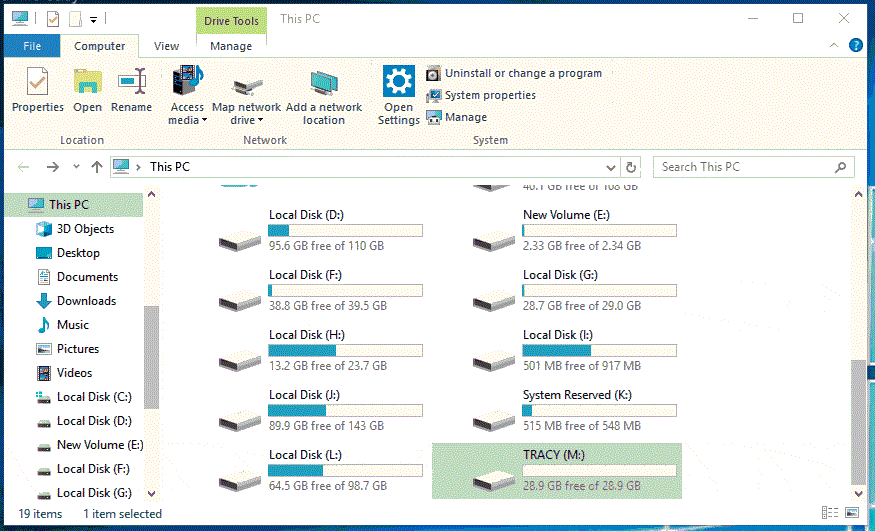
To format a USB flash drive, open This PC and locate the drive in the list of connected drives. Right-click on the USB flash drive and select "Format" from the dropdown menu. In the Format window, choose the file system you want to use, such as NTFS or FAT32, and click "Start" to begin the formatting process. Confirm your selection by clicking "OK".
File Systems
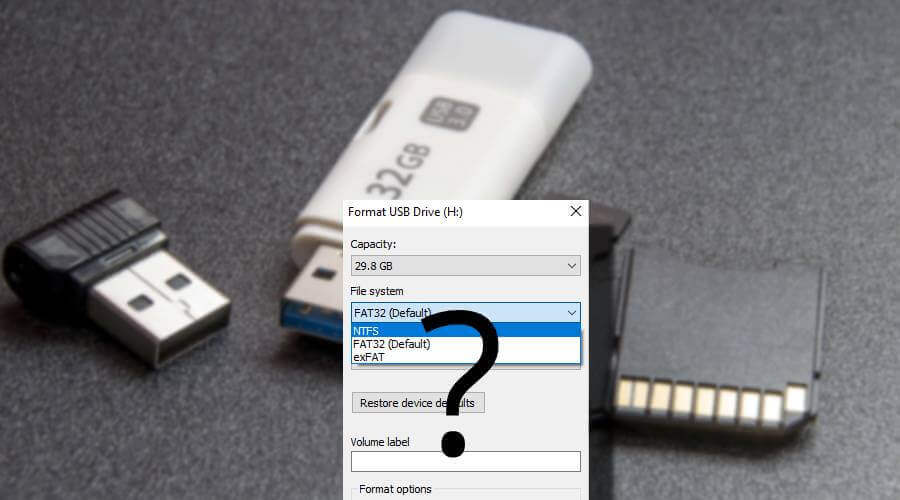
When formatting the drive, you'll be asked to select the file system. You have three options: FAT32, NTFS, and exFAT. FAT32 is typically used on older computers due to its size limitations, while NTFS is used on modern computers. If you're still unsure about which to choose, you can refer to additional help from Qiling.
Best Answer: Format USB Drive to FAT32 or NTFS
When formatting a USB drive, the choice between FAT32 and NTFS file systems is crucial. While FAT32 is a more traditional and widely compatible option, NTFS offers better security features and larger file size support. If you prioritize compatibility across multiple operating systems and devices, FAT32 is a good choice. However, if you need more advanced security features and can ensure your device supports NTFS, it may be the better option.
How to Protect Your Data Before Formatting
To minimize the risk of data loss after formatting, it's essential to create a backup plan to safeguard your data. This can be done by manually backing up desired files or utilizing a backup and recovery software like Qiling to automate the process. By taking these precautions, you can ensure that your important files are protected and can be easily restored in case of data loss.
Step 1. To start a backup, click the "File backup" option on the "Backup and recovery" page.

Step 2. The top list view shows a list of local and network files, which can be expanded to select the files to be backed up.

Step 3. Follow the on-screen instructions to select a desired location to store the backup.

Step 4. In the Backup Options section, click on Options to encrypt the backup with a password. This allows for a range of customizable features to be tailored to individual needs.

To specify the backup schedule, go to Backup Scheme and select the desired schedule from the dropdown menu. You can choose from options like "Daily", "Weekly", "Monthly", or "Custom".

Step 5. Backups can be stored on a local disk, in Qiling's cloud service, or on a network attached storage device (NAS).

Step 6. To start a backup, click Proceed. Once the backup is complete, it will appear on the left-hand panel as a card. To view more details about the backup job, right-click on it.

Conclusion
Formatting a USB flash drive deletes everything on it, but you can recover lost data using a backup or data recovery software if you don't have one.
Related Articles
- Recover Data After Windows 10/11 Crashed
- WhatsApp Recovery and Backup on Windows 11/10/8/7 PC or Laptop
- Recycle Bin Empties Itself: How to Stop Recycle Bin Auto Deletion in Windows 7/8/10
- How to Fix Missing DLL Files in Windows 10/8/7 [2022 Full Guide]
- Unlock PDF Without Password | Remove Password from PDF Files [2022 Real Fix]
If you're looking to open a password-protected PDF file without entering the password, there are a few ways to do so. You can use Google Chrome to open the file, Adobe Acrobat to access the contents, or a free online PDF password remover tool to bypass the password. - Unlock USB Drive | Decrypt Write Protected USB Drive and Restore Data
When a USB flash drive is locked, it becomes write-protected, read-only, or encrypted. To unlock it, you can either ask for permission to receive the password or edit the StorageDevicePolicies.
Products
Articles & Tutorials
- Data Recovery
- Data Backup
- File Recovery
- File Backup
- System Backup and Restore
- Disk and Partition Clone
- Technical articles
- Mobile articles
- Disk Master Help
- Windows Data Recovery Tutorials
- Windows Secure Delete Tutorials
- Windows Partition Management Tutorials
- Windows File Backup and Restore Tutorials
- Windows System Backup and Restore Tutorials
- Windows Disk Backup and Restore Tutorials
- Windows Clone Tutorials