Fix Missing DLL Files in Windows 10, 8, or 7
A Dynamic Link Library (DLL) is a crucial file that contains instructions for running most programs on Windows 10, 8, and 7. If DLL files are missing, you may not be able to run essential programs or applications.
One of the most common missing DLL files errors on Windows 10 is the MSCVP110.dll issue, which displays an error message saying "The program can't start because MSVCP110.dll is missing from your computer. Try reinstalling the program to fix this problem".
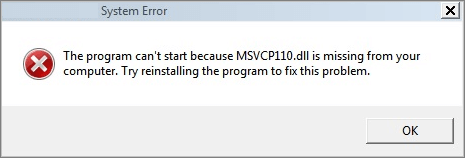
Fixing missing DLL files in Windows 10 can be a challenge, but there are effective solutions. The issue is often caused by various factors, but understanding the root cause is key. To resolve the problem, you can try reinstalling the application that's causing the issue, checking for any corrupted system files using the System File Checker (SFC) tool, or updating your Windows operating system.
Causes of Missing DLL Files Windows 10
The .dll file error typically occurs when a program is unable to locate a required Dynamic Link Library file, which can be caused by a corrupted or missing .dll file, incorrect registry entries, or outdated software.
- Virus or malware attack
- careless deletion of DLL files
- Corrupted Windows operating system
- DLL files are overwritten
- DLL files are damaged
- Different functions between Windows 10 and Windows 8/7
If you're experiencing a missing DLL file issue on your Windows computer, try restarting your computer first to see if the problem resolves itself. If not, you can try other methods in order, such as reinstalling the software that's causing the issue, checking for any corrupted system files using the System File Checker (SFC) tool, running a virus scan to ensure your computer isn't infected, or manually downloading and installing the missing DLL file from a trusted source.
1. Reinstall the Program
If you're experiencing a missing .dll error, try reinstalling the program to see if that resolves the issue. If reinstalling the program doesn't work, you can try other troubleshooting methods.
2. Run System File Checker Scanner
To resolve the missing .dll error caused by a corrupted Windows operating system, you can try repairing the system file by running the System File Checker (SFC) tool, which scans and replaces corrupted system files with a cached copy. This may resolve the issue.
Run the Windows in-Built System File Checker is a tool that helps detect and replace lost or corrupted files in your operating system, and can also be used to detect crucial missing DLL files on Windows 10.
Related reading: SFC is not working on Windows 10
Step 1. Right-click the "Start" button and select "Command Prompt (Admin)".
Step 2. Type sfc /scannow and press Enter to run a full system scan.
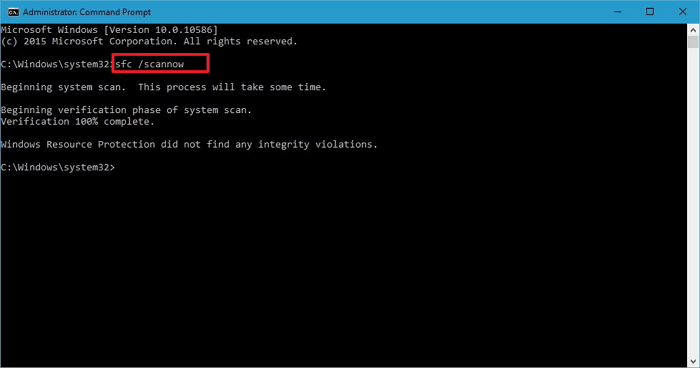
If the SFC scanner finds the missing DLL file, the problem is solved. If the SFC scanner doesn't find any issues, you need to try the next solution.
3. Run DISM Tool
If the SFC (System File Checker) scanner is not helpful, try resolving the issue with the DISM (Deployment Image & Servicing Management) tool, which can help fix missing DLL files.
Step 1. To open the Command Prompt, press the Windows key + R to open the Run dialog, type "cmd" and press Enter. This will open the Command Prompt window.
Step 2. Type the following command and hit "Enter".
Dism /Online /Cleanup-Image /RestoreHealth
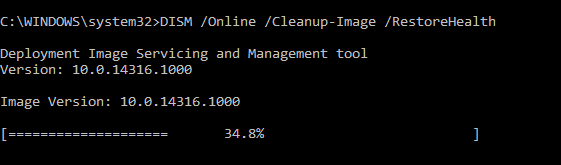
Step 3. Wait for the process to complete. Then, restart your computer.
4. Recover Deleted DLL Files with a File Recovery Tool
If you've accidentally deleted the DLL files, search your Recycle Bin and restore the deleted files. If the DLL file is not in the Recycle Bin or you've emptied it, you can recover deleted files with data recovery software.
Deep Data Recovery allows you to restore lost files from various storage devices, including HDD, SSD, USB flash drive, SD card, and external hard drive.
This file recovery program cannot only recover missing DLL files but also repair corrupted files after recovery, making it a valuable tool for getting back your lost files. You can download it for free.
Step 1. Launch Deep Data Recovery. Select file types and click "Fast Scan" to begin the recovery process.

Note: You can choose different search modes based on where and why the data was lost.
Step 2. To proceed, select the precise file location and click the "Scan" button.

Step 3. After the process, select the "Deleted Files" and "Other Lost Files" folders in the left panel, then apply the "Filter" feature or click the "Search files or folders" button to find the deleted files.

Step 4. Click the "Recover" button and save the restored files in a location different from the original one.
5. Download the DLL File Manually
If the above methods fail to resolve the issue with a missing DLL, you can try downloading the missing DLL files from the internet.
While some websites offer free DLL files, it's essential to be cautious as only a few are trustworthy. Some malicious websites may have malware that can harm your entire system, so it's best to download DLL files through the official Microsoft links provided.
If you don't like downloading the missing DLL files online, you can try copying them from another working PC to resolve the issue.
6. Upgrade Windows
Some Windows updates can change or replace .dll files, making them unavailable when other programs need them. Updating Windows 10 to the latest version may resolve the missing DLL file error.
Step 1. Press Windows + I to open Windows Settings.
Step 2. To update Windows, click on the "Start" button and select "Settings". Then, click on "Update & Security" and select "Check for updates" under Windows Update.
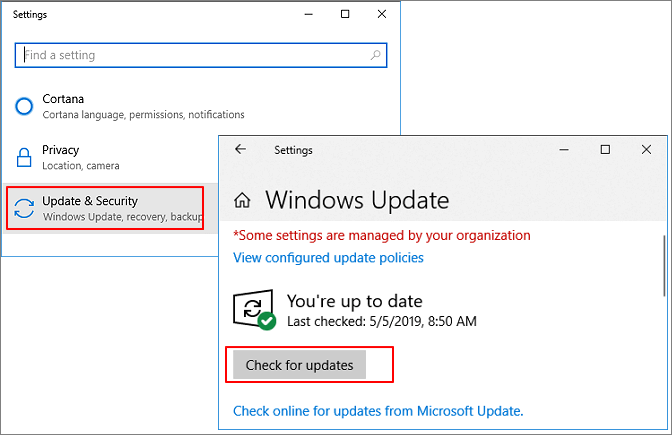
Step 3. If a new Windows update is available, click "Install Now" and follow the instructions to install the latest update.
More Information About Missing DLL Files Windows 10
The DLL file is a crucial component of the Windows 10 operating system, responsible for loading and executing shared libraries of functions and resources. These dynamic link libraries are used to extend the functionality of applications and provide a way for multiple programs to share the same code and resources, reducing the overall size of the operating system and improving performance.
Where are the DLL files located in Windows 10?
DLLs are scattered throughout your PC, not confined to a single location. They can be found in C:\Windows\System32, program files folders, and other areas.
You can search your computer for a .dll file:
- Click the search button on your computer.
- Enter the filename without the .dll extension into the search bar.
- Check if the DLL file can be found.
How do I install missing DLL files?
Here's how you can find and install missing .dll files on Windows 10: You can use the System File Checker (SFC) tool to scan for and replace corrupted system files, including missing .dll files.
- Find and download your missing .dll file from a reliable site.
- Download the .dll file to: "C:\Windows\System32".
- To register a DLL file on Windows, start the Run tool by pressing Windows + R, type "regsvr32 name_of_dll.dll", and press Enter, which should install the DLL file on your system.
What happens if DLL files are missing?
If a program's required DLL file is missing from your computer, you won't be able to run the program and will get an error message.
Concluding Words
We've covered what DLLs are, what causes missing DLL files, and provided 6 practical solutions to fix missing DLL file errors. Now, it's your turn to try these methods and resolve the problem.
If .dll files are missing due to unintentional deletion, you can use Qiling data recovery software to easily restore the files. If you have any questions, contact our technical support team at support@idiskhome.com.
Related Articles
- Recover Data from Deleted or Lost Partition
- Undo System Restore in Windows 11, 10, 8, 7 Without Data Loss
- How to Recover Data from Diskpart Cleaned Disk by Accident
- Undo ESD-USB | Convert 32GB ESD-USB Hard Drive/External Hard Drive to Normal
- How to Change Your Gmail Password on PC/iPhone/Android
To change your Gmail password, you can follow the steps on your iPhone, Android, laptop, or desktop. If you've forgotten your password, you can use Qiling email recovery software to recover permanently deleted emails, making it easier to access your account and change your password. - How to Convert a Shortcut File into Original File
Are you surprised when files or folders on your USB pen drive suddenly turn into shortcuts? If so, you're not alone. Many people have encountered this issue and are looking for a solution to recover their files.
Products
Articles & Tutorials
- Data Recovery
- Data Backup
- File Recovery
- File Backup
- System Backup and Restore
- Disk and Partition Clone
- Technical articles
- Mobile articles
- Disk Master Help
- Windows Data Recovery Tutorials
- Windows Secure Delete Tutorials
- Windows Partition Management Tutorials
- Windows File Backup and Restore Tutorials
- Windows System Backup and Restore Tutorials
- Windows Disk Backup and Restore Tutorials
- Windows Clone Tutorials