Recover Data from Deleted or Lost Partition
Best Data Recovery Software to Recover Data from Deleted Partition
To recover data from a deleted partition, a professional data recovery program is necessary. Deep Data Recovery is a comprehensive file recovery tool that can help you recover lost data from various storage devices, including hard drives, deleted partitions, memory cards, external hard drives, SD cards, and more.
Highlighted features of Qiling data recovery software
- Recover lost files from deleted partition, lost partition, RAW partition
- This software supports recovery of data from all types of disk drives, including IDE, EIDE, SCSI, and SATA, and can recover data from FAT and NTFS formatted drives.
- All Windows systems supported: Windows 10/8/7/Vista/XP, etc.
- This software offers robust data recovery capabilities, allowing users to recover data from various situations, including emptied recycle bin, formatted drives, virus attacks, OS crashes, and more.
- This software is capable of repairing damaged files, including photos, videos, and various document types such as Word, Excel, and PPT, in addition to its ability to recover lost data.
This software allows for effective data restoration from complex situations in just three simple steps, and a Mac version is also available for recovering data lost under macOS.
3 Steps to Recover Data from Deleted Partition in Windows 10
Qiling data recovery program provides a simple way to recover files from a lost partition in Windows 10, allowing users to easily follow step-by-step guides to retrieve their lost files.
Step 1. Select file types
Launch Deep Data Recovery, select the file types you want to recover and click "Fast Scan" to continue.

Note: You can choose different search modes based on where and why the data was lost.
Step 2. Select and scan the lost partition
Select "Lost Partition" and click "Scan" to search for all lost data. If multiple lost partitions are found, identify them by their partition size.
Since the Windows system doesn't support the Linux file system, the Ext2 or Ext3 partition will be recognized as a lost partition with no drive letter. To recover data from an Ext2/Ext3 partition, follow these steps.

Step 3. Filter the scanned results
You can quickly filter scanned files by category, such as Pictures, Videos, Documents, Audio, and Others, or search for a specific file by name using the search box in the upper right corner.

Step 4. Preview and recover data from the lost partition
Before recovering the files, you can preview them to ensure they are the correct data. Select all the files you need and click "Recover" to restore them.
How to Recover Deleted Partition in Windows 10
Deep Data Recovery can recover data from a deleted partition, but not the entire partition itself. For a deleted or lost partition, run Qiling Partition Recovery and refer to Data Backup and Drive Clone Tutorials for related backup and disk management guidance.
Step 1. Run Qiling Partition Recovery on your PC.
Please select the disk or device where you lost partition(s), and then click "Scan" to continue.
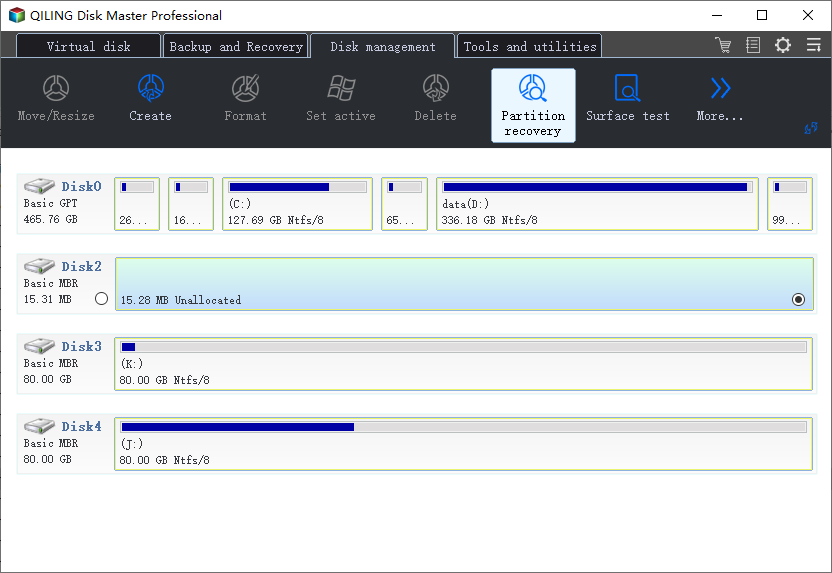
Step 2. Wait for the scanning process to complete.
Let the program scan the selected disk and find the lost partition(s) to recover lost data.
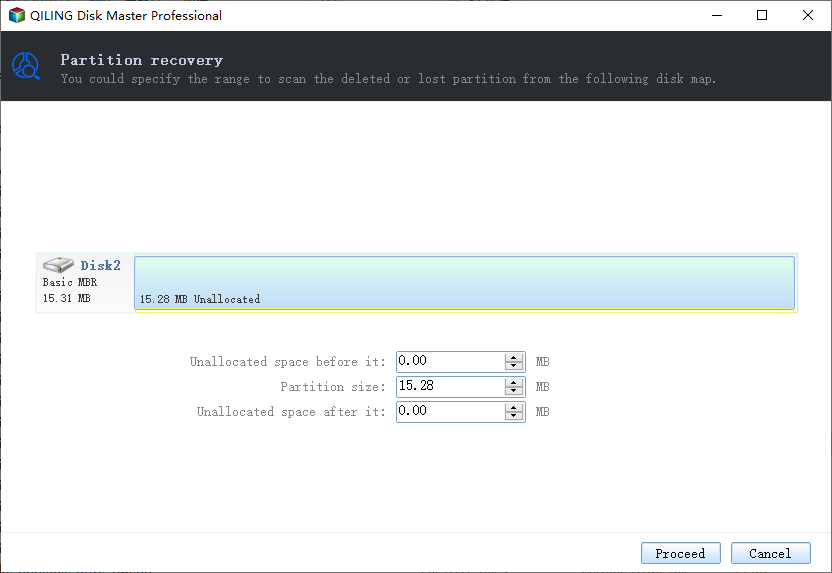
Step 3. Preview and restore the lost partition(s).
Double-click on the partition which is marked as "Lost" with "Good" recoverability.
To recover the lost partition, click on the "Preview" button to view its contents. If you're satisfied, click "OK" and then "Proceed" to initiate the recovery process.
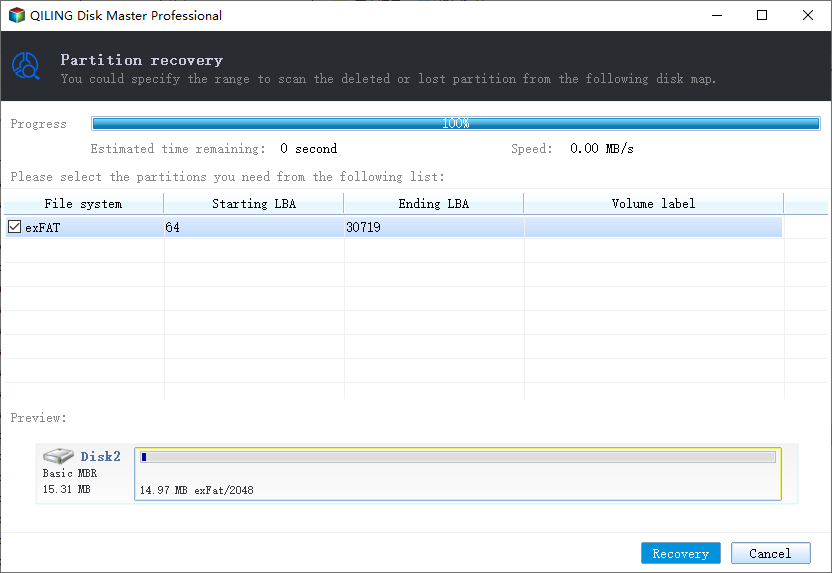
Step 4. Click "Recover" to finish the partition recovery process.
To resolve the conflict, back up any essential data from the listed partition to an external hard drive and then execute the final operation to restore the lost partition, following the program's instructions to avoid data loss.
Stunning features of Qiling Partition Recovery:
- Intuitive and easy-to-use partition recovery software, no IT experience required
- The system can rapidly scan and display a list of deleted files within a short time frame, allowing users to quickly recover or manage their deleted data.
- This software supports a wide range of partitions, including FAT, NTFS, Ext2, and Ext3 volumes, allowing for flexibility and compatibility with various file systems.
- Offer Raw partition recovery feature
- Seamlessly compatible with Windows 10/8.1/8/7/Vista/XP/Server
Further Tips About Deleted Partition Recovery
The partition is a crucial aspect of computer operation and data storage. It serves as a database, allowing users to save, store, and transfer data on the computer by dividing the memory or mass storage into isolated sections.
However, the partition on the local hard drive or external hard drive might be lost or unrecognized due to mistaken deletion, format, or virus attack.
Common Causes of Lost/Deleted Partitions
- Accidental deletion of an entire volume can occur when trying to clean a specific partition, resulting in the loss of all data on the volume.
- A corrupted partition table can occur due to a virus or faulty disk operations, resulting in a lost partition.
- Power failure: a sudden power outage may cause partition inaccessible.
- If a partition has bad sectors, it won't be recognized by the computer.
- Upgrades: upgrades will change the hard drive.
- When you repartition a hard drive, all existing partitions are deleted, allowing for a fresh start and a new partition layout.
Why Can Restore Deleted Partition
When a partition is deleted, the system typically removes the assignment to that disk location, allowing the memory segment to be reused. However, if the deleted partition's disk space remains unchanged, there's still a chance to recover the partition using a recovery utility, effectively "undeleting" it.
The partition on a computer's hard drive may be lost or missing due to frequent use, leading to overwriting of data. To prevent further damage, it's essential to stop using the hard disk immediately. A professional partition recovery program can then be used to recover the lost partition.
Backup in Advance to Avoid Partition Loss
To recover a partition without deleting newer content, the best approach is to take a regular full image backup of your hard drive or external hard drive. This should be done in advance to ensure that all data is safely backed up. Alternatively, you can enable File History or Windows Backup on your Windows computer to automatically back up files. This way, you'll be able to recover deleted partitions without losing any newer content.
To Sum Up
This page is primarily for individuals seeking to recover data from a deleted partition on an external hard drive or removable disk, such as an external hard drive. Qiling data recovery can be used to restore files from lost partitions without any data loss, and a user-friendly partition recovery software is also introduced for recovering partitions.
FAQs on How to Recover Data From Deleted Partition
Here are a few questions related to recovering data from deleted partition. If you also have any of these problems, you can find the methods here.
How do I recover files from a partitioned hard drive?
To recover files from a partitioned hard drive, download and use Deep Data Recovery. This software allows you to scan the entire drive, including any partitions, to find and recover lost or deleted files.
Step 1. On Deep Data Recovery, select a partition like C: drive, D drive or E drive where you lose your data and click "Scan" to start the scanning process.
Step 2. After the scan, select and preview found partition data in "Deleted Files" or "Lost Files". The Filter or Search bar may also help you access the lost files.
Step 3. After recovering lost partition files, select all recoverable files and click "Recover" to get them back. Before making the partition safe to save data again, save all recovered files to another secure device.
What happens if recovery partition is deleted?
If you've deleted the system reserved partition and recovery partition, you may encounter issues with the "Launch Recovery Environment" option being inaccessible, and potentially even boot problems. Fortunately, there are ways to restore the deleted system reserved partition, which you can check out in the provided guide.
How can I recover my deleted data from hard disk?
To recover deleted files from a hard drive using Qiling file recovery software, follow these steps: First, download and install the Qiling software on your computer. Next, connect the hard drive that contains the deleted files to your computer.
Step 1. You can recover deleted files by using Open Deep Data Recovery. First, you'll see a list of all disks on your computer, then select the exact hard drive partition where the files were deleted and click the "Scan" button.
Step 2. The scan process starts immediately and may take several minutes to several hours to finish, depending on the hard drive size. The "Deleted files" result appears quickly, so check if all the deleted files are showing up.
Step 3. After the scan, you can preview the found files by double-clicking or right-clicking. Then, select the target files and click "Recover" to save them to a safe place, rather than the original hard drive.
Related Articles
- How to Fix Deep Data Recovery Crashes, Stuck, Hangs and Freezes Up Error
- EFS Decryption Guide: How to Recover Encrypted Files on NTFS Drive Without Effort
- Download NTFS Data Recovery Software with Torrent, Serial Key
- How to Fix Buffalo External Hard Drive Not Working/Recognized
- How to Recover Deleted Photos from Picasa
Picasa photo recovery: if you want to retrieve pictures from Picasa on Windows or Mac after you losing them coincidentally or deleted intentionally, try the simple 3 steps to recover deleted photos from picasa in this article. - How to Recover Deleted Photos from Windows 8 Computer
To recover permanently deleted photos in Windows 8, follow the steps outlined in the Windows 8 picture recovery article, which provides a step-by-step guide on how to recover deleted photos efficiently.
Products
Articles & Tutorials
- Data Recovery
- Data Backup
- File Recovery
- File Backup
- System Backup and Restore
- Disk and Partition Clone
- Technical articles
- Mobile articles
- Disk Master Help
- Windows Data Recovery Tutorials
- Windows Secure Delete Tutorials
- Windows Partition Management Tutorials
- Windows File Backup and Restore Tutorials
- Windows System Backup and Restore Tutorials
- Windows Disk Backup and Restore Tutorials
- Windows Clone Tutorials