How to Repair Corrupted Files After Recovery in Windows 10, 8, 7
Apply to: All editions of Windows 10, Windows 8.1, Windows 8, and Windows 7, including 32-bit and 64-bit versions, are affected.
- Fix 1. Corrupted File Repair Software Free Download
- Fix 2. Perform a Check Disk on the Hard drive
- Fix 3. Use the CHKDSK/SFC Command
- Fix 4. Run CHKDSK Alternative
- Fix 5. Change the File Format
- Fix 6. Use an Online File Repair Tool
How Do I Fix Corrupted Files in Windows 10
File corruption can occur unexpectedly, affecting various file formats such as Word, Excel, PowerPoint, PDF, photos, videos, and other media. When trying to open a damaged file, error messages may appear, indicating that the file is corrupted or cannot be accessed.
- The file is corrupted and cannot be opened in Excel/Word
- The file cannot be opened because there are problems with the contents
- Cannot open the file because the extension is not valid
- The file or directory is corrupted and unreadable
If you encounter file corrupted messages, try the solutions in this article to repair damaged files in Windows 10.
Fix 1. Corrupted File Repair Software Free Download to Fix Damaged Files
The most effective way to fix corrupted files is by using a file repair utility, such as Deep Data Recovery, which enables you to repair and restore lost or corrupted files, including photos, videos, and office documents, under various corruption scenarios.
Qiling file recovery and repair software is a highly efficient tool that excels in repairing damaged files. With its advanced capabilities, it is capable of recovering and restoring files that have been corrupted or damaged due to various reasons.
Repair Files with Deep Data Recovery
- Repair corrupted Excel/Word file after recovery
- Repair corrupted and damaged JPEG or JPG files
- Fix damaged MP4 and MOV files on Windows and Mac
- Fix multiple broken files at the same time
- Repair damaged files from PC, laptop, external devices, etc.
To fix corrupted files in Windows 10, 8, and 7, download and use the Qiling file repair tool, which can repair files with just a few clicks.
Step 1. Launch Qiling file recovery software on your Windows computer. Select file types and click "Fast Scan" to start the recovery process.

Note: You can choose different search modes based on where and why the data was lost.
Step 2.To repair corrupted files, select a disk location where the damaged files are saved, click "Scan" to start the process, and Qiling file repair tool will help fix broken documents, videos, and pictures in various formats.

Step 3.After scanning, you can quickly identify corrupt data by file type. If you need to repair damaged files, select the relevant category, such as Documents (e.g. Word, Excel, PDF), and filter by specific file types.

Step 4.Qiling file repair software automatically fixes broken files, allowing you to preview the repaired files before recovery. Once you're satisfied, simply click "Recover" and save the files to a different location to avoid data overwriting.
If you don't plan to install any third-party file repair software locally, you can try the following fixes to see if you can repair your corrupted file.
Fix 2. Perform a Check Disk on the Hard drive
If there are file system errors on your hard drive that cause file damage, you can scan your disk to repair corrupted files.
Step 1. To scan an external HDD or SSD, open File Explorer, right-click on the device you want to scan, and select "Properties" from the context menu.
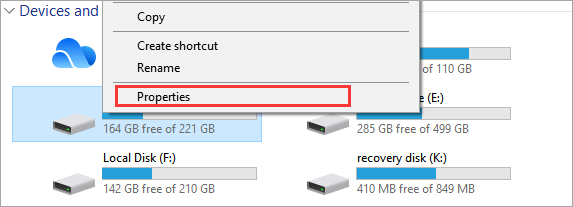
Step 2. Under the "Tools" tab > click the "Check" button under the Error-checking section.
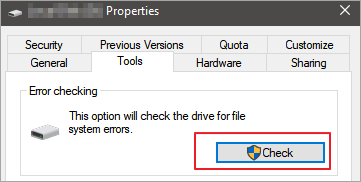
Step 3. You can choose to "Scan drive" if you want to check for errors, or "Repair drive" if errors were found, allowing you to fix them.
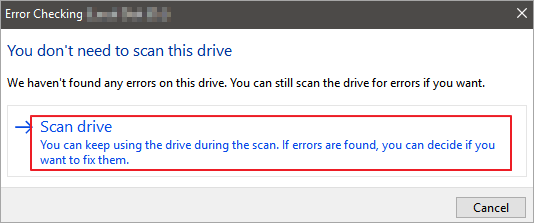
Step 4. Wait while Error Checking scans the selected hard drive for errors. If errors are found, a restart may be required. If no errors are found, you can close windows and continue using your computer normally.
Fix 3. Use the CHKDSK/SFC Command to Repair Your Files
If your hard drive has logical bad sectors or a corrupted file system, you can't access your files. In this situation, you can use the CHKDSK utility to repair the affected disk and fix corrupted files.
Step 1. To access the Command Prompt, click the Search box, type CMD, and right-click the Command Prompt, then select "Run as administrator".
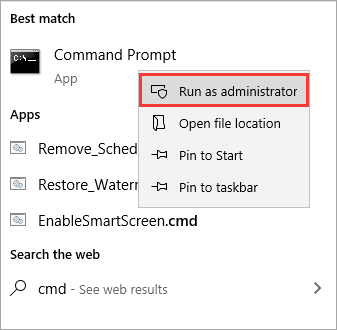
Step 2. Type E: /f /r /x, hit the Enter. Here you can replace E with your drive letter.
If the damage is caused by a bad sector or corrupted file system, you may be able to view your files after the fix. If not, you can try the following solutions.
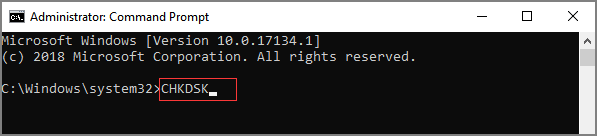
You can also run the SFC command after using CHKDSK. SFC, short for System File Checker, scans all protected system files for corruption and attempts to repair the system file by copying a cached copy of each corrupted file from the system32\dllcache folder.
Step 1. To open the Command Prompt as an administrator, click the Search box, type CMD, and right-click the Command Prompt result. Then, select "Run as administrator" from the context menu.
Step 2. Type: sfc /scannow and hit "Enter".
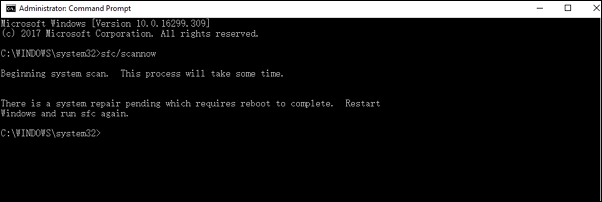
This command is used to find and repair corrupt Windows system files.
Fix 4. Run CHKDSK Alternative
Qiling CleanGenius is a user-Introducing a user-friendly computer fixing tool that's both safe and lightweight, making it the perfect alternative to the CHKDSK command. With just one click, you can easily fix damaged file systems and get your computer up and running smoothly again. This tool is designed to provide a hassle-free experience, allowing you to resolve issues quickly and efficiently, without compromising the safety of your system.
Step 1. DOWNLOAD Qiling CleanGenius on your computer and complete the installation.
Step 2. Run the software. Click "Optimization", and then choose "File Showing".
Step 3. Select the drive with a corrupted file system. Tick the "Check and fix file system error" option and click "Execute".
Step 4. Wait the tool performs the repairing task. After that, click the "here" button to check the drive.
Fix 5. Change the File Format to fix Corrupted Files
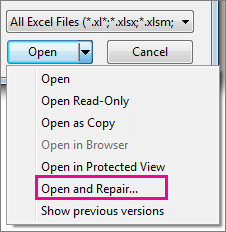
You can try to repair a corrupted Excel or Word file by saving it in a different format, such as saving the Excel file as a CSV or saving the Word file as a text file. This may help recover some of the data that was lost due to the corruption.
Step 1.To recover a corrupted Word or Excel file, open the file in its respective application, then go to "File" > "Save As" to create a new, clean copy of the file. This will allow you to save the file without overwriting the original corrupted version.
Step 2.To save your Excel file as a web page, select "Web Page" from the list of file formats. Ensure the entire Excel file is selected, then click "Save" to proceed with the conversion.
Step 3. Locate the saved file, right-click on it, and select "Open with" followed by "Microsoft Office Excel".
Step 4. If the file can normally be opened, go to "Save As" and choose an Excel format, then the corrupted file will be recovered.
Fix 6. Use an Online File Repair Tool
You can repair damaged files using an online file repair tool, which is a user-friendly process that involves uploading the damaged file, running the repair, and then downloading the fixed documents.
However, this type of software has the following disadvantages in common:
- File data privacy cannot be guaranteed, as others may save the file you upload for their own purposes.
- The repair speed is generally slow.
- The cost of online repair tools is high, with many charging by the number of documents fixed, such as $10 per document.
Be cautious when using online tools to fix corrupted files, as they may cause further damage. If you still want to try, OnlineFile.Repair is a reliable option.

To Sum Up
If you're dealing with corrupted files in Windows 10, there are six methods to help you repair them. You can try using the built-in Windows utilities, such as the disk check tool, CHKDSK, or the SFC /scannow command, which can fix damaged files from previous versions, all for free without needing any extra tools.
If you're unable to recover your files using the methods mentioned, you can consider using professional file repair software, such as Qiling file repair tool, which utilizes advanced technology to quickly and effectively repair damaged data files.
Deep Data Recovery has a high reputation in the field of data recovery, excelling in recovering emptied recycle bin, deleted, formatted, lost partition, RAW, OS crash, and virus attack data.
What Causes a File Corruption?
There are various reasons why files become corrupted. These include:
- Power outages, computer crashes, or bugs in the operating system can cause files to become corrupted.
- If the hard drive or storage device has some bad sectors, it can cause corruption and data loss. The bad sectors can be caused by physical damage, wear and tear, or manufacturing defects.
- The presence of malware and viruses on your storage device
- A Bad update or unexpected computer shutdown
- Files are stored in memory in a cluster
Knowing these causes, we can effectively avoid files getting corrupted or damaged in various aspects.
FAQs About How to Fix Corrupted Files in Windows 10
Here are a few questions related to how to repair corrupted files. If you also have any of these problems, you can find the methods here. If you need help with repairing corrupted files, you can find the solutions to common issues, such as various issues.
What is a corrupted file?
Corrupted files become inaccessible or unreadable due to various reasons such as virus infection, power outage, or hard drive problems. When trying to open a damaged file, an error message appears stating that the file is corrupt and cannot be opened. This issue can occur due to several factors, including virus infection, power outage, or hard drive problems.
How can I repair corrupted Word files?
Qiling Data Recovery can repair damaged Word/Excel/PowerPoint documents, corrupted videos, and crashed JPEG/JPG files during the preview process, making it an effective solution for recovering files compromised by virus attacks, hard drive errors, or OS crashes.
Step 1. Launch Deep Data Recovery, and then scan the missing or damaged word files.
StepThe program allows you to find damaged files through various filters, such as file path and search, and then automatically repairs corrupted and damaged files.
Step 3. Click Recover to save the repaired word files to a safe location.
How can I recover corrupted files for free?
You can use Qiling's free file recovery and repair tool to recover corrupted files up to 2GB in simple steps: scan, preview and repair, and then restore.
How can I repair corrupted JPEG files?
Try Qiling file repair tool to fix corrupted JPEG or JPG pictures caused by bad sectors on hard disk, operating system bugs, system file damage, etc. It can recover thumbnails of severely damaged JPEG files from various storage devices.
Related Articles
- How to Recover Permanently Deleted Emails from Gmail Account
- Fixed: Recent Documents Not Showing in Word 2013 2016 on Windows 10/8/7
- Recover Deleted Photos from Folder Lock App in Android and PC
- How to Make Files Undeletable in Windows
- Top Best Free Forensic Data Recovery Software for 2023
If you're looking for open source forensic data recovery software, you can consider the forensic data recovery freeware, which offers a viable option for recovering lost data. - Best Forensic Data Recovery Software Tool to Download for 2023
Forensic data recovery software is a must to recover files from computers and phones. A free trial version of the software can be downloaded.
Products
Articles & Tutorials
- Data Recovery
- Data Backup
- File Recovery
- File Backup
- System Backup and Restore
- Disk and Partition Clone
- Technical articles
- Mobile articles
- Disk Master Help
- Windows Data Recovery Tutorials
- Windows Secure Delete Tutorials
- Windows Partition Management Tutorials
- Windows File Backup and Restore Tutorials
- Windows System Backup and Restore Tutorials
- Windows Disk Backup and Restore Tutorials
- Windows Clone Tutorials