Recover and Repair Word Document Opens with Random Codes
If your Word file has suddenly become corrupted and now displays random codes or gibberish instead of readable text, it's possible to repair and recover the file. If your Word document has turned into a jumbled mess of symbols, try the solutions outlined in this article to troubleshoot the issue and hopefully restore your file to its original readable state.
| Workable Solutions | Step-by-step Troubleshooting |
|---|---|
| Quick fixes for weird symbols | 4 quick fixes for Word Document Open with Weird Symbols. If your Word document is opening with weird symbols, try these quick fixes: Save your document as a new file type, such as .txt or .fonts that are mostly used....Full steps |
| Repair Word with a file repair tool | If you can't restore the corrupted Word anyway, you can use Deep Data Recovery...Full steps |
| Repair with Microsoft Office | Click the Microsoft Office Button, and then click "Open". In the Open dialog box, click your Word document...Full steps |
| Restore from Previous Version | Right-click the corrupted/damaged Word files and select "Restore the previous version"...Full steps |
Quick Fixes for Word Document Open with Weird Symbols
Before you repair and restore the corrupted Word files, you can first try the following simple tips to fix the issue.
1. Use fonts that are mostly used on most computers, like Arial and Times Roman.
2. To install a required font, simply drag it into the "Library" > "Fonts" directory on your computer.
3. Enable Font Book on Mac in the Applications folder.
4. Substitute a new compatible font in Word.
Recover Word Documents with a File Recovery Tool
An efficient way to fix corrupted Word documents is using professional file repair software. Deep Data Recovery enables you to restore the corrupted Word document opening with wired symbols in the easiest way.
This file repair tool can help fix corrupted Word files with unreadable content, repairing issues such as corruption, inaccessibility, and repagination. It can restore the complete Word document in RAW text, and can even fix documents that open with random codes or unreadable symbols. To use the software, simply download and follow the steps to repair your Word documents.
Step 1. Launch Deep Data Recovery, select the file types you want to recover, and click "Fast Scan" to begin the recovery process.

Note: You can choose different search modes based on where and why the data was lost.
Step 2. This software allows you to fix damaged Word, Excel, PPT, and PDF files by scanning the disk with corrupted documents with just a click of the "Scan" button, and enables you to recover these files in the same steps.

Step 3. Qiling data recovery and repair tool scans for all lost and corrupted files, allowing you to find them by file type or search box.

Step 4. Deep Data Recovery can automatically repair damaged documents, allowing you to recover and save Word, Excel, and PDF files to a safe location after previewing them.
Repair Corrupted Word Files Showing Gibberish with Microsoft Office
To fix corrupted Word documents that have turned into symbols or gibberish, use Microsoft Office's Open and Repair tool, which can often restore the document to its original state.
Step 1. Click the Microsoft Office Button, and then click "Open".
Step 2. In the Open dialog box, click your Word document.
Step 3. Click the arrow on the Open button, and then click "Open and Repair".
Step 4. To verify that repairing the document fixes the problem, open the document in the application and check if the strange behavior still occurs. If the behavior is still present, try repairing the document by going to the application's preferences or settings and looking for an option to repair or rebuild the document.
Restore Word Files Open with Wired Symbols from Previous Version
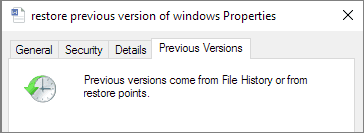
Step 1. Right-click the corrupted/damaged Word files and select "Restore previous version".
Step 2. If your Word document is damaged or corrupted, try restoring an earlier version by opening the file in Word, clicking on "File", then "Info", and selecting "Manage Versions". From there, you can choose a previous version to restore.
Step 3.Run Word and open the restored Word file again. When a message pops up to warn that some text layers containing fonts are missing, click "OK" to proceed.
Step 4.Please review all the layers and note the missing part by adding new layers, then save the updated document as a new Word file.
Related Articles
- How to Restore Previous Version of Excel File
- How to Recover Unsaved Word Document After Computer Restarts/Shutdown
- Recover Sticky Notes in Windows 10/8/7
- How to Repair/Recover Corrupted PDF Files
- How to Recover Lost Files After Windows 11 Update (5 Best Ways)
If you lost files after Windows 11 update, You can learn how to find or recover lost files with easy methods. Among them, Qiling data recovery software is the best recommendation. It recovers data from Windows 11/10/8/7 with simple steps. Keep reading to get back lost files from Windows 11. - 6 Best Ways to Recover Lost Game Data on PC/Steam/PS4
If you've lost game data on your PC, Steam, PS4, or other devices, there are ways to recover it. Qiling game data recovery software is particularly effective in retrieving lost game data from platforms like Steam, PS4, and XBOX, among others.
Products
Articles & Tutorials
- Data Recovery
- Data Backup
- File Recovery
- File Backup
- System Backup and Restore
- Disk and Partition Clone
- Technical articles
- Mobile articles
- Disk Master Help
- Windows Data Recovery Tutorials
- Windows Secure Delete Tutorials
- Windows Partition Management Tutorials
- Windows File Backup and Restore Tutorials
- Windows System Backup and Restore Tutorials
- Windows Disk Backup and Restore Tutorials
- Windows Clone Tutorials