How to Recover Unsaved Word Document After Computer Restarts/Shutdown
How to Recover an Unsaved Word When the Computer Shuts Down
If your computer shuts down and you lose an unsaved Word document, don't worry, there are solutions to retrieve it. For Word 2007, you can try three useful methods: first, check if the document was autosaved; second, look for the temporary files created by Word; third, use the "Recover Unsaved Documents" feature in Word to recover your lost document. These methods can help you recover your unsaved Word document even after shutting down.
| Workable Solutions | Step-by-step Troubleshooting |
|---|---|
| Fix 1. Recover recent documents | Open Word > click Open > click File > click Recent > click Recover from Recent Documents...Full steps |
| Fix 2. Recover from Manage Document | Run Word > open a new file > click File > click Info and then Manage Document...Full steps |
| Fix 3. Recover temporary files | Locate the temp files in C:\Users\User_Name\AppData\Local\Microsoft\Office\UnsavedFiles...Full steps |
| Bonus Tip: Recover deleted Word Documents | Use a reliable data recovery tool to restore deleted or lost Word documents in simple 3 steps...Full steps |
None of the data recovery software on the market can recover unsaved Word documents, but they can help restore lost saved files due to accidental deletion, disk formatting, virus attack, partition loss, etc. if an original file is located on the computer's hard disk or a connected USB drive.
If you've experienced a computer crash or shutdown and lost an unsaved Word document, the answer is unfortunately no, not even with data recovery software like Qiling. However, if you forgot to save a document after a computer restart, there are three effective solutions to recover it.
How to Recover an Unsaved Word Document After Computer Restarts
Microsoft Office offers users the AutoRecover feature to automatically restore unsaved Word documents. To enable this, go to "File" > "Options" > "Save" and check "Save AutoRecover". You can also adjust the AutoSave interval time. If you're using Word 2010 or later, you can recover the unsaved document after a computer restart, crash, or shutdown using this feature. (If you're using an earlier version, see another post for instructions.)
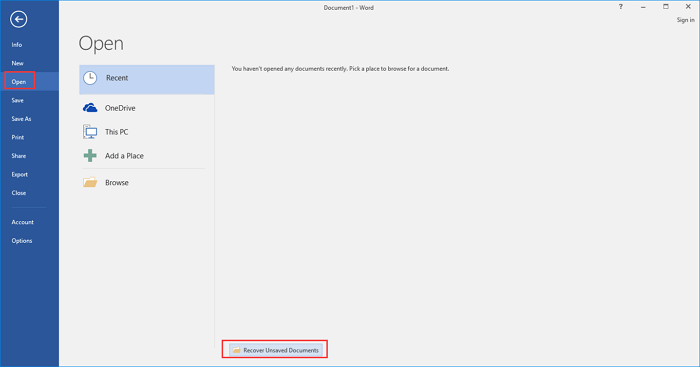
Method 1. Recover from Recent Documents (Word 2010/2013/2016/2019)
- Open Word application and click the "Open" > "File" tab.
- Click "Recent".
- Scroll to the bottom of your Recent Documents and click "Recover Unsaved Documents".
- Saved drafts will open in a new window, allowing you to access them. If you're experiencing issues with an unsaved Word document after a computer problem, you can click "Save As" to restore it.
Method 2. Recover from Manage Document
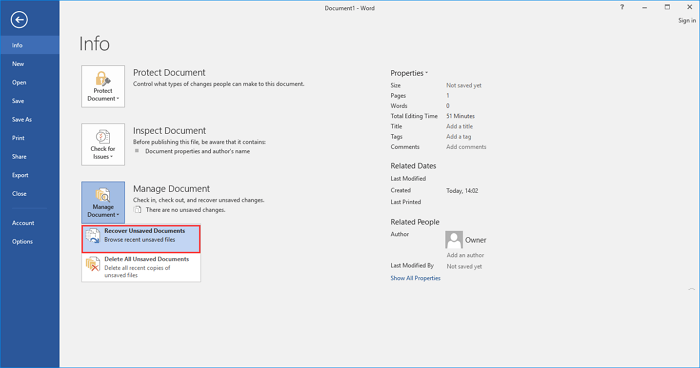
- Run Word > open a new file or an existing file.
- Click the "File" tab > "Info" > click "Manage Document".
- Click "Recover Unsaved Documents".
- To retrieve your unsaved Word files, select the file from the list and click "Open" followed by "Save As" to save the file. This will allow you to store the Word file.
Method 3. Recover from Temporary Files
- You can find the temp files in this path: C:\Users\User_Name\AppData\Local\Microsoft\Office\UnsavedFiles.
- You need to recover and reopen the document with the Word application to save it again.
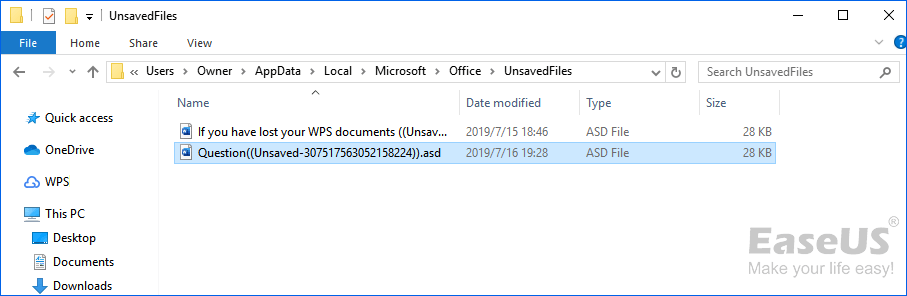
If you've deleted the Unsaved Files folder and lost all your temporary files, you can use Qiling Data Recovery to restore them.
How to Recover Deleted or Lost Word Document on Windows 10/8/7
A data recovery tool can't recover an unsaved Word document, but it can help recover deleted files. Qiling file recovery software is a program that can restore lost documents, including DOC/DOCX, XLS/XLSX, PPT/PPTX, PDF, CWK, HTML/HTM, INDD, and EPS, with just a few clicks.
Qiling Word Recovery Software
- Recover over 1000 file types, including popular ones like .doc, .xlsx, .jpg, .png, .gif, .mp4, .mov, .ppt, .pdf, and many more.
- After recovering data, the software can repair corrupted files, including photos, videos, and documents, restoring them to their original condition.
- Data recovery support is available for various situations, including sudden deletion, formatting, hard drive corruption, virus attacks, and system crashes, helping users recover their lost data under different circumstances.
Step 1. Select file types and click "Fast Scan" to start
Launch Deep Data Recovery. Select the file types you want to recover and click "Fast Scan" to begin the recovery process.

Note: You can choose different search modes based on where and why the data was lost.
Step 2. Choose the Word file location
Click on the drive or folder you want to scan, then click the "Scan" button.

Step 3. Locate your Word files
The software will start scanning the selected drive for lost data, then display the scanned data in the left panel. Click on "Documents", select "Word" from the category bar, and finally click on "Preview" to view the recovered Word documents.

Step 4. Recover Word files
After previewing the lost Word files, select the desired Word files and click "Recover". Then, select a folder to store the Word files.
People also ask
1. How do I recover an unsaved Word document 2007 after shutting down?
If your computer shut down and you lost your Word document, you can recover an unsaved Word document 2007 in three ways: recover from recent documents, manage document, or from temporary files.
2. Can I recover a word doc that I didn't save?
If you forgot to save a Word document or your computer restarted and lost the document, you can recover it using Word's AutoRecover feature. Open Word, click File, then Info, Manage Document, and finally Recover Unsaved Documents. This shows you any unsaved documents, which you can then open and save as a new file to preserve your work.
3. How do I recover an unsaved Word document in 2019?
Word 2019's AutoRecover feature helps recover unsaved Word documents in case of a computer shutdown. To enable this function, go to File > Options > Save and check "Save AutoRecover". This feature saves your on-editing Word document at regular intervals, allowing you to recover unsaved work.
Related Articles
- Restore Deleted or Lost Thunderbird Emails
- Recover Sticky Notes in Windows 10/8/7
- Downloads Folder Not Responding on Windows 10? Fix It Now!
- Microsoft Word Has Encountered a Problem and Needs to Close
- How to Undelete Partition in Windows 10/7/8/XP
Undeleting a partition in Windows 10, 8, 7, and XP is a relatively straightforward process. - How to Unformat Flash Drive – Undo Format USB Flash Drive
Unfortunately, it's not possible to directly recover files from a formatted flash drive. Formatting a drive erases all data on it, making it unrecoverable. However, you can try using a data recovery software to scan the drive and potentially recover some files, but the chances of success are low.
Products
Articles & Tutorials
- Data Recovery
- Data Backup
- File Recovery
- File Backup
- System Backup and Restore
- Disk and Partition Clone
- Technical articles
- Mobile articles
- Disk Master Help
- Windows Data Recovery Tutorials
- Windows Secure Delete Tutorials
- Windows Partition Management Tutorials
- Windows File Backup and Restore Tutorials
- Windows System Backup and Restore Tutorials
- Windows Disk Backup and Restore Tutorials
- Windows Clone Tutorials