Restore Deleted or Lost Thunderbird Emails
5 Ways to Recover Deleted Emails from Thunderbird:
| Workable Solutions | Step-by-step Troubleshooting |
|---|---|
| Fix 1. Restore from Trash | Open Thunderbird > "Trash" > Right-click on deleted emails and select "Move to"...Full steps |
| Fix 2. Restore from Backup | Open Thunderbird profile path: C:/User/Name/AppData/Roaming/Thunderbird/Profile > Replace the folder with...Full steps |
| Fix 3. Undo Emptying Trash | Show hidden files on PC > Find Thunderbird file in C"/Users/Name/AppData/Roaming/Thunderbird...Full steps |
| Fix 4. Restore from Local Drive | Run Qiling file recovery software > Scan local Thunderbird drive > Restore lost emails...Full steps |
| Fix 5. Repair Inbox Folder | Right-click Inbox in Thunderbird > "Properties" > "General Information" > Check "Inbox" folder name...Full steps |
How Do I Recover Emails from Thunderbird?
If you've already emptied the Trash in Thunderbird, it's unlikely that you'll be able to restore the emails. However, you can try using the "Compact Folders" feature to recover deleted emails. To do this, go to "Tools" > "Compact Folders" and select the folder that contained the deleted emails. This may recover some of the deleted emails, but it's not a guarantee.
To recover emails from Thunderbird after emptying the trash, you can try using the "Compact Folders" feature, which scans the entire mailbox and rebuilds the folder structure. You can also try running a database repair using the "Maintenance" tool in Thunderbird. If you have a backup, you can restore the emails from there. Additionally, you can check if the emails are in the "Trash" folder, as sometimes emails are moved there instead of being deleted.
4 solutions for recovering lost Thunderbird emails and files are available on this page. Follow the methods provided to restore lost files and emails with ease.
Part 1. Recover Deleted Emails from Thunderbird
You can try to recover deleted Thunderbird emails by either restoring them from the Trash folder or using a Thunderbird backup. This approach allows you to retrieve the emails if they were recently deleted and still present in the Trash, or if you have a backup of your Thunderbird data.
Method 1. Restore Deleted Thunderbird Emails from Trash
To undelete Thunderbird emails from Trash, you can follow these steps: go to the Trash folder, right-click on the email you want to undelete and select "Restore" or "Move to" followed by your Inbox folder. If the email is not visible in the Trash, try searching for it using the search bar in Thunderbird. Once restored, the email should reappear in your Inbox.
Step 1. Launch Mozilla Thunderbird and sign in with your user account.
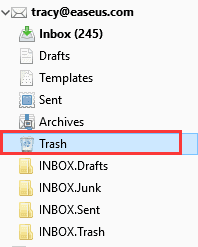
Step 2. Click on "Trash" and find your deleted emails.
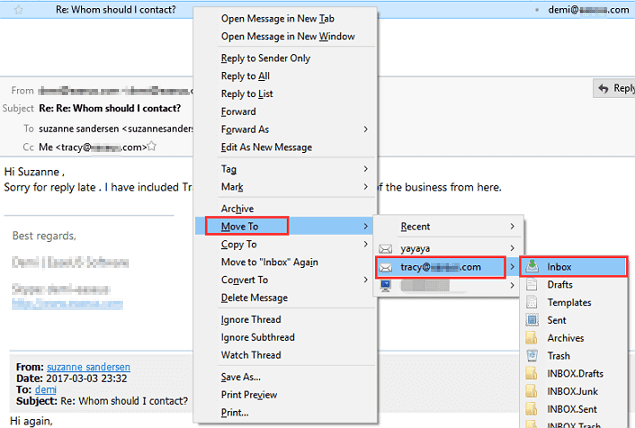
Step 3. Right-click on deleted email files in Trash, select "Move To", choose the user account, and specify the location where you want to restore the deleted emails, ideally to the Inbox.
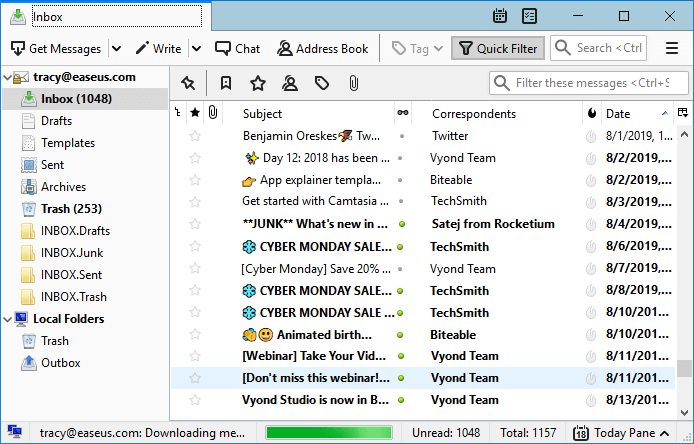
To restore emails, navigate to the Inbox, where you can find the restored emails.
Method 2. Restore Thunderbird Emails from A Backup Copy
Here are the steps to restore deleted emails from Thunderbird profile backup:
Step 1. Open the Thunderbird profile path on your PC:
C:\Users\UserName\AppData\Roaming\Thunderbird\Profiles
Step 2. Replace profile folder with the previously created backup copy of your Thunderbird profile.
Step 3. When you switch to Mozilla Thunderbird, all your messages, settings, emails, calendar, and other data will be automatically imported into your new Thunderbird account.
Part 2. Restore Permanently Lost or Removed Thunderbird Emails
Here are three ways to recover permanently deleted emails from Thunderbird:
Method 1. Restore Deleted Thunderbird Emails After Emptying Trash
If you've emptied the trash and permanently deleted emails in Thunderbird, don't panic - you can still recover them. To do so, follow these steps: first, stop using your computer immediately to prevent any new data from being written over the deleted files; then, use a reliable data recovery software, such as Deep Data Recovery, to scan your computer for deleted files; next, select the Thunderbird email files you want to recover and choose the recovery option; finally, follow the software's instructions to complete the recovery process. By following these steps, you can increase the chances of recovering your permanently deleted emails in Thunderbird.
Step 1. Show hidden files in Windows Explorer:
- 1. Open Widows Explorer > Go to "Folder Options" under Tools.
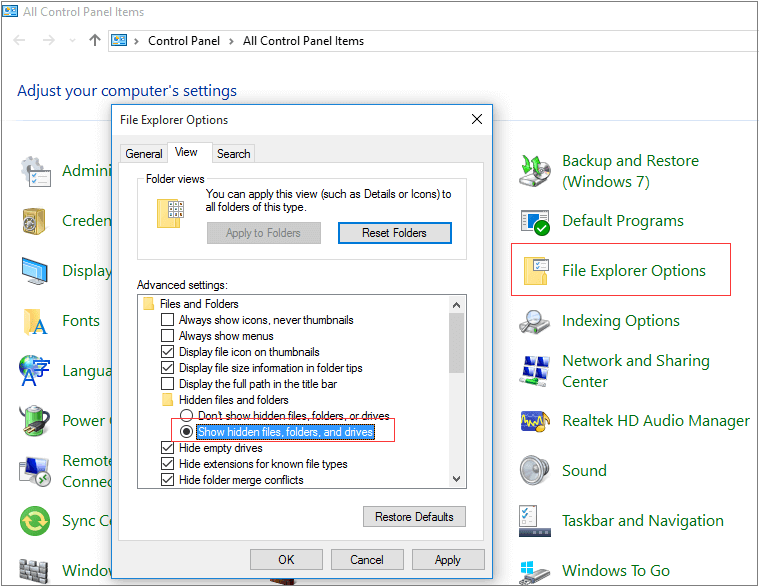
- 2. To view hidden files, folders, and drives, click on the "View" tab, check the box next to "Show hidden files, folders and drives", and then click "OK".
Step 2. Find Thunderbird saved files in PC:
- 1. Navigate to: C:/Users/YOUR USER NAME/AppData/Roaming/Thunderbird/Profiles/YOUR PROFILE/YOUR THUNDERBIRD ACCOUNT.
- 2. To find your profile, go to your account settings and look for the profile name that is a combination of eight random letters and numbers followed by '.default'. This is likely to be the default profile associated with your account.
- 3. Your Thunderbird account name is the name under which you are trying to recover deleted emails files.
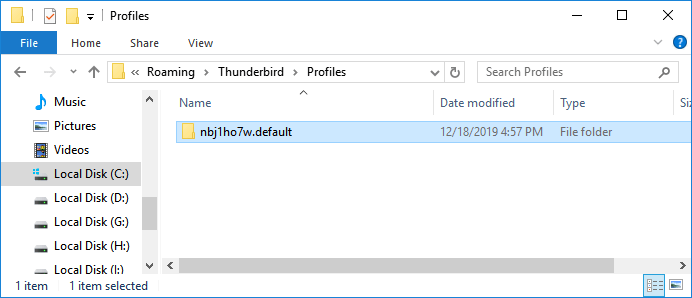
Step 3. Open the 'Inbox' file in Notepad.
Note: Inbox has no suffix and doesn't open Inbox.msf etc files.
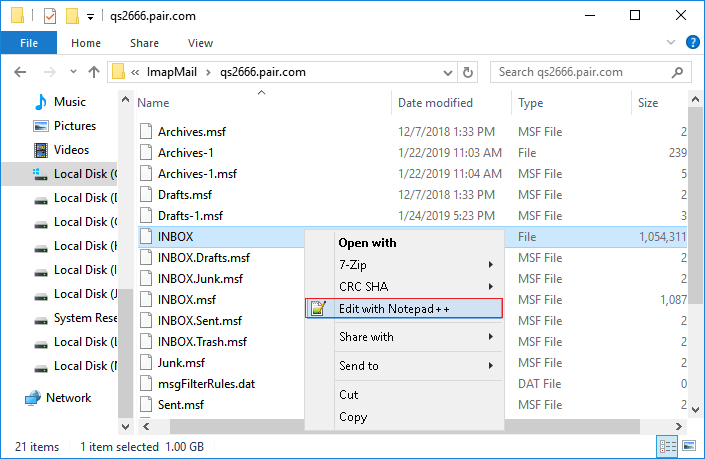
Step 4. Locate the line before your email text that reads 'X-Mozilla-Status: 0009' or similar, change the number to '0000', save and exit the Notepad document.
Step 5. To recover emails in Thunderbird, close the application, re-launch it, and check your Inbox. Any recovered emails should be visible there.
All recovered email files will be marked as unread there.
Method 2. Restore Lost Thunderbird Emails and Files on a Local Drive
If you've lost Thunderbird email files saved on your local drive or deleted the entire Thunderbird profile folder, don't worry, as there are ways to recover them. You can try using the Thunderbird's built-in recovery tool, or third-party software like Deep Data Recovery.
With the help of powerful email recovery software like Deep Data Recovery, you can effectively restore lost files with ease, also being good at recovering deleted Outlook folders.
You can download Qiling file recovery software and follow these steps to recover lost or deleted Thunderbird files: download the software, install and launch it, select the drive where your lost Thunderbird files were stored, scan the drive for recoverable files, preview and select the files you want to recover, and finally, retrieve your lost Thunderbird files.
Step 1. Launch Deep Data Recovery, select the desired file types, and click "Fast Scan" to initiate the recovery process.

Note: You can choose different search modes based on where and why the data was lost.
Step 2. Choose the drive or partition where you lost email files, and click "Scan" to begin the recovery process.

Step 3. The software will start scanning immediately, so wait for it to complete. To quickly find email files, click "Others" in the left panel and then look for PST files or Outlook files in the file type list.

Step 4. After selecting the desired email files, click "Recover" and save them to a different location to avoid overwriting the original files.
After restoring the Thunderbird profile, you can copy and save the restored profile back to its original location, replacing the old one, and then relaunch Thunderbird, which should display the restored emails in the Inbox.
Method 3. Repair Inbox Folder to Bring Permanently Deleted Thunderbird Emails
To resolve the issue of a corrupted Inbox folder in Thunderbird, first, close Thunderbird. Then, navigate to the Thunderbird profile folder, which can usually be found in the 'Documents' or 'AppData' folder, depending on the operating system. Look for a file named 'msgdb' and rename it by adding '.
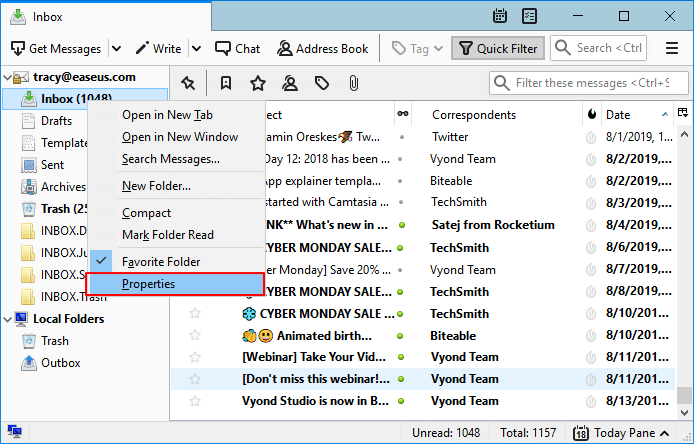
Step 1. To access the properties of the Inbox folder in Mozilla Thunderbird, run the application, right-click on the Inbox folder, and select "Properties" from the context menu.
Step 2. The folder name should be set to "Inbox" under the "General Information" section.
Step 3. To repair a corrupted Word document, open the corrupted file in Word, click on the "File" tab, then click on "Open" and navigate to the corrupted document. Select the file and click "Open".
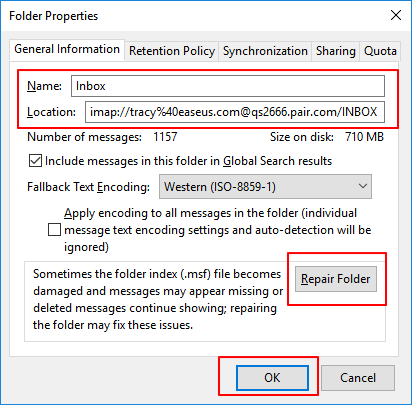
Once the repair is complete, you'll be able to view the repaired data, such as emails, in your Inbox folder.
Part 3. FAQs of Thunderbird Email
This page provides 5 methods to help Thunderbird users restore lost or permanently deleted emails. You can effectively recover emails from the Trash, use a backup, change the Inbox file status, repair the Inbox folder, or even apply Qiling file recovery software to retrieve your lost emails.
If you have other questions about Thunderbird email, follow the listed tips to resolve your problem:
1. How do I back up Thunderbird emails?
To manually create a backup copy of the local profile on your computer, follow these steps: 1. Close Mozilla Thunderbird. 2.
Step 1. Go to the Thunderbird profile folder on your PC: C:/Users/UserName/AppData/Roaming/Thunderbird/Profiles.
Step 2. Save a copy of the folder with a ".default" extension to a secure location on your computer or an external hard drive.
2. How do I restore emails in Thunderbird?
When deleting an email in Thunderbird, first check if it's in the Trash folder. If it's there, simply restore it to the Inbox folder. If your lost emails aren't in the Trash, also check the Junk box, as some spam emails may have been blocked and moved there instead.
If you've created a copy of your Thunderbird profile, you can restore your lost emails by replacing the original profile on your local PC with the backup copy. If you need a step-by-step guide, you can refer back to the solutions provided on this page.
3. Where are my Thunderbird email files?
Unlike most email applications, Thunderbird saves all email files, settings, calendar, and account information as a single Inbox database on your local drive, whether on a Windows or Mac computer. This means that all your emails, settings, and other data are stored in one place, making it easy to access and manage your email account.
The Inbox file is saved in the Profile folder on your computer, specifically in the location C:/Users/UserName/AppData/Roaming/Thunderbird/Profiles/.
Related Articles
- Fix Files Missing After Restarting Computer and Recover Lost Data
- Dropbox Deleted Files by Itself, How to Recover Missing Files in Dropbox in 4 Ways
- How to Recover Permanently Deleted Files from OneDrive on Windows 11/10
- Full Recovery of Files And Folder Structure
- How to Recover Shift Deleted Files in Windows 7/8/10/11 in 4 Ways [2023]
To recover shift deleted files in Windows 11/10/8/7, you have four options: using File History, restoring from a previous version, recovering from a Windows backup, or employing specialized software. Choose the most suitable method to retrieve deleted files after a shift delete operation. - How to Recover Deleted Files by Date
This article is a step-by-step guide on how to recover deleted files from a specific data, helping you recover files efficiently.
Products
Articles & Tutorials
- Data Recovery
- Data Backup
- File Recovery
- File Backup
- System Backup and Restore
- Disk and Partition Clone
- Technical articles
- Mobile articles
- Disk Master Help
- Windows Data Recovery Tutorials
- Windows Secure Delete Tutorials
- Windows Partition Management Tutorials
- Windows File Backup and Restore Tutorials
- Windows System Backup and Restore Tutorials
- Windows Disk Backup and Restore Tutorials
- Windows Clone Tutorials