Fix Files Missing After Restarting Computer and Recover Lost Data
User Queries: My Computer Reset Itself and I Lost Everything
Unfortunately, restarting your laptop can sometimes cause issues with your files. If you haven't backed up your files, there are a few things you can try to recover them. You can check your laptop's recycle bin to see if any of your files were deleted and can be restored from there. You can also try using a file recovery software like Deep Data Recovery or Qiling file recovery software to scan your laptop's hard drive for any recoverable files. If none of these methods work, you may want to consider using a data recovery service or visiting a professional data recovery center for help.
"My laptop reset itself and my desktop files missing after restart. It even reset the home screen image that I had!"
Users of various Windows systems, including Windows 7, 8, 10, and 11, have encountered the issue of missing files after restarting their computers.
Why Did My Computer Delete Everything
The reasons for a computer restarting and deleting everything are varied, including human error, virus attacks, software conflicts, corrupted system files, and power failures. When facing this issue, users may want to know how to retrieve missing files after a reboot. Fortunately, there are solutions available, such as using System Restore or professional data recovery software, to help restore desktop files deleted after restarting Windows 10.
1. Perform System Restore to Recover Missing Files After Reboot
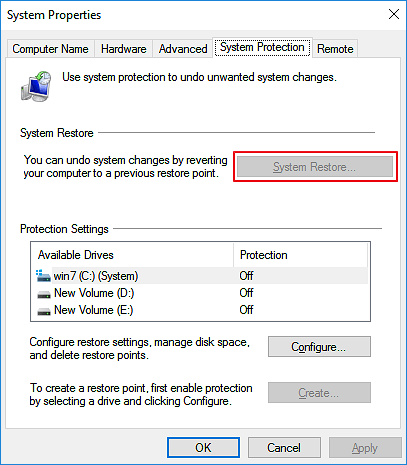
You can undo system changes by reverting your computer to a previous restore point, which can also help recover lost files after a restart.
Step 1. In the Windows 10 Search box, search for "System Restore".
Step 2. In the System Properties dialog box, click the System Protection tab and then click System Restore.
Step 3. To restore your computer to a previous state, follow the on-screen instructions and select the desired Restore Point when prompted. Click "Next" to proceed with the operation.
CAUTION:
- This method is available only when you have enabled System Restore before.
- System Restore will erase data written after the Restore Point was created, but you can undo the restore without losing any data if you regret it.
2. Use Data Recovery Software to Restore Missing Files After Restart
If you've disabled system restore and need to recover missing files or experience data loss during the restore process, don't worry. You can try using Qiling hard drive recovery software to retrieve files lost after a restart.
This file recovery program allows you to recover lost data in various situations, such as restoring desktop icons and files that disappeared in Windows 10, retrieving documents/files that went missing after a Windows 10 update, and recovering files infected by a shortcut virus.
Deep Data Recovery
- Restore files from RAW drives, lost partitions, and formatted hard drives with ease.
- Repair corrupted files, including damaged videos, photos, and documents.
- 1000+ file types supported, including images, documents, videos, and executables, for data recovery.
You can download the Qiling data recovery tool on your PC to recover desktop files deleted after a restart.
Step 1. To recover data, open Deep Data Recovery and select the file types you want to recover. Click "Fast Scan" to begin the process.

Note: You can choose different search modes based on where and why the data was lost.
Step 2. Run Deep Data Recovery on your computer, choose the drive where you lost files, click "Scan", and if the lost files were on an external storage device, connect it to your computer first.

Step 3. The software rapidly scans deleted files, followed by a deep scan to locate more lost files. After scanning, you can use the "Filter" feature to quickly narrow down specific file types.

Step 4. To preview and recover files, click the "Preview" button or double-click on a file to view its contents. Select the desired files, click "Recover", and choose a safe location to save them.
How to Fix My Computer Deleted Everything After Restart
If your Windows 10 computer restarts and everything is gone, there are some effective methods to try and recover your data. While we can't guarantee a 100% success rate, these measures are worth attempting.
1. Switch to Your User Account
When your computer restarts or crashes, Windows may not be able to log you in, and instead logs into a temporary configuration file that's empty, making it seem like all your files are missing.
Log out of the temporary profile, switch, and log in to your user account to access your lost files.
2. Scan and Remove Viruses and Malware
If your computer is being attacked by a virus or malware, it may delete or hide your files and cause it to restart repeatedly. To resolve this issue, run a full virus scan using antivirus software such as Windows Defender, Avast, Mcafee, Norton, or Kaspersky.
3. Check and Repair Your Hard Disk
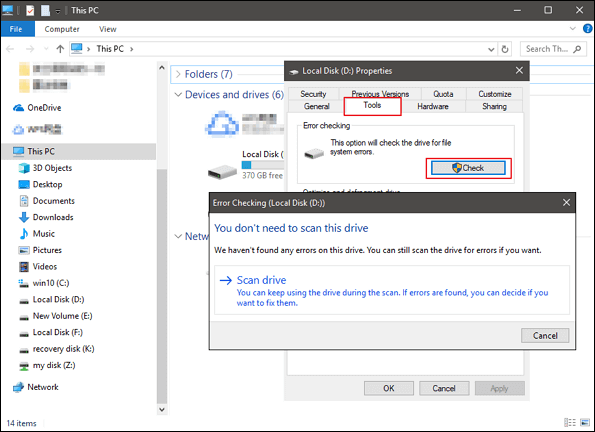
If your hard disk is malfunctioning, it can cause your system to crash, leading to unexpected restarts and potential file deletion. To resolve this issue, you can utilize the built-in disk detection tool in Windows to identify and rectify any disk-related problems.
Step 1. To check the properties of a hard disk or partition, go to "This PC/My Computer", right-click the hard disk or partition you want to check, and click "Properties".
Step 2. Select the "Tools" tab and click "Check".
Step 3.The system will automatically identify and correct any errors it finds on your disk.
Bottom Line
When your laptop or PC restarts and deletes files on your desktop, you can recover the lost data using System Restore or data recovery software like Qiling. It's essential to act quickly, as the sooner you recover the data, the better. Additionally, you can troubleshoot the issue by logging into your user account, removing any viruses, and checking the hard disk to resolve the computer deletes files problem.
To ensure your computer data is safe, it's a good idea to regularly back up your files to an external hard drive using a Windows schedule backup software or the built-in file backup tool.
Related Articles
- Recover Files Infected by the Shortcut Virus
- How to Recover Overwritten Files in Windows 10/8/7 Easily
- Recover Pictures Deleted from Years Ago
- How to Recover Deleted User Profile and Files in Windows 10/11
- How to Recover Data after Blue Screen of Death
Here are the simple steps for how to recover data after blue screen of death, helping you avoid data loss from the computer. - Formatted Micro SD Card Recovery - Recover data after Formatting
Have you accidentally formatted your micro SD card and lost all your precious data?
Products
Articles & Tutorials
- Data Recovery
- Data Backup
- File Recovery
- File Backup
- System Backup and Restore
- Disk and Partition Clone
- Technical articles
- Mobile articles
- Disk Master Help
- Windows Data Recovery Tutorials
- Windows Secure Delete Tutorials
- Windows Partition Management Tutorials
- Windows File Backup and Restore Tutorials
- Windows System Backup and Restore Tutorials
- Windows Disk Backup and Restore Tutorials
- Windows Clone Tutorials