How to Recover Overwritten Files in Windows 10/8/7 Easily
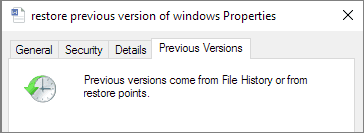
To recover an overwritten file on Windows 10 PC:
Step 1. Open Windows Explorer and find the folder where the file was located in.
Step 2. Right-click anywhere inside this folder and select "Properties".
Step 3. To recover an overwritten file, select the "Previous Versions" tab, look for an earlier version, and restore from it.
This page presents two effective methods to recover overwritten files, as shown in the table below. In addition to these methods, a professional file recovery software is recommended for recovering lost data.
| Workable Solutions | Step-by-step Troubleshooting |
|---|---|
| Fix 1. Recover from previous version | Right-click the file and choose "Properties". Open the "Previous Version" tab. Select the latest...Full steps |
| Fix 2. Restore via system restore | Initiate the search for "system restore". Click on the result. Choose the date before the infection...Full steps |
| Bonus tip. Recover lost files | You can resort to Deep Data Recovery to recover lost files by accidental deletion...Full steps |
Is there any way that I can effectively recover overwritten files?
"Is there any way to get my Word document back that was overwritten? I have replaced an existing Word file with a newly built document with the same name by accident. I asked for help from my friend but only was told that the overwritten document cannot be restored. I don't want to give up because the original Word document is vital to me. Any help? Thanks in advance."
The issue of a word or Excel file being overwritten frequently occurs, and most of the time, it's due to human error. The good news is that the overwritten files don't end up in the Recycle Bin, so even if you can recover files from an emptied recycle bin on Windows 10/8/7, you won't be able to get back the original lost files.
Fortunately, there are still several ways to recover overwritten or replaced files, including two possible solutions introduced in this article. These methods can be applied to various file types, such as Word, Excel, and PPT documents, and can also help recover lost, deleted, or formatted documents using a provided file recovery tool.
2 Possible Ways to Recover Overwritten Files in Windows 10/8/7
If you've overwritten important files, don't worry - there are several effective solutions to recover them. You can try each of the following methods until you find the one that works for you.
Method 1. Recover Overwritten Files from the Previous Version
Here's how to use Previous Versions in Windows to restore deleted, formatted, modified, damaged, or lost files and folders: This feature allows you to restore previous versions of files and folders from the Windows Backup and Restore (Windows 7) or File History (Windows 8 and later) feature, which automatically saves copies of your files at regular intervals. To use Previous Versions, right-click on the file or folder you want to restore and select "Restore previous versions." From there, you can choose the version you want to restore from the list of available versions. If you're unable to find the desired version, you can also try using the "Open file location" option to search for the file in its original location.
1. Right-click the file and choose "Properties".
2. Open the "Previous Version" tab.
3. Select the latest version and click "Restore" to get back the overwritten files.
Method 2. Restore Placed Files Using System Restore
Restoring your system to the last backup point using System Restore is the easiest and most efficient way to recover overwritten files. Here are the steps.
1. Initiate the search for "system restore".
2. Click on the result.
3. Choose the date before the infection appearance.
4. Follow the on-screen instructions to recover overwritten files.
How to Recover Lost Files with Qiling File Recovery Software
If you can't recover overwritten or lost files using the previous methods, you can try using data recovery software, such as Deep Data Recovery, which can help recover lost or deleted files even in complicated situations when there's no backup.
Qiling file recovery software
- Recover permanently deleted files, documents, photos, audio, music, emails effectively
- You can recover files from a formatted hard drive, emptied recycle bin, memory card, SD card, flash drive, digital camera, and camcorder using data recovery software. This software can scan the device and retrieve deleted or lost files, even if they have been formatted or emptied.
- Support is available for recovering data from various types of failures, including accidental deletion, formatting, hard drive corruption, virus attacks, and system crashes.
Step 1.Run Deep Data Recovery software on your computer, select the desired file types, and click "Fast Scan" to initiate the recovery process.

Note: You can choose different search modes based on where and why the data was lost.
Step 2. To recover lost files, select the drive where the files were lost and click "Scan". If the lost files were on an external storage device, ensure it's connected to your computer before proceeding.

Step 3. The software rapidly scans deleted files, followed by a deep scan to locate more lost files. Once the scan is complete, you can utilize the "Filter" feature to quickly narrow down specific file types.

Step 4. To preview and recover files, click the "Preview" button or double-click on a file for a full preview. Then, select the desired files and click "Recover" to save them in a safe location.
- Tip
- Regularly backing up important data is crucial to prevent lost files. If manual backups are not feasible or frequently forgotten, consider using a professional schedule backup software for automatic backup. This way, when files are overwritten, the original documents can be easily retrieved without effort.
FAQs About How to Recover Overwritten Files
Here are a few more questions related to recovering overwritten files. If you also have any of these problems, you can find the methods here.
Is it possible to recover overwritten files?
If you've accidentally overwritten a file or folder, you can try to restore it from previous versions using File History or restore points on your Windows 10 computer. This feature can scan and recover overwritten files from your hard drive.
Can Deep Data Recovery recover overwritten files?
Deep Data Recovery, like any data recovery software, doesn't work all the time. It can only restore deleted, formatted, and other lost data, as it cannot recover data that has been overwritten.
Can overwritten files be recovered from the SD card?
If you've accidentally overwritten your SD card, don't worry - the lost files may still be recoverable. You can try to recover them from a backup or use a data recovery program to restore the lost data.
Related Articles
- Recover Pictures Deleted from Years Ago
- XML Repair| How to Repair/Recover Corrupted XML Files
- How to Retrieve Deleted Emails from Gmail, Outlook, Hotmail, and Yahoo Step by Step
- How to Recover Excel Password on Windows/ Mac
- How to Recover Files from SD Card RAW File System and Fix It
If your SD card is in a RAW file system, this article can help you recover your files. It will guide you on how to use the best tool to recover data from your SD card and even fix the RAW file system issue. - How to Recover Deleted File from SATA Hard Drive Recovery?
How to recover deleted or lost data from hard drive? Especially data lost on Sata Hard Drive. The article shows useful tips about SATA hard drive recovery.
Products
Articles & Tutorials
- Data Recovery
- Data Backup
- File Recovery
- File Backup
- System Backup and Restore
- Disk and Partition Clone
- Technical articles
- Mobile articles
- Disk Master Help
- Windows Data Recovery Tutorials
- Windows Secure Delete Tutorials
- Windows Partition Management Tutorials
- Windows File Backup and Restore Tutorials
- Windows System Backup and Restore Tutorials
- Windows Disk Backup and Restore Tutorials
- Windows Clone Tutorials