How to Retrieve Deleted Emails from Gmail, Outlook, Hotmail, and Yahoo Step by Step
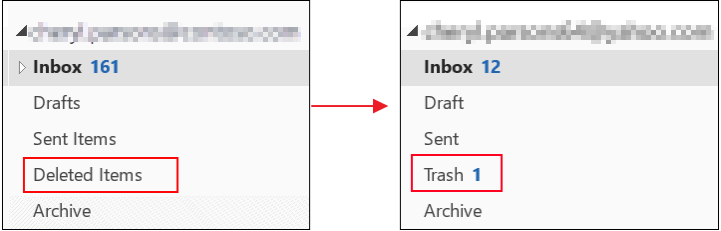
How to recover deleted emails on Windows:
1. To find the email(s) you're looking for in the Trash folder, open your email client or app, navigate to the Trash folder, and search for the email(s) you're looking for. If you're unable to find the email(s), you may want to check your email client's help resources for more information on how to locate deleted emails.
2. Right-click on the emails and select "Move To" to move them to the Inbox or another folder of your choice.
3. You can also use the "Restore" button that appears to automatically send them to your inbox.
To retrieve deleted emails from Outlook, Gmail, Yahoo, and Hotmail, follow the brief outlines provided in the table. Each guide offers a concise step-by-step approach to recover deleted emails from these popular email services. Click on the links to access the full guides for detailed instructions.
How to Recover Deleted Emails Within/After 30 Days
"Hey there, do you know how to recover deleted emails Unfortunately, once you've deleted emails in Outlook, they're gone for good. However, you can try recovering them from the Deleted Items folder, but only if you've emptied it recently. If you've already emptied it, you won't be able to recover them. If you need to restore a specific email, you can also try searching for it using the search function in Outlook. If none of these methods work, it's possible that the emails were deleted by a third-party add-in or a script, so you may want to check your add-ins and scripts to see if they've been causing the issue."
If you've ever accidentally deleted important emails or cleaned out your entire Inbox by mistake, your emails aren't lost forever. This article provides practical methods to help you retrieve deleted emails or even recover permanently deleted emails from various email services, including Outlook, Gmail, Hotmail, and Yahoo, so you can recover your lost messages.
- Notice:
- The email trash folder typically keeps deleted emails for 30 days, allowing you to recover them within this timeframe. After 30 days, deleted emails will be permanently deleted. However, if you've downloaded the emails to a .pst file or saved them to a local drive on your PC, you may be able to recover deleted emails using data recovery software.
Part 1. How to Recover Deleted Emails Within 30 Days
If you've deleted emails in Outlook, Gmail, Hotmail, or Yahoo, you can recover them by checking the trash folder, which works like the Recycle Bin on a PC. This folder temporarily saves deleted email files, allowing you to retrieve them if needed. Simply navigate to the trash folder in your email app or program, and you should be able to find and restore the deleted emails.
| Effective Solutions | Step-by-step Troubleshooting |
|---|---|
| 1. Recover Outlook emails | Select "Deleted items" > select "Recover deleted items" > choose emails and recover...Full steps |
| 2. Recover Gmail emails | Sign in to Gmail > click "Settings" > click "Labels" > click "Show trash"...Full steps |
| 3. Recover Yahoo emails | Log in to Yahoo! Mail > click "Trash" > open the messages there > click "Move"...Full steps |
| 4. Recover Hotmail emails | Sign in to hotmail > click "Deleted" > click "Recover deleted messages"...Full steps |
1. How to Recover Deleted Emails from Outlook
When you delete an email or calendar item, it's moved to the Deleted Items folder. If it's not there, check the Junk Email folder.
Retrieve emails that are still in the Deleted Items or Junk Email folder
Step 1. Select the "Deleted Items" folder in the left pane of the Outlook.com window.
Step 2. At the top of the window, select "Recover deleted items".
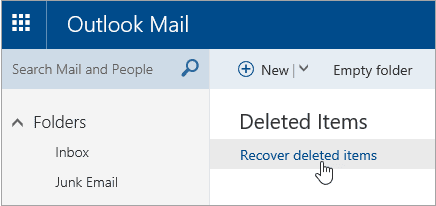
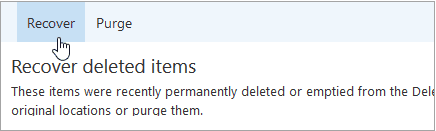
Step 3. A dialog box will open with a list of deleted items. Choose the items or emails that you want to recover and click "Recover" > "OK".
Junk Email folder: Select the message you want to recover and select "Not junk".
Recover emails that have been removed from your Deleted Items folder
If you can't find an item in the Deleted Items folder, the next place to look is the Recoverable Items folder, which contains items that have been permanently deleted.
Step 1. In the left pane, select the "Deleted Items folder".
Step 2.To recover deleted emails, go to the top of your message list and select the option to "Recover items deleted from this folder".
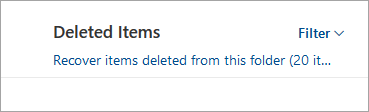
Step 3. You can select the messages you want to recover and then click on "Restore" to bring them back. However, be cautious as you can only select all if all messages are visible, to avoid accidentally restoring unseen messages.
2. How to Retrieve Deleted Emails from Gmail
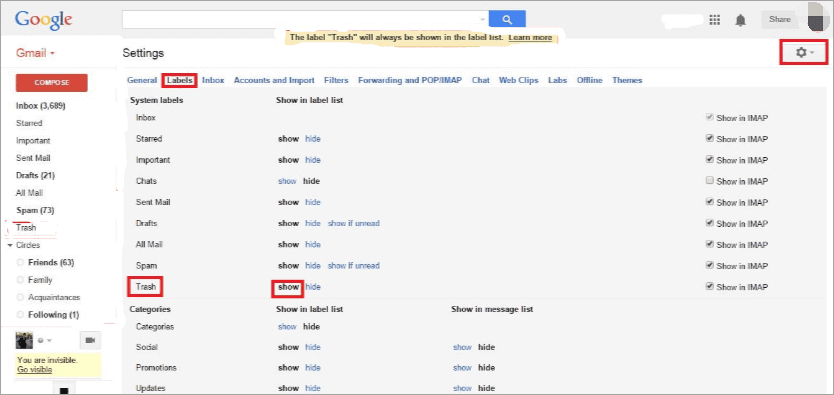
Step 1. To view and manage your Gmail labels, sign in to your Gmail account, click on the gear icon in the upper right corner to access the settings, and then click on "Labels".
Step 2. To show the trash folder, click on "Show trash".
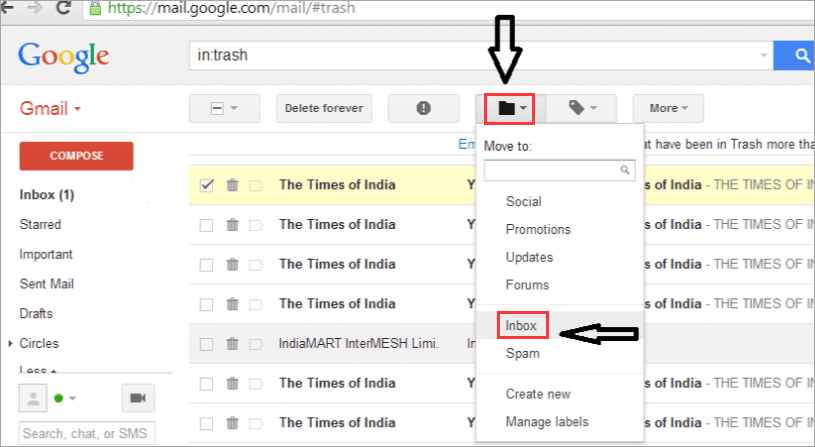
Step 3. Now, you can see all deleted email files in the Trash folder. Select or check the wanted email and files, then click on the mail icon at the top of the window with "Move To" words to move your deleted emails to the Inbox.
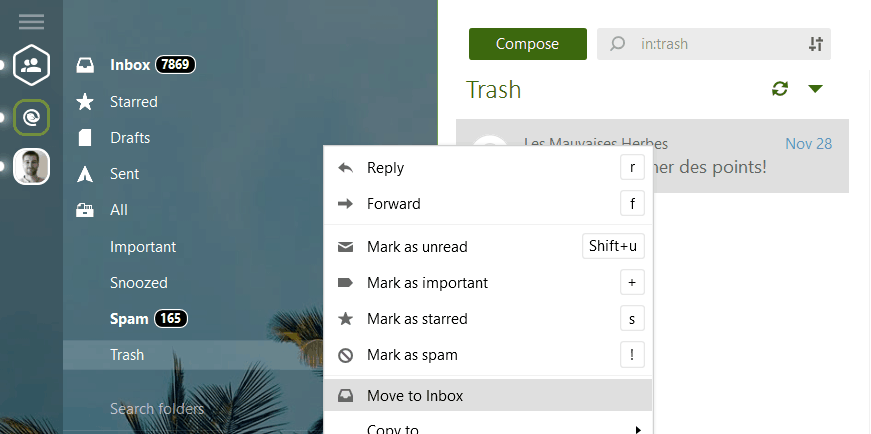
This method also works if you use an email client like Mailbird.
If you can't find an email in the Trash folder, it may be because you've emptied the Trash or deleted it permanently. If that's the case, you can contact Gmail Support to request recovery of the deleted messages, but this approach often fails.
3. How to Retrieve Deleted Emails from Yahoo
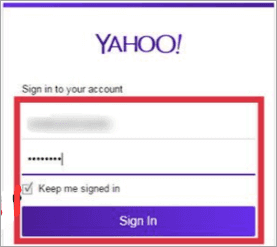
Step 1. To access the "Trash" folder in Yahoo! Mail, you can log in to your account and navigate to the folder, where you can view and manage deleted emails.
Step 2. To undelete a message in Gmail, open the desired message and check any messages you want to undelete in the message list.
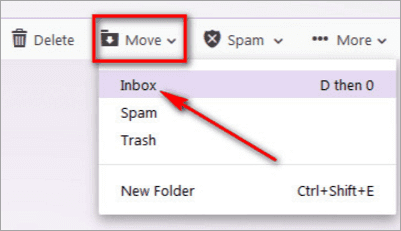
Step 3. To recover a message in Yahoo! Mail, click "Move" in the toolbar and select the desired folder, such as the Inbox.
Step 4. You can also drag and drop the email to any folder by pressing "DO" and then dragging it to the desired folder.
If you've deleted emails from Yahoo and it's been more than 30 days, recovering them can be challenging. Unfortunately, permanently deleted Yahoo mails cannot be recovered without a backup, so it's essential to back up your Yahoo emails to retrieve lost emails when you need them.
4. How to Retrieve Deleted Emails from Hotmail
Step 1. To sign in to Hotmail, go to the Hotmail website on your browser and enter your email address and password in the required fields. Once you've entered your login credentials, click the "Sign In" button.
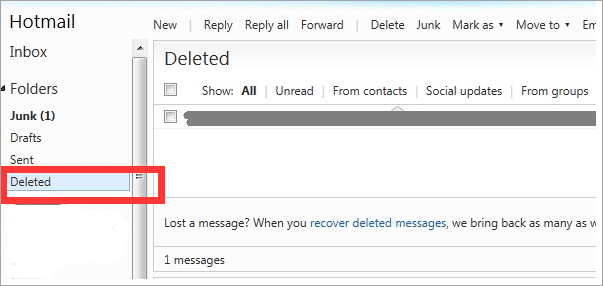
Step 2. To delete an email in Hotmail, click on the "Deleted" folder in the left pane of the Hotmail window. If it's not visible, scroll down to find it, as it's usually listed at the end of the left pane.
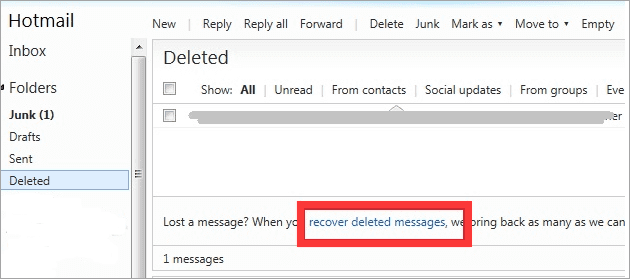
Step 3. Click "Recover deleted messages" to bring back deleted mail messages.
Part 2. How to Retrieve Deleted Emails After 30 Days
Email software typically saves deleted or temporary emails in the trash for 30 days, after which they are permanently deleted.
1. How to Recover Deleted Emails from Outlook After 30 Days
If you've deleted email databases (.pst/.ost files) or saved received emails on your PC's local drive by mistake, you might still be able to recover them using an email recovery tool.
Deep Data Recovery is a tool that allows you to recover deleted emails in Outlook and permanently deleted files on Windows and Mac, even after 30 days, due to various reasons such as accidental deletion, hard drive corruption, or system crashes.
Note: Deep Data Recovery only supports Outlook email recovery on a local PC, and users of other email services like Gmail, Hotmail, or Yahoo Mail should contact their customer service for assistance.
To recover lost email files from your computer's local drive, start by checking your email client's settings for a "local folders" or "offline storage" option. This may allow you to access and restore deleted emails.
Step 1. Run Deep Data Recovery. Select file types and click "Fast Scan" to start the recovery process.

Note: You can choose different search modes based on where and why the data was lost.
Step 2. Choose the drive or partition where you lost email files, and click "Scan" to start the recovery process.

Step 3. The software initiates a scanning process, which should be waited out until it completes. To quickly find email files, click "Others" in the left panel and look for PST or Outlook files in the file type list.

Step 4. Select the desired email files, click "Recover", and save them to a different location.
The Qiling data recovery program supports various recovery options, including email recovery, formatted recovery, deleted files recovery, Recycle Bin emptied data recovery, lost partition recovery, OS crash recovery, and RAW partition recovery.
2. How to Recover Deleted Emails From Gmail After 30 Days
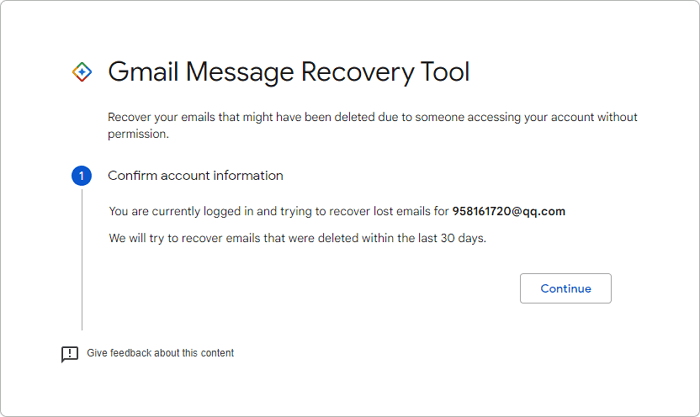
If you need to recover a permanently deleted Gmail email after the 30-day period, Google offers a Gmail Message Recovery Tool. This tool can help recover emails lost due to server issues or other technical problems on Google's end.
To recover a permanently deleted email, submit a manual request to Google following their outlined steps. This involves contacting their support team and providing the necessary details, such as your account information and a description of the email you're trying to recover. Keep in mind that Google's recovery process may not be successful, but it's worth a try.
Part 3. How to Retrieve Deleted Emails on iPad/iPhone
If you're a mobile user, data loss is a common occurrence, and emails are no exception. However, you can easily restore deleted or lost emails on your iPhone or iPad with the right solutions.
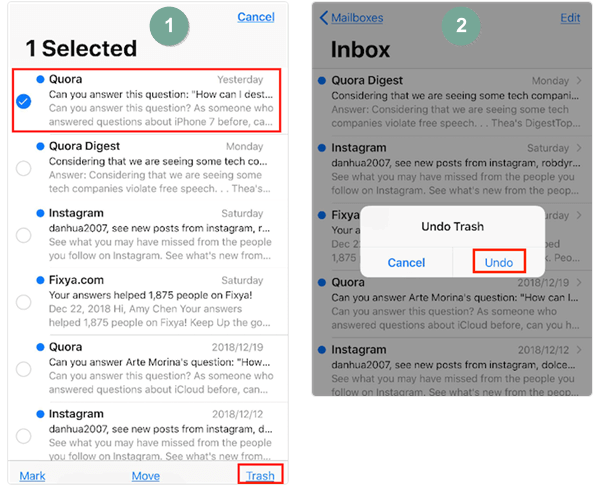
1. Recover Deleted Emails on iPhone/iPad with the Undo Feature
Step 1. To delete an email on your iPhone or iPad, open the Mail app, select the email you want to delete, and tap the trash button.
Step 2. If you accidentally delete the wrong email on your iPhone or iPad, quickly shake the device gently and tap "Undo" in the dialogue box that appears to reverse the deletion.
Step 3. If the undo option works, the deleted email should return to its original mailbox. If it does not appear right away, check the Trash folder or refresh the Mail app.
Step 4. If you still cannot find the email, close and reopen the Mail app, then check Inbox, Mailboxes, and Trash again to confirm whether the email has been restored.
2. Recover Deleted Emails on iPhone/iPad from Trash
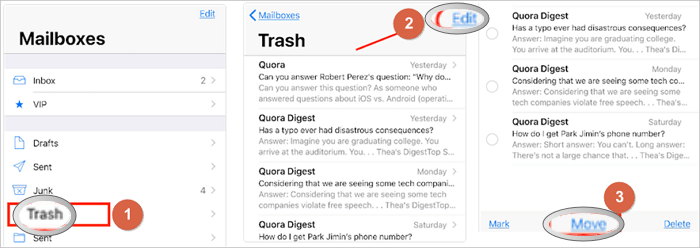
If you've accidentally deleted emails, you can take immediate action to restore them. Follow these steps to recover your deleted emails.
Step 1. On your iPhone or iPad, launch the Mail app.
Step 2. Tap on "Mailboxes".
Step 3. Select the "Trash" icon and tap it.
Step 4. Tap the "Edit" button.
Step 5. Select the emails you want to recover and click the "Move" button.
Step 6. Select the folder you want to move it to, and then check the folder afterward to confirm the file has been moved.
Conclusion
If you need to recover deleted emails, you can try the solutions above, which cover both within 30 days and after 30 days scenarios. If you're still having trouble, you can reach out for professional assistance.
If you saved messages as .eml files on your PC and those files were deleted, use the file-based steps in recovering deleted EML email files on Windows; mailbox Trash recovery works differently.
Related Articles
- Top 11 Best Photo Repair Software for PC/Mac
- How to Remove Password from Excel with or Without Password
- Recover Deleted or Missing Outlook Folder
- [Solved] Recover Corrupted or Invalid ZIP Files
- How to Restore Lost WPS Office 2016 Files
You can easily recover and restore lost WPS Office 2016 files, including documents, excel, and ppt, due to deletion, formatting, virus attacks, or program updates. Follow these steps to restore your important WPS Office files with ease. - How to Restore Master Database in SQL Server 2008/2012 with or Without Backup
An unexpected shutdown of SQL server or system error can cause SQL server database crash and master database file (MDF file) corruption.
Products
Articles & Tutorials
- Data Recovery
- Data Backup
- File Recovery
- File Backup
- System Backup and Restore
- Disk and Partition Clone
- Technical articles
- Mobile articles
- Disk Master Help
- Windows Data Recovery Tutorials
- Windows Secure Delete Tutorials
- Windows Partition Management Tutorials
- Windows File Backup and Restore Tutorials
- Windows System Backup and Restore Tutorials
- Windows Disk Backup and Restore Tutorials
- Windows Clone Tutorials