How to Remove Password from Excel with or Without Password
Microsoft Excel is a powerful application within the Microsoft Office Suite, allowing users to create and manage databases through its spreadsheet functionality. It also enables data analysis and visualization using macro coding in VBA (Visual Basic for Applications). The software offers a wide range of functions, making it a valuable tool for customers.
Mathematical data can be represented in various ways, including mathematical computations, maps, infographics, and statistics. Additionally, spreadsheets like Excel can be protected to ensure secure access, allowing users to safeguard their information by setting a password that only authorized individuals can use to access the document. This protection prevents unauthorized access and maintains the integrity of the data.
If you need to remove a password from Excel, this article will guide you on how to do so, whether you remember the password or not. Whether it's due to security concerns or other reasons, we'll show you the steps to remove the password from Excel.
How to Remove Password from Excel with Password
To remove a password from an Excel file if you know the password, you can use the "Change Password" feature in Excel. Simply open the file, go to the "Review" tab, click on "Protect Workbook", and then click on "Change Password" to remove the password from the file.
Method 1. Using Info Feature to Delete Excel Password
Removing passwords from Excel is a straightforward process if you know the password. To do this, simply enter the password in the Excel file, and you'll be able to access the file without the password protection. Once you're in, you can remove the password by going to the "Review" tab, clicking on "Protect Workbook", and then selecting "Encrypt with Password" and removing the password.
Step 1. To remove a password from a file, first open the file whose password you want to remove.
Step 2. To access the file, input the existing password and click "OK".
Step 3. To access the settings, click on the "File" tab at the top left corner of the screen.
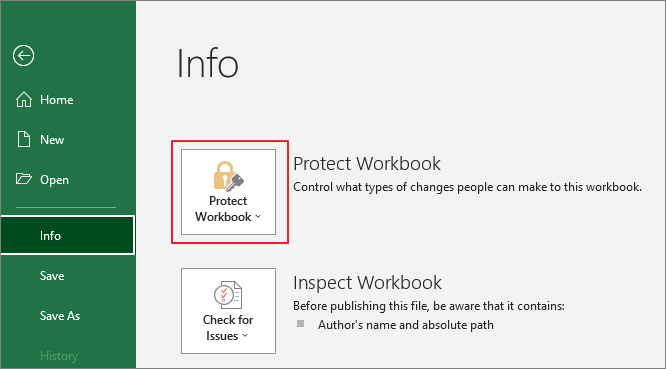
Step 4. Now, in the left pane, open "Info" and then click on "Protect Workbook".
Step 5. On the next screen, click on "Encrypted with Password" and remove the password shown in the password field.
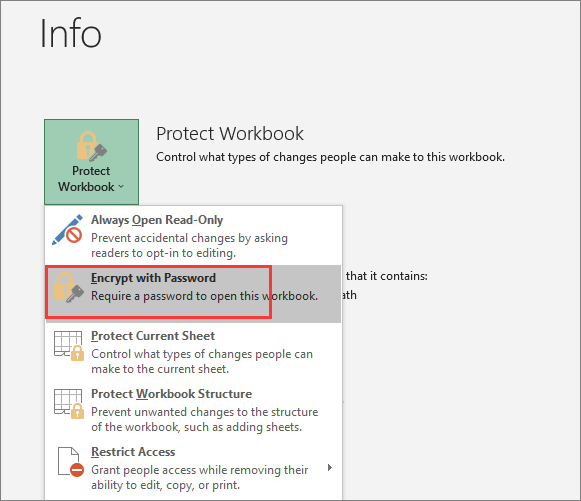
Your password has been successfully removed. You can now close and save the file to have direct access to it.
Method 2. Use The Save As Option
Step 1. To decrypt an Excel file, enter the password-protected Excel file you wish to decrypt into the software, then select "OK" after entering the Excel password.
Step 2. To save the Excel worksheet, go to the File tab in the upper left corner of the screen, and then select "Save as" from the dropdown menu.
Step 3. A pop-up box will display when you select a folder.
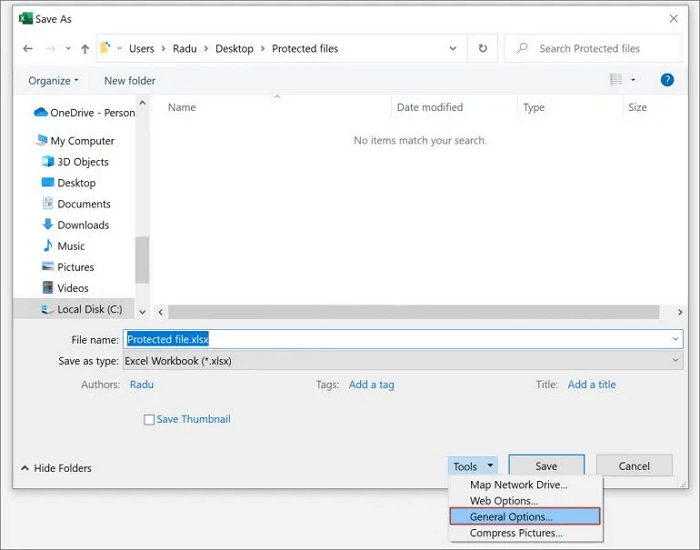
Step 4. Select "Tools" in the bottom right corner of the window, then choose "General Options" from the drop-down box.
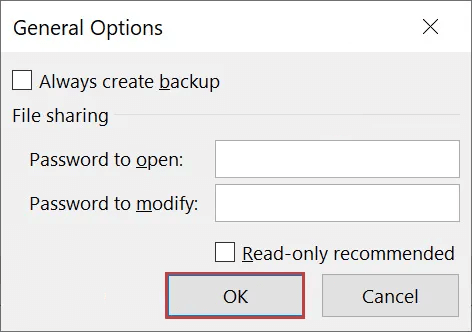
Step 5. In the General Options dialogue box, remove the usernames and passwords from both text areas, then click "OK" to close the dialogue box.
Step 6. Close and save the file to save the changes you have made.
How to Remove Password from Excel Without Password
If you've forgotten the password to your Excel file, don't worry! There are two possible solutions to help you regain access. You can try using a password recovery tool to crack the password, or if you've previously saved a copy of the file without the password, you can use that version to recover your data.
Method 1. Convert Excel Sheet to Zip File
Here is how you can convert an Excel file into a Zip file: This method works because Excel files are actually a type of compressed file. By renaming the file extension from .xlsx to .zip, you can access the internal XML contents and remove the password protection.
Step 1. Right-click on the Excel file in the destination folder, select "rename" from the context menu, and change the file extension from ".xlsx" to ".zip".
Step 2. You will be asked if you want to modify the document. Click on "Yes" to proceed.
Step 3. Right-click on the zip file, then click on "Extract All" to retrieve the data in the file.
Step 4. A popup will open, displaying the location of the retrieved files. Select "Extract" from the menu.
Step 5. To access the worksheets, click on the "XL" folder in the retrieved file and navigate to the "worksheets" folder that is located under the "xl" folder.
Step 6. In your password-protected Microsoft Excel file, you'll find a list of XML files containing all your Excel data and algorithms, with sheet names like Sheet1.xml, Sheet2.xml, and so on.
Step 7. To alter an XML file, edit it in notepad and look for a section that contains the term "protection" and modify it as needed.
Step 8. Remove anything in between, even including these " and ">" letters. Then, save and close the notepad.
Step 9. For each XML file in the "worksheets" folder of your Excel spreadsheet, repeat the process, making sure all XML files are updated.
Step 10. To re-insert your changed Data file into your zip file, return to the retrieved file and select all of the files to re-insert your changed Data file into your zip file.
Step 11. To create a zipped Excel file, right-click on the file and select "Send to > Compressed (zipped) folder". This will create a new zip file with the default file extension. To change the file extension to ".xlsx", you can rename the file.
To update the Excel spreadsheet, a notification will appear asking if you want to update it. Click on "Yes" and right-click on it. Then, open the Excel spreadsheet without entering a password, and you will be able to view and edit the Excel data saved in your spreadsheet.
Method 2. Use Online Excel Password Remover
If you're unable to access an Excel file due to a forgotten password, there are online tools available that can help. One such tool is Password-Find, an online password remover that can assist in accessing the file. It works by using a special algorithm to try various combinations of passwords, often successfully retrieving the password or even removing it altogether, allowing you to access the file.
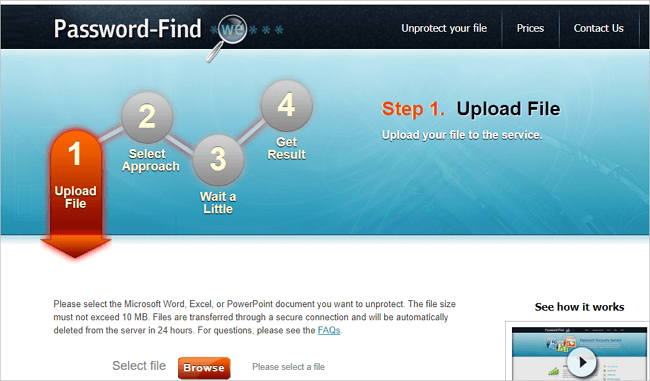
Step 1. First, go to the password-find website.
Step 2. To unprotect a Microsoft Word, Excel, or PowerPoint document from your local device, browse to find the document you want to unprotect.
Step 3. Wait for the tool to remove password from your Excel files.
Step 4. Complete the payment for the service to download the unlocked file.
How to Remove Password from an ExcelSheet On Mac
The MacBook has a distinct difference from a standard Windows laptop, operating on a different system and algorithms. This also applies to password management, as changing or removing Excel file passwords is handled differently on Mac and Windows. Specifically, removing a password on a Mac is relatively straightforward, in contrast to the process on Windows.
To remove the password on a Mac, you can follow these steps:
Step 1. Launch your protected Excel file on your Macbook first.
Step 2. Select "File" from the top right toolbar.
Step 3. To reset your password, select "Password" from the drop-down menu, which will take you to the page where you originally set your password. Then, clear the text boxes in that section and click "OK".
Step 4. Remove the password protection from your Excel document.
How to Recover and Repair Corrupted Excel Files
Removing passwords from MS Excel files can be a high-risk process, as it may lead to data loss or file corruption, which can be devastating if the file contains critical information.
Fortunately, the Deep Data Recovery tool is available to help. This all-in-one file recovery and repair tool can efficiently recover deleted files and repair corrupted ones, including documents, videos, and photos.
Get this file recovery software for free to fix corrupted Excel files.
Step 1. Launch Deep Data Recovery, select file types and click "Fast Scan" to start the recovery process.

Note: You can choose different search modes based on where and why the data was lost.
Step 2. This software allows you to repair damaged Word, Excel, PPT, and PDF files in a single, streamlined process, scanning the disk for corrupted documents and enabling you to fix them in a few steps.

Step 3. Qiling data recovery and repair tool scans for lost and corrupted files, allowing you to search by file type or enter a specific file name in the search box.

Step 4. Deep Data Recovery automatically repairs damaged documents, allowing you to preview and recover Word, Excel, and PDF files to a safe location after previewing them.
Conclusion
If you've forgotten the password to an Excel file, there are a few methods you can try to recover or remove the password. One option is to convert the Excel file to a zip file and edit the XML contents, as described above. Another approach is to use an online password removal tool, which can remove the password without requiring the original password. If you're unable to recover or remove the password, you may need to contact the creator of the file or use a data recovery service to access the contents of the file.
If you've accidentally deleted or corrupted an Excel file, recovering or repairing it can be a challenge. Fortunately, there's a quicker solution: using data recovery software like Qiling to skip the complex process and recover and fix your Excel files with ease.
Related Articles
- Recover Deleted Files from Downloads Folder
- How to Fix Folders Turned into Shortcuts
- Audacity Recovery: Recover Deleted and Unsaved Audacity Recordings
- How to Open Numbers File in Excel
- 2 Solutions to Recover Lost Partition SD Card
Working to recover lost partitions SD card? Read and check two solutions on how to recover lost partitions on SD card on this page. - Guide to Restore Files from Backup in Windows 10
To restore files from a backup in Windows 10, follow this tutorial to easily recover backed up files.
Products
Articles & Tutorials
- Data Recovery
- Data Backup
- File Recovery
- File Backup
- System Backup and Restore
- Disk and Partition Clone
- Technical articles
- Mobile articles
- Disk Master Help
- Windows Data Recovery Tutorials
- Windows Secure Delete Tutorials
- Windows Partition Management Tutorials
- Windows File Backup and Restore Tutorials
- Windows System Backup and Restore Tutorials
- Windows Disk Backup and Restore Tutorials
- Windows Clone Tutorials