Recover Deleted Files from Downloads Folder
Unfortunately, permanently deleting files from the Downloads folder and then emptying the recycle bin means they're likely gone for good. However, you can try using file recovery software to scan your hard drive and see if any remnants of the deleted files are still recoverable. Keep in mind that the success of file recovery depends on various factors, such as the type of files, the time elapsed since deletion, and the overall health of your hard drive. You can use file recovery software to scan your hard drive and attempt to recover the deleted files.
2 Ways to Recover Files from Downloads Folder in Windows 10/8/7
The Downloads folder in Windows is a default location for storing downloaded files and apps, but data can be lost due to corruption, formatting, accidental deletion, or mistaken deletion by anti-virus software. As a result, users may need to recover deleted files from their Downloads folder, prompting questions like "can I undelete my Downloads Folder?" or "how can I recover deleted files from my Downloads folder?" Fortunately, there are effective solutions to recover files from the Download Folder in Windows 10/8/7, which will be discussed in more detail below.
Part 1. How to Recover Files with Deleted Files Recovery Software
Try the most useful way - To recover deleted files from the Downloads Folder, you can use Qiling hard drive recovery software. This tool allows you to retrieve deleted files, even those permanently deleted, from various storage devices, including hard drives, external hard drives, USB drives, and memory cards, with a high success rate.
Deep Data Recovery supports various recovery scenarios, including deleted recovery, formatted hard drive recovery, recycle bin emptied data recovery, lost partition recovery, OS crash recovery, and RAW partition recovery, among others. It can also be used to restore deleted files in the Downloads folder in Windows 10/8/7.
Step 1. Select file types and click "Fast Scan" to start
Launch Deep Data Recovery. Select file types and click "Fast Scan" to start a recovery process.

Note: You can choose different search modes based on where and why the data was lost.
Step 2. Select a folder to scan for lost files
To recover a lost folder, select "Select Folder" under "Specify a location" and click "Browse" to choose the location where the folder was lost. Then click "OK" to initiate the scanning process.

Step 3. Find and preview found files in the lost folder
If you remember the folder name, you can quickly find the lost files by typing it in the search box. Once found, open the folder and double-click on the scanned files to preview them. Alternatively, you can use the Filter feature to search for a specific type of file.

Step 4. Recover and save the lost folder
Select the folder and files you need, click "Recover", and choose a new and secure location on your PC to keep the recovered data.
Part 2. How to Recover Files from a Backup or Previous Versions
If you can't find the Downloads folder on your computer or accidentally deleted files from that folder, you can restore from a backup if using Windows backup, or from a previous version of the file.
- Tip
- If you haven't made a backup or the previous versions are not available, which is often the case, it's best to use a professional data recovery software to recover deleted files as soon as possible. The longer you wait, the less likely you are to restore the data.
Recover deleted files from a backup
- Connect the media or drive that your backup is saved to your computer.
- Click the "Start" button and search for "Control Panel".
- Select "System and Maintenance", and then choose "Backup and Restore".
- To restore your files, choose the "Restore my files" option and follow the on-screen instructions to complete the process.
Recover deleted files from previous versions
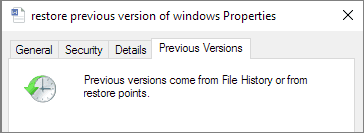
Windows automatically saves copies of files and folders as part of a restore point, allowing you to recover deleted items from a previous state.
- Right-To resolve the issue, click on the logical drive/folder which used to contain the Downloads folder. This action will likely redirect you to the correct location, allowing you to access the Downloads folder and its contents.
- Click on "Restore Previous version" to view a list of available previous versions of files and folders that can be restored.
- To restore a previous version of a file or folder, select the desired version, click "Open" to verify it, and then click "Restore" to recover the deleted files.
Related Articles
- 3 Ways to Recover Deleted or Lost Torrent Files
- Full Recovery of Files And Folder Structure
- Files Automatically Encrypted, How to Remove Encryption from Files
- Microsoft Excel Cannot Paste the Data? [Fixed]
- NAS Backup in Windows with NAS Backup Software
There are many options for you to do NAS backup, including backup with a network, online information reinforcement, and NAS backup software. Cilck here to back up your files and data in NAS drive. - Online Memory Card Recovery Software to Recover Deleted or Lost Data
Looking for a memory card recovery online software? You can download the data recovery for memory card online to recover deleted, fotmatted or lost data from memory card.
Products
Articles & Tutorials
- Data Recovery
- Data Backup
- File Recovery
- File Backup
- System Backup and Restore
- Disk and Partition Clone
- Technical articles
- Mobile articles
- Disk Master Help
- Windows Data Recovery Tutorials
- Windows Secure Delete Tutorials
- Windows Partition Management Tutorials
- Windows File Backup and Restore Tutorials
- Windows System Backup and Restore Tutorials
- Windows Disk Backup and Restore Tutorials
- Windows Clone Tutorials