Microsoft Excel Cannot Paste the Data? [Fixed]
Microsoft Excel is an essential tool in the professional world, allowing for effortless data sorting and complex calculations. However, for some, Excel can be a source of anxiety due to its vast array of complex terminology and functionalities, which can be daunting in comparison to the more user-friendly Word or PowerPoint.
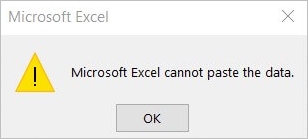
Microsoft Excel Cannot Paste the Data
Microsoft Excel users often encounter frustrating issues, even after mastering its functionalities. The program is prone to various problems, making it super aggravating. This post aims to explain the "Microsoft Excel Cannot Paste the Data Error" and provide reliable solutions to fix it, helping users overcome the bumps in the road.
| Workable Solutions | Step-by-step Troubleshooting |
|---|---|
| Fix 1. Restart Excel | Close the MS Excel program. Restart the Application. Try copying and pasting...Full steps |
| Fix 2. Check the Merge Cell | Launch the source Excel worksheet and make a list of all the data you would like to copy...Full steps |
| Fix 3. Disable the Macro Express | Select Disable Macro from the context menu when you right-click on the macro...Full steps |
| Fix 4. Use Paste Special | Make a copy of the relevant data from the Excel workbook once opened...Full steps |
| Other Solutions | Ignore DDE > Start Excel in Safe Mode > Restart the PC in Clean Boot State...Full steps |
How to Fix Microsoft Excel Cannot Paste The Data (10 Fixes)
The Excel issue is quite common when copying and pasting data from one spreadsheet. In some instances, you can be experiencing difficulties because of merged cells or a lack of familiarity with the multiple copy-pasting processes, both of which can be remedied quickly. Here, we've highlighted the ten most effective methods which can help you get rid of this problem.
Method 1. Restart Excel to Fix Excel Cannot Paste the Data
Before attempting more complicated solutions, try the simplest approach: relaunching the Excel sheet. In most cases, this will resolve the issue without requiring any high-level preparations. If you do experience problems, be sure to save your data before closing the Excel program.
Step 1. Close the MS Excel program.
Step 2. Restart the Application.
Step 3. Try copying and pasting the info. Check to see if this works.
Method 2. Check the Merge Cell in Excel to Fix Microsoft Excel Cannot Paste the Data
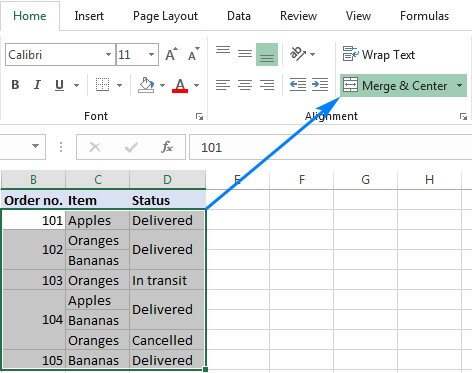
In an ordinary Excel Sheet, you cannot copy data from merged cells and paste it into another Excel Sheet. To duplicate the information, unmerge all of the cells first by selecting the merged cell, going to the "Home" tab, and clicking on "Unmerge Cells". This will allow you to copy and paste the data as needed.
Step 1. Launch the source Excel worksheet, list the data you want to copy, and click "copy" to initiate the copying process.
Step 2. To unmerge cells, select the merged cell, go to the Home tab on the menu bar, and choose "Merge and Center > Unmerge Cells" from the dropdown menu.
Method 3. Disable the Macro Express Application
To resolve the issue of Excel not transferring data due to a macro, verify the operating programs in the background. If the "Macro Express" software is running, it may be causing the problem. To temporarily deactivate a macro, select it from the Macro Express Pro - Explorer list and click on the "Stop" button. This will allow you to transfer data from Excel without any issues.
When you right-click on a macro, select "Disable Macro" from the context menu to disable it.

Method 4. Use Paste Special Option to Fix the Error
When using the "Paste" option in Microsoft Excel, you may encounter an error that prevents the data from being pasted. This issue can arise due to various reasons, such as corrupted clipboard data, incorrect Excel version, or incompatible file format.
Step 1. Once you've opened the Excel workbook, you can make a copy of the relevant data by selecting the cells or range you want to copy and then pressing `Ctrl+C` (or `Cmd+C` on a Mac) to copy the data. Alternatively, you can also use the `Copy` button in the `Home` tab of the Excel ribbon or right-click on the selected cells and choose `Copy` from the context menu.
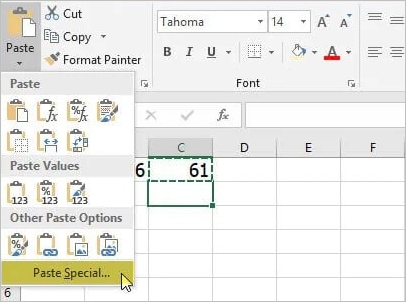
Step 2. To paste copied data into a destination sheet, select the destination sheet and choose any cell to right-click on it, then select "Paste Special" from the drop-down menu and choose a specialized setting to correctly paste the data.
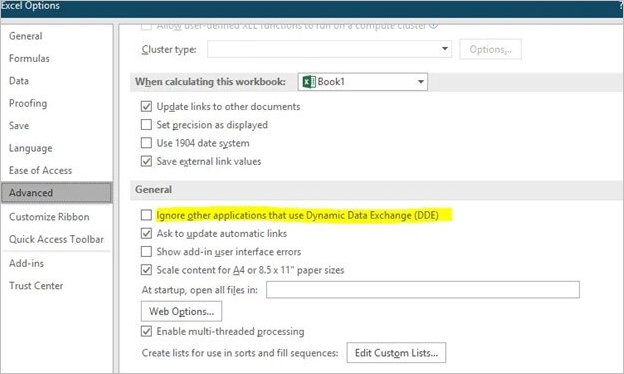
Method 5. Ignore DDE to Fix Excel Cannot Paste
Ignoring DDE also adds to the resolution of the copy and paste problem. To resolve this issue, follow these steps.
Step 1. Open Excel and choose "Options" from the "Files" drop-down menu.
Step 2. To disable the "Ignore other apps that employ Dynamic Data Exchange (DDE)" checkbox in the dialog box, select the "Advanced" option from the dialog box.
Step 3. You can now proceed to the next step by clicking "OK" to save your progressions.
Method 6. Start Excel in Safe Mode
To open Excel in Safe Mode, press the CTRL key on your keyboard and the shortcut icon for Excel, which will launch the spreadsheet immediately. This method involves a series of steps that must be completed to successfully open Excel in Safe Mode.
Also read: How to enter Safe Mode?
Step 1. To access Excel, locate the shortcut on your computer. It may be on your desktop, taskbar, or Start menu.
Step 2. To open Excel quickly, hold down the CTRL key on your keyboard while clicking on the Excel shortcut icon, either twice if it's on your desktop, or once if it's on the taskbar or in the Start menu.

Step 3. To enter Safe Mode, press and hold the CTRL key on your keyboard. A message box will appear, asking if it's okay to start the application in Safe Mode. Click "OK" to proceed. This will allow you to run the application with minimal system resources and potentially resolve any issues.

Step 4. Select "Yes" from the drop-down menu.

Step 5. This will start Excel in Safe Mode.
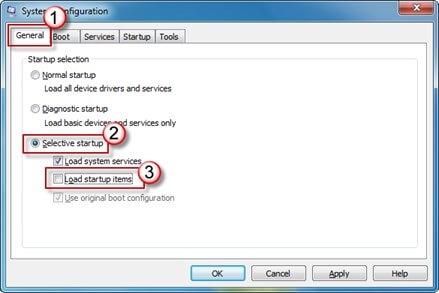
Method 7. Restart the PC in Clean Boot State
To restart your computer in Clean Boot State, follow these steps: disable all non-Microsoft services, restart your computer, and then re-enable the services one by one to identify the problematic service. This process helps isolate the issue and can resolve problems related to Windows startup.
Step 1. Start by typing MSConfig into the Run box.
Step 2. To disable startup items, go to the "Start" menu, click on "Control Panel", then select "System and Security", followed by "System". In the "System" window, click on "Advanced system settings" on the left side.
Step 3. To block unnecessary startup attempts, you can hide all Microsoft offerings from the "Services" tab and then select "Open Task Manager" from the "Startup" tab.
Step 4. To disable all startup processes, open the "System Configuration" window, click on the "Startup" tab, and select "Disable all" from the "Startup" dropdown menu. Then, click "OK" to save your changes and return to the main window.
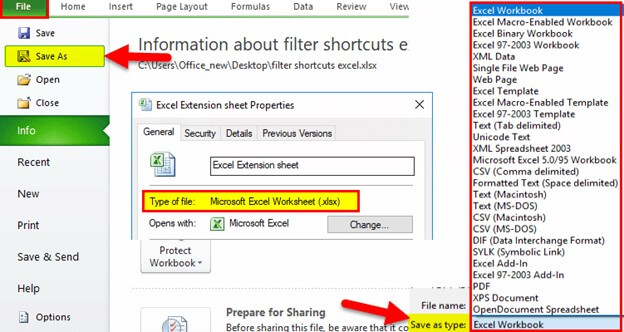
Method 8. Use XLSX Sheets Instead of XLS
You may want to consider switching from a standard XLS sheet to an XLSX sheet when transferring a large amount of data, as XLS sheets have a maximum line length of 65,000 characters.
The implication is that copying data with additional rows can result in the "can't paste in Excel" error message, whereas XLSX sheets can accommodate up to one million rows.
Method 9. Run Microsoft's Automatic Repair to Fix Excel Cannot Paste the Data
When Microsoft Excel opens a corrupted workbook, it enters File Recovery mode to try and fix the file. However, if this mode is not activated, it's possible to manually restore the workbook by following certain steps.
Step 1. To open a file, go to the File menu and select "Open".
Step 2. Right-click on the damaged worksheet and choose "Copy to Clipboard".
Step 3. The corrupted workbook may be selected in the Open dialog box by clicking on it.
Step 4. Right-click on Open, and then choose "Open and Repair".

Step 5. You can use Repair to recover as much data as possible if it doesn't work, or select "Extract Data" to get the workbook's values and formulas.
Method 10. Use Qiling Excel Repair to Fix Excel Cannot Paste the Data
If you have a corrupted Word document, Deep Data Recovery can help. It's an easy-to-use app that can fix the document without changing its elements like photos, fonts, text, links, headers, or footers, and you don't need any other software. It offers three simple repair options.
The software is a free tool that allows you to experiment with its capabilities. You can download it from its official website and get familiar with its features. It can repair various corruption issues affecting word files and other files that have become inaccessible or contain unusual characters.
This tool allows you to view scan results before saving static word files or corrected word files, and ensures compatibility with Microsoft Word versions 2019, 2016, 2013, 2010, 2007, and earlier.
- Microsoft Office files such as Word, Excel, and PowerPoint can be repaired, as well as PDF files.
- To streamline the process of finding and saving damaged files, consider adding and saving options that allow for immediate identification and preservation of affected files as soon as they are discovered. This can be achieved by implementing a system that flags and stores damaged files for review and recovery, ensuring that critical data is not lost due to technical issues or other disruptions.
- The program is used to examine and fix all the data contained within damaged files.
- Files can become corrupted due to various reasons and on different devices, requiring repair.
Step 1. Launch Deep Data Recovery, select the file types you want to recover, and click "Fast Scan" to initiate the recovery process.

Note: You can choose different search modes based on where and why the data was lost.
Step 2. This software allows you to scan a disk with corrupted documents and fix damaged Word, Excel, PPT, and PDF files in a single process.

Step 3. Qiling data recovery and repair tool scans for all lost and corrupted files, allowing you to find target files by file type or search for them by typing the file name in the search box.

Step 4. Deep Data Recovery can automatically repair damaged documents, including Word, Excel, and PDF files, allowing users to recover them by clicking "Recover" after a preview, and saving them to a safe location.
Part 3. Conclusion
If you've corrupted a Microsoft Word document, you can use this technique to get it back in working order. To resolve 'Microsoft Excel Cannot Paste the Data Error' issues, try any of the options listed above. Alternatively, if you face file corruption while following these steps, you can use the Microsoft Office repair tool to recover your data.
Related Articles
- Restore or Repair Corrupted AutoCAD Files
- Photoshop File Corrupted: How to Repair PSD File Without Any Effort
- Super Easy! How to Recover Deleted Files from NAS (Synology/QNAP)
- Fix Cannot Open JPG Files on Windows 10
- Micro SD Photo Recovery | How to Recover Photos from Micro SD Card
To do Micro SD card photo recovery, you need the help of a tool. The recover Micro SD software will scan your drive, let you recover deleted or lost photos from Micro SD card selectively. Free download it to recover pictures from Micro SD card now! - How to Duplicate Hard Drive in Windows 10
Duplicating a hard drive in Windows 10 is a straightforward process that can be completed with the help of QILING Disk Master Professional. This guide will walk you through the steps to create a complete copy of your disk, ensuring that all your files, settings, and applications are preserved.
Products
Articles & Tutorials
- Data Recovery
- Data Backup
- File Recovery
- File Backup
- System Backup and Restore
- Disk and Partition Clone
- Technical articles
- Mobile articles
- Disk Master Help
- Windows Data Recovery Tutorials
- Windows Secure Delete Tutorials
- Windows Partition Management Tutorials
- Windows File Backup and Restore Tutorials
- Windows System Backup and Restore Tutorials
- Windows Disk Backup and Restore Tutorials
- Windows Clone Tutorials