Fix Cannot Open JPG Files on Windows 10
Issue Overview: Cannot Open JPG Files
Users may save photos from their devices or download them online and save them to their computer for better viewing and saving, but often encounter issues when trying to open JPG files in Windows 10, particularly with Windows Photo Viewer or Photos application.
Windows 10/11 cannot open JPG files error messages might be:
- Windows Photo Viewer is unable to open the picture due to either unsupported file format or outdated updates.
- The error message "Windows Photo Viewer can't open this picture because the file appears to be damaged, corrupted, or is too large" suggests that the image file is either corrupted, damaged, or exceeds the maximum size limit that Windows Photo Viewer can handle. This issue can occur due to various reasons, such as file corruption during transfer, a virus or malware infection, or a problem with the image file itself.
- [FileName] We can't open this file.
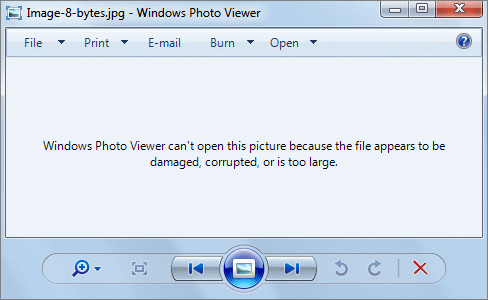
If your Windows PC cannot open JPG files, figure out the tested solutions in this tutorial to quickly regain access to your JPG images. Let's start.
Why Are JPG Files Not Opening
If the Windows Photo Viewer is unable to open JPG files, it could be due to several reasons. The viewer might be corrupted or outdated, or the file association might be incorrect.
- Windows Photo Viewer doesn't support the file format.
- The Photo Viewer is not the latest version.
- The JPG file is too large.
- The JPG file appears to be corrupted or damaged.
- Windows Photo Viewer application is corrupted.
- The file system of the hard drive is broken.
If you're having trouble opening JPG files on Windows, there are a few potential solutions to try. You can attempt to open the file in a different program, such as a photo viewer or image editor, to see if the issue is specific to the default viewer.
Method 1. Change JPG File Format
If you get an error saying you can't open a JPG image because the format is not supported, the solution is to convert the file type.
You can rename the picture or use a reliable file converter or an image editor to change the file format, but first, copy the original file to a different place for backup.
Go on with the next method if the extension change fails.
Method 2. Reduce JPG Image Size
If you have high-quality, high-definition JPG photos that are too large, Windows Photos may struggle to open them. To resolve this, you can use an image editor like Paint to reduce the file size.
Method 3. Try a Different Photo Viewer to Open JPG Files
If the Windows Photo Viewer still can't open JPG files after changing the file extension and size, try opening the images with another photo viewing program, such as downloading a reliable third-party photo viewer or editor like PhotoShop.
Method 4. Repair Corrupted JPG Files with File Repair Tool
The Photo Viewer may not open JPG files due to corruption, and a professional file repair tool like Deep Data Recovery can help fix them.
- Repair damaged photos in JPG, JPEG, PNG, and BMP types
- Recover corrupted Excel files in XLSX/XLS formats
- Repair single or multiple Word documents without quantity limit
- Fix corrupted PDF documents efficiently
- Repair damaged MP4, MOV, and GIF videos
- Real-time preview of repaired files
Free download this file recovery tool to fix corrupted JPG files and successfully reopen them.
Step 1. Launch Qiling data recovery software, select the desired file types, and click "Fast Scan" to initiate the recovery process.

Note: You can choose different search modes based on where and why the data was lost.
Step 2. Select a hard drive that contains broken photo files and click "Scan" to initiate the recovery process.

Step 3. To find corrupted photos, select the "Pictures" option, which will display images in various formats, including JPEG, JPG, PNG, and BMP. Alternatively, you can use the "Search files or folders" feature located in the upper right corner to search for specific files.

Step 4. Double-click on a damaged picture to repair and preview the file, then click "Recover" to save the images to a different location.
Qiling data recovery software is known for its ability to recover deleted files, formatted recovery, RAW recovery, lost partition recovery, and more, in addition to file repair. It uses advanced algorithm technology to recover files that have been permanently deleted in Windows 10.
Method 5. Update the Microsoft Photos to the Latest Version
If you're experiencing issues with Windows Photo Viewer not opening JPG files, it's likely due to an outdated version. The old version may have problems with file capabilities, leading to the error. Updating Windows Photo Viewer should resolve the issue and allow you to open JPG files without any problems.
Steps to update Photos app on Windows 10/11:
Step 1. Go to "Start > Settings > Update & Security > Windows Update".
Step 2. Click "Check for updates".
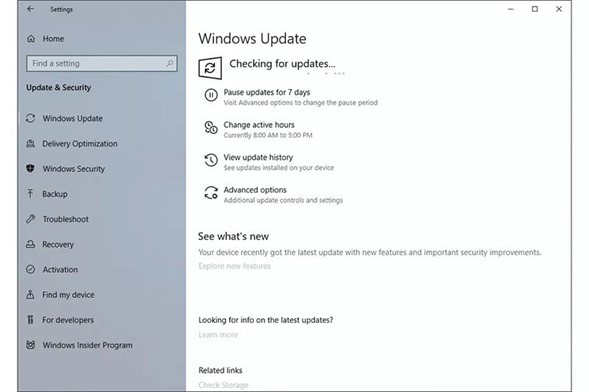
Step 3. Check the Photo Viewer box and click "Install Updates".
Step 4. If you're unable to open JPG files, try restarting your computer and see if that resolves the issue. This simple step can sometimes resolve the problem, so it's worth trying before moving on to more complex troubleshooting steps.
Method 6. Repair the Microsoft Photos Apps
To repair the Windows Photos app, go to the Start menu, type "Windows Features" in the search bar, click on the result, and then toggle off and on the "Photos" app. If that doesn't work, go to the Settings app, click on "Apps", find the Photos app, click on it, and then click on the "Advanced options" button. From there, click on the "Reset" button to reset the app to its default settings. If the problem persists, try uninstalling and reinstalling the Photos app.
Step 1. Press Win + I to open Windows Settings.
Step 2. Click "Apps > Apps & features".
Step 3. Scroll down and select Microsoft Photos, then click it and choose "Advanced options".
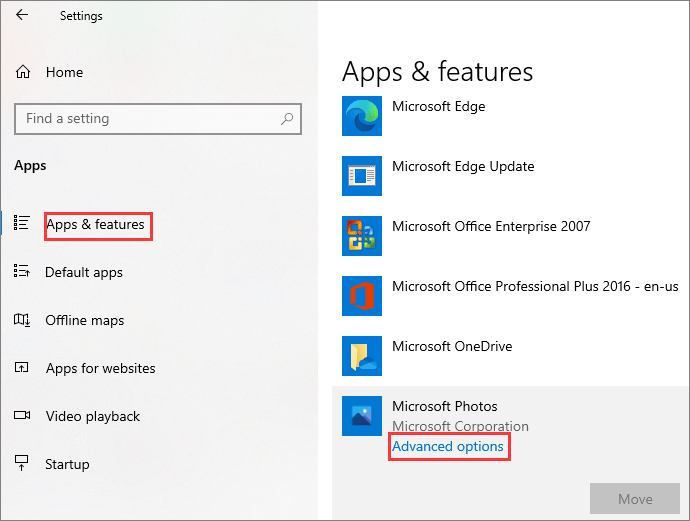
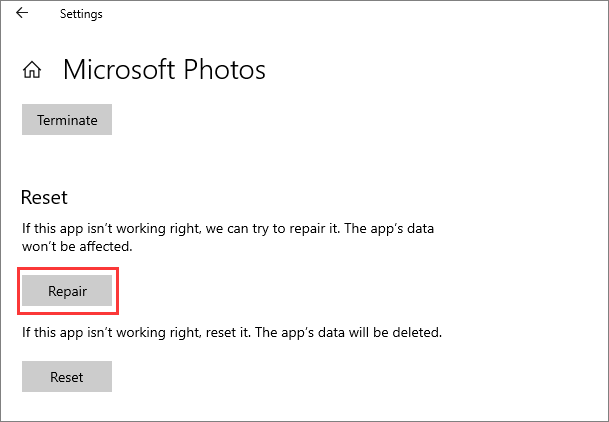
Step 4. Scroll down and click "Repair".
Method 7. Repair Corrupted System Files
Corrupt system files can prevent a computer from opening JPG files. To resolve this issue, you can use the Windows SFC (System File Checker) tool to scan and replace any corrupted system files on your computer. This can help restore the ability to open JPG files.
Step 1. Click the Search box and type CMD.
Step 2. Choose Command Prompt and select Run as administrator.
Step 3. On the Command Prompt window, type sfc /scannow and press Enter.
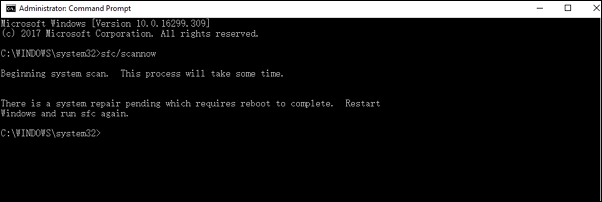
If the SFC scan verifies that the protected system file is corrupted or damaged, it will repair and replace it with the correct copy, after which you can restart your computer and check if the Windows Photo Viewer can open your JPG files.
Conclusion
Windows Photos Viewer cannot open JPEG files is not a new problem. If you encounter this issue, try the troubleshooting methods above. If the problem is caused by corrupted images, use Qiling file recovery tool to fix and restore JPG files efficiently.
Related Articles
- Recover Deleted Chrome Downloads and Resume Canceled Chrome Downloads
- How to Recover Folders Turned into .exe | Remove exe Virus
- How to Restore Bookmarks in Chrome [Applied to Recovering Chrome Histories and Favorites]
- How to Recover Permanently Deleted Files in Windows 10 Without Software (Mac Included)
- Fixed: Recover Lost Google Play Music Files
If you're having trouble restoring music on your PC using the Google Play Music web player, professional Google Play Music file recovery services are available to help you recover lost or deleted files without any issues. - How to Recover HFS, HFS+ Partition Data on Mac
If you've lost, deleted, or formatted files from your Mac's HFS or HFS+ partition, you can recover your data using Qiling Mac data recovery software, as outlined on this page. This software can help you restore your lost files from HFS/HFS+ partitions.
Products
Articles & Tutorials
- Data Recovery
- Data Backup
- File Recovery
- File Backup
- System Backup and Restore
- Disk and Partition Clone
- Technical articles
- Mobile articles
- Disk Master Help
- Windows Data Recovery Tutorials
- Windows Secure Delete Tutorials
- Windows Partition Management Tutorials
- Windows File Backup and Restore Tutorials
- Windows System Backup and Restore Tutorials
- Windows Disk Backup and Restore Tutorials
- Windows Clone Tutorials