Recover Deleted Chrome Downloads and Resume Canceled Chrome Downloads
Solutions to Recover Deleted/Removed Chrome Downloads
If you've accidentally removed Chrome downloads or canceled a download, don't worry! You can try to recover them using the following methods. First, check your Chrome downloads folder, which is usually located in your computer's "Downloads" folder. If you can't find it there, try checking the "Recycle Bin" (Windows) or "Trash" (Mac) to see if the file was sent there.
| Workable Solutions | Step-by-step Troubleshooting |
|---|---|
| Fix 1. Recover deleted downloads | Use the automated method to undelete removed Chrome downloads with file recovery software. Or there are three manual ways you can use to recover deleted...Full steps |
| Fix 2. Resume canceled downloads | Open Chrome Downloads page by typing chrome://downloads on Chrome page. Enter Chrome Downloads page, scroll down to find out...Full steps |
1. Can I recover deleted or removed Chrome downloads?
Unfortunately, Chrome doesn't store downloaded files in its own database, so you can't recover deleted Chrome downloads from the browser itself. However, you can try searching your computer for the file name and extension, or check your Recycle Bin (if you haven't emptied it) to see if the files are still there. If not, you can also try using a third-party file recovery software to scan your hard drive for any deleted files. Note that the likelihood of recovery depends on various factors, such as how long ago the files were deleted and whether other files have been written to the same location. You can also try using the built-in Windows Search feature to search for the file name and extension.
2. Is it possible to resume canceled Chrome download?
To resume or continue a canceled Chrome download, you can try the following: go to the Chrome browser, click on the three dots at the top right corner, select "Settings," then click on "Downloads." Look for the download that was canceled and click on the three dots next to it, then select "Resume" to continue the download. If the download is not listed, you can also check the "Downloads" folder on your computer to see if the file is still there, and if so, try to resume the download from there. If the download is not found, unfortunately, it may not be recoverable. However, if you have a stable internet connection, you can try to download the file again.
If you're struggling with lost or deleted Chrome downloads or need to resume a canceled download, you can try a few simple steps to resolve the issue. Firstly, check your browser's download history to see if the file is still listed there.
How to Recover Deleted or Removed Chrome Downloads
If you've accidentally deleted or removed your Chrome Downloads, don't worry - there are methods to recover them. You can use the "Recently deleted" folder in Chrome to automatically restore your downloads, or you can try three manual methods: checking the Chrome's "Downloads" folder, looking for a backup of your downloads, and using a third-party recovery tool.
Automated Method: Undelete Removed Chrome Downloads with File Recovery Software
Since Chrome and Windows share the same Downloads folder, you can use a file recovery software to scan the Downloads folder and easily recover any removed Chrome downloads.
Qiling's Data Recovery Wizard software can help restore permanently deleted or removed files and data, including Chrome Downloads, even if Chrome is installed on the C: drive.
To undelete removed Chrome downloads, simply download and install a recovery software on your PC, then follow the 3-step process to recover the deleted files.
Step 1. Select file types and click "Fast Scan" to start
Launch Deep Data Recovery. Select the file types you want to recover and click "Fast Scan" to begin the recovery process.

Note: You can choose different search modes based on where and why the data was lost.
Step 2. Select a folder to scan for lost files
To recover a lost folder, select "Select Folder" under Specify a location, then click "Browse" to choose the location where the folder was lost, and finally click "OK" to initiate the scan.

Step 3. Find and preview found files in the lost folder
If you remember the folder name, type it in the search box to quickly find the lost files. You can then open the found folder and double-click on scanned files to preview them. Alternatively, you can use the Filter feature to find specific types of files.

Step 4. Recover and save the lost folder
Select the folder and files you need, click "Recover", and choose a new & secure location on your PC to keep the recovered data.
Three Manual Methods: To Manually Restore Deleted Chrome Downloads
# 1. Restore from Recycle Bin
If your Chrome browser is installed in the default location, your downloads files and data will be saved in the Downloads folder on your Windows PC.
To recover deleted Chrome downloads, simply check the Recycle Bin, as deleted files are kept there until they're permanently removed.
Step 1. To recover deleted or lost Downloads files and data, open the "Recycle Bin" on your Desktop. Locate the specific files or data that you want to recover, which were previously deleted or lost.
Step 2. Right-click on the Downloads deleted files and choose "Restore".
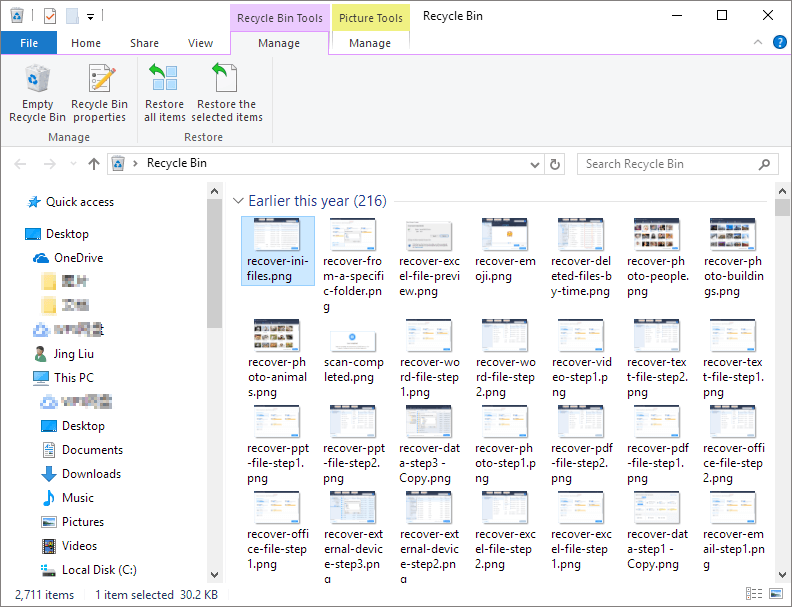
After deleting files from the Chrome browser, the Recycle Bin will restore them to their original locations, and you can then find them in the Downloads folder.
# 2. Re-download Removed Chrome Downloads
If you deleted or removed downloaded files from Chrome's local Downloads folder, you can resume the download process to recover the lost files.
Here are the steps:
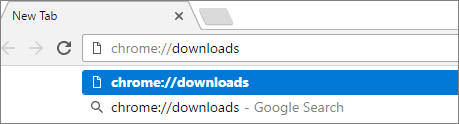
Step 1. Open Google, type: chrome://downloads and hit Enter.
Step 2. Scroll down the page and locate any deleted or removed files, data, or documents in the Downloads list.
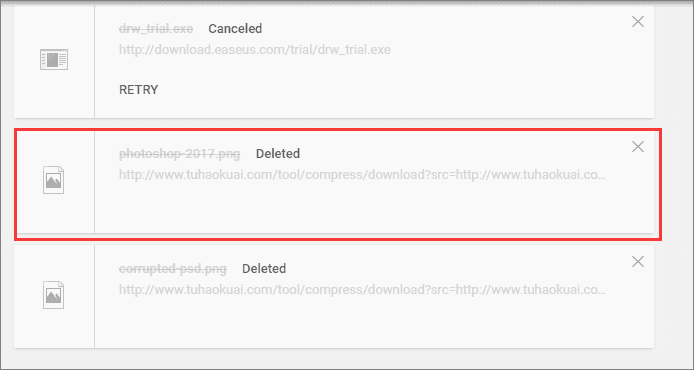
Step 3. Select the grayed out info-box which is marked as Deleted and click to re-download again. This will restore the original data.
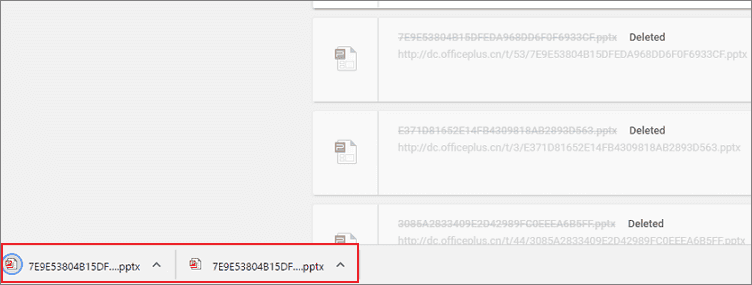
# 3. Undo Deletion from the Downloads Folder
To quickly recover deleted Chrome downloads, you can simply go to the Chrome downloads page, click on the three dots at the top right, and select "Restore deleted files" from the dropdown menu. This shows you a list of recently deleted downloads that you can restore.
If you've mistakenly deleted Chrome downloaded files from your Downloads folder, follow these steps to recover them: First, immediately stop using your computer to prevent any further data loss. Then, check your Recycle Bin or Trash for the deleted files.
Step 1. Stay in the Downloads folder on your PC.
Step 2. Press Ctrl + Z to undo Chrome downloads deletion.
After deleting Chrome downloaded files, you can check and continue using them in the Downloads folder.
How to Resume Canceled Chrome Downloads
If a download in Chrome was canceled due to a careless operation or a sudden shutdown, you can easily resume the download. Simply go back to the Chrome browser, click on the three vertical dots in the upper right corner, and select "Downloads" from the drop-down menu. From there, you can find the interrupted download and click on it to resume the download process.
Step 1. Open Chrome Downloads page by typing: chrome://downloads on Chrome page.
Step 2. You can access the Chrome Downloads page, scroll down to find any canceled download orders.
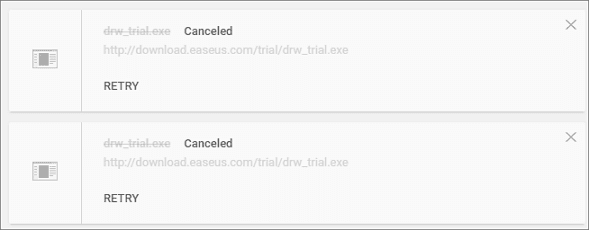
Step 3. To resume a download in Chrome, click on the grayed out info box that is marked as Canceled and select the "Retry" option. This will allow you to resume the download from where it left off.
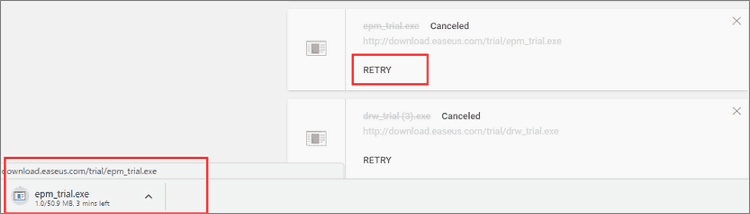
Wait patiently till the downloading process finishes. You can then check the downloaded files in the Downloads folder or install the downloaded program on your PC.
When you delete Chrome downloads from your local Downloads folder, if nothing was there, Deep Data Recovery can help recover them.
If you've canceled a download on Chrome, don't worry - you can easily resume it.
Related Articles
- Remove Virus That Automatically Delete Files
- How to Repair Damaged Outlook .pst Files
- How to Corrupt a File So It Won't Open on PC and Mac [Easy Guide]
- Files Getting Deleted Automatically Without Asking Windows 10/11
- How to Restore IE Edge Favorites/Bookmarks? | IE Edge Recovery
If you've lost your favorites or bookmarks in Windows 10's Internet Explorer or Edge, this tutorial provides effective methods to help you restore them easily. - How to Recover Latest Windows Update Deleted Files (21H2/2004)
Windows updates do not intentionally delete files from your hard drive, SD card, or SSD. However, users often experience missing files after updating to Windows 10 or 11. Professional solutions are available to help restore lost documents and missing files.
Products
Articles & Tutorials
- Data Recovery
- Data Backup
- File Recovery
- File Backup
- System Backup and Restore
- Disk and Partition Clone
- Technical articles
- Mobile articles
- Disk Master Help
- Windows Data Recovery Tutorials
- Windows Secure Delete Tutorials
- Windows Partition Management Tutorials
- Windows File Backup and Restore Tutorials
- Windows System Backup and Restore Tutorials
- Windows Disk Backup and Restore Tutorials
- Windows Clone Tutorials